
Buy, sell & invest
Buy crypto on Coinbase
The user searches an asset, chooses pay with, enters an amount, reviews with invest weekly options and places the order, then sees balances and notifications.
Step 1 of 14
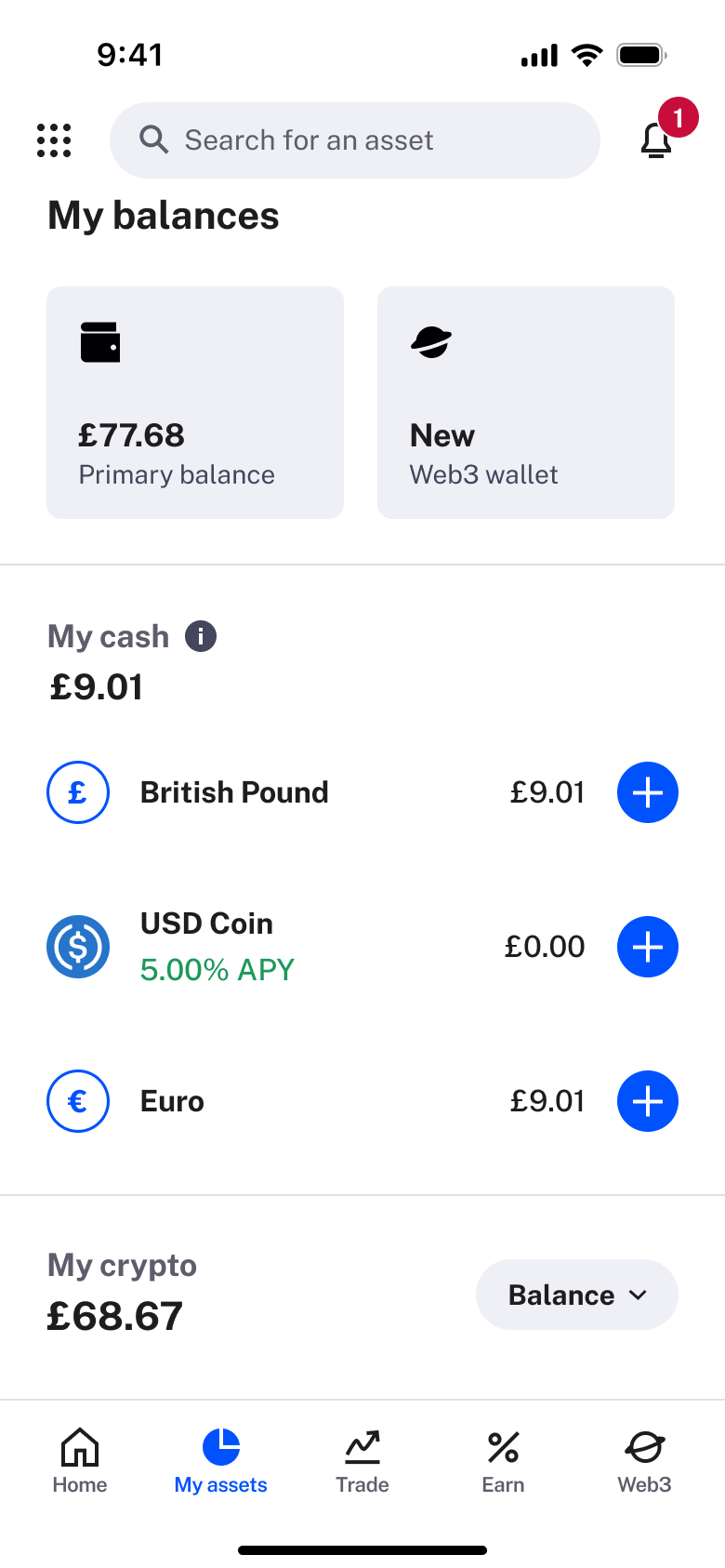
Tap My assets · Tab switch
The steps
- Step 1. Tap My assets, Tab switch
- Step 2. Tap search, Modal
- Step 3. Select asset, Push
- Step 4. Tap Buy, Push
- Step 5. Tap Pay with, Sheet
- Step 6. Select wallet, Dismiss modal or sheet
- Step 7. Type amount, In-place change
- Step 8. Tap Review order, Push
- Step 9. Tap Place Order, In-place change
- Step 10. Push
- Step 11. Tap My assets, Tab switch
- Step 12. Scroll, In-place change
- Step 13. Tap Balance, Sheet
- Step 14. Tap bell, Push
More from Coinbase
- Welcome on Coinbase
- Sign in on Coinbase
- Sign up on Coinbase
- Verify identity on Coinbase
- Home on Coinbase
- Menu and settings on Coinbase
- Add a card on Coinbase
- Deposit by bank transfer on Coinbase
- First buy prompt on Coinbase
- My assets on Coinbase
- Send and receive crypto on Coinbase
- Notifications on Coinbase
- Create a web3 wallet on Coinbase
- Explore web3 dapps on Coinbase
- Trade and earn on Coinbase
- Search assets on Coinbase
- View an asset on Coinbase
- Cash out on Coinbase
- Convert crypto on Coinbase
- Sell crypto on Coinbase
- Full Coinbase UI kit
- Buy, sell & invest flows in other apps
Not affiliated with, endorsed or sponsored by Coinbase. Coinbase is a trade mark of its owner. Recreated for design reference and education. Rights holders: contact us