
Take a lesson
23 screens
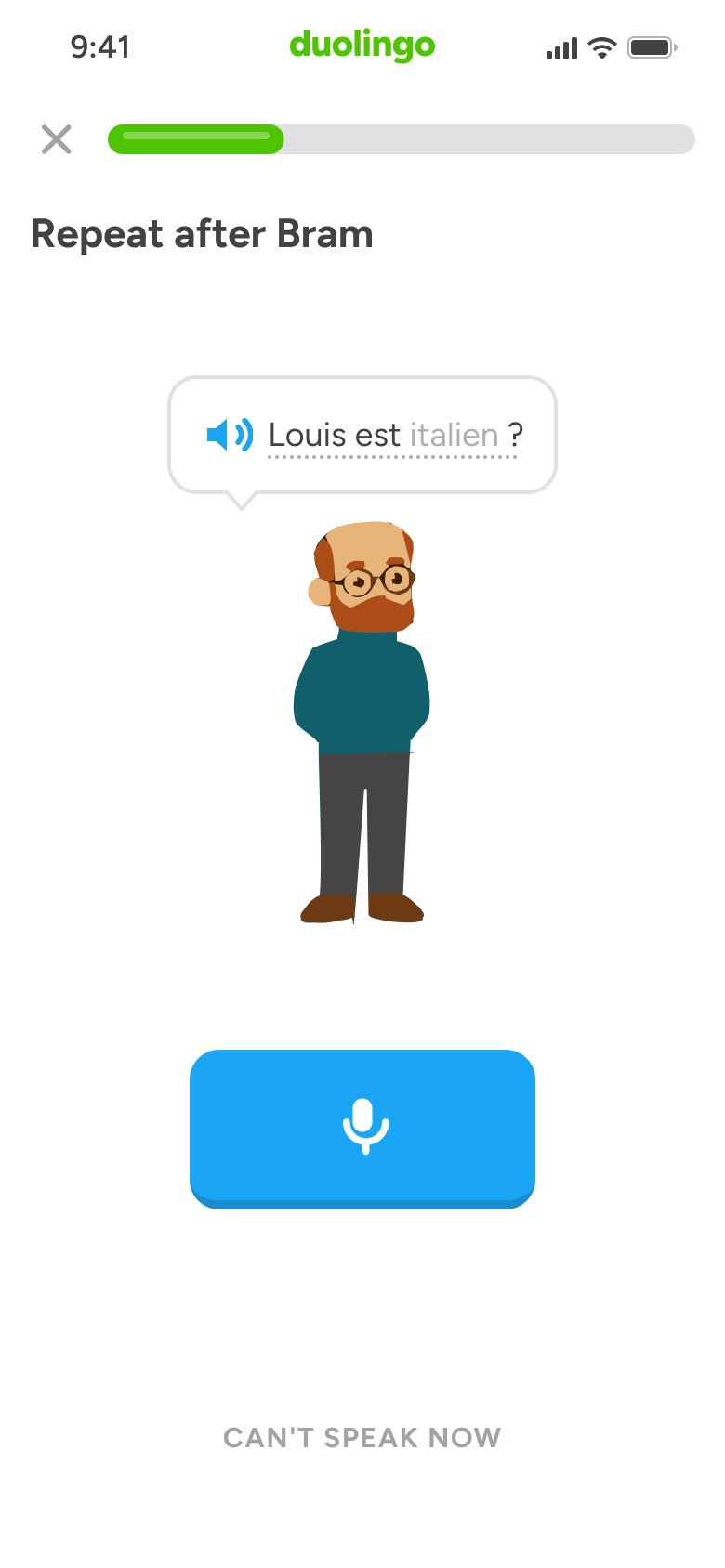
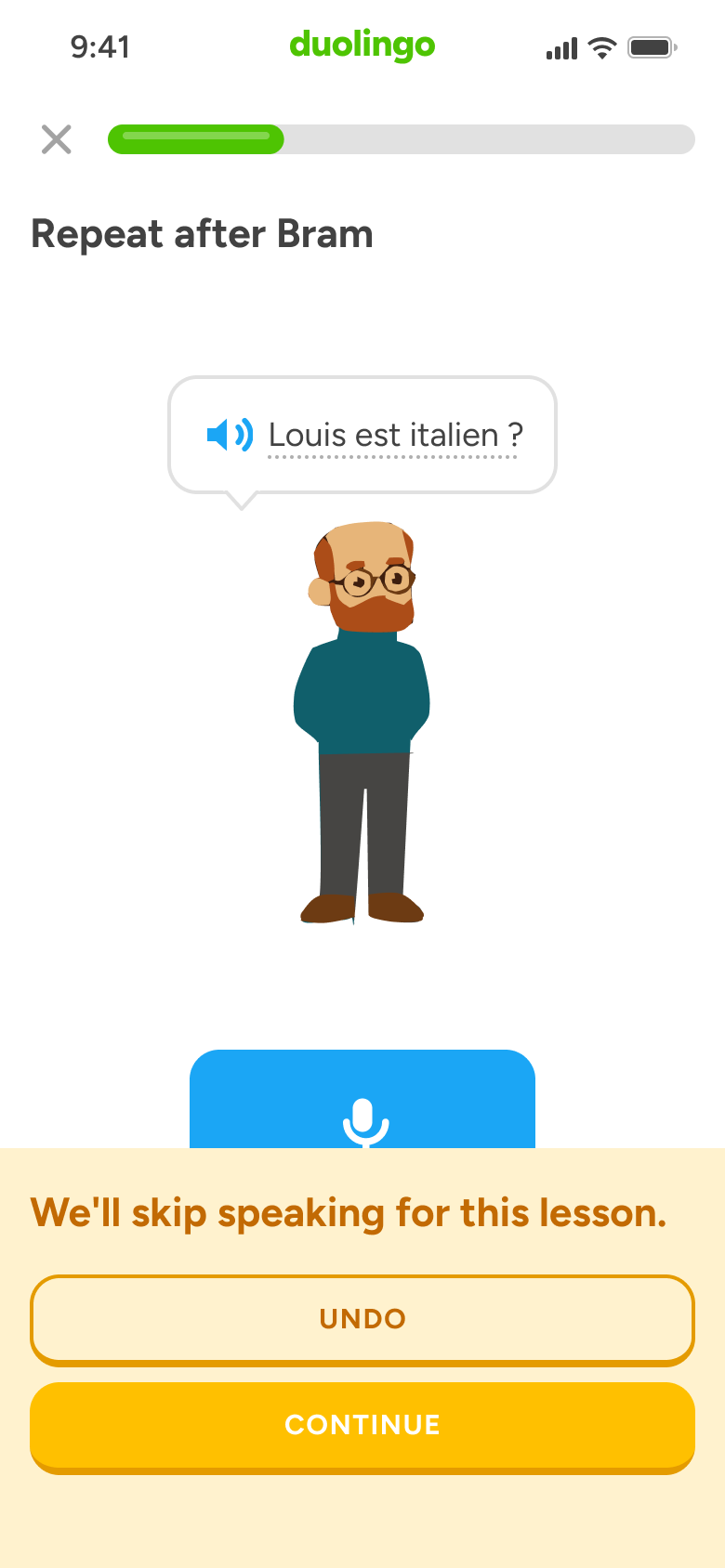
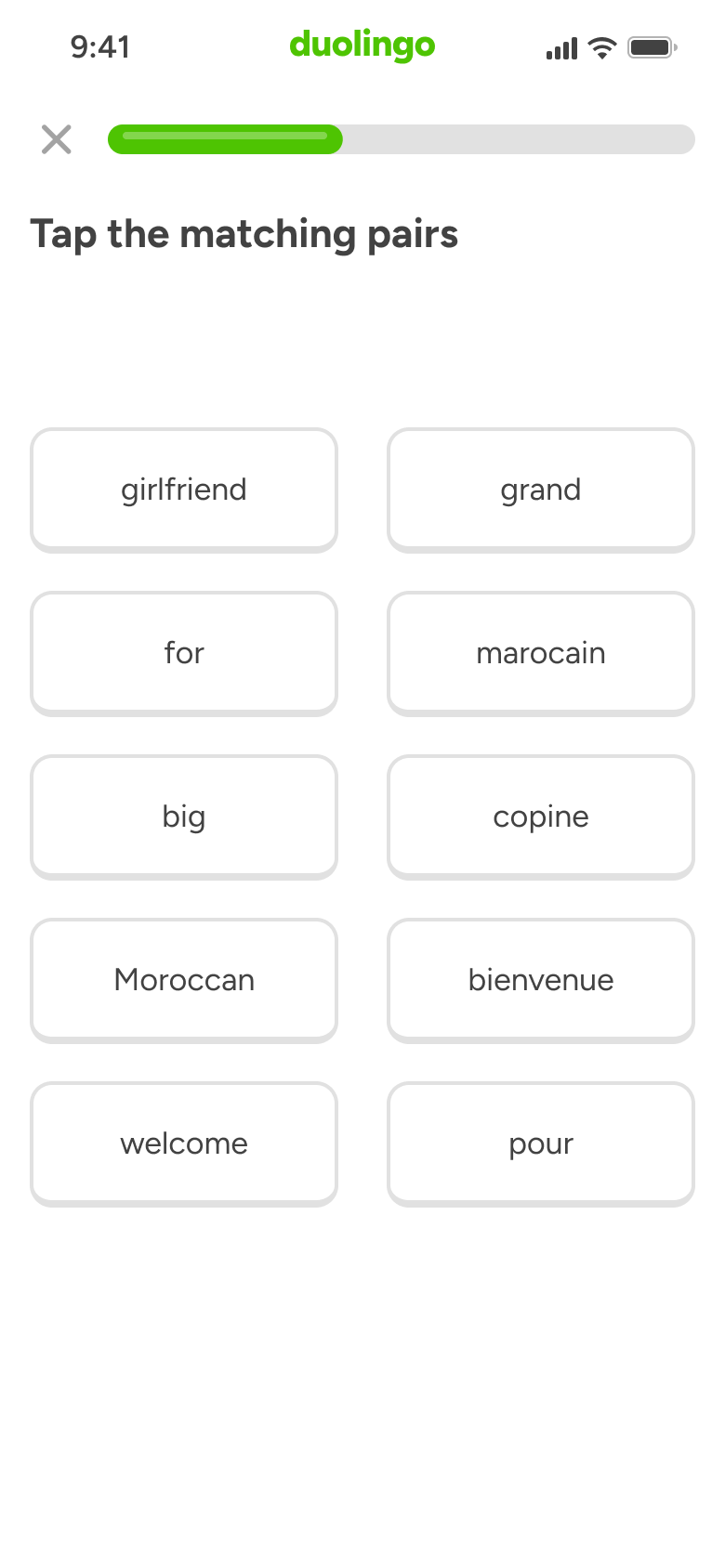
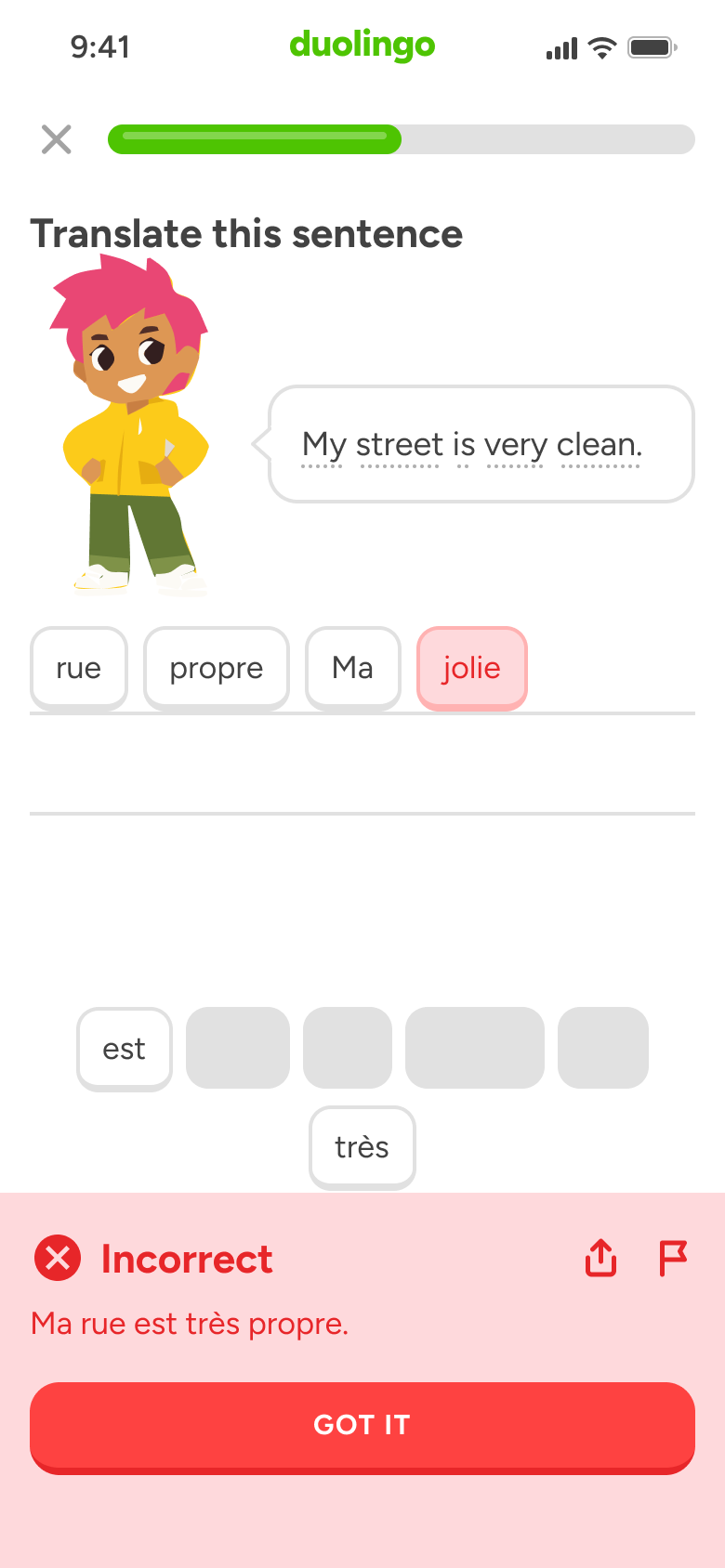
Steps 1–4 of 23, in recording order
Open flowOpen the course switcher, add a course from the full list, answer how much you know and where to start, view a trial offer, then start the first lesson.
DuolingoiOS8 steps
Every app’s free flow imports free, no card needed.
See all onboarding personalisation flows across apps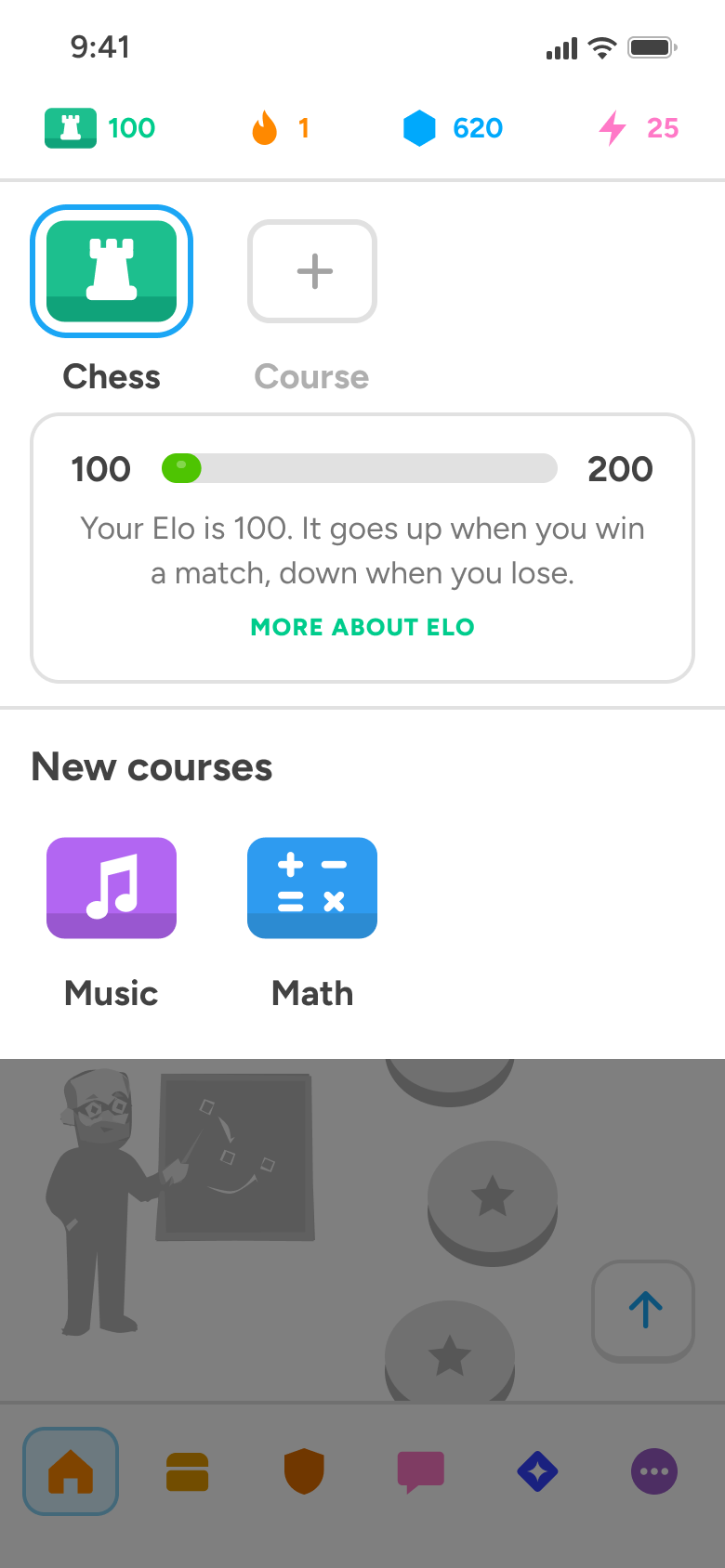
Step 1 of 8
Courses 1
How you get here: Slides up from the bottom
Open the SuperDuper UI plugin in Figma to paste these 8 screens into your file as editable layers.
All 8 steps
Use ← → to step through
Each screen in the order it was recorded, with how the user got there.
Tap course icon in stats bar
Courses 1
Slides up from the bottom
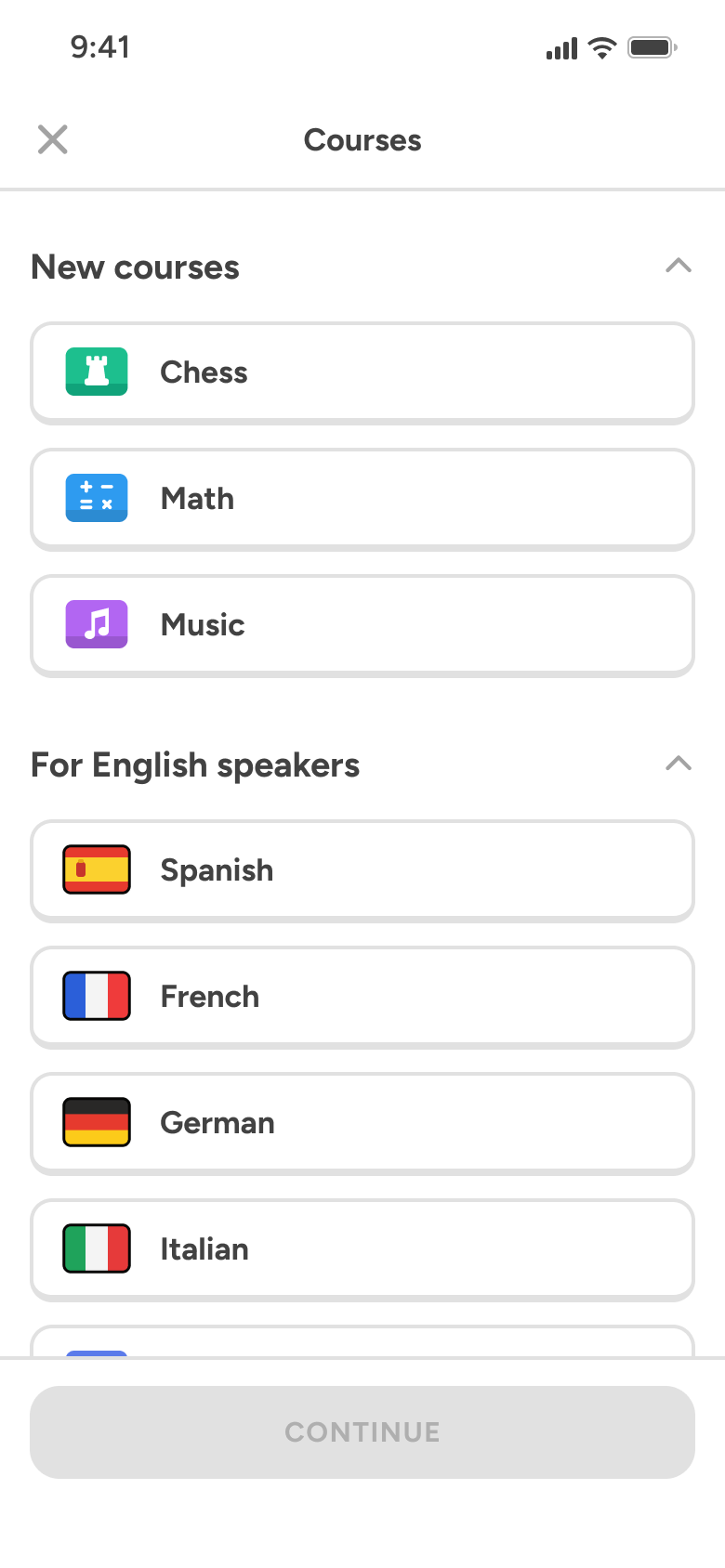
Tap add course tile
Courses 2
Opens full screen
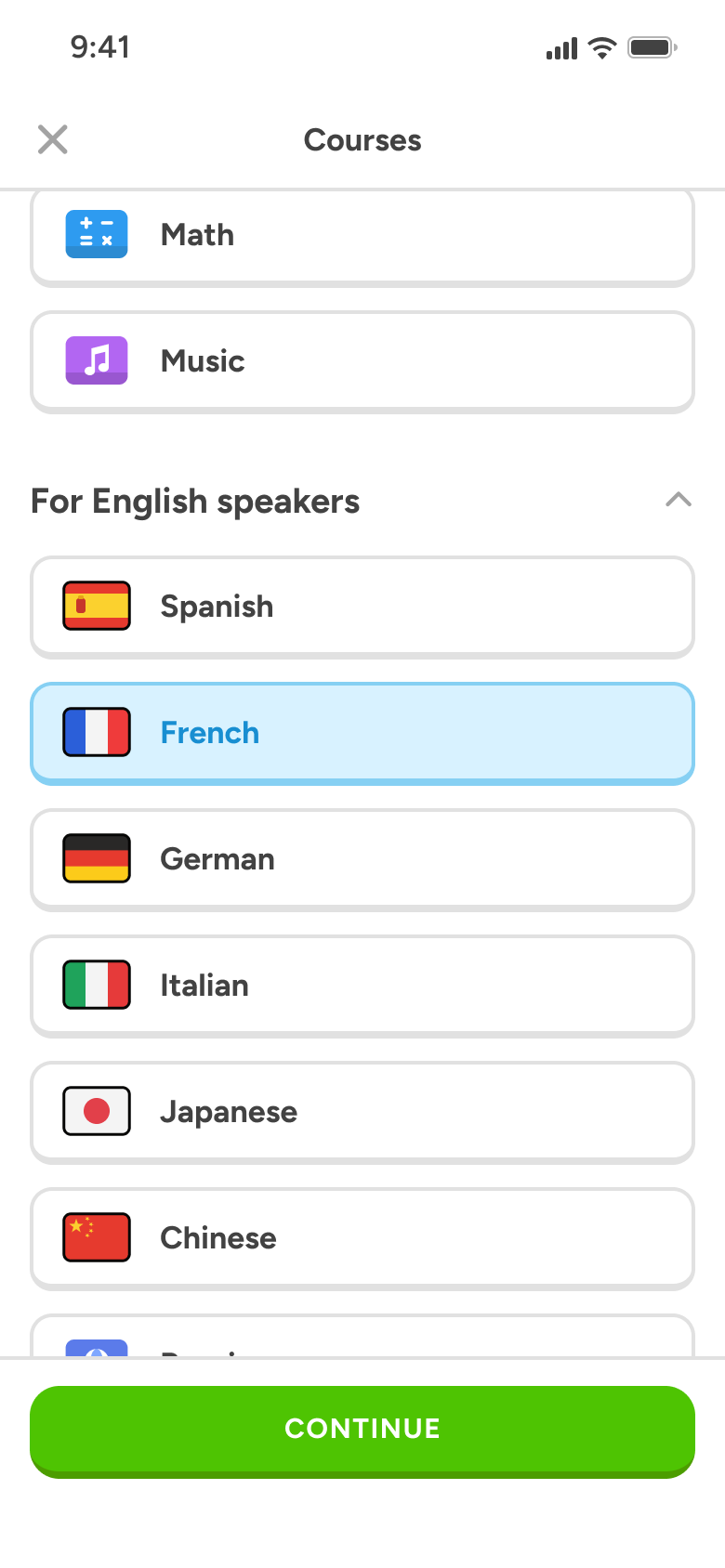
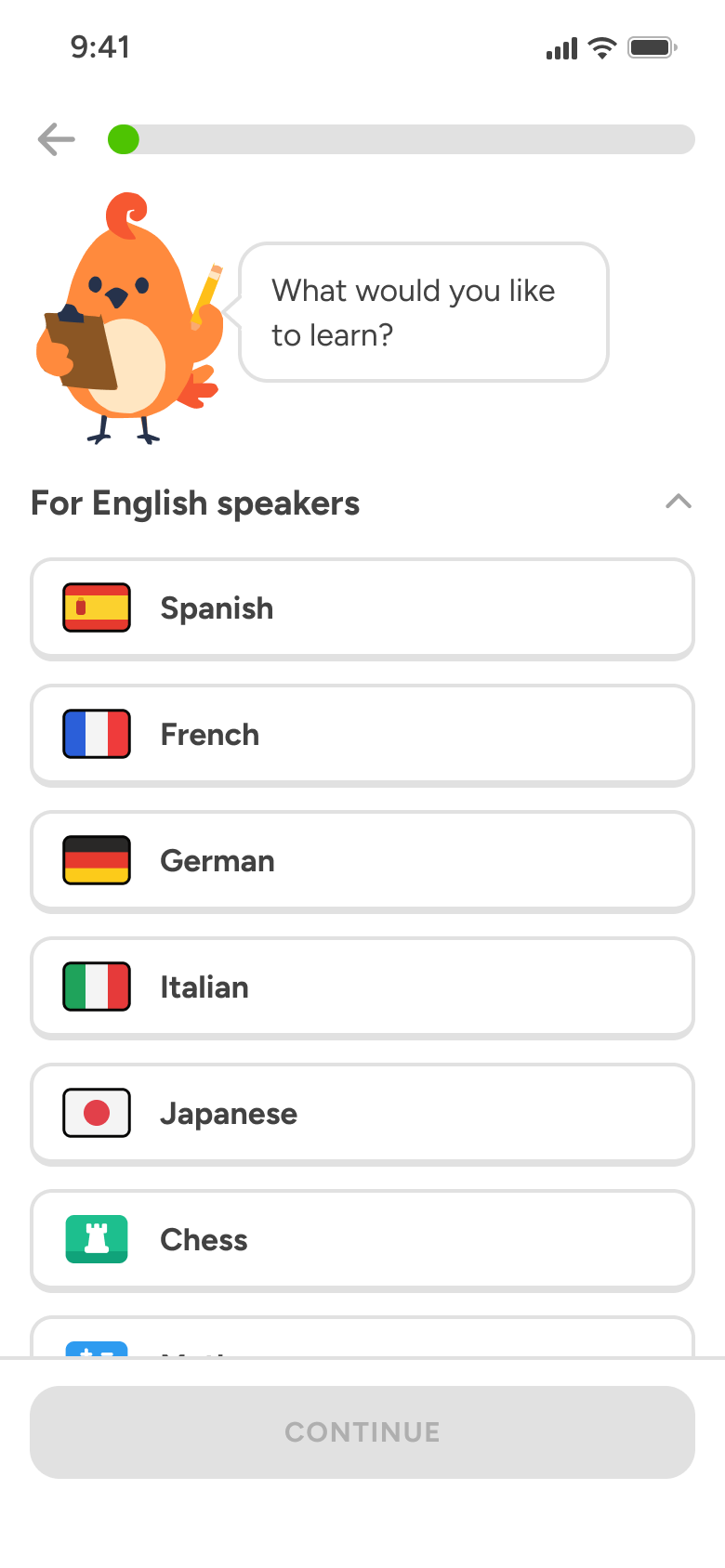
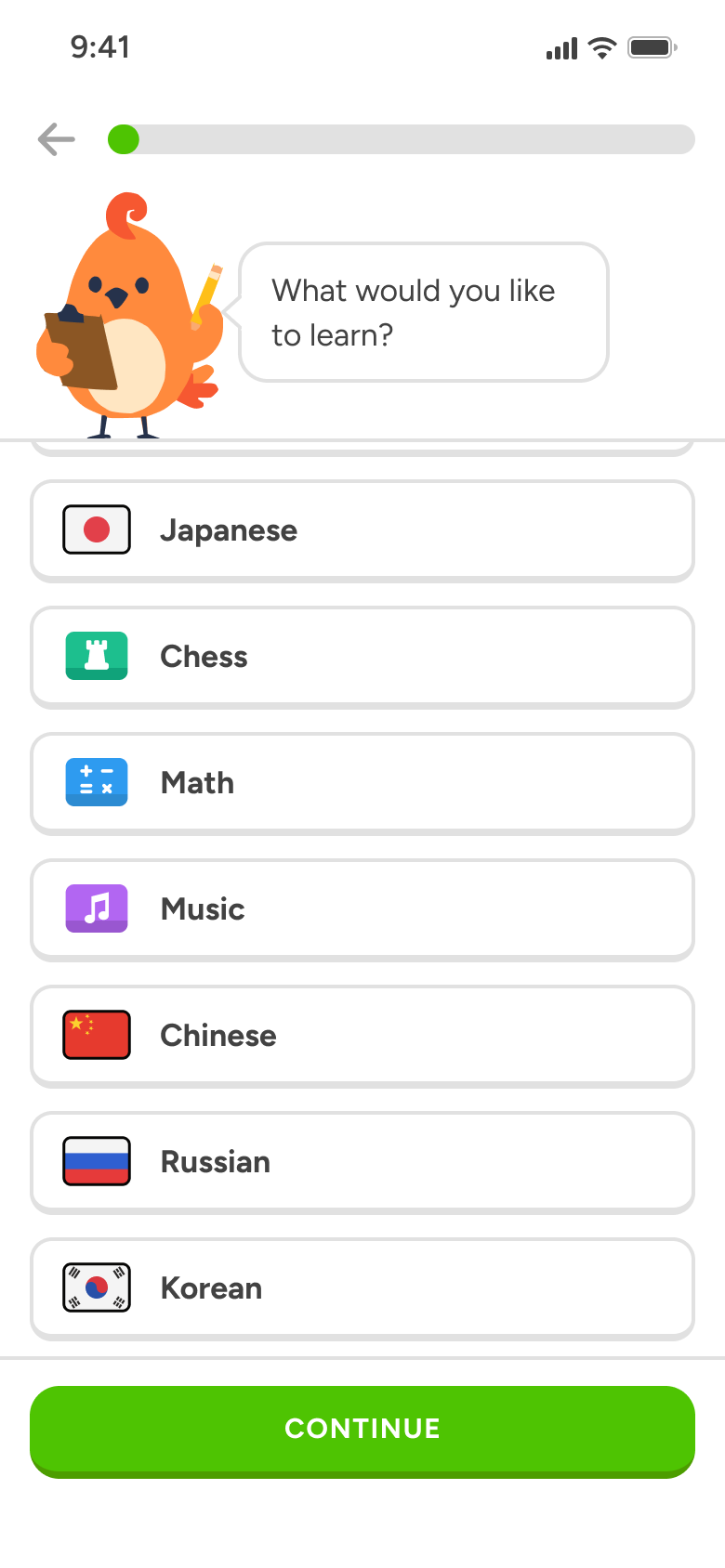
Scroll and tap a language
Courses 3
Changes in place
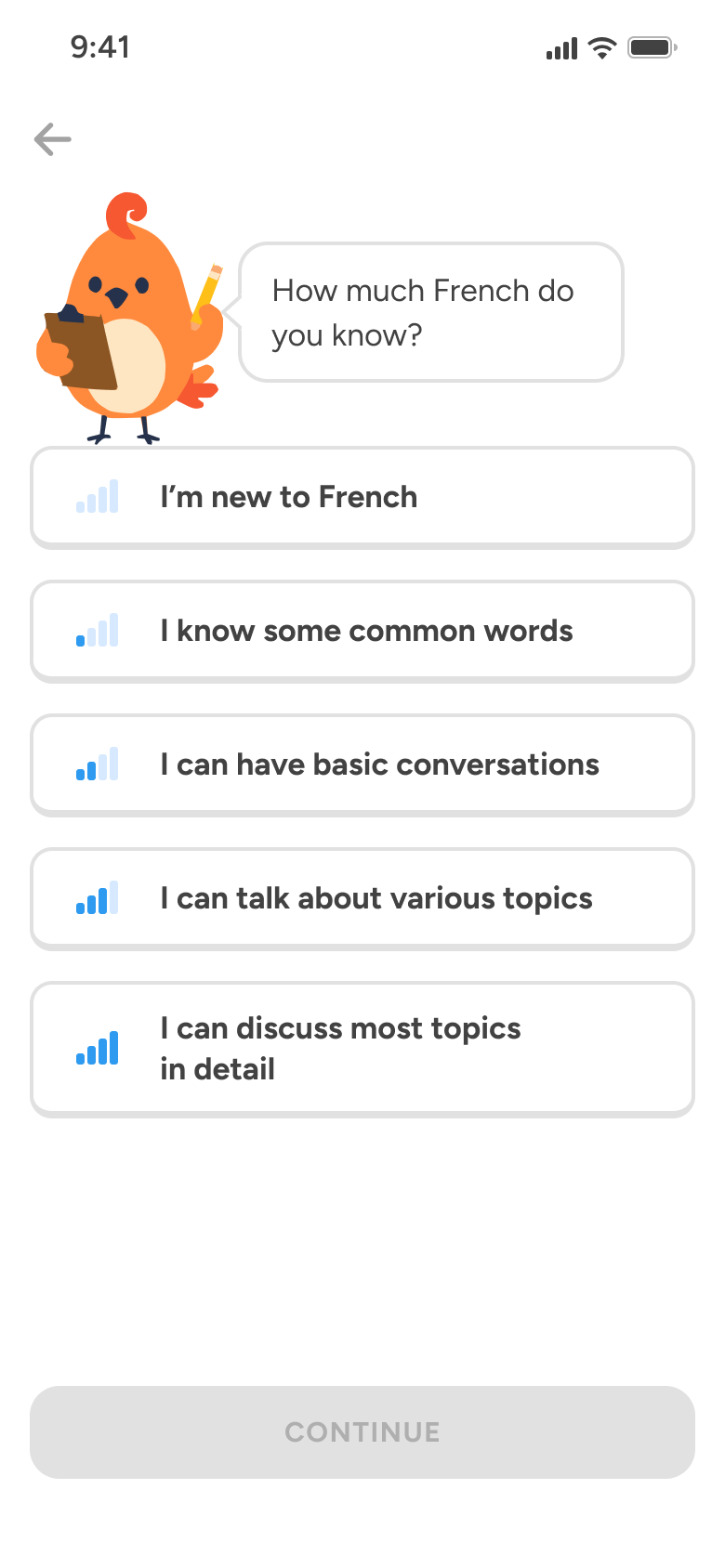
Tap Continue
Onboarding questions 10
Slides in from the right
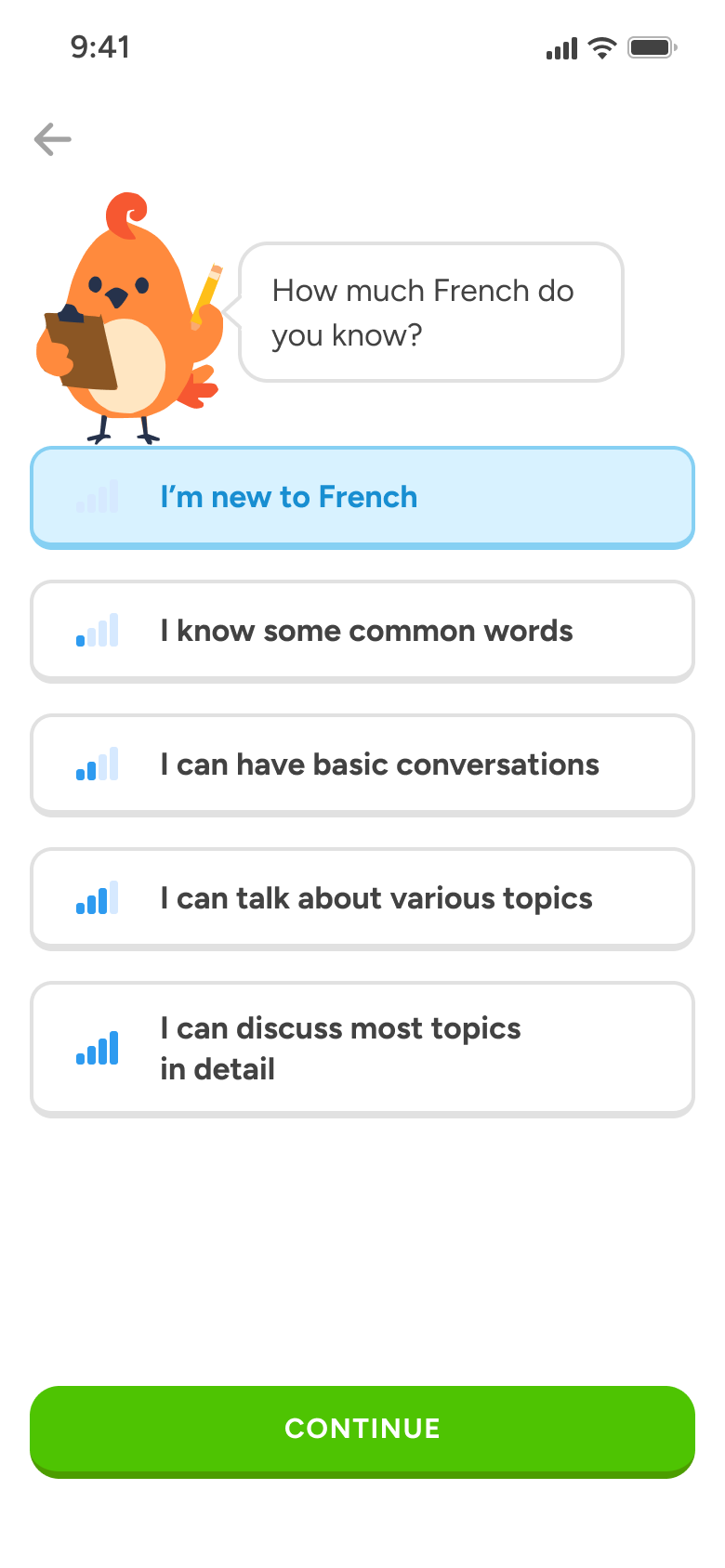
Tap I'm new option
Onboarding questions 11
Changes in place
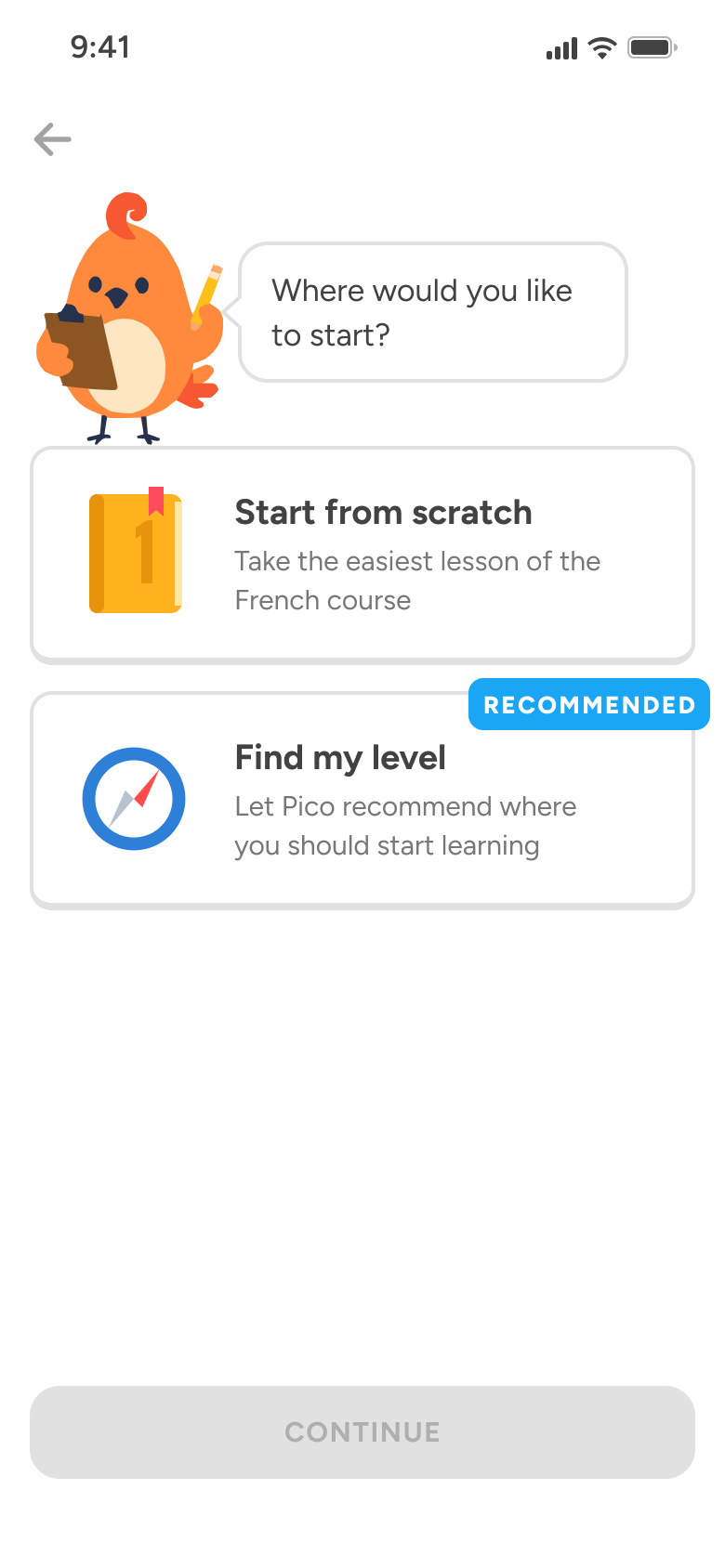
Tap Continue
Onboarding questions 12
Slides in from the right
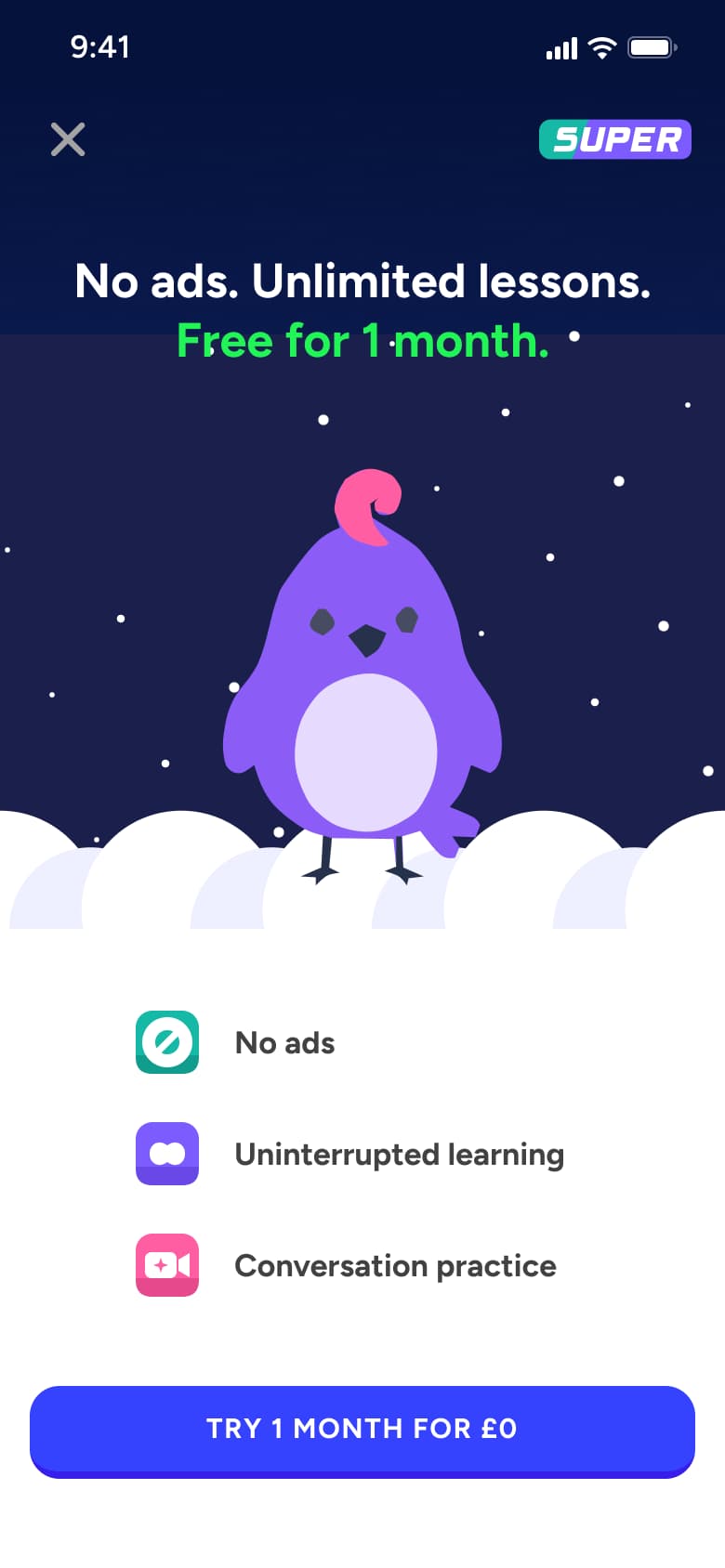
Choose start option, tap Continue
Super 2
Opens full screen
Start the first lesson
Lesson 1
Slides in from the right
Not affiliated with, endorsed or sponsored by Duolingo. Duolingo is a trade mark of its owner. Recreated for design reference and education. Rights holders: contact us
23 screens
Steps 1–4 of 23, in recording order
Open flow15 screens
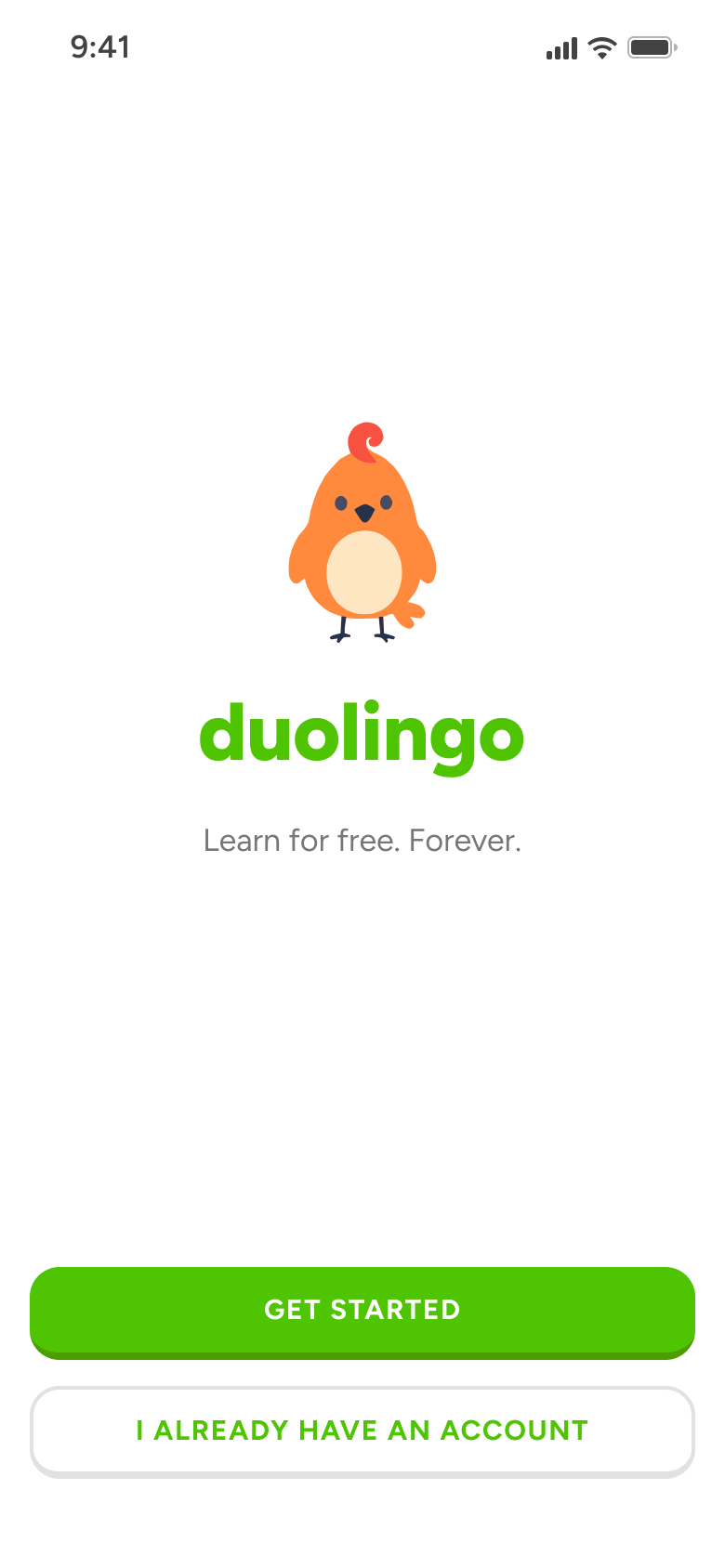
Steps 1–4 of 15, in recording order
Open flowAll of WhatsApp, and a complete flow from every app. No card needed.