
Appearance & dark mode
14 screens
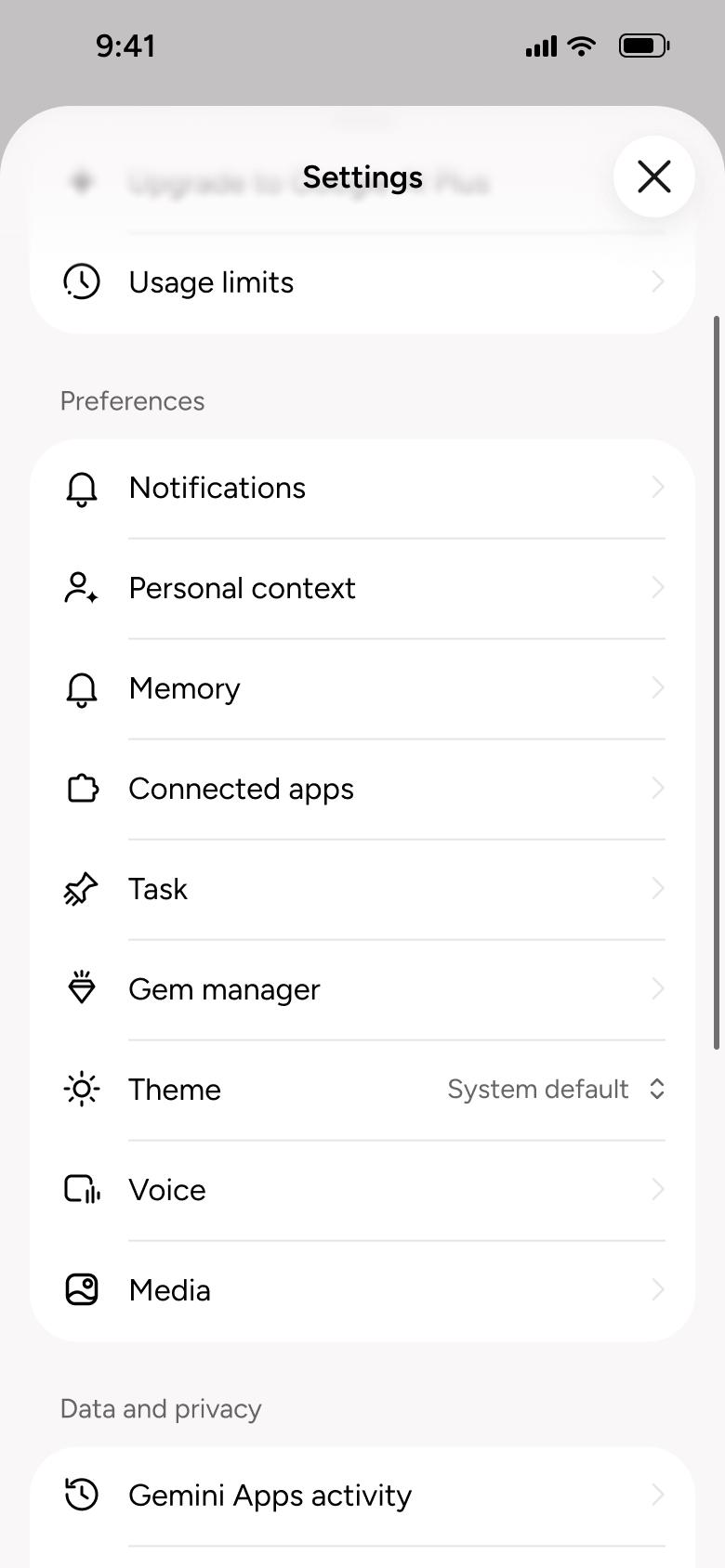
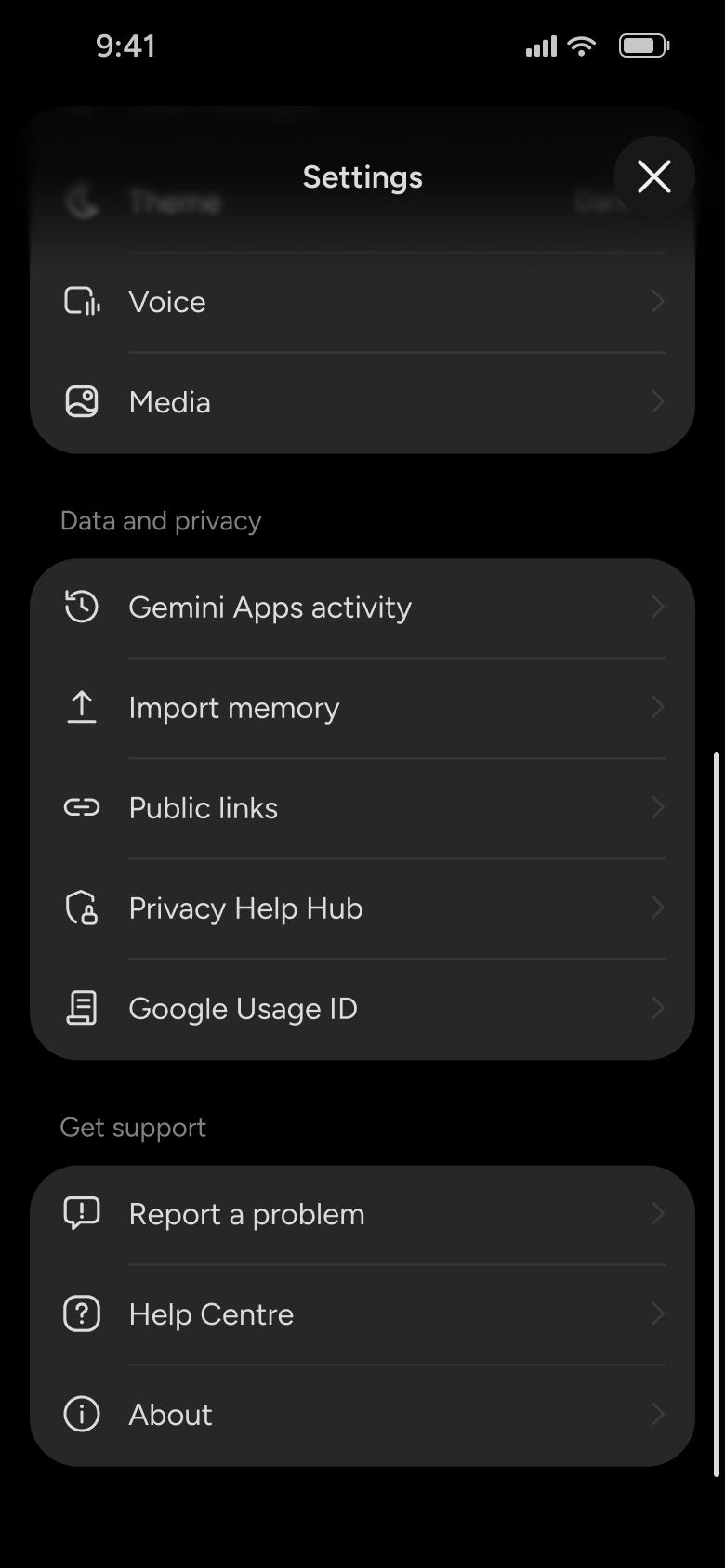
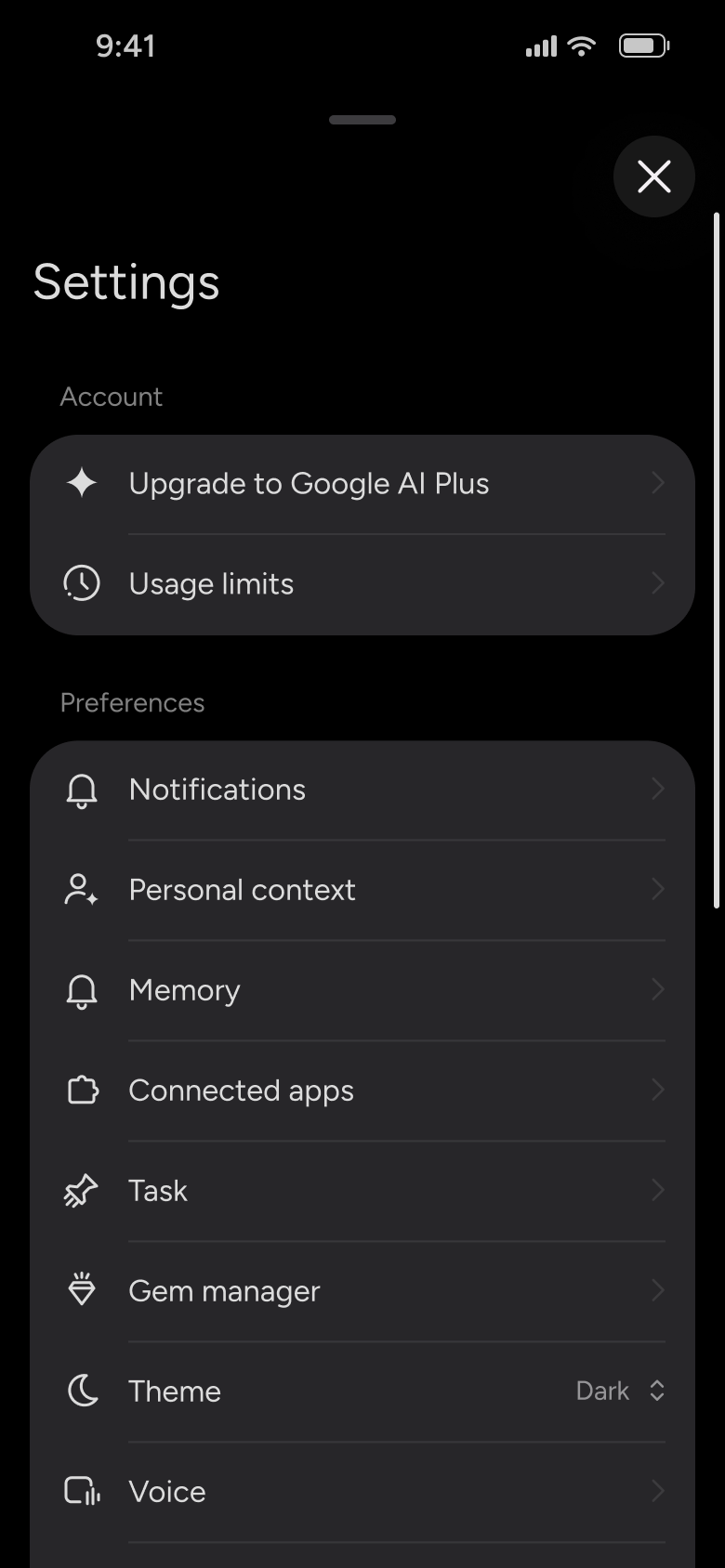
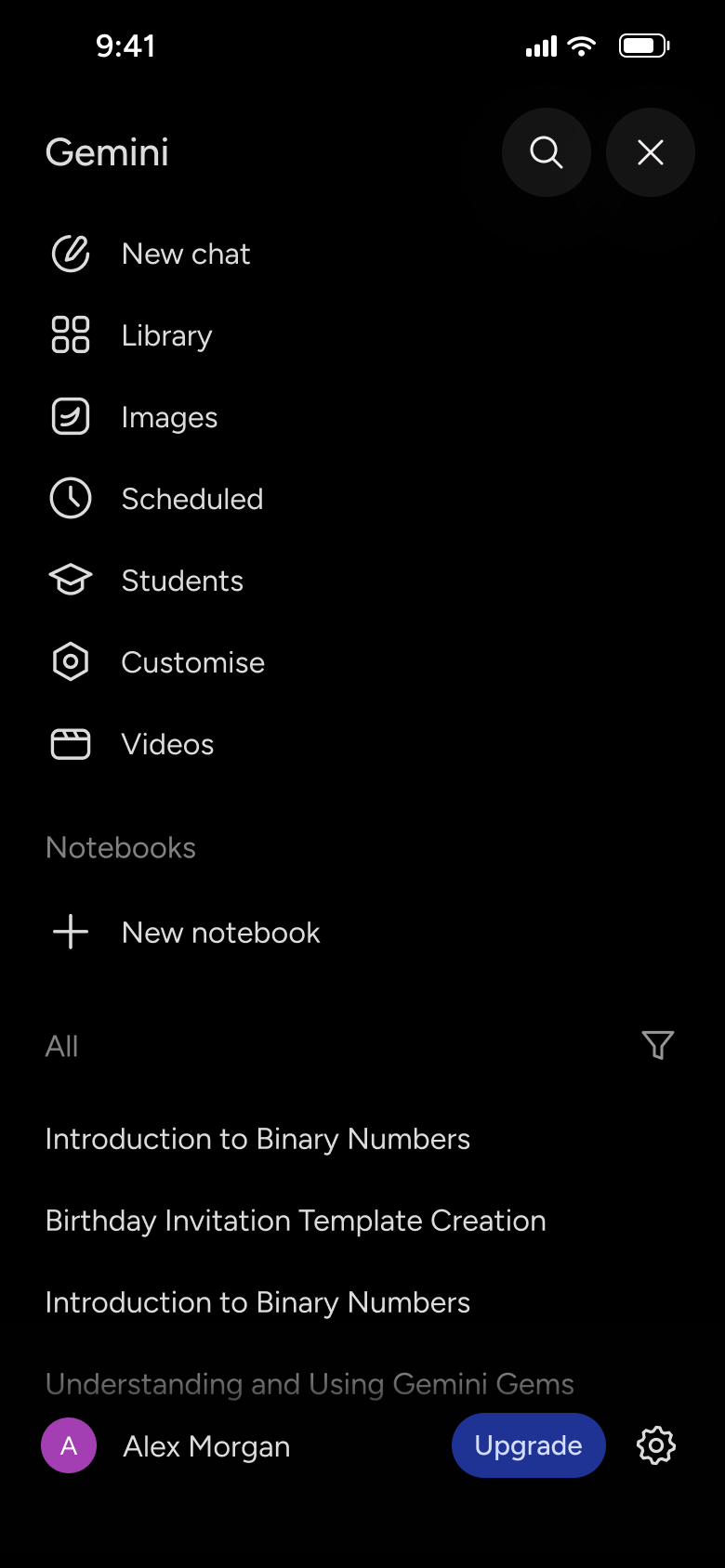
Steps 1–4 of 14, in recording order
Open flowPick Deep Research, send a prompt, review and edit the plan, start research and watch progress, return when the chat is marked updated, then read the report, sources, thoughts, export menu and contents.
GeminiiOS18 steps
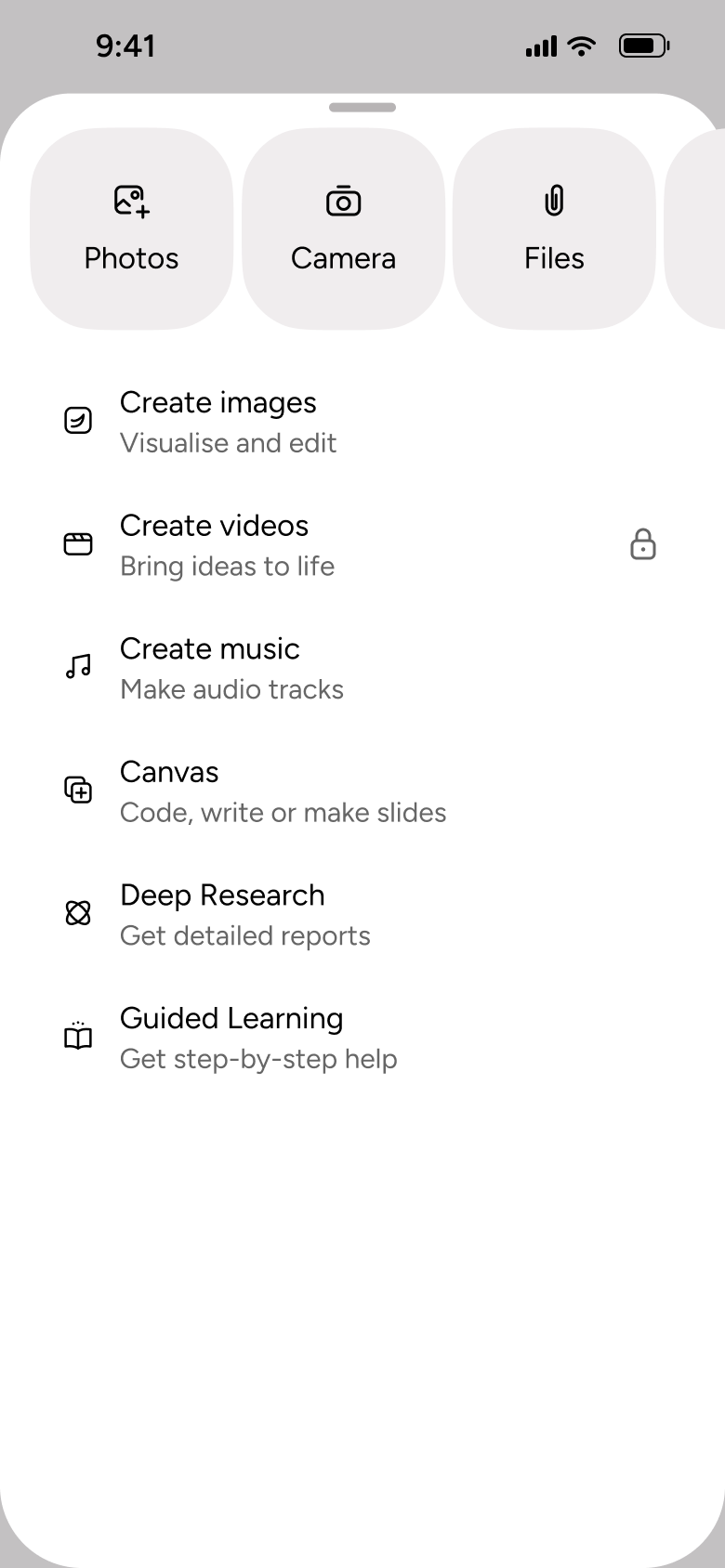
Step 1 of 18
Tools Menu 6
How you get here: Slides up from the bottom
Open the SuperDuper UI plugin in Figma to paste these 18 screens into your file as editable layers.
All 18 steps
Use ← → to step through
Each screen in the order it was recorded, with how the user got there.
Tap plus, drag sheet up
Tools Menu 6
Slides up from the bottom
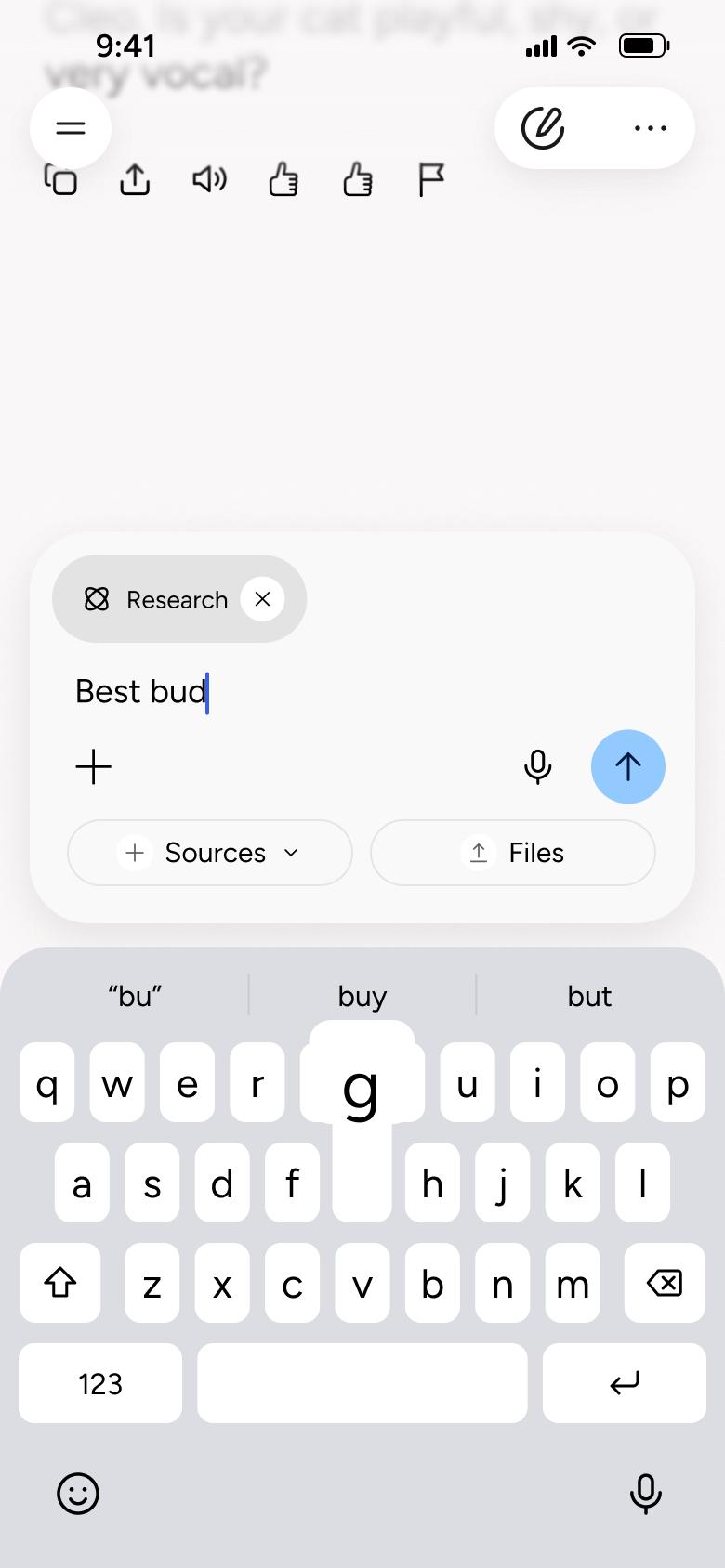
Pick Deep Research, type prompt
Deep Research 1
Changes in place
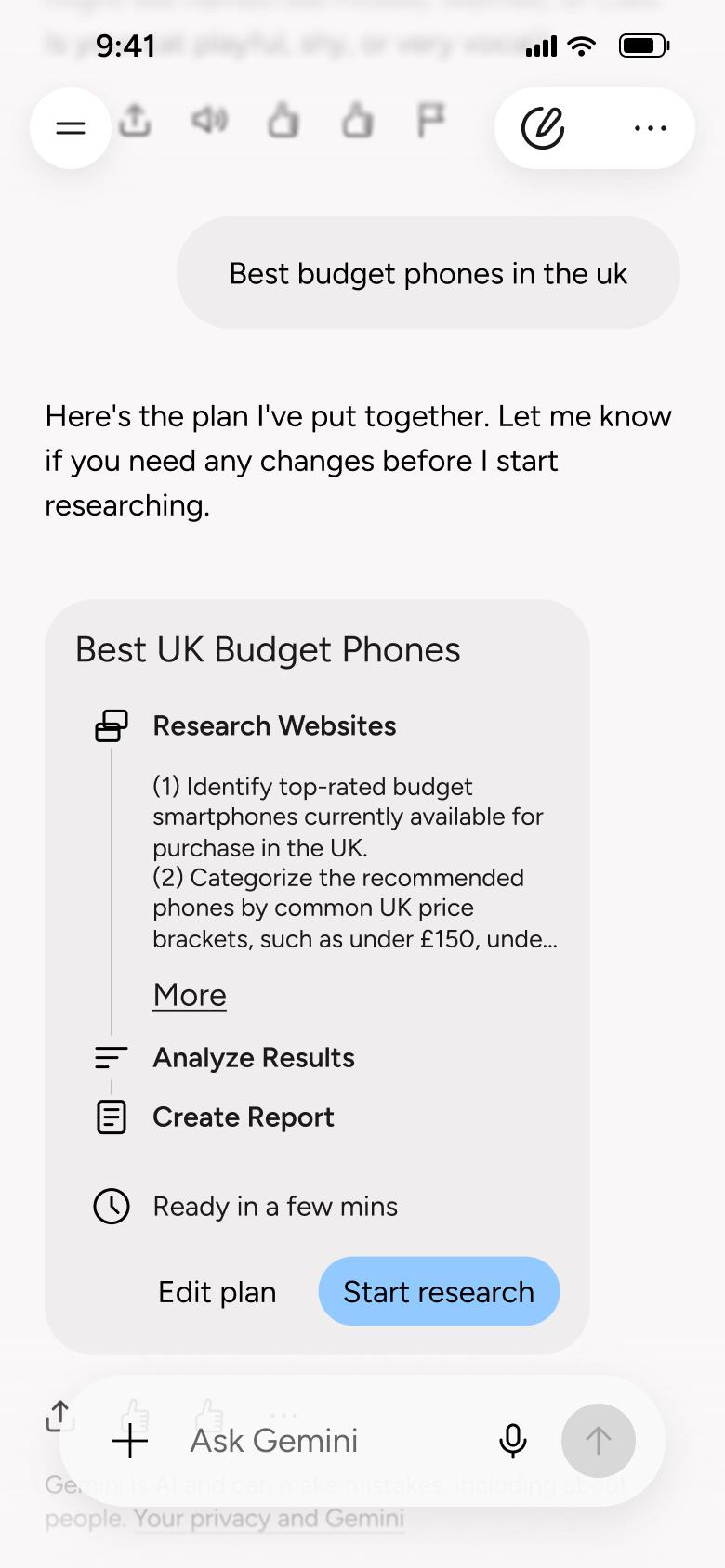
Send research prompt
Deep Research 2
Changes in place
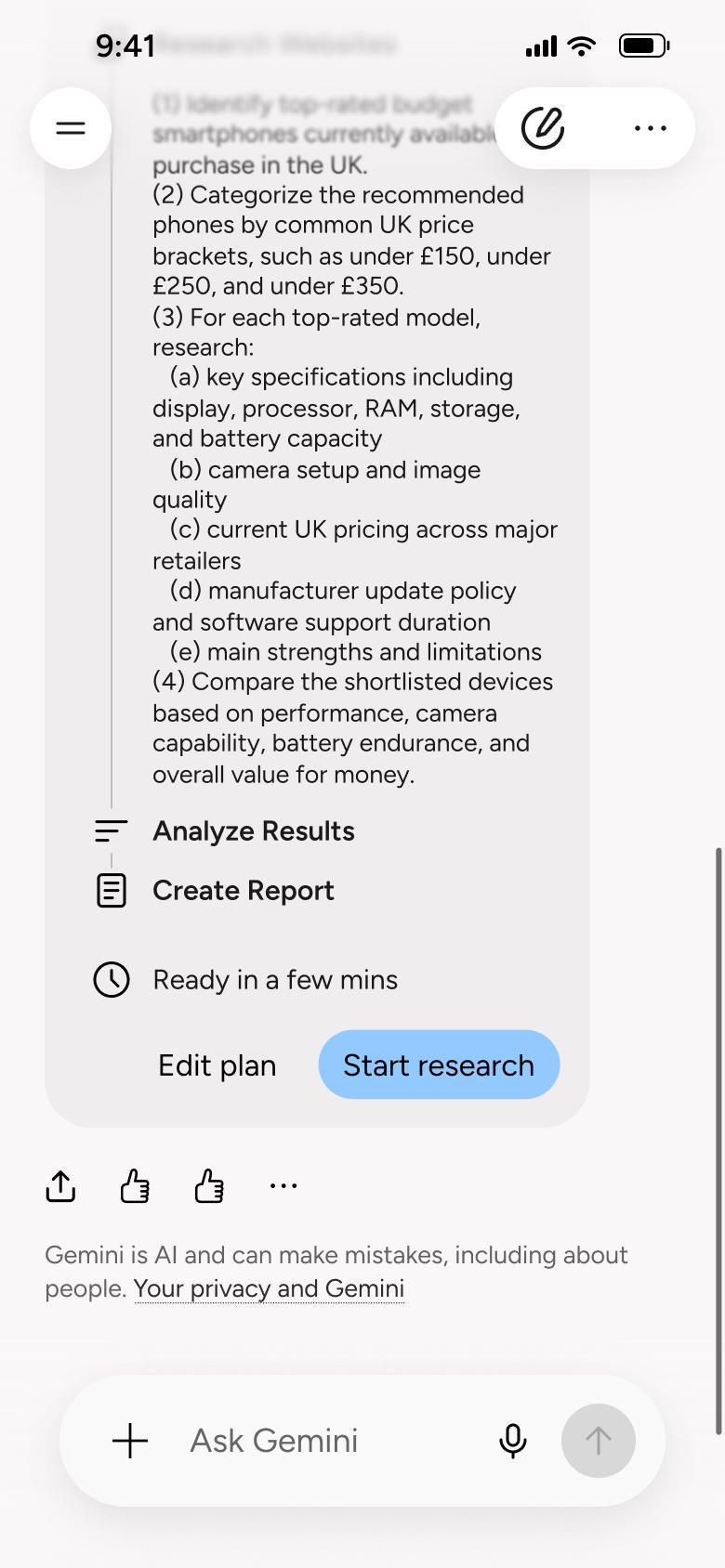
Tap More, scroll
Deep Research 3
Changes in place
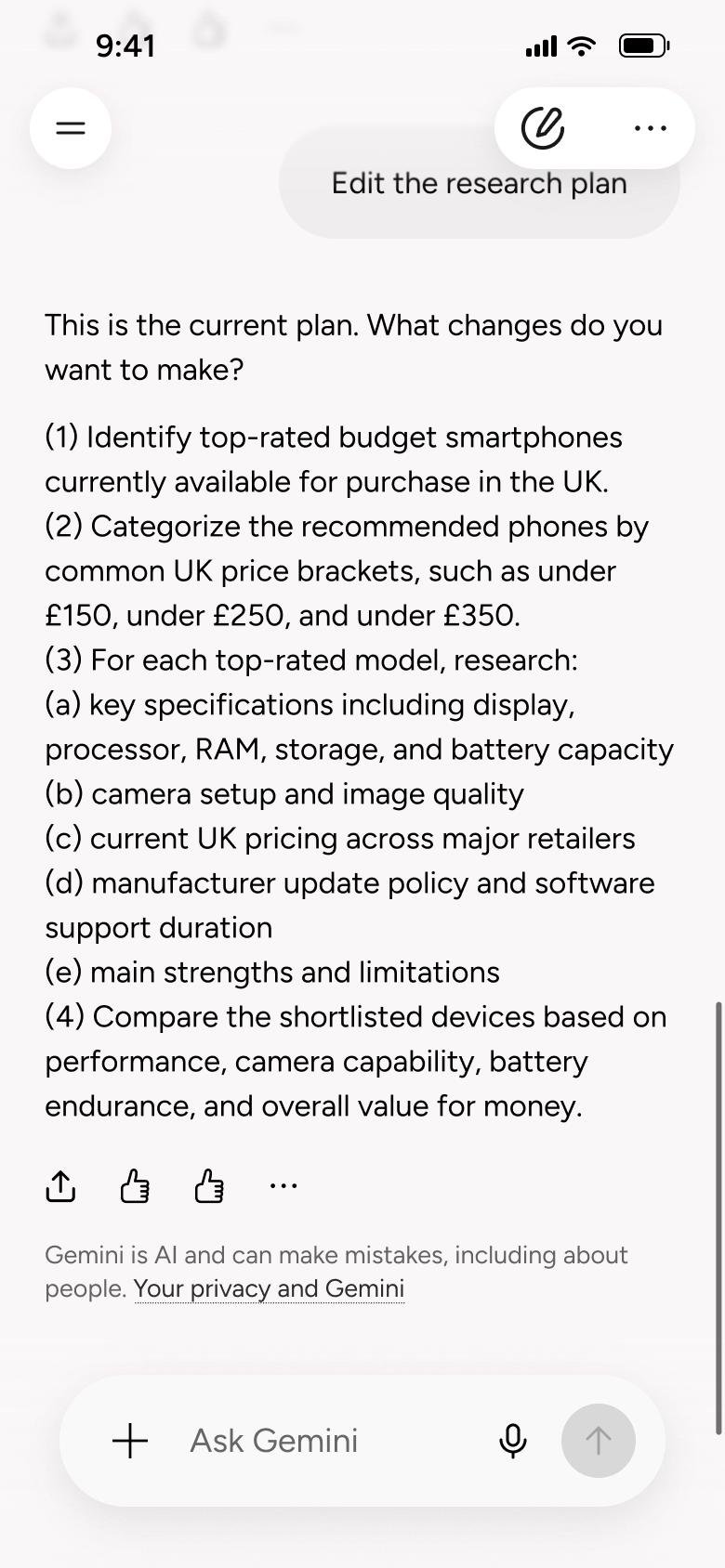
Tap Edit plan
Deep Research 4
Changes in place
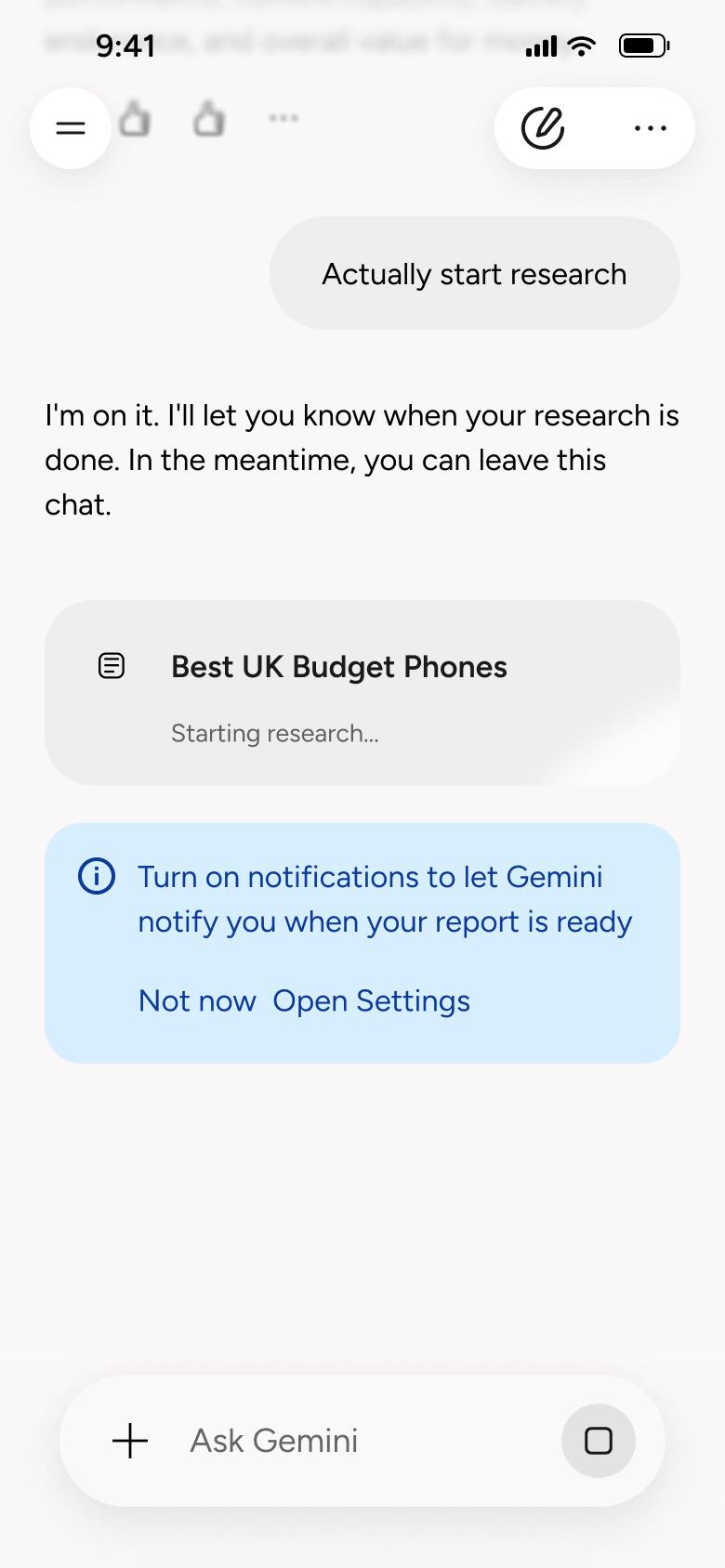
Start research
Deep Research 5
Changes in place
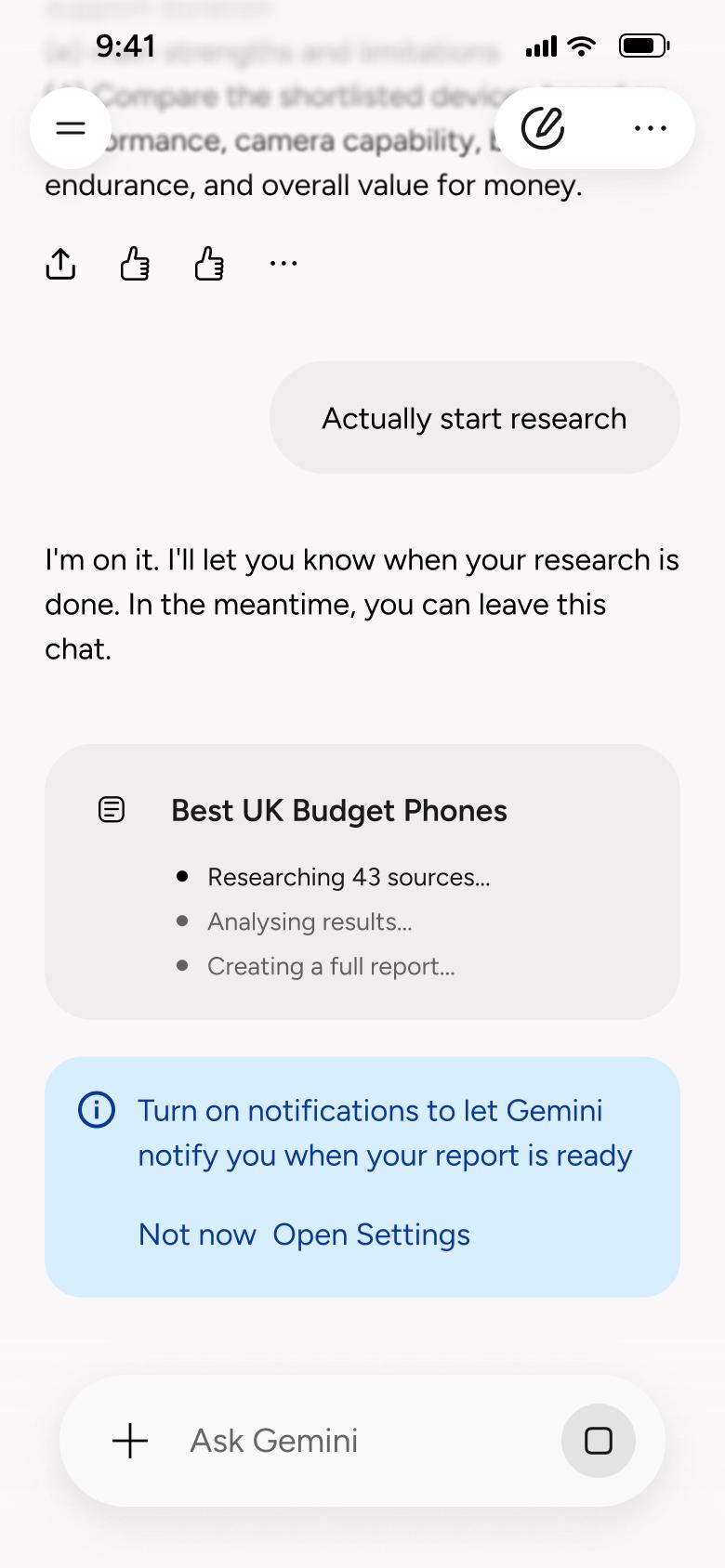
Wait
Deep Research 6
Changes in place
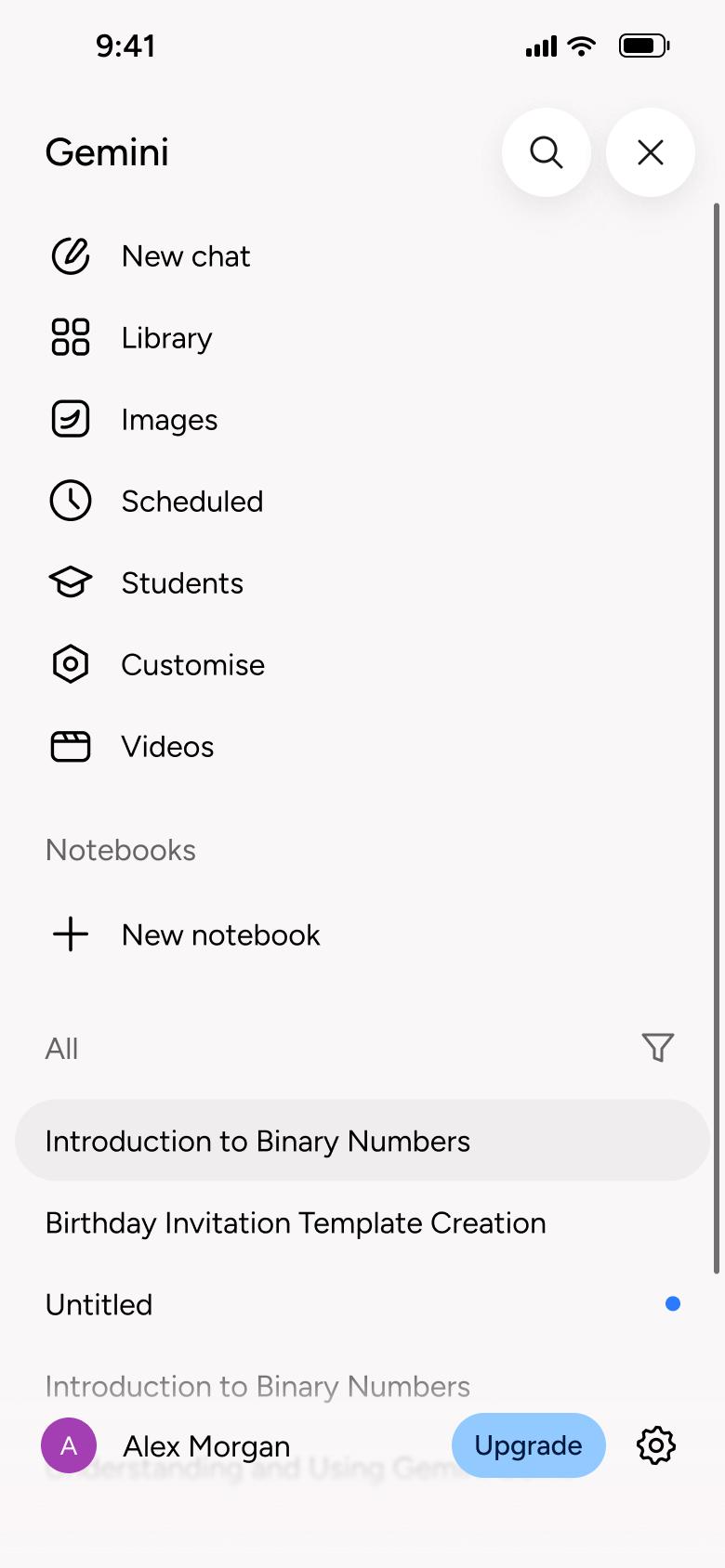
Later, open the side menu
Side Menu and Library 5
Slides in from the right
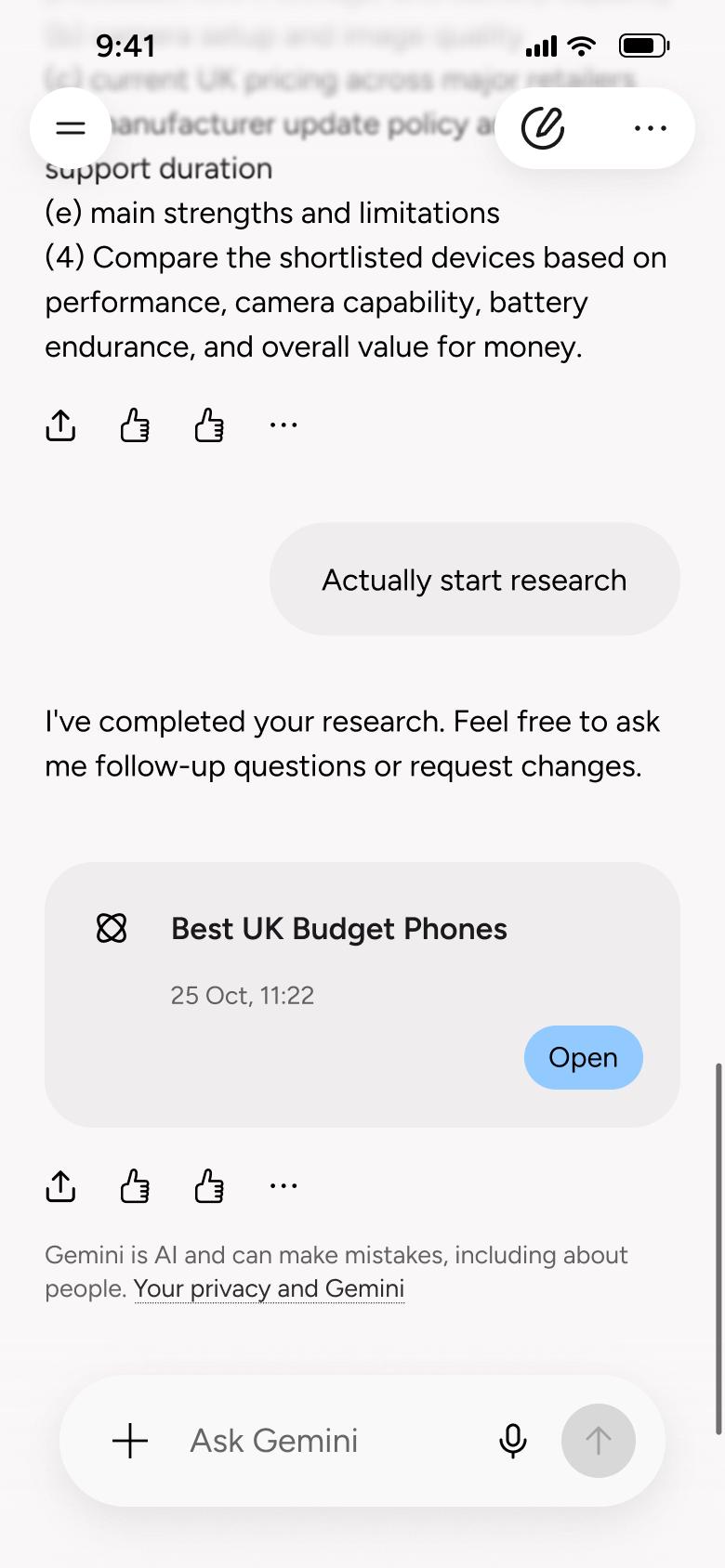
Open the updated research chat
Deep Research 7
Slides in from the right

Tap Open
Deep Research 8
Slides in from the right
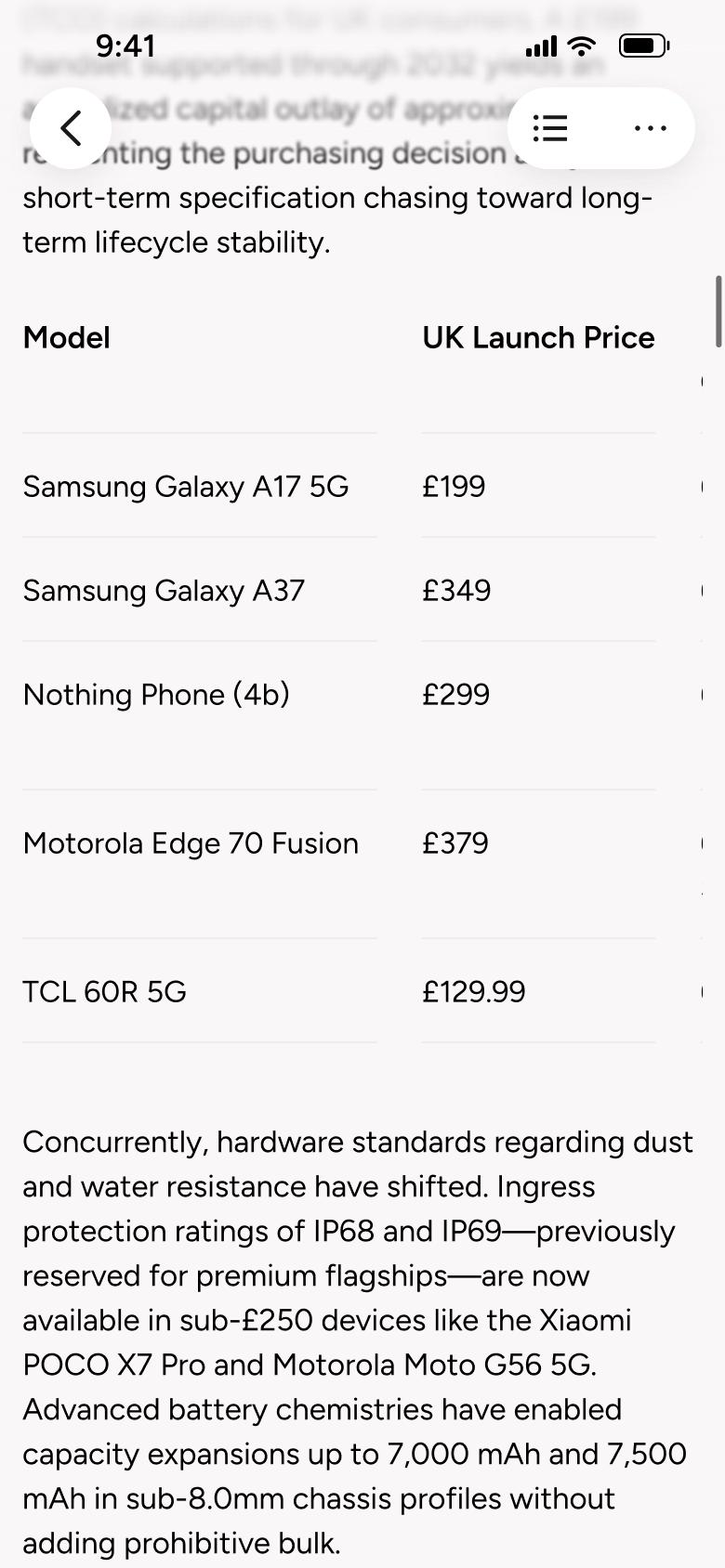
Scroll report
Deep Research 9
Changes in place

Scroll report
Deep Research 10
Changes in place
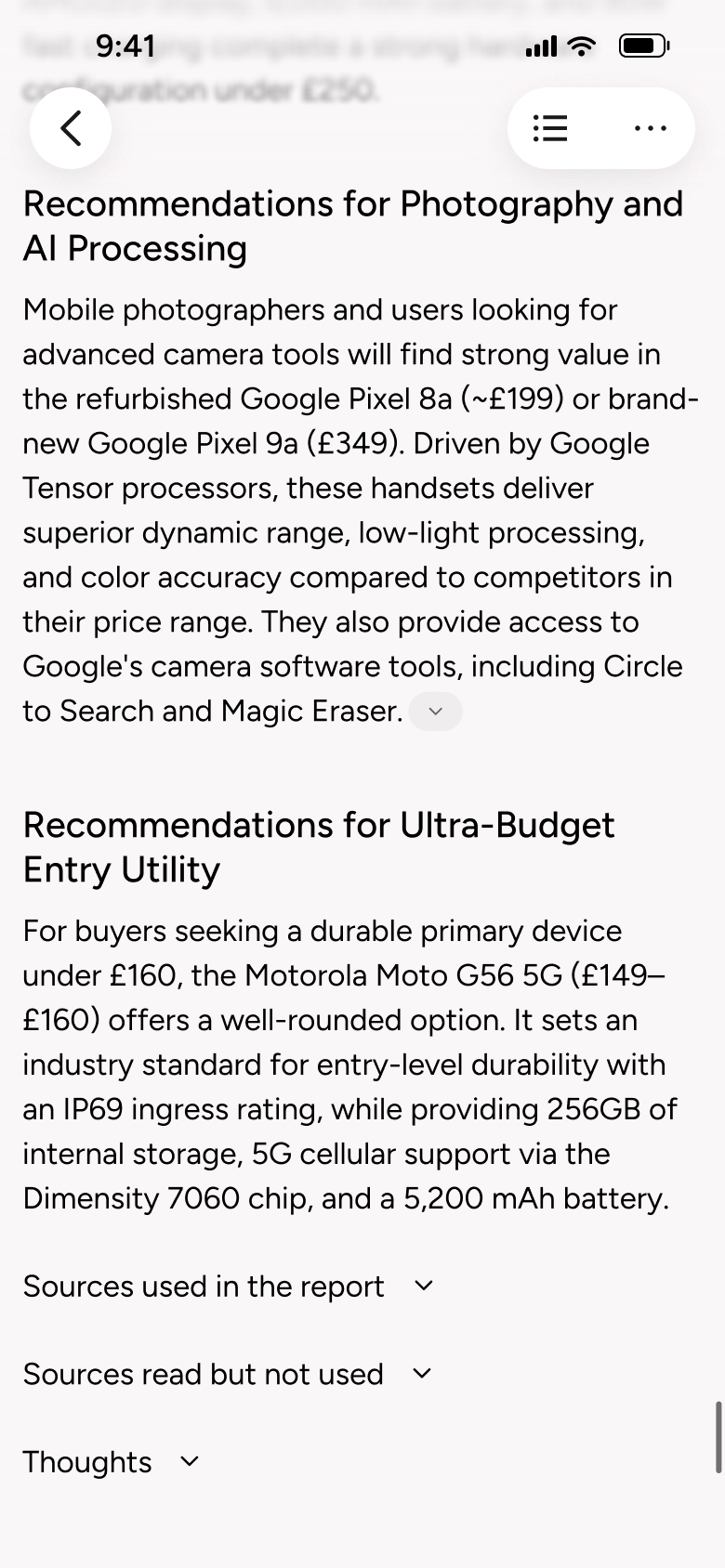
Scroll to end of report
Deep Research 11
Changes in place
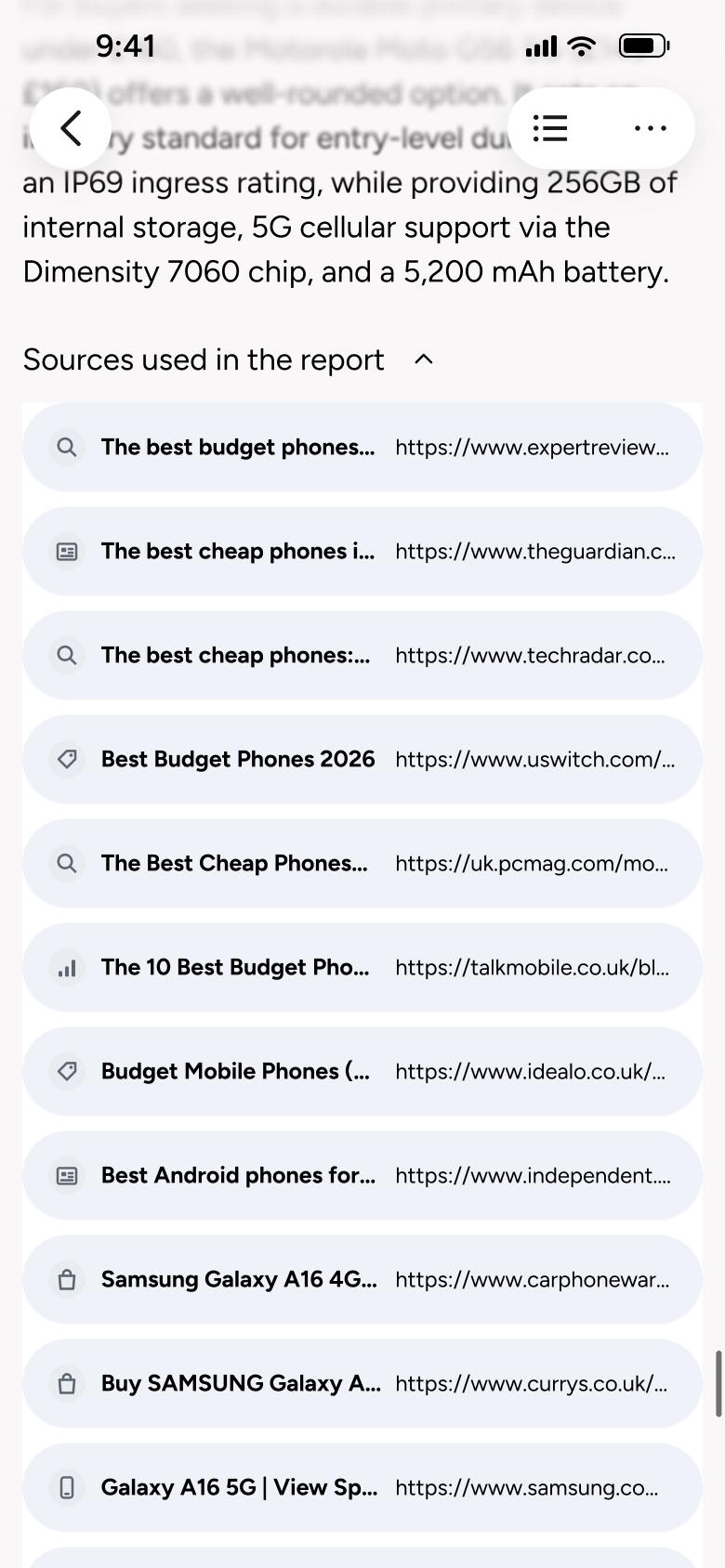
Tap Sources used in the report
Deep Research 12
Changes in place
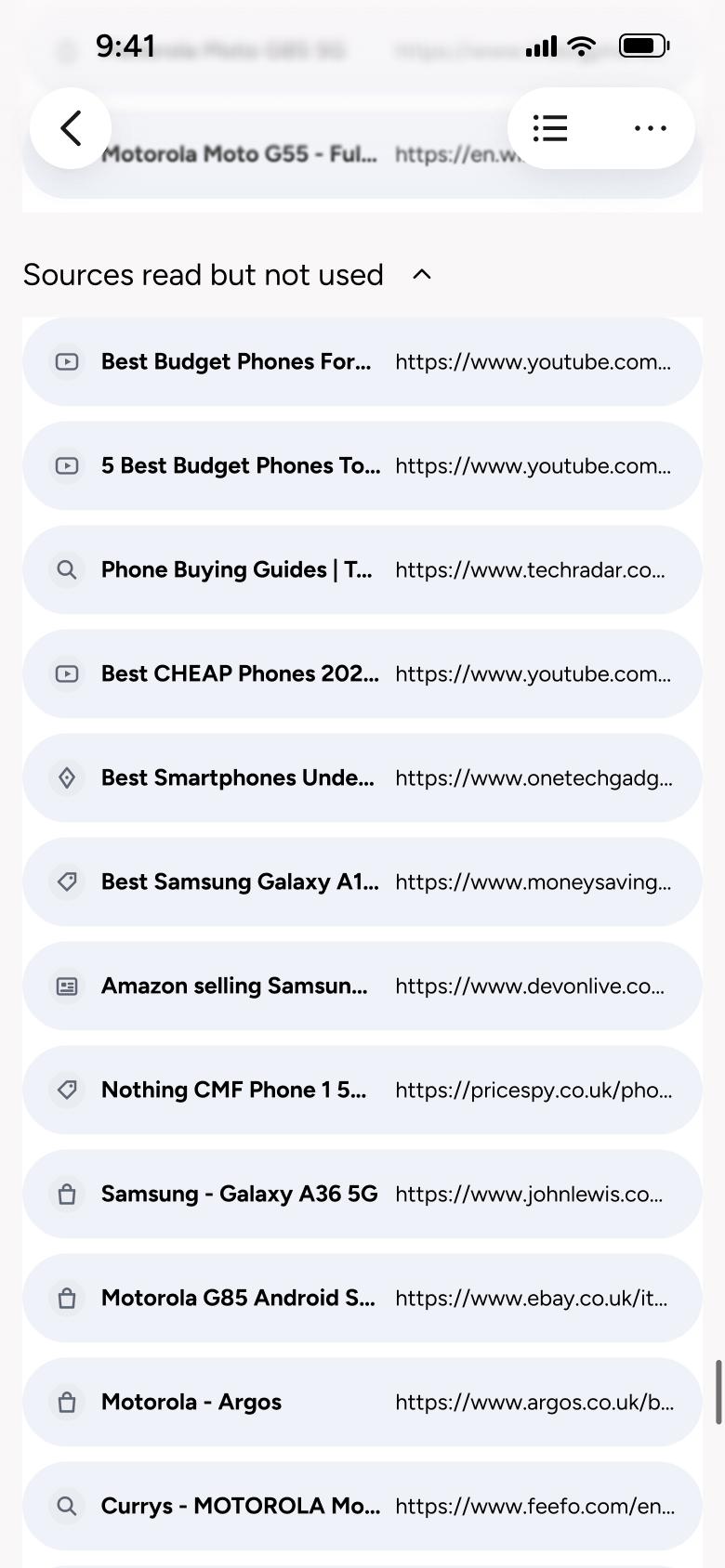
Tap Sources read but not used
Deep Research 13
Changes in place
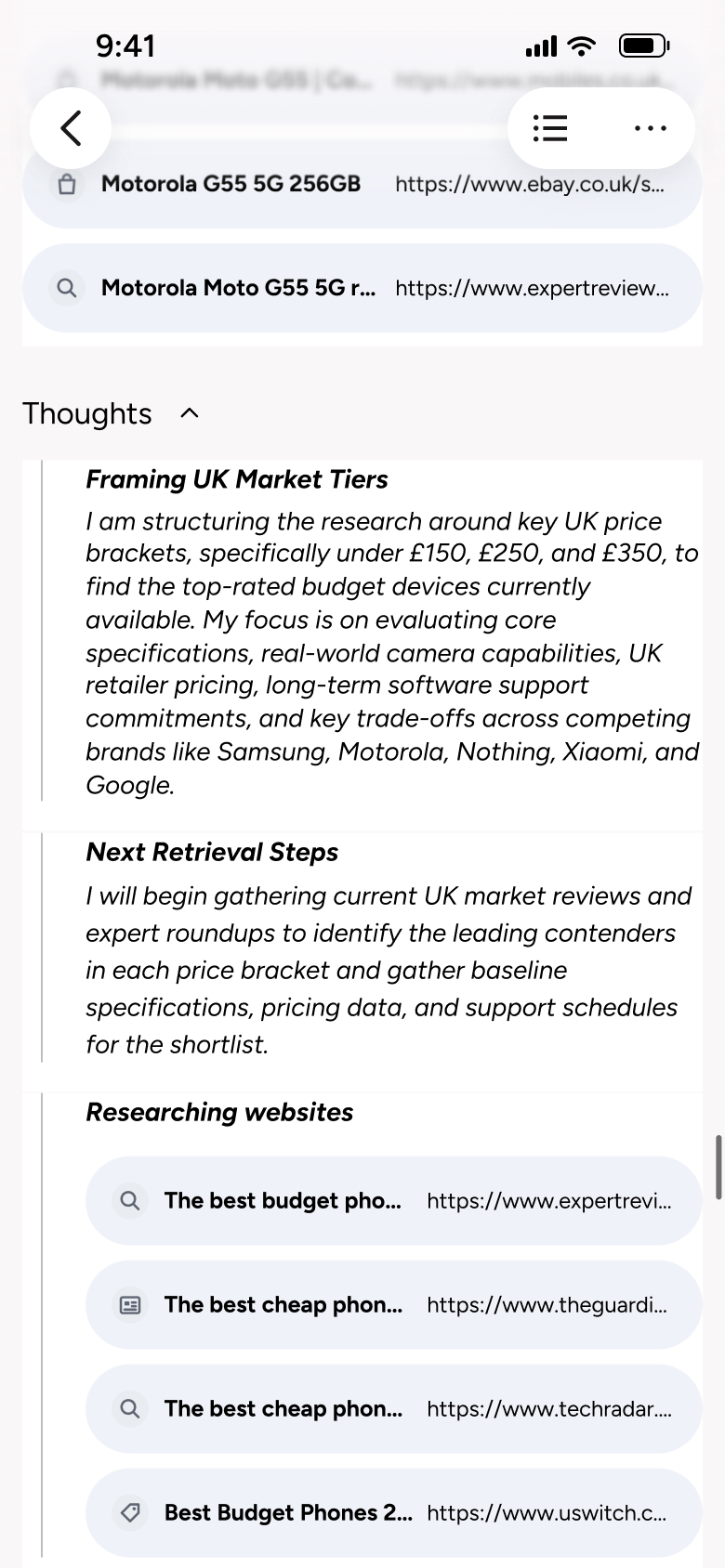
Tap Thoughts
Deep Research 14
Changes in place
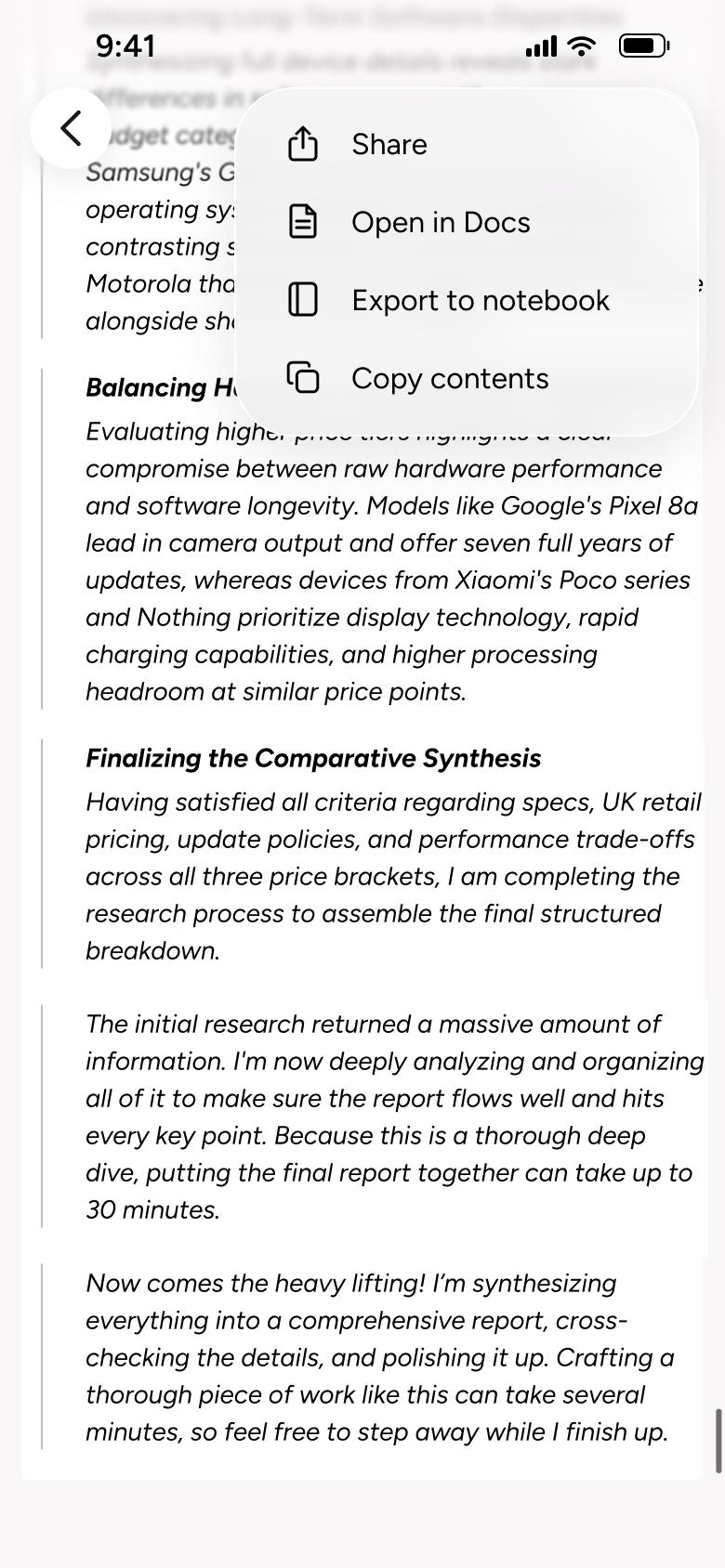
Tap more (three dots)
Deep Research 15
Changes in place

Tap contents (list icon)
Deep Research 16
Slides up from the bottom
Not affiliated with, endorsed or sponsored by Gemini. Gemini is a trade mark of its owner. Recreated for design reference and education. Rights holders: contact us
14 screens
Steps 1–4 of 14, in recording order
Open flow13 screens

Steps 1–4 of 13, in recording order
Open flowAll of WhatsApp, and a complete flow from every app. No card needed.