
Onboarding
19 screens
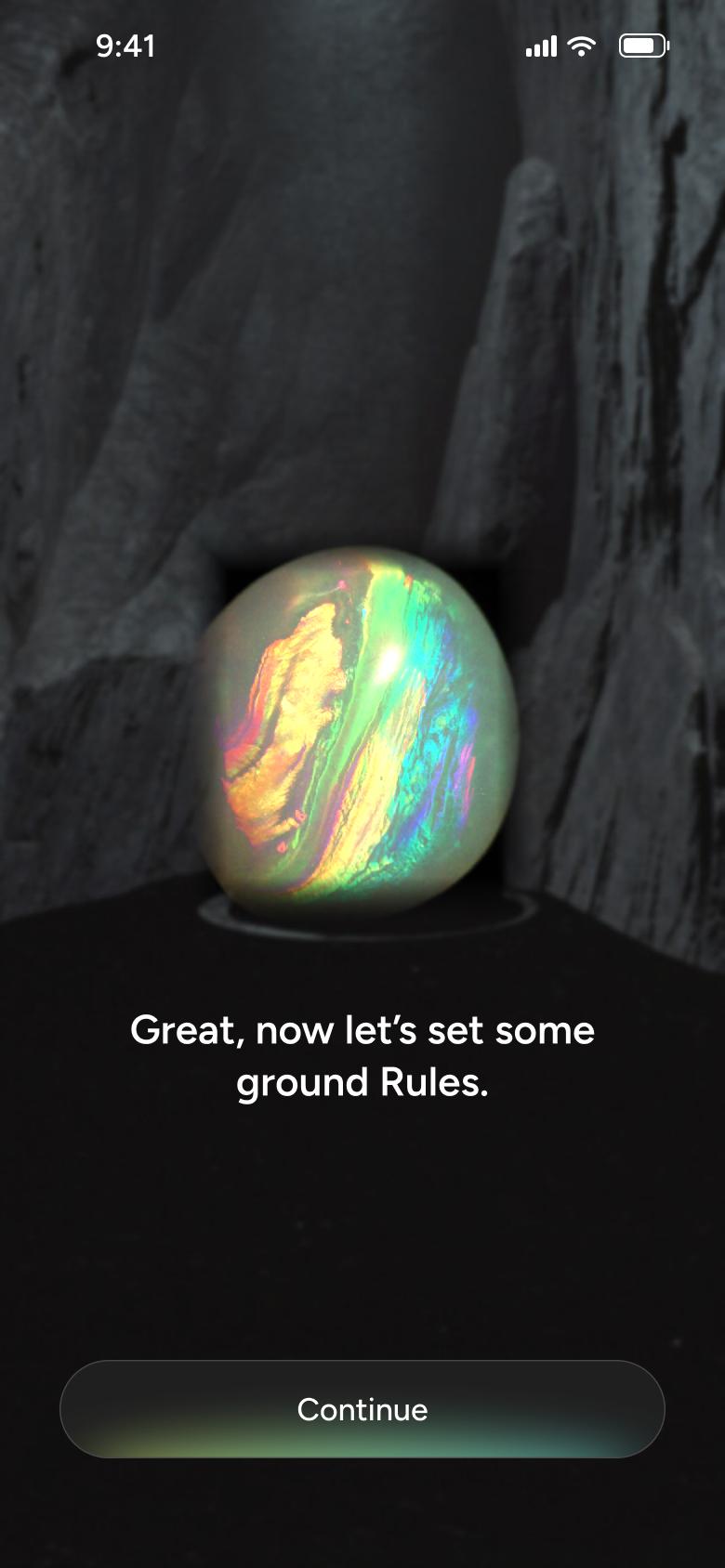
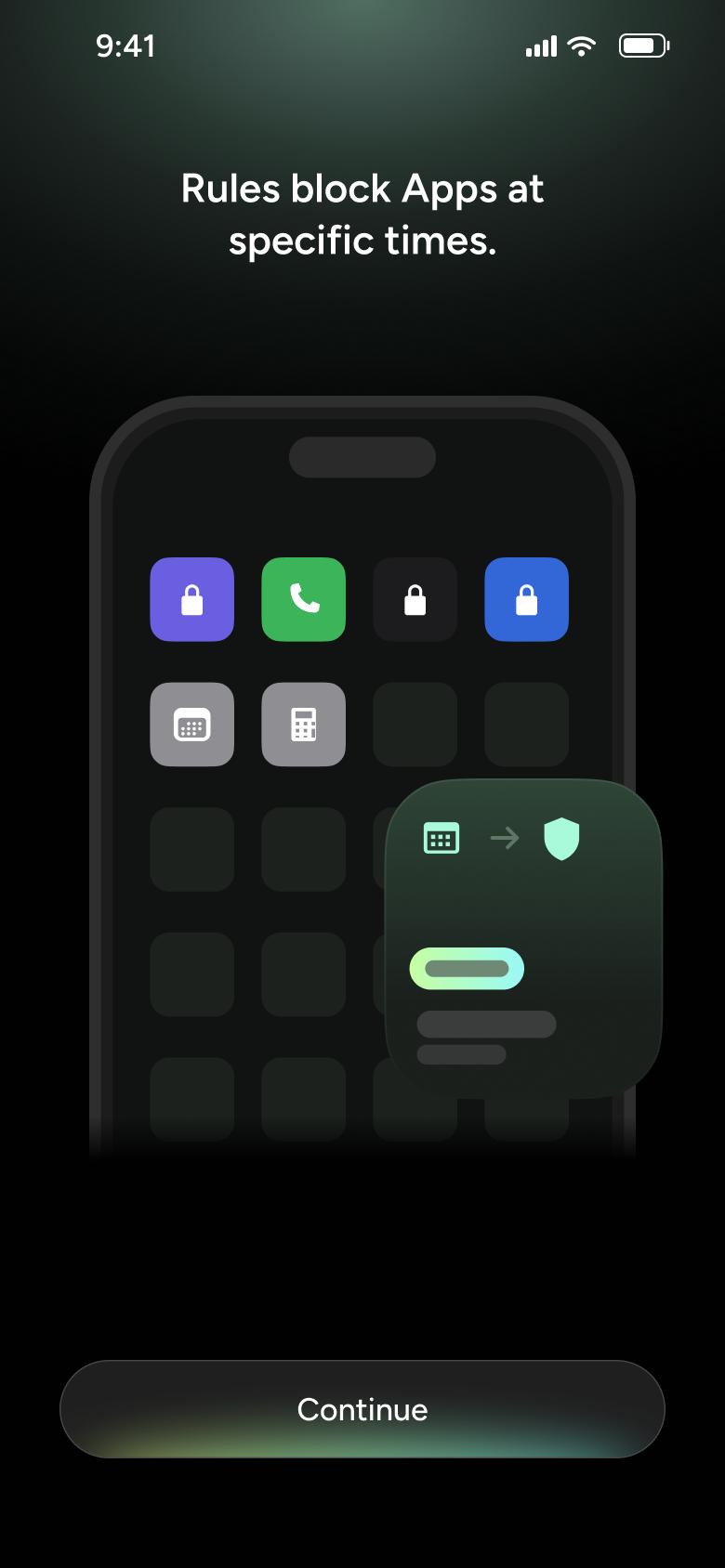
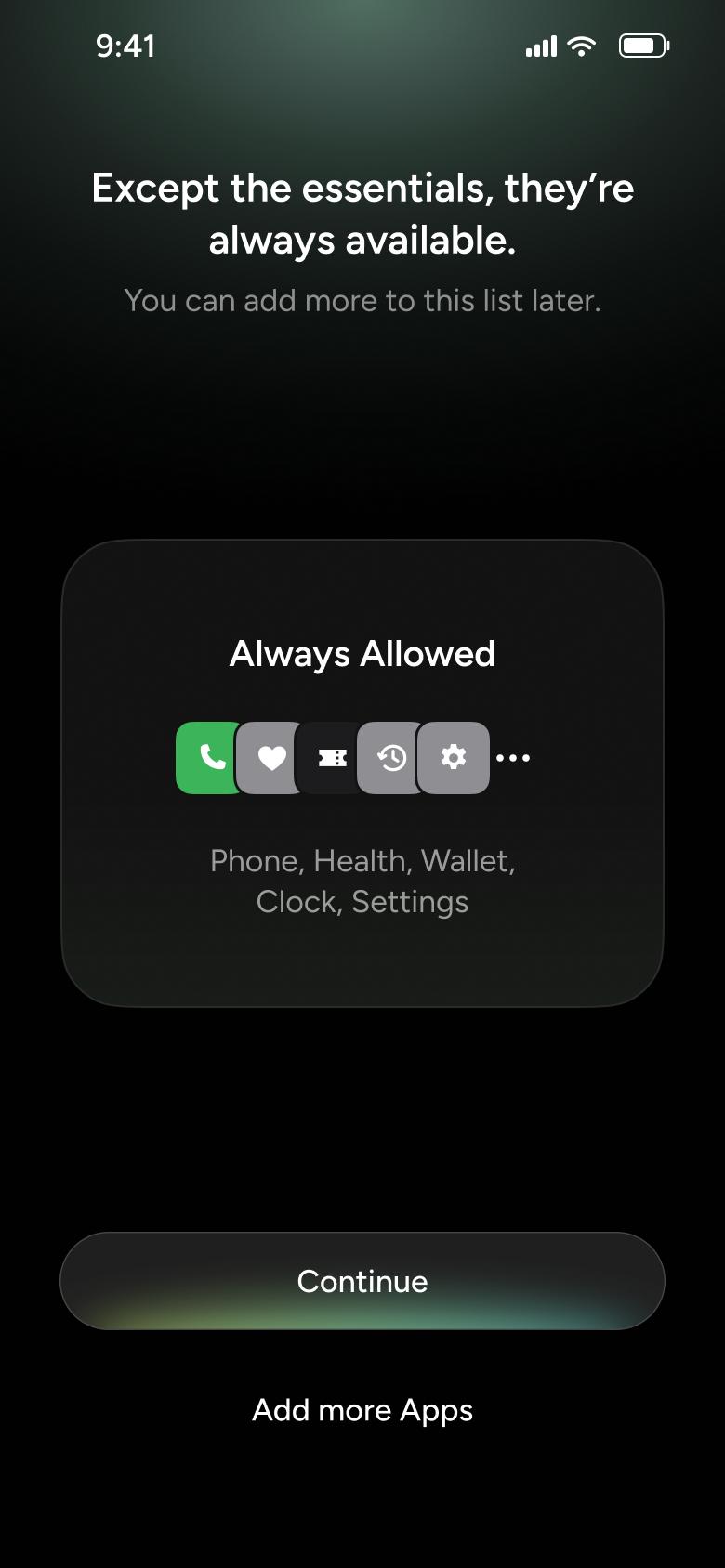
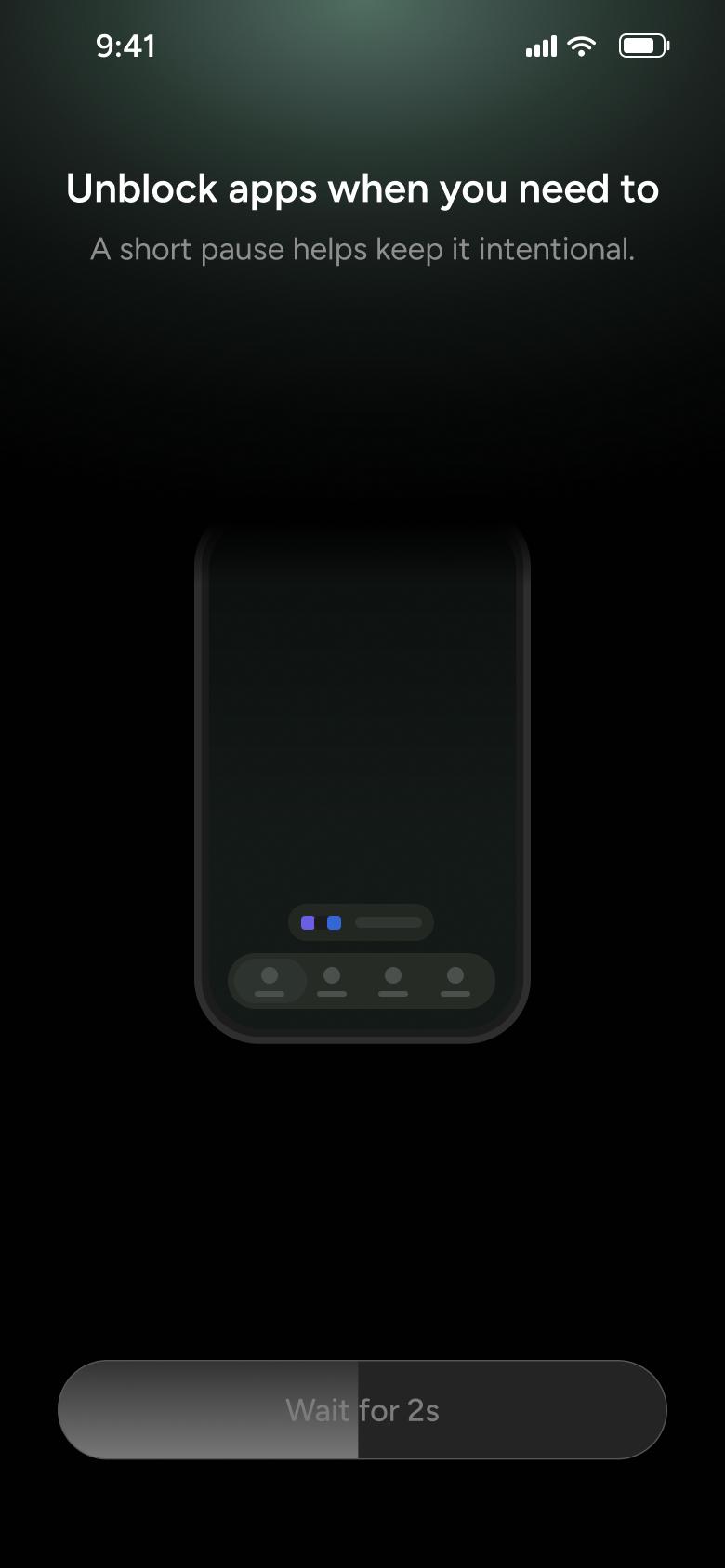
Steps 1–4 of 19, in recording order
Open flowOpen the running rule from the Apps tab, tap Edit, open the app picker, search for an app and tick it alongside the Games category, save and confirm the edited rule.
OpaliOS10 steps
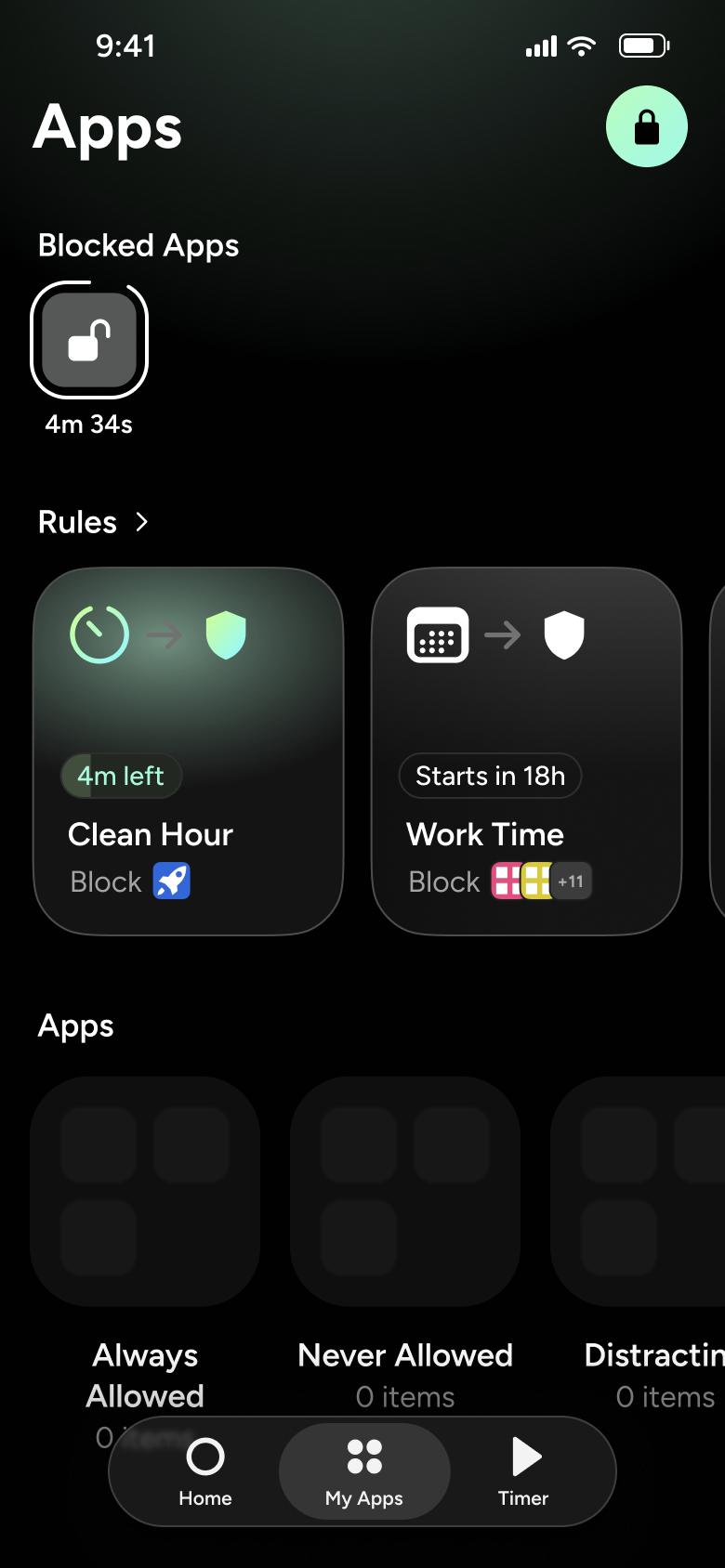
Step 1 of 10
Apps 2
How you get here: Switches tab
Open the SuperDuper UI plugin in Figma to paste these 10 screens into your file as editable layers.
All 10 steps
Use ← → to step through
Each screen in the order it was recorded, with how the user got there.
Tap My Apps
Apps 2
Switches tab
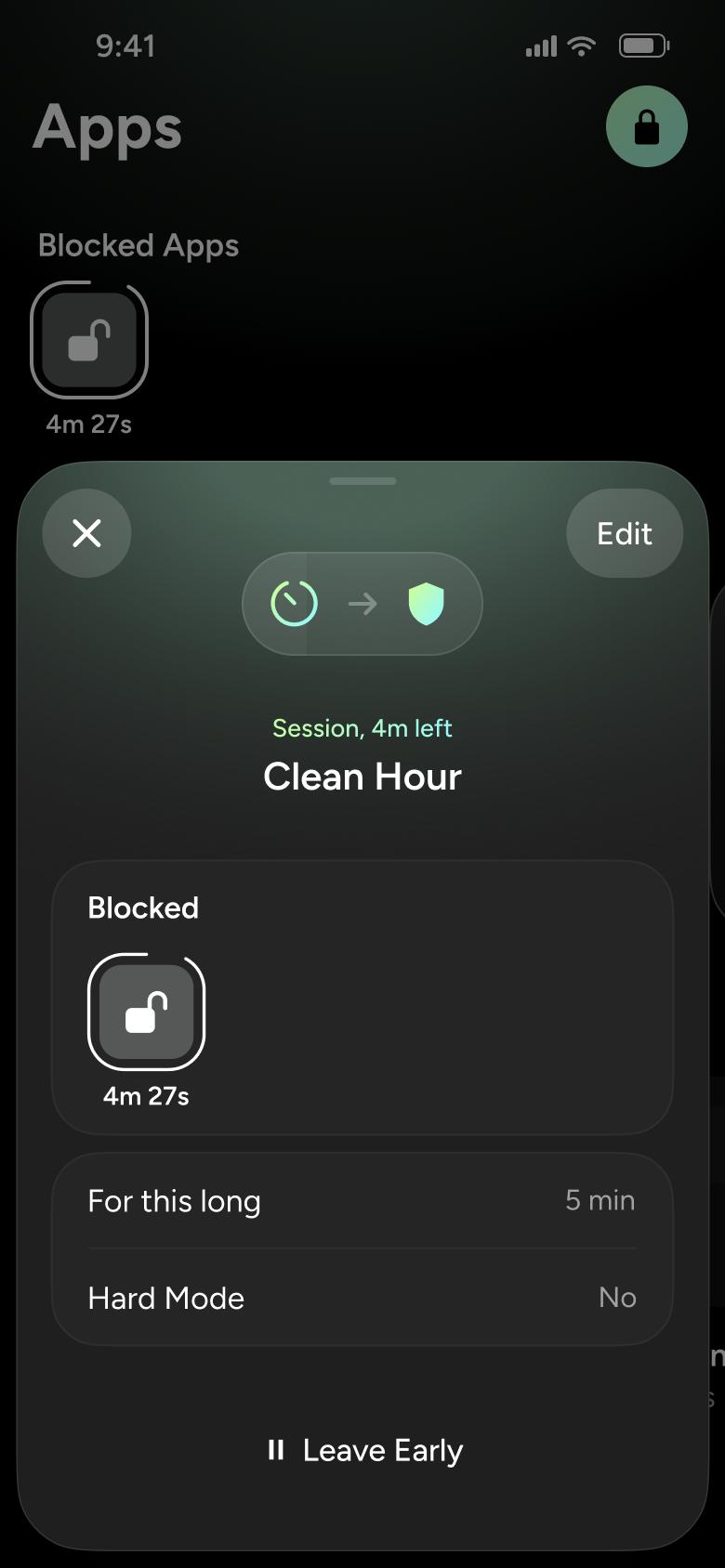
Tap Clean Hour rule card
Apps 3
Slides up from the bottom
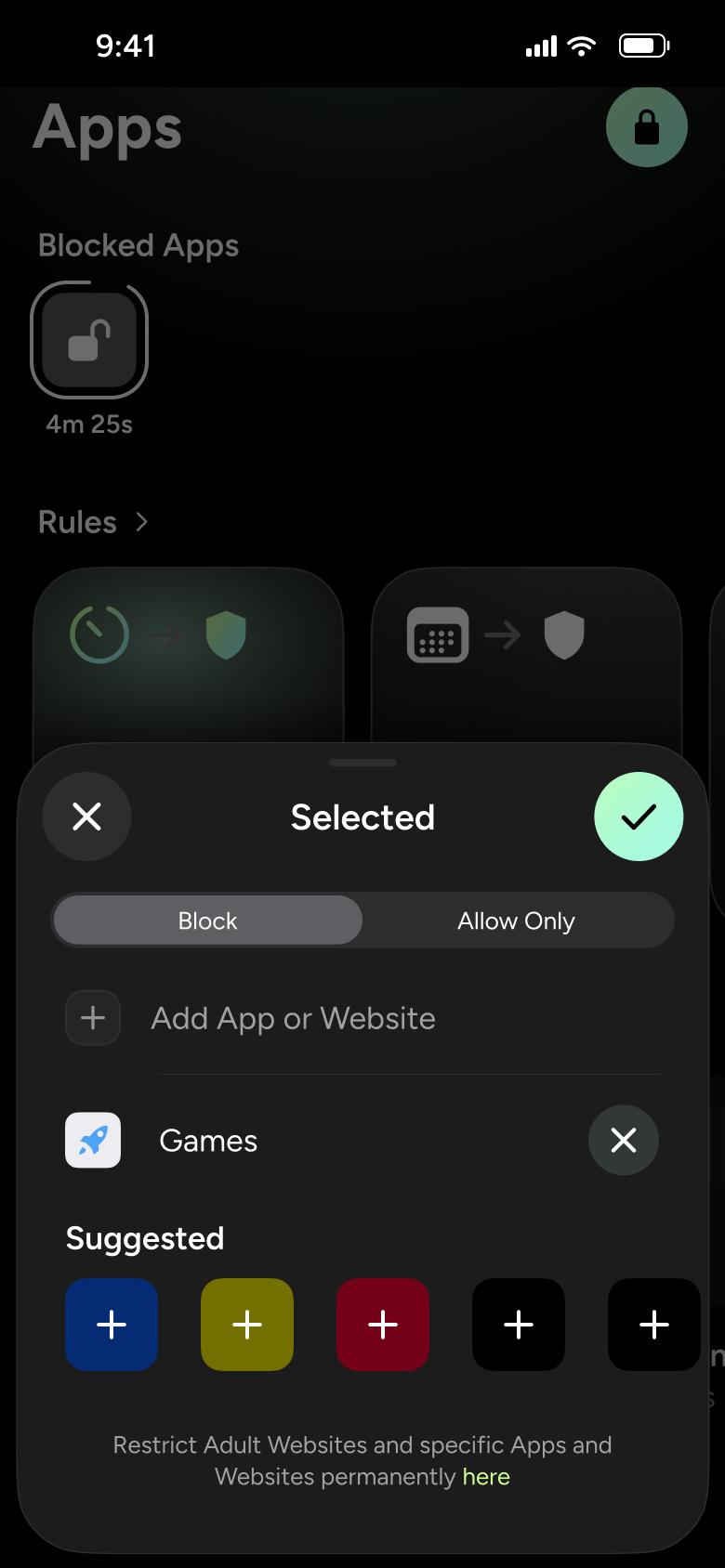
Tap Edit, then Apps
App Picker 7
Slides in from the right
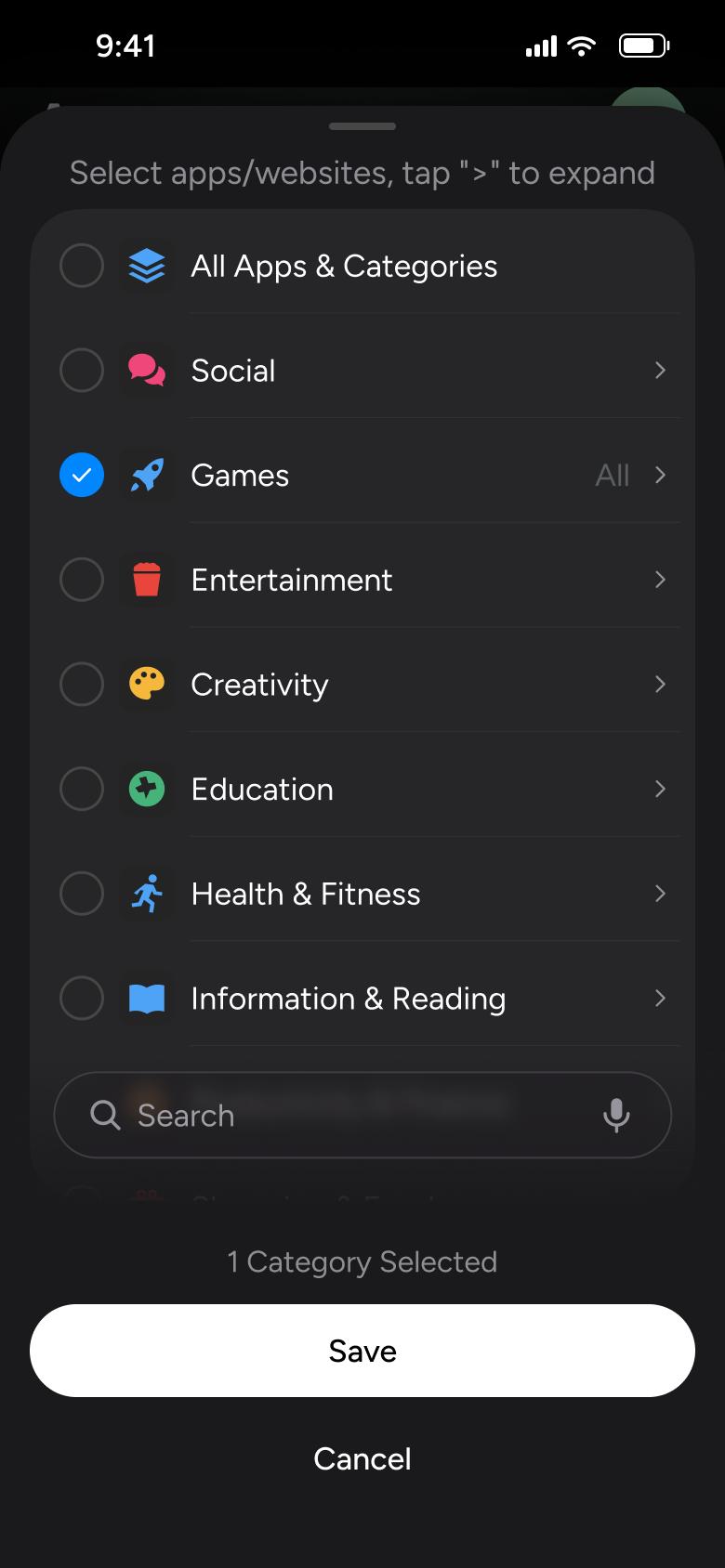
Tap Add App or Website
App Picker 8
Slides up from the bottom
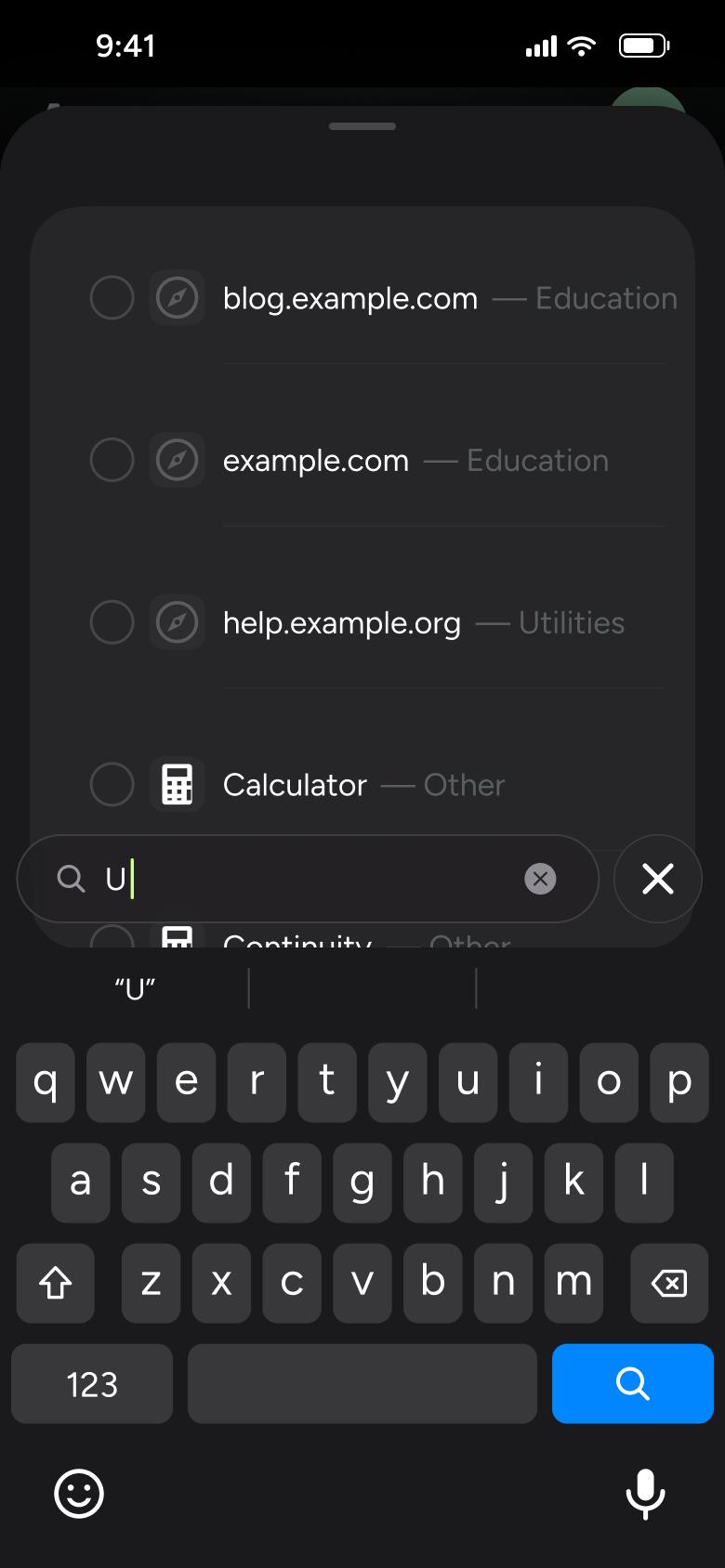
Type a letter
App Picker 9
Changes in place
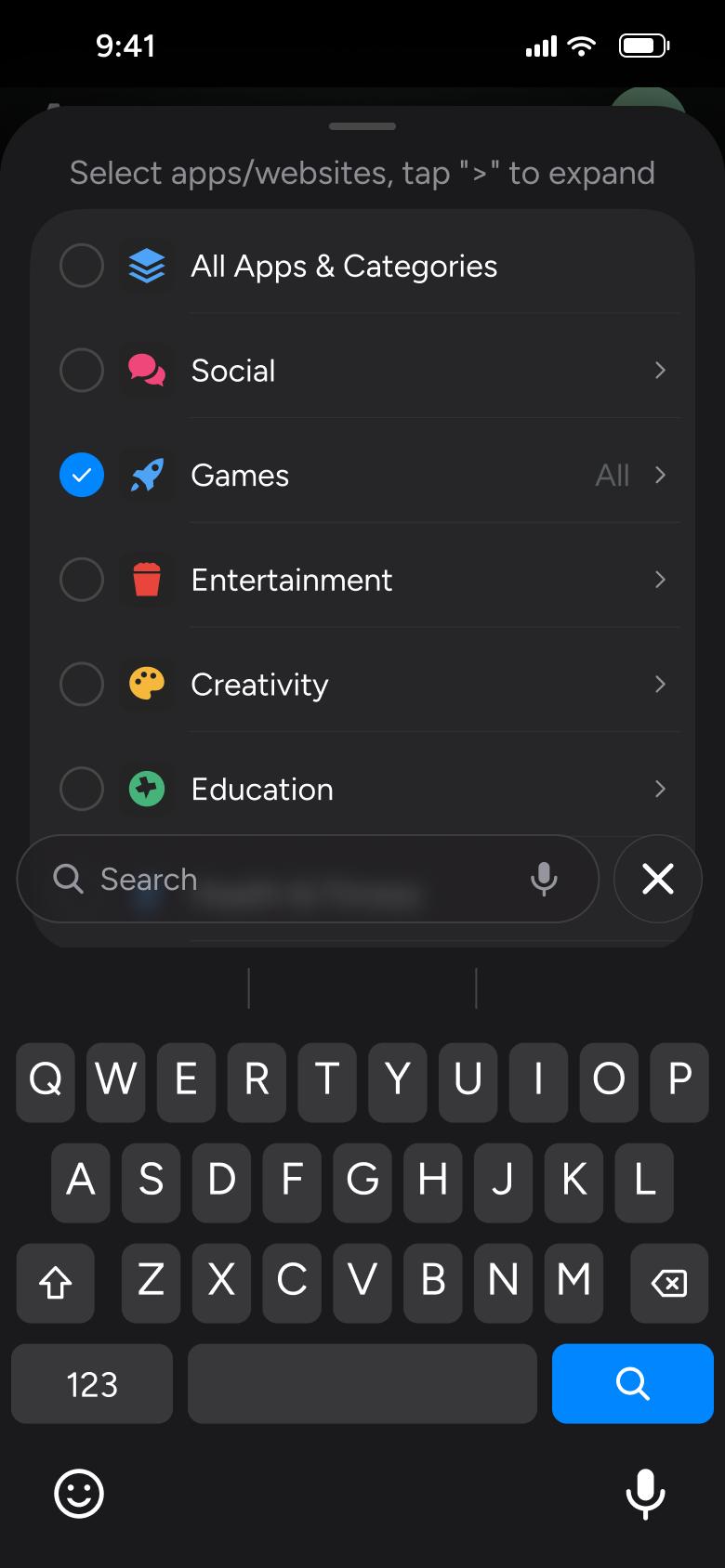
Clear search
App Picker 10
Changes in place
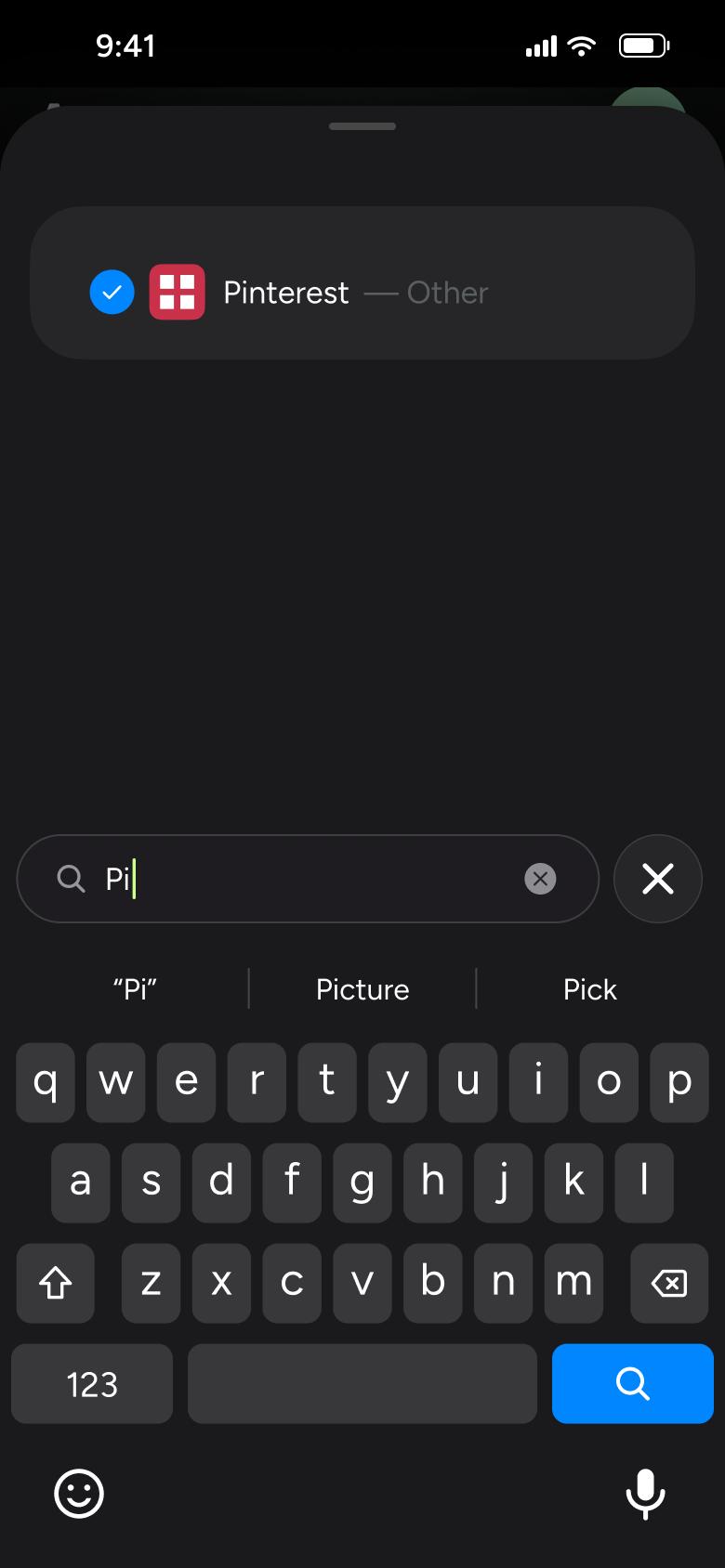
Type Pi, tap result
App Picker 11
Changes in place
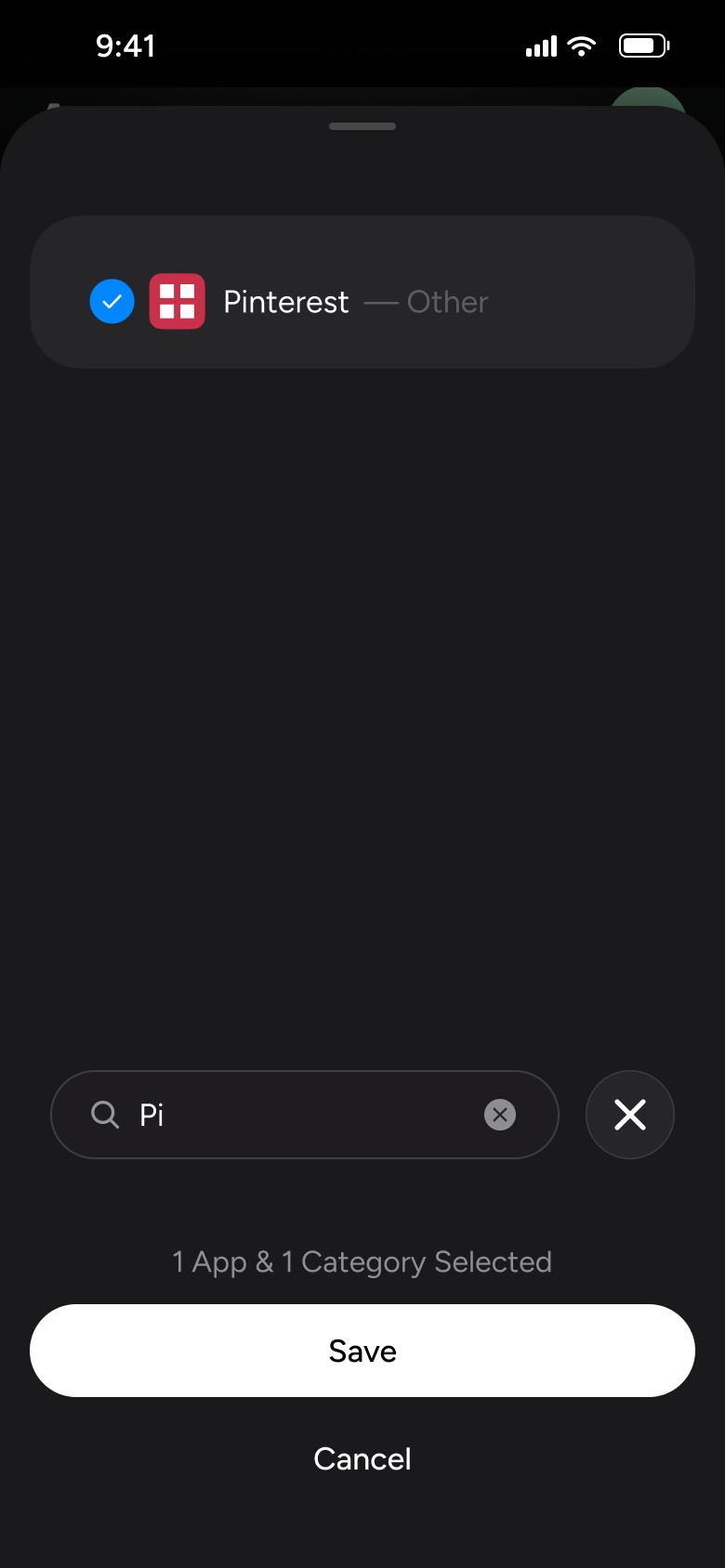
Dismiss keyboard
App Picker 12
Changes in place
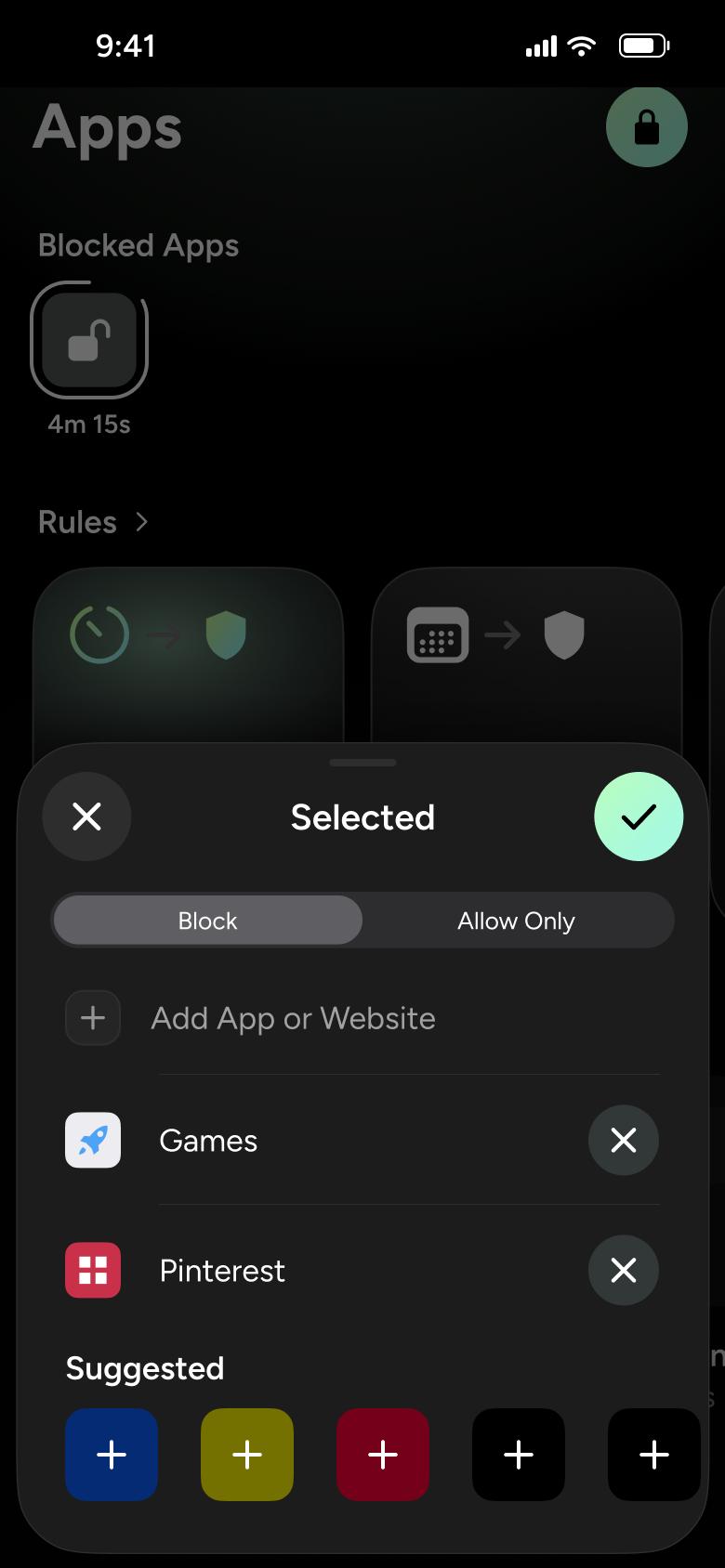
Tap Save
App Picker 13
Closes
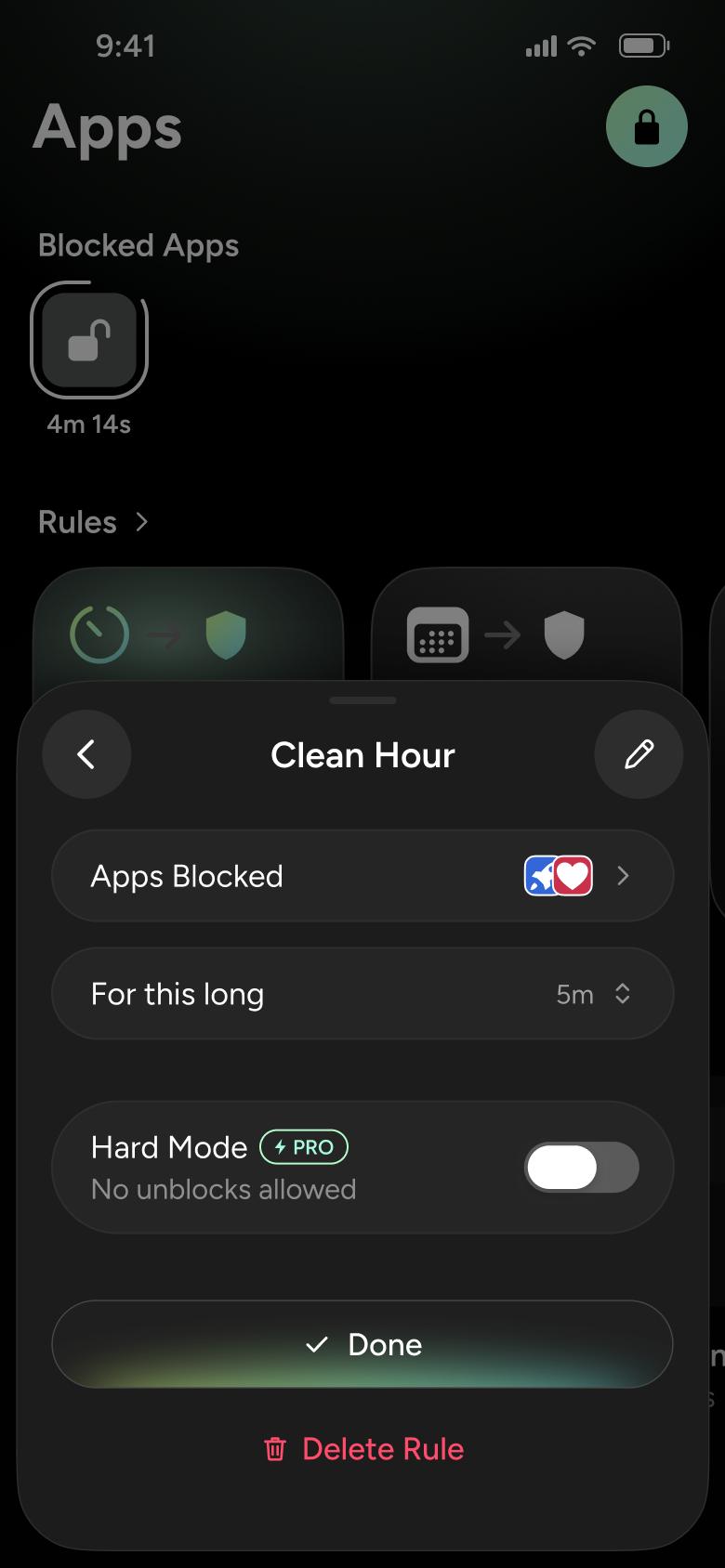
Tap confirm check
Rule Editor 5
Goes back
Not affiliated with, endorsed or sponsored by Opal. Opal is a trade mark of its owner. Recreated for design reference and education. Rights holders: contact us
19 screens
Steps 1–4 of 19, in recording order
Open flow17 screens
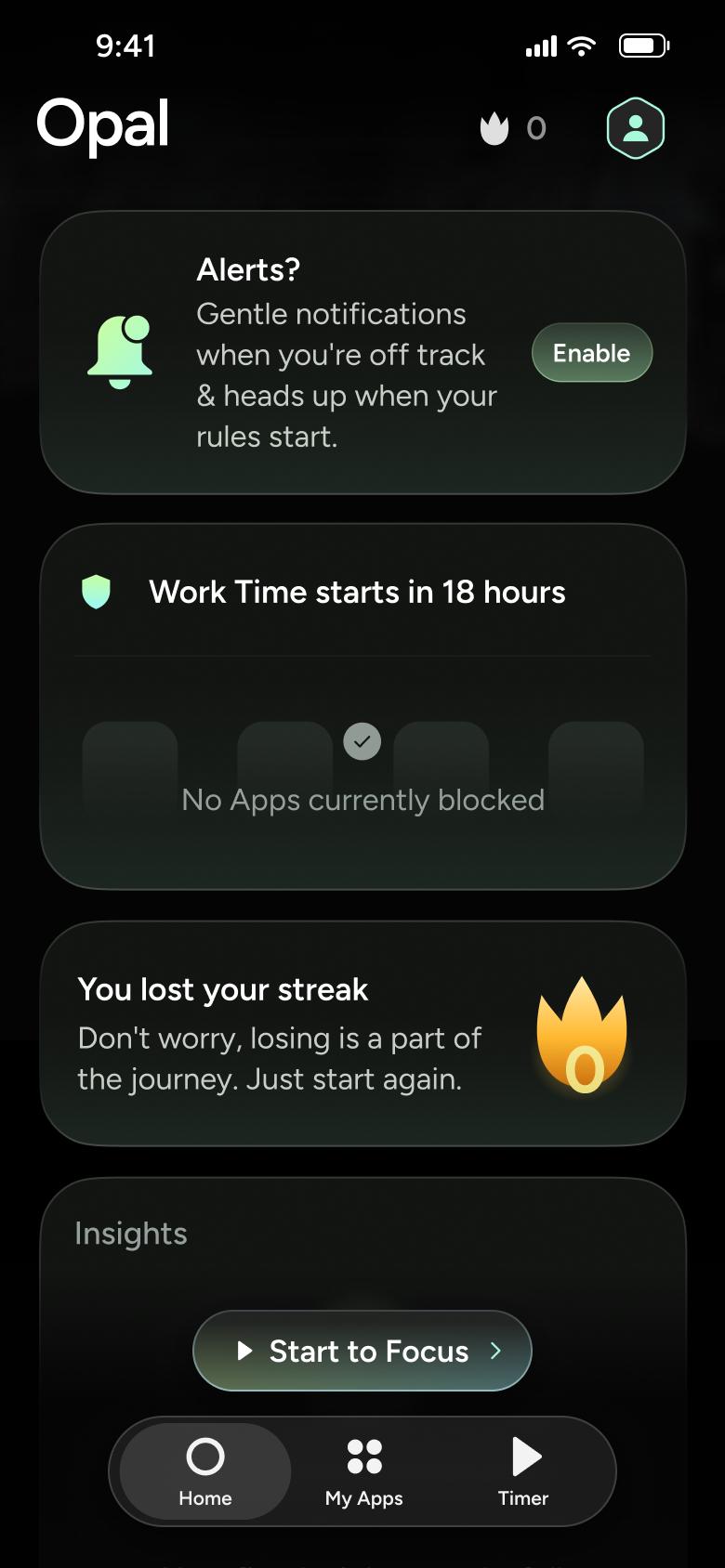
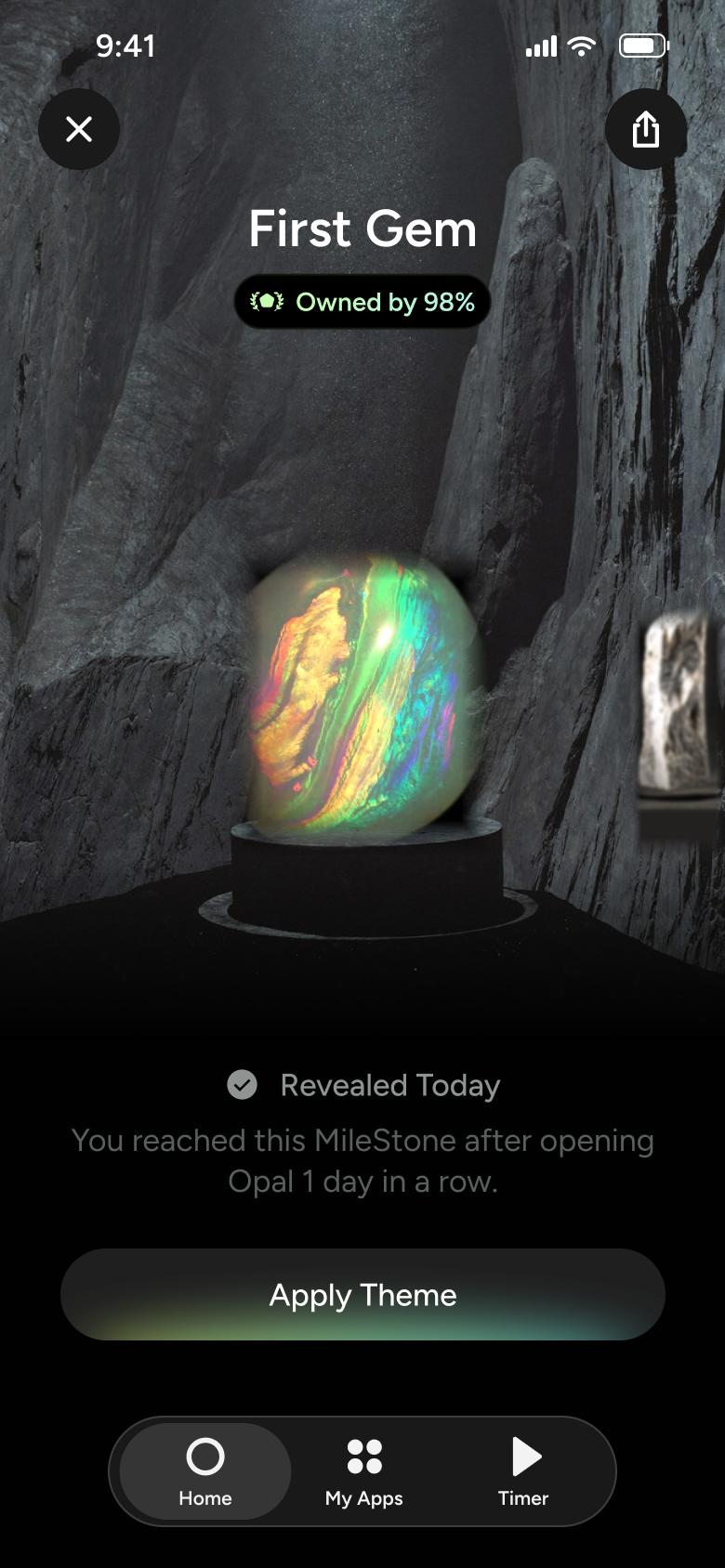
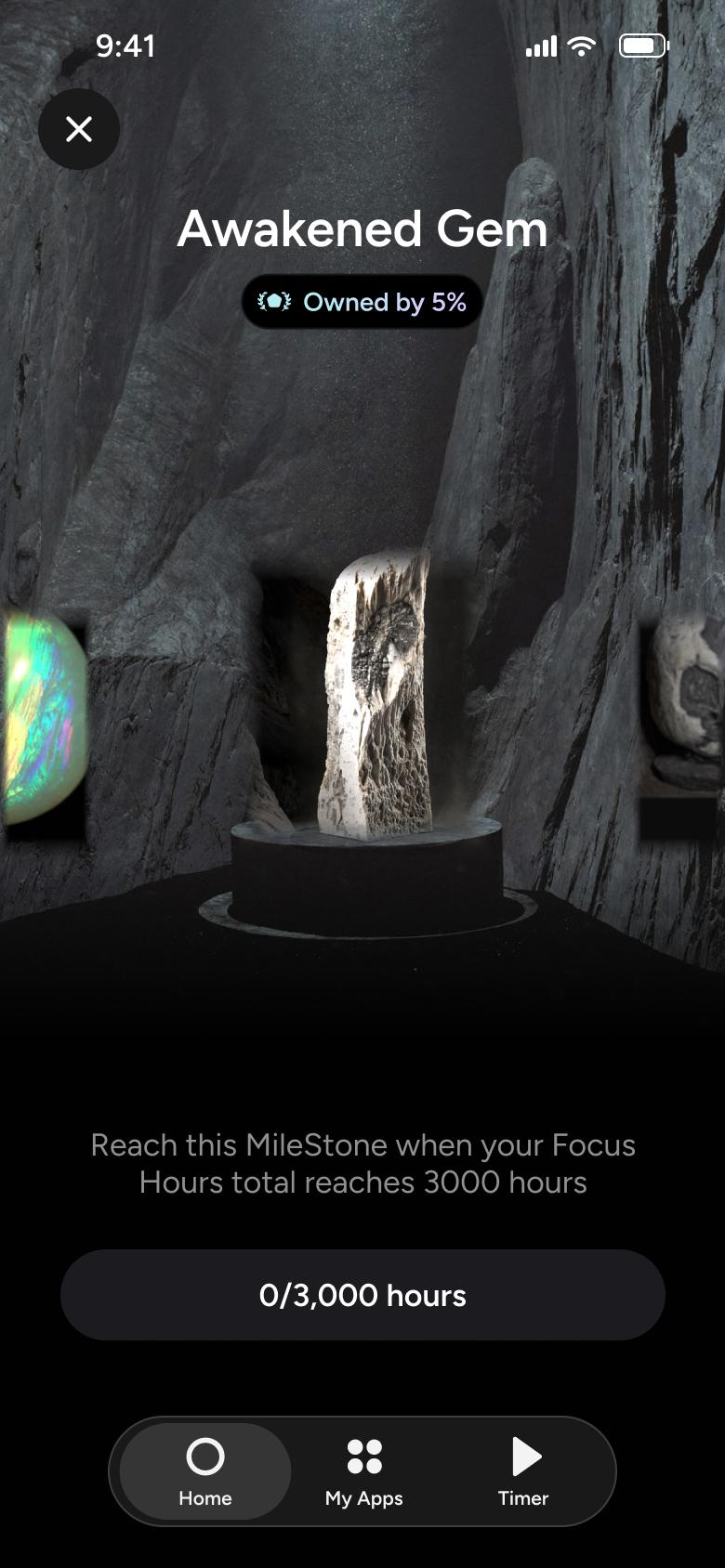
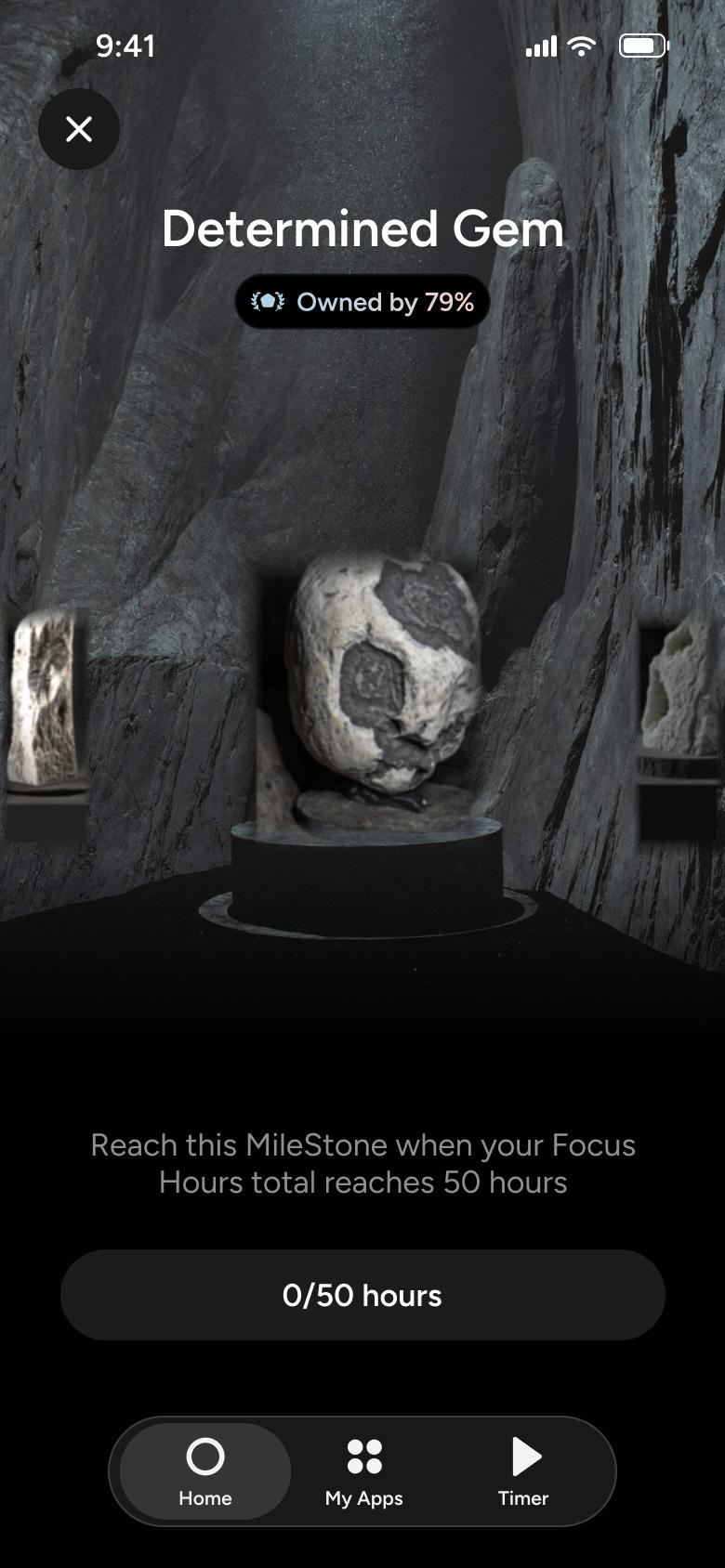
Steps 1–4 of 17, in recording order
Open flowAll of WhatsApp, and a complete flow from every app. No card needed.