
Switch to dark mode
Appearance & dark mode13 screens
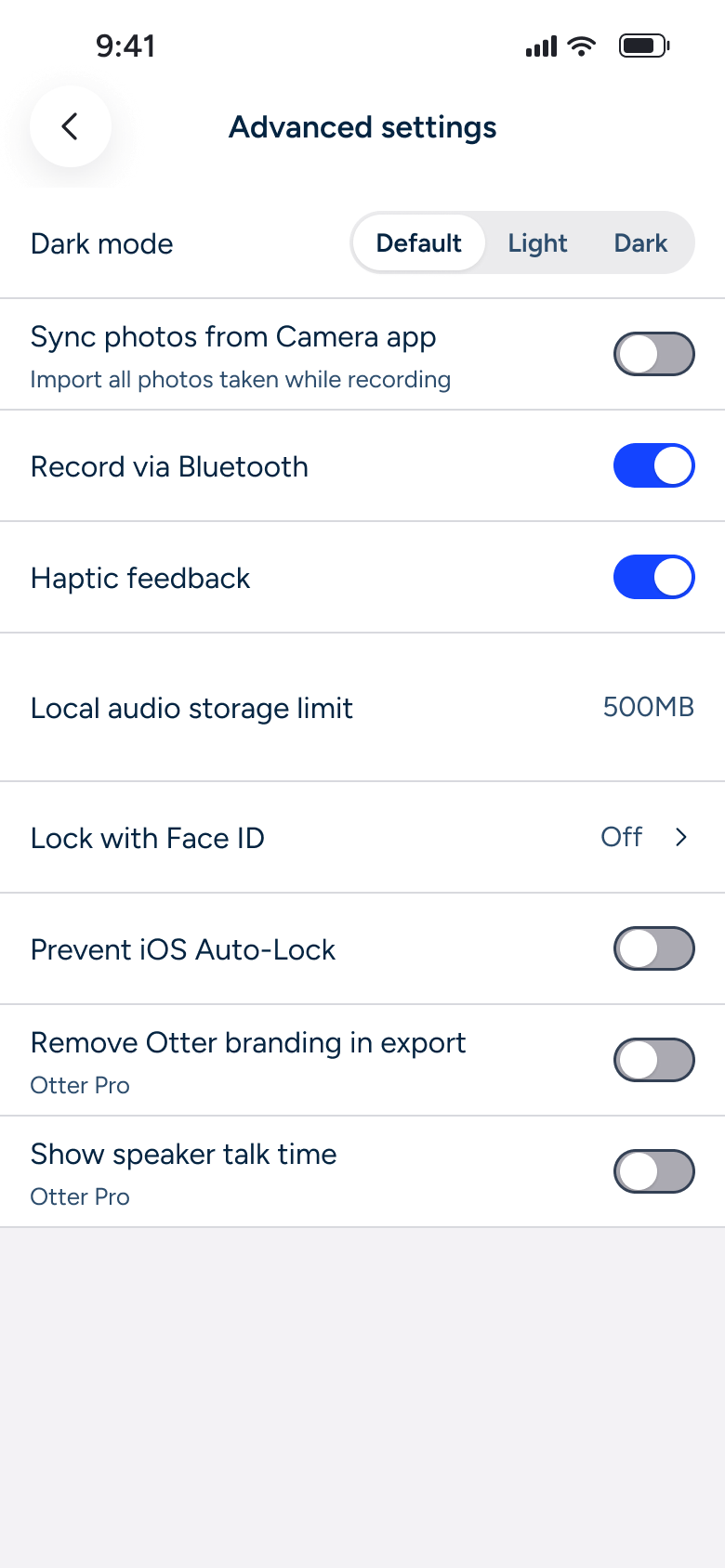
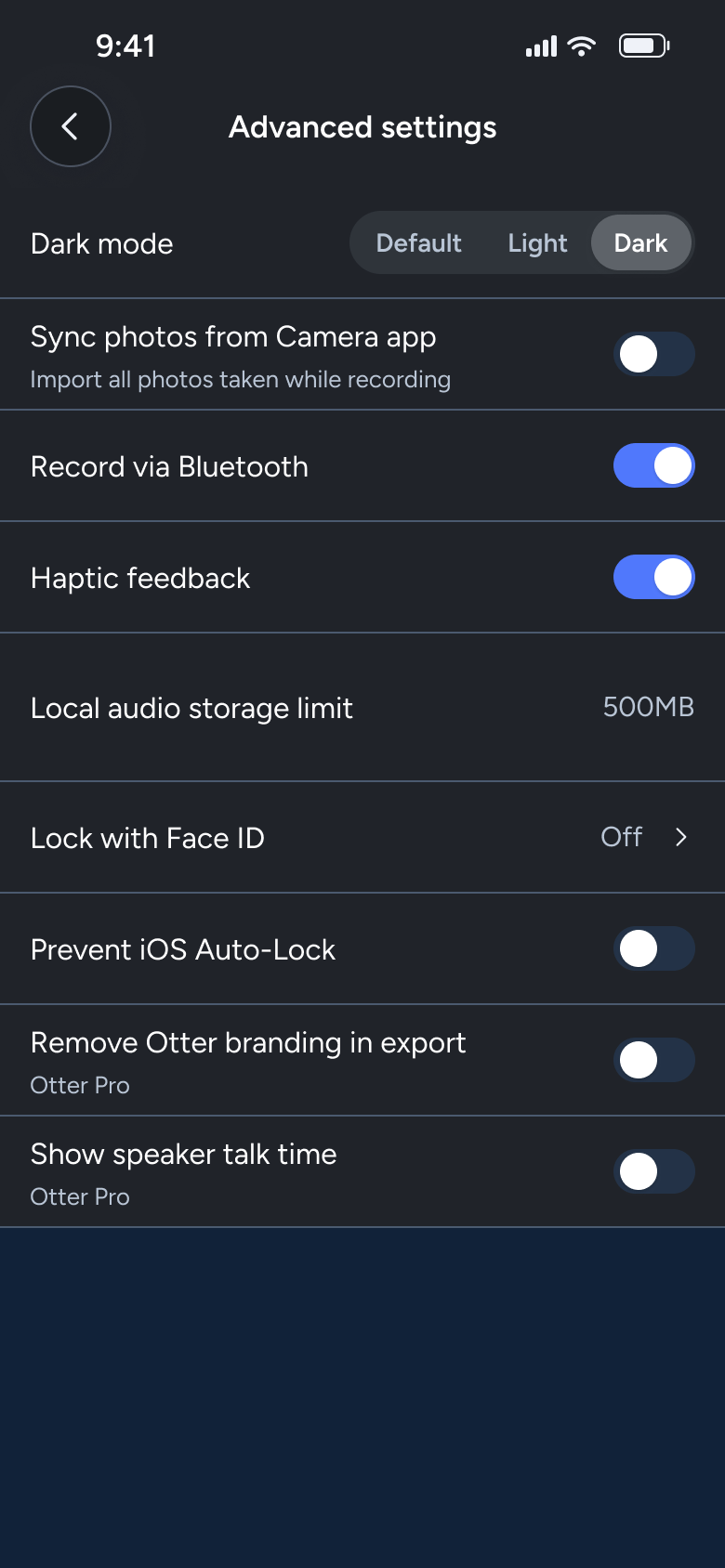
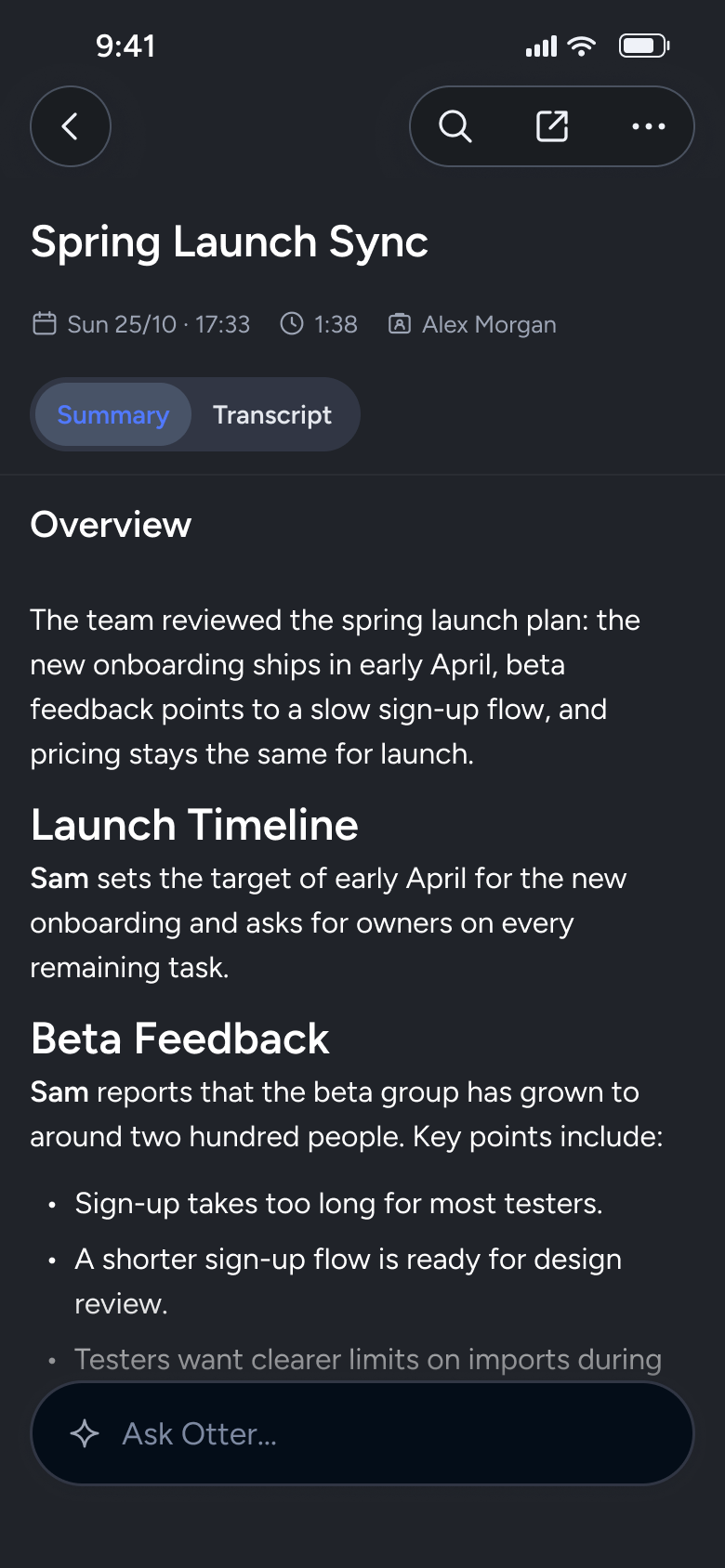
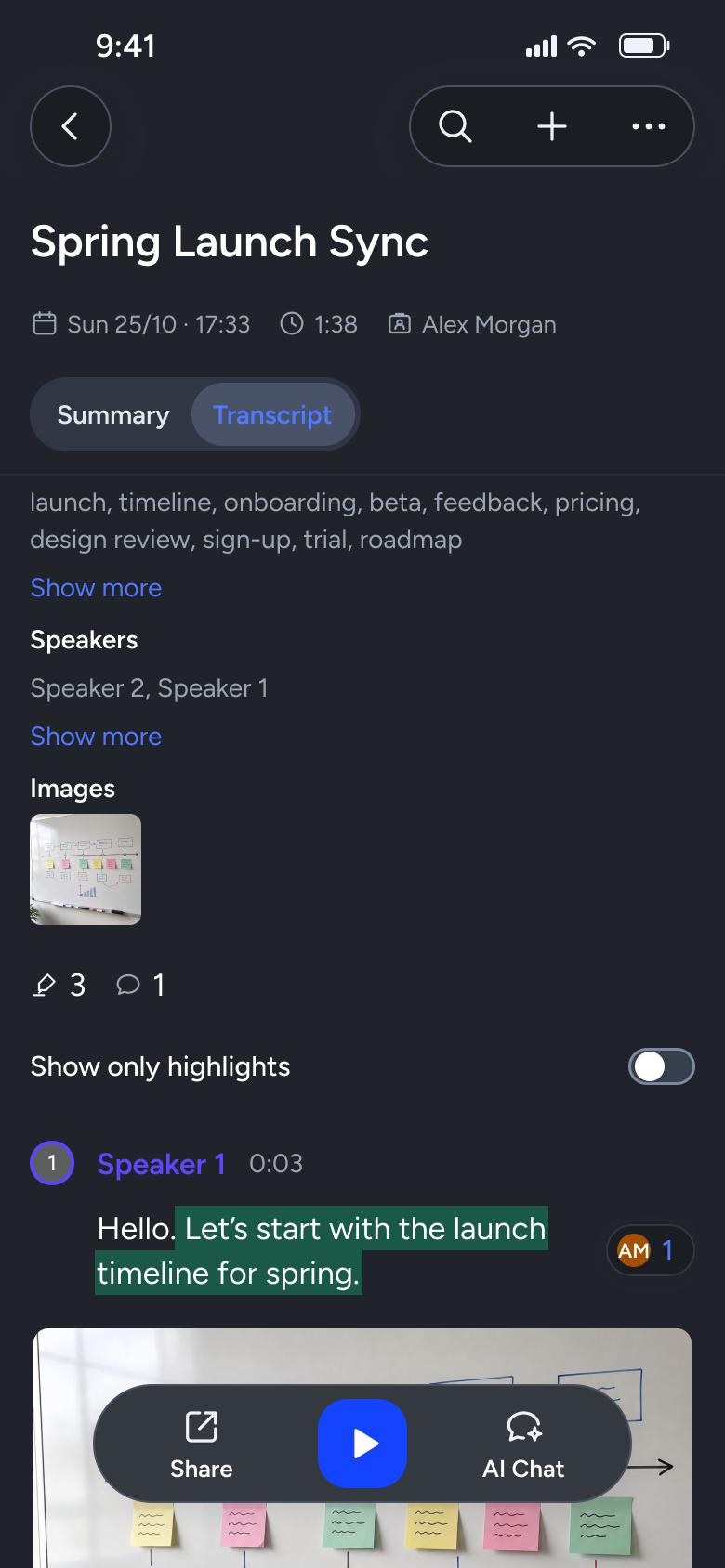
Steps 1–4 of 13, in recording order
Open flowStart on the welcome screen, continue with Google, agree to calendar access, allow notifications, choose which meetings the notetaker joins and who gets notes, then see the Pro trial offer and land on home.
OtteriOS12 stepsFree sample
Every app’s free flow imports free, no card needed.
See all sign up flows across apps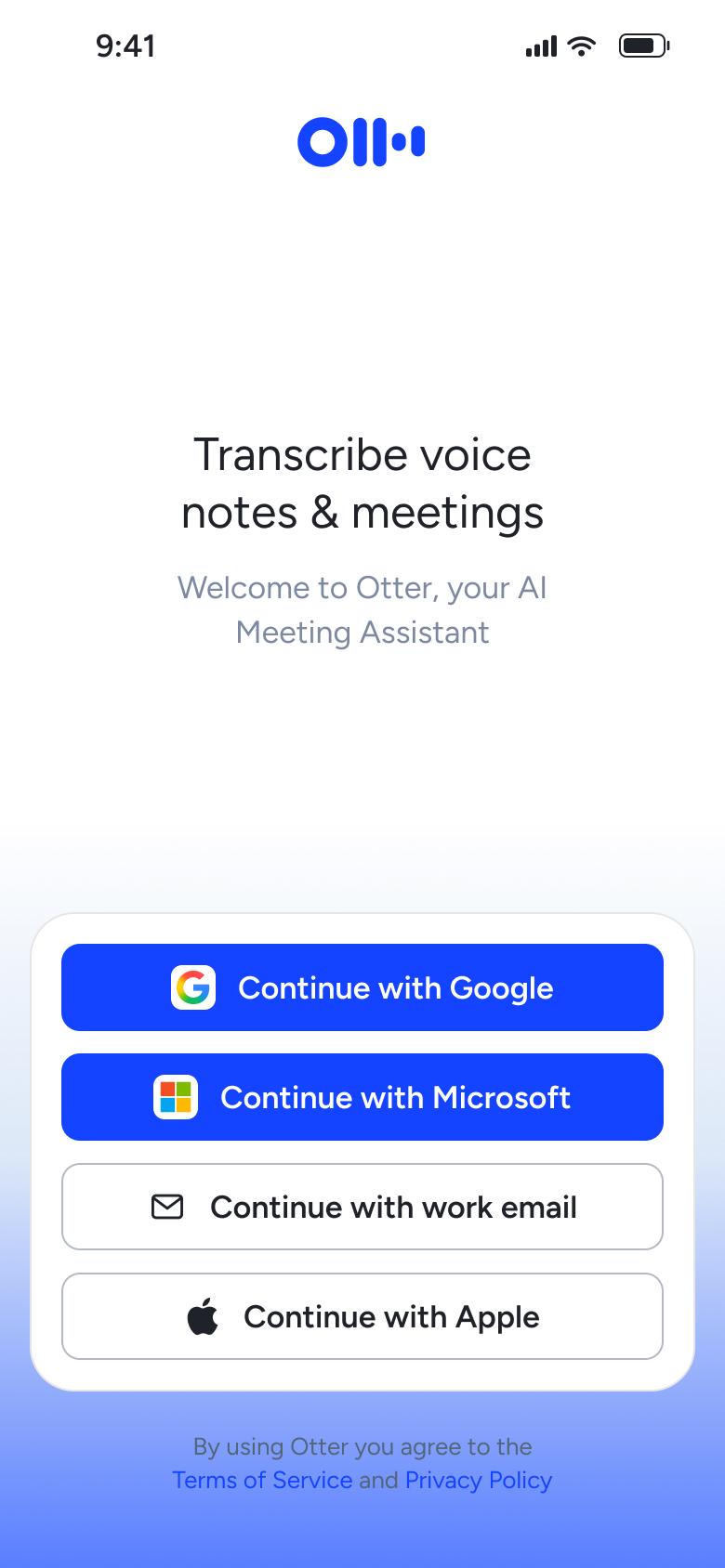
Step 1 of 12
Welcome and sign in 1
How you get here: Leaves the app
Open the SuperDuper UI plugin in Figma to paste these 12 screens into your file as editable layers.
All 12 steps
Use ← → to step through
Each screen in the order it was recorded, with how the user got there.
Open the app
Welcome and sign in 1
Leaves the app
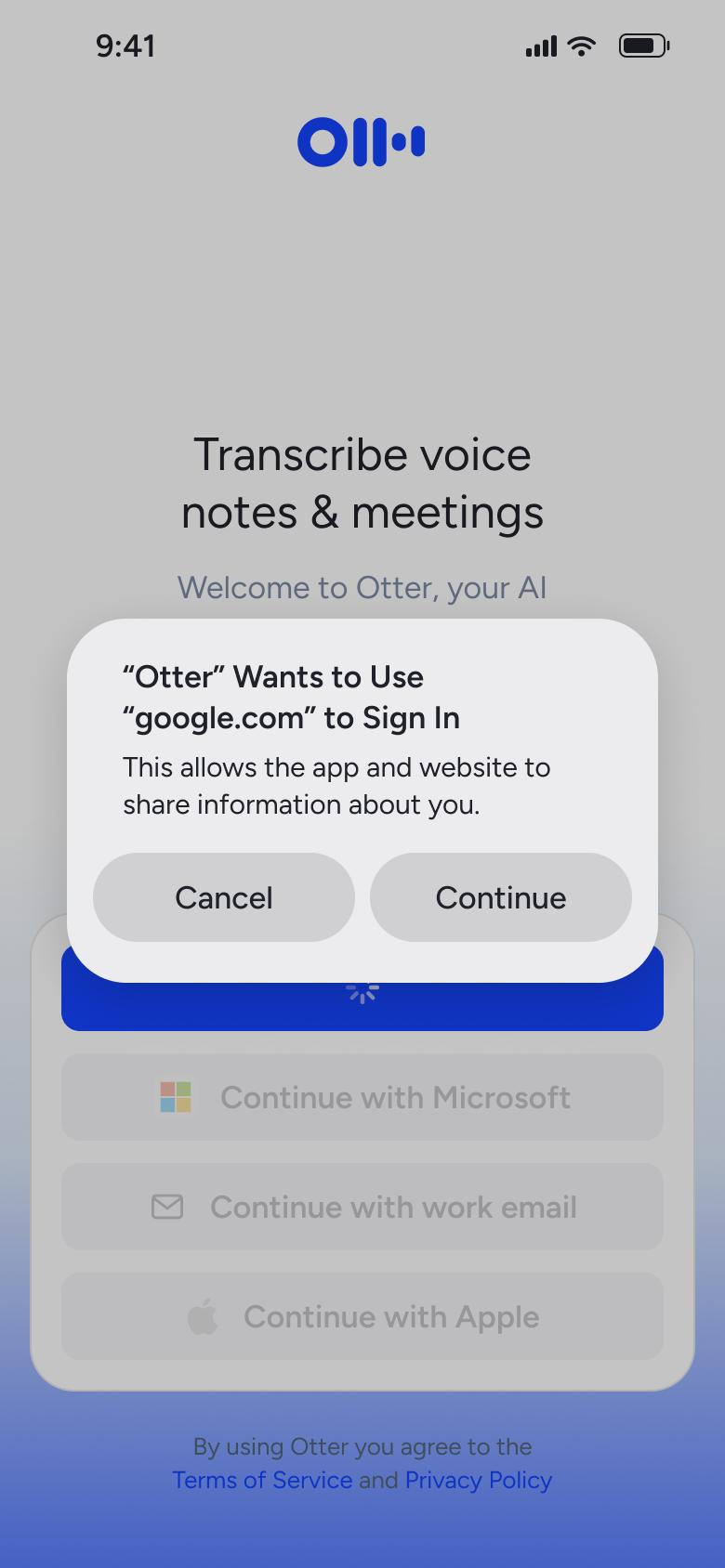
Tap Continue with Google
Welcome and sign in 2
Shows an alert
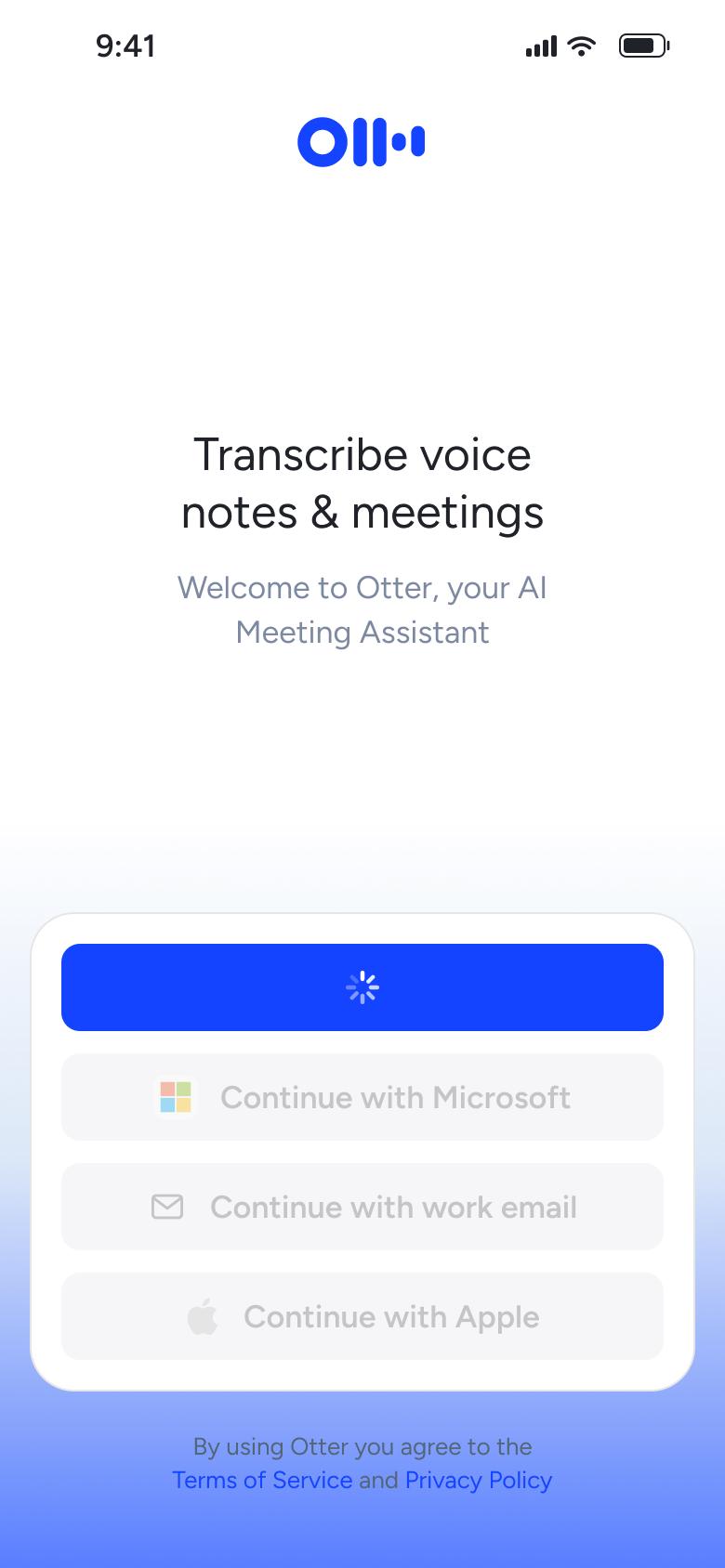
Return from Google sign-in
Welcome and sign in 3
Changes in place
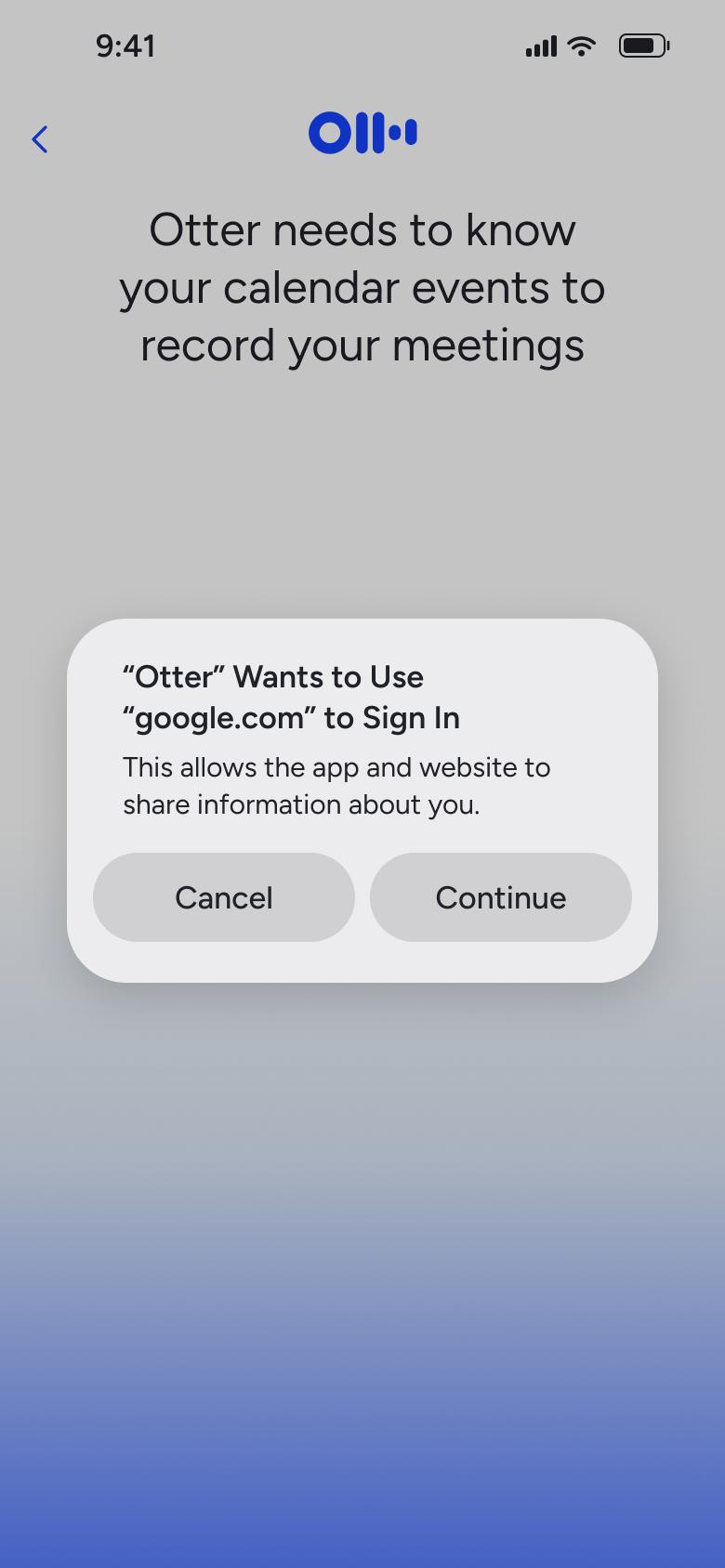
Signed in, calendar step opens
Onboarding 1
Slides in from the right
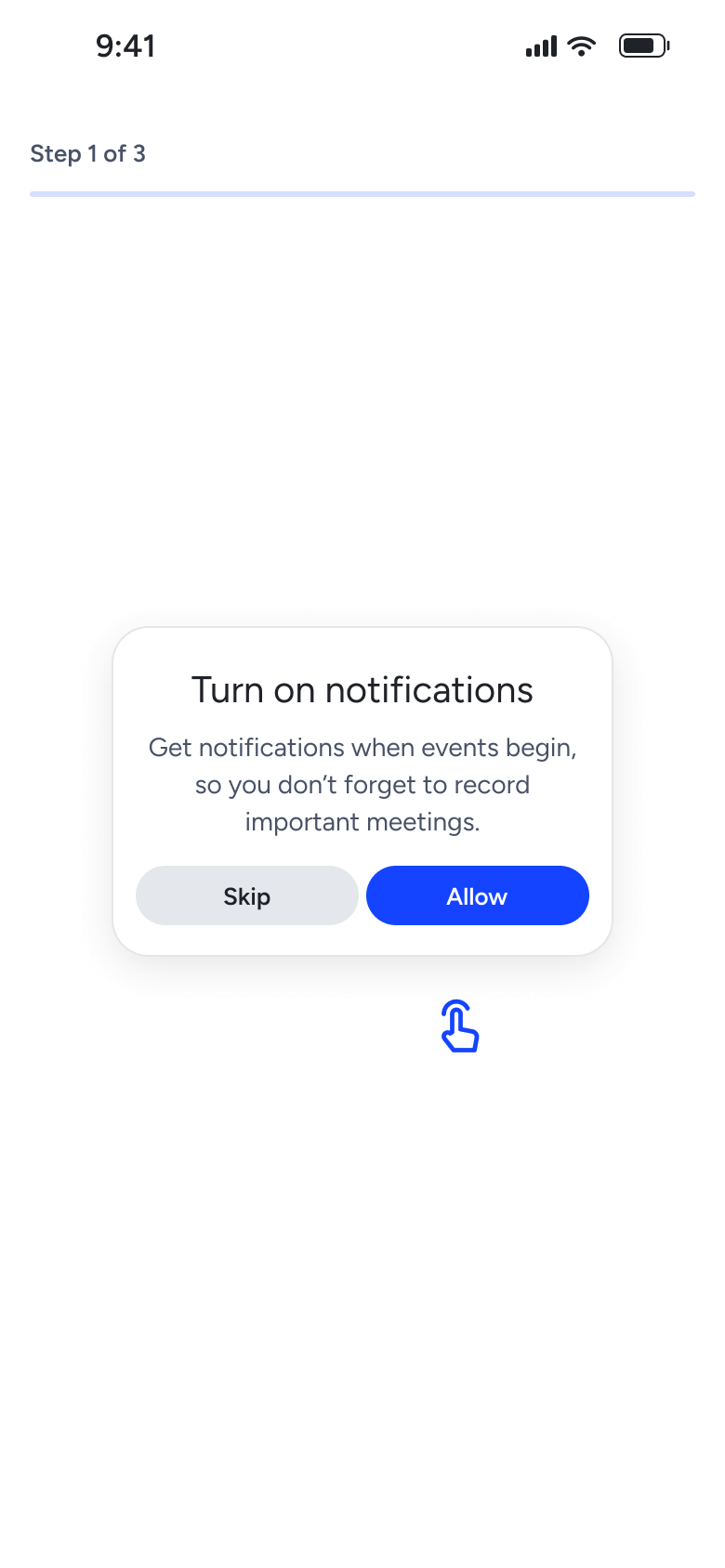
Calendar connected
Onboarding 2
Slides in from the right
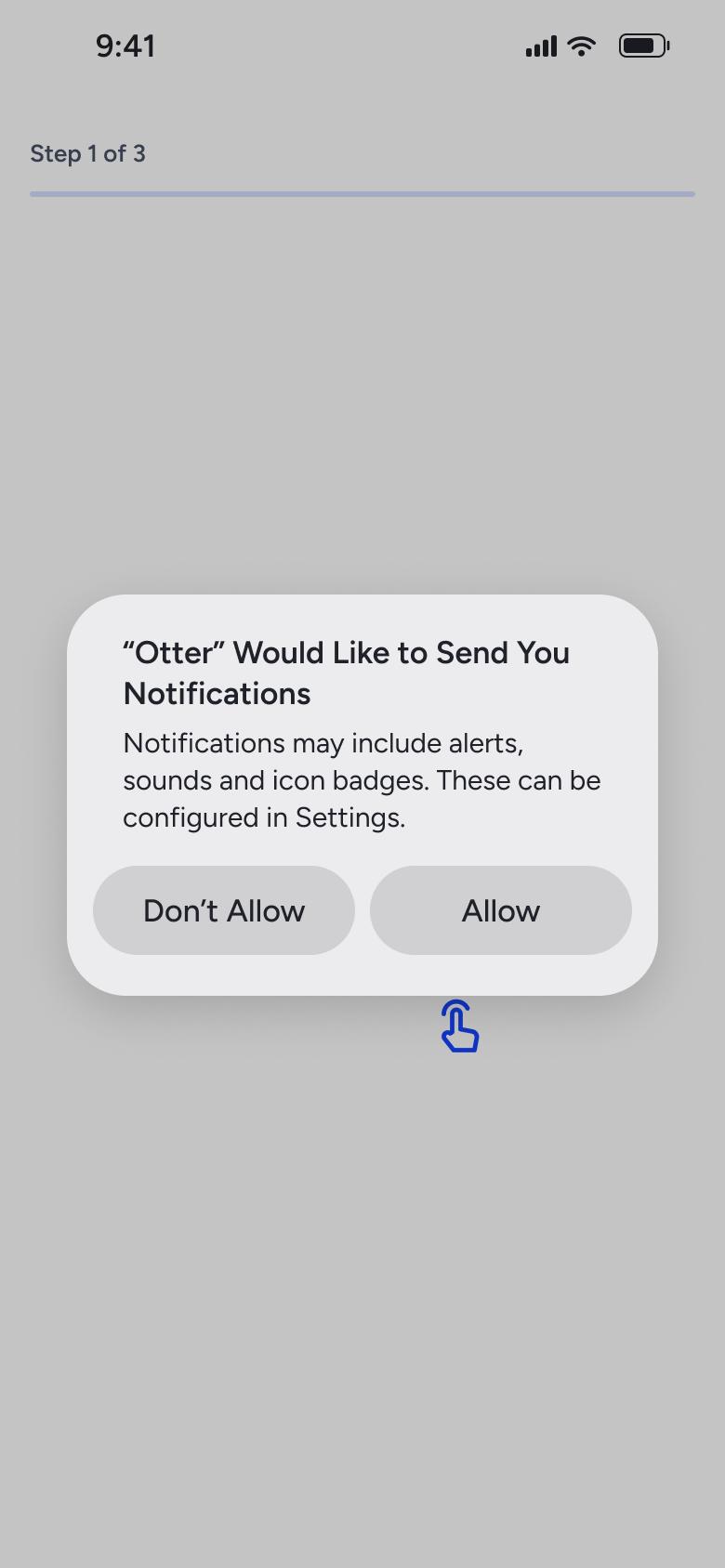
Tap Allow
Onboarding 3
Shows an alert
Allow notifications
Onboarding 4
Slides in from the right
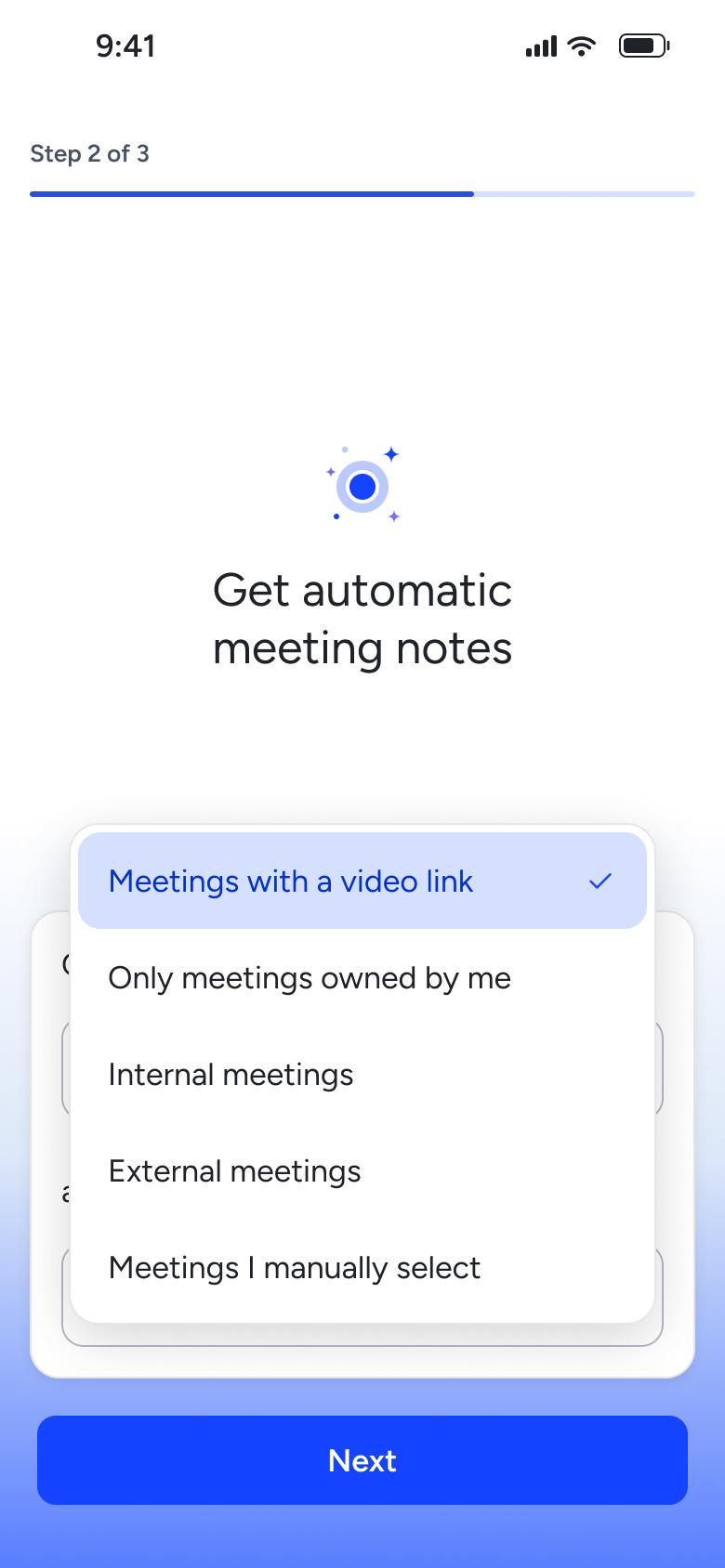
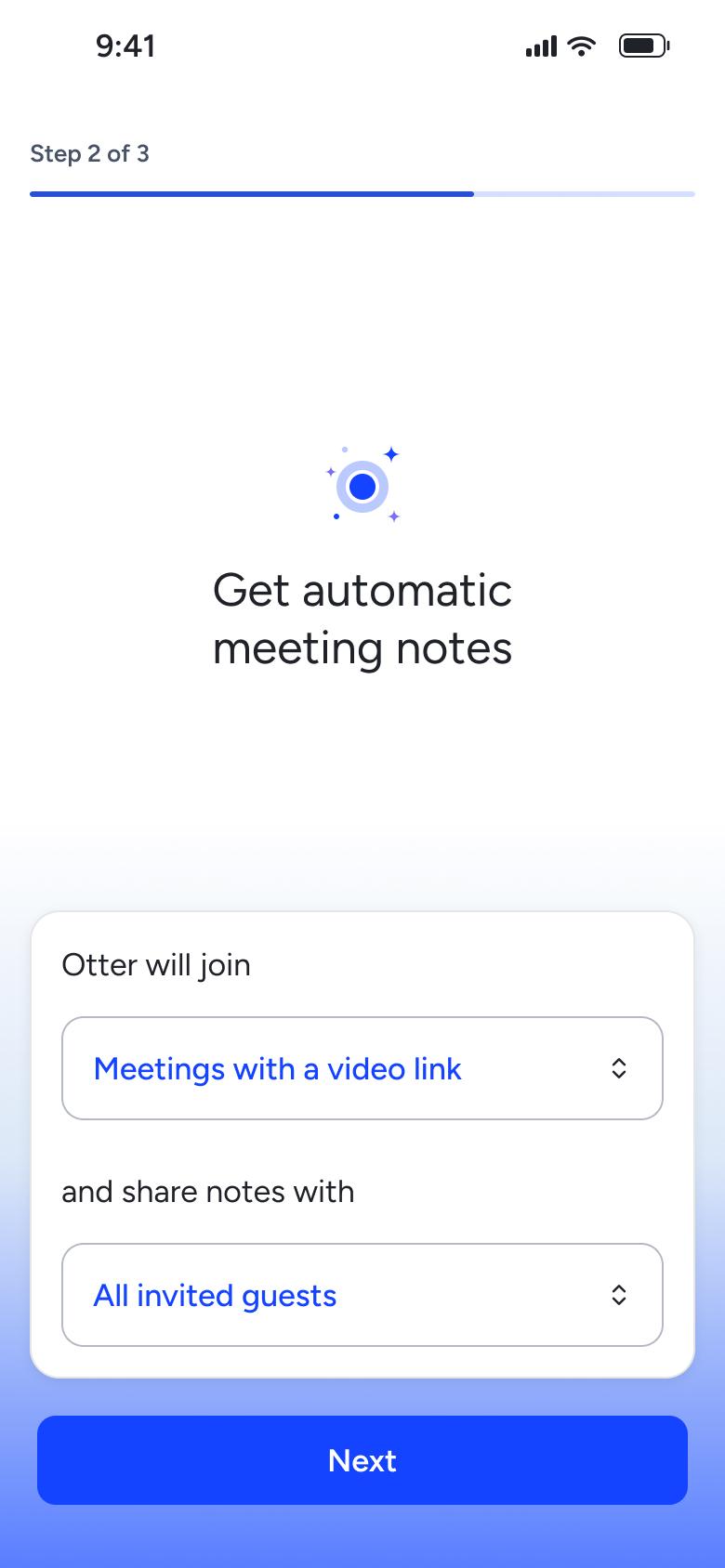
Tap join rule dropdown
Onboarding 5
Changes in place
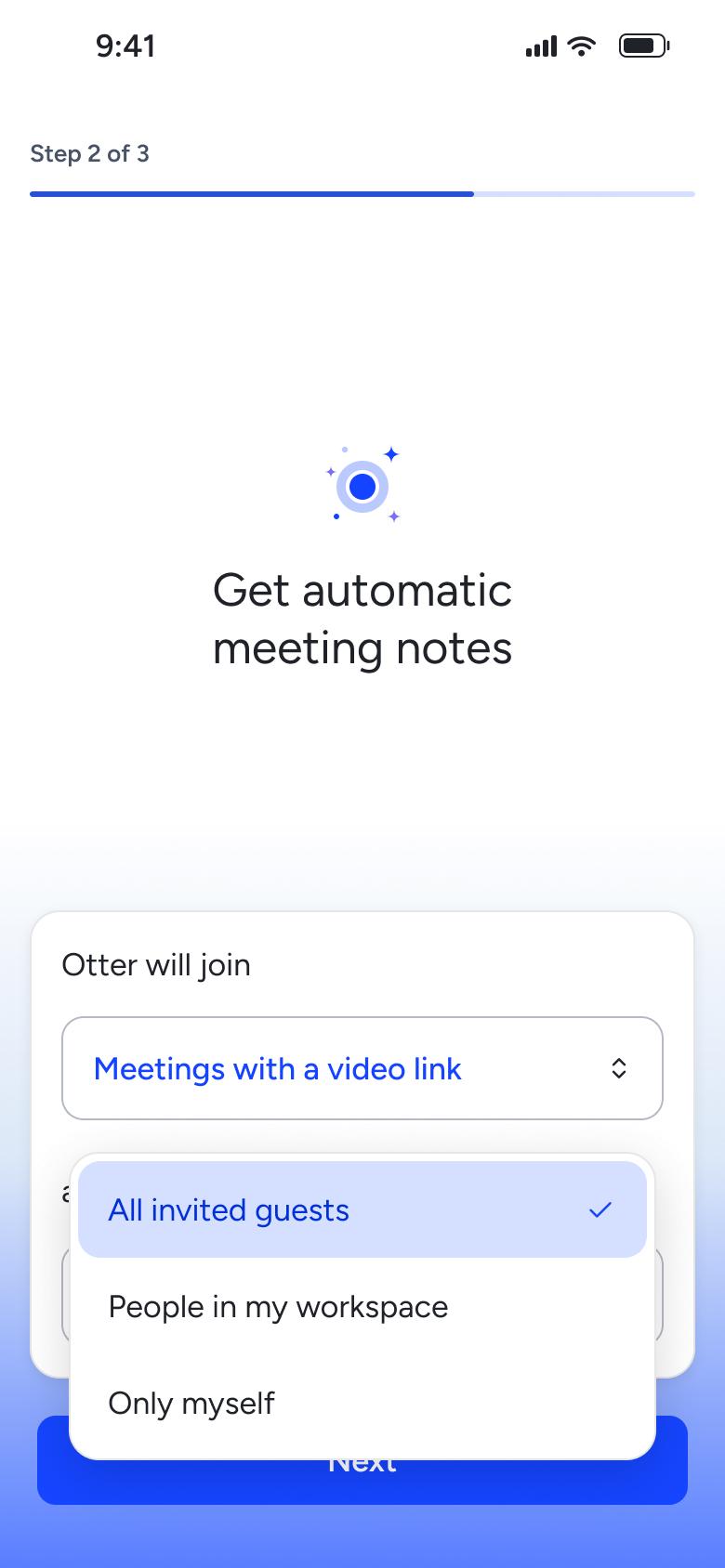
Tap share-with dropdown
Onboarding 6
Changes in place
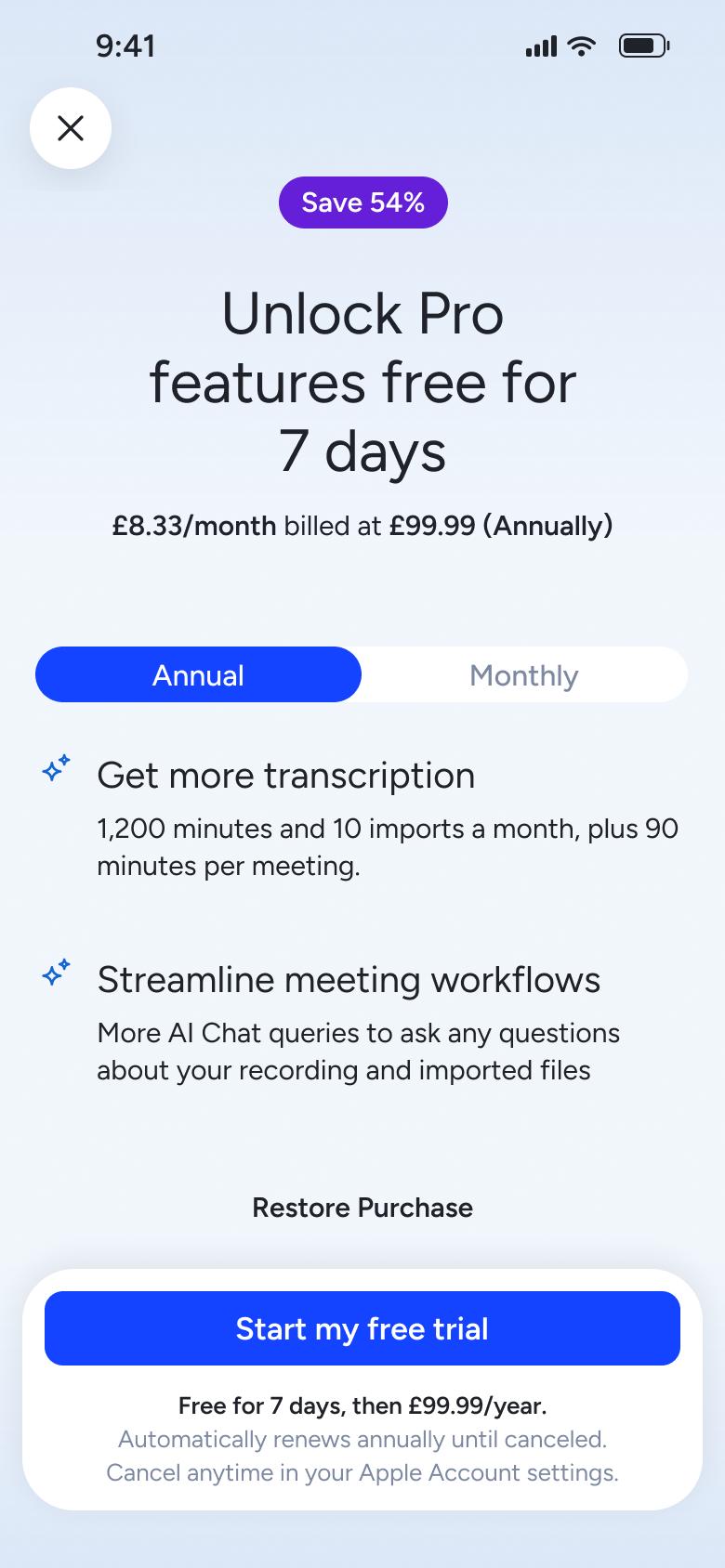
Tap Next
Paywall 1
Opens full screen
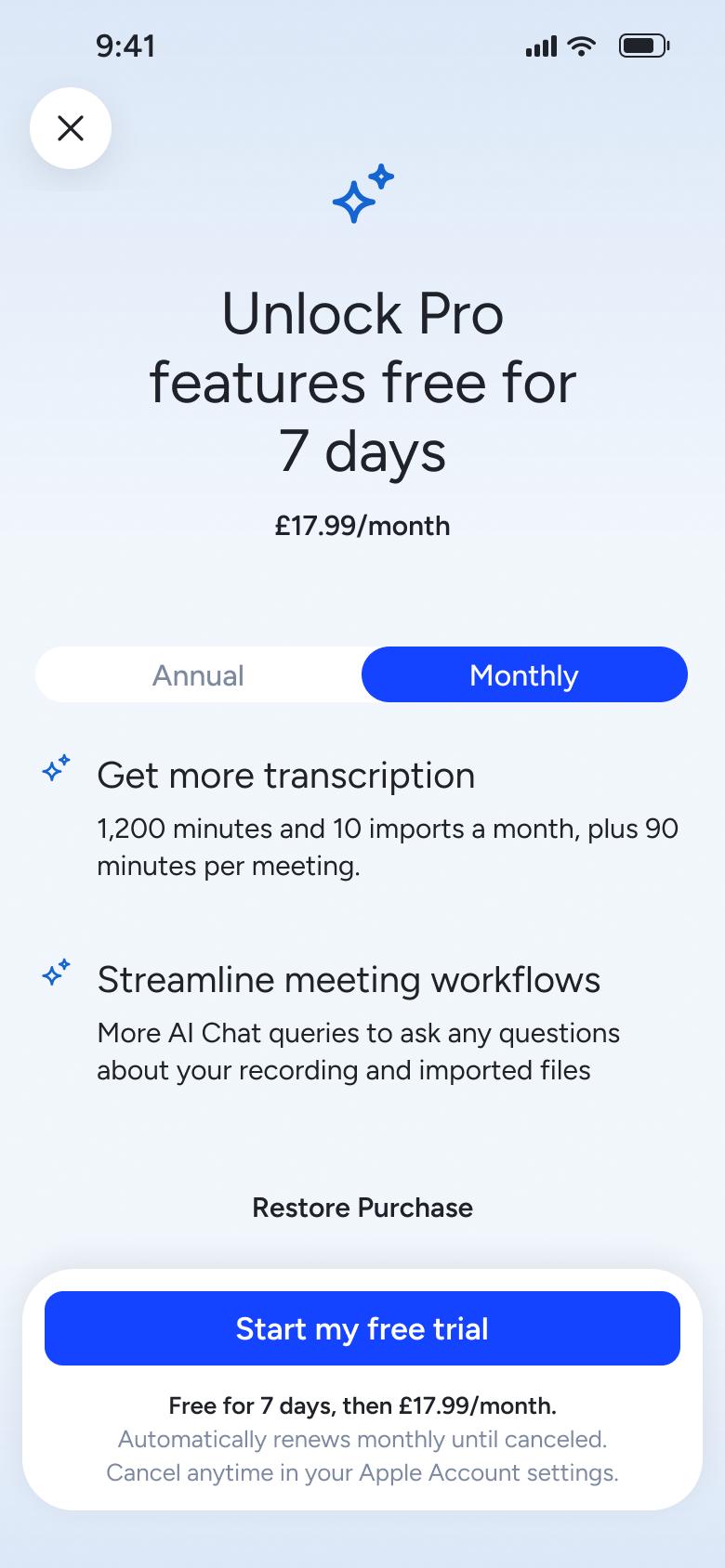
Tap Monthly
Paywall 2
Changes in place
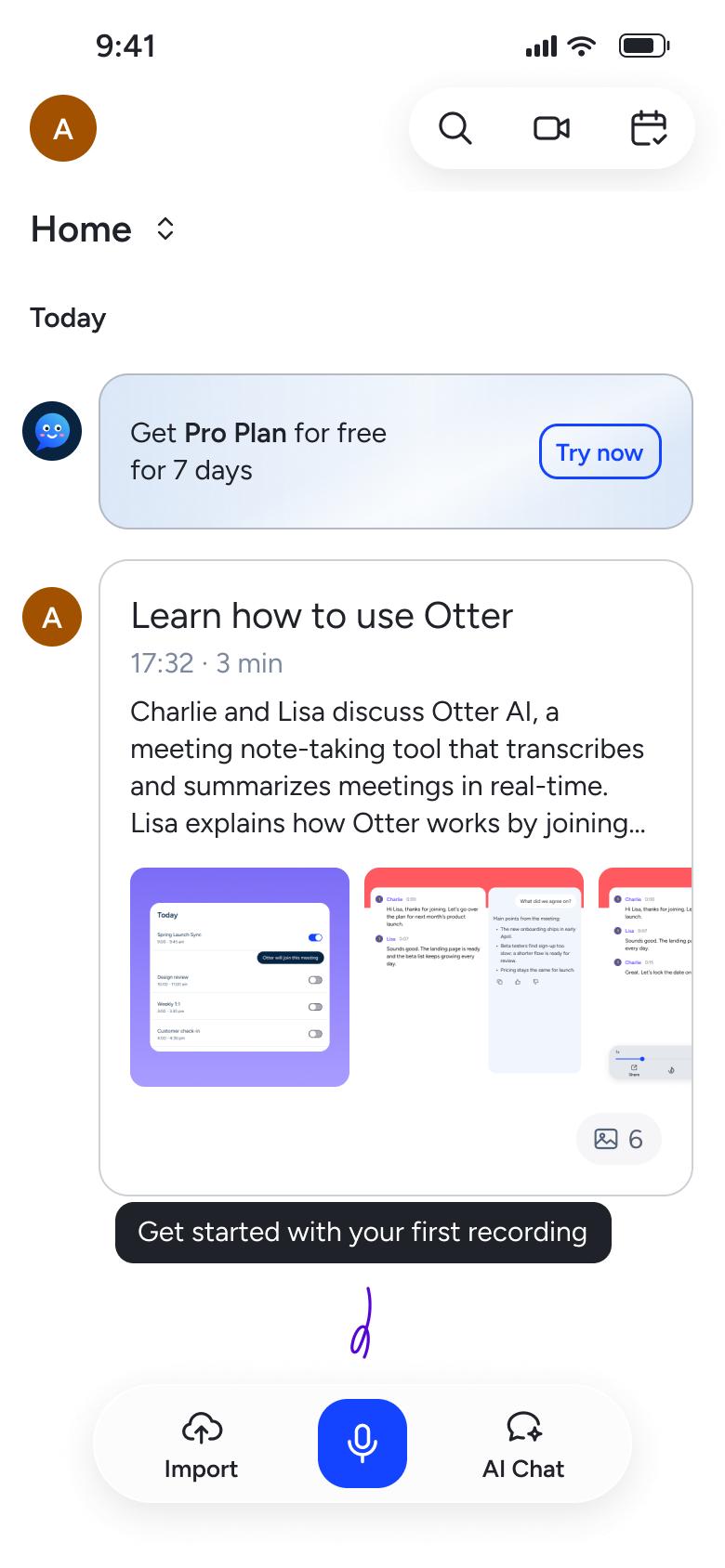
Close paywall
Home 1
Closes
Not affiliated with, endorsed or sponsored by Otter. Otter is a trade mark of its owner. Recreated for design reference and education. Rights holders: contact us
Appearance & dark mode13 screens
Steps 1–4 of 13, in recording order
Open flowCreate10 screens
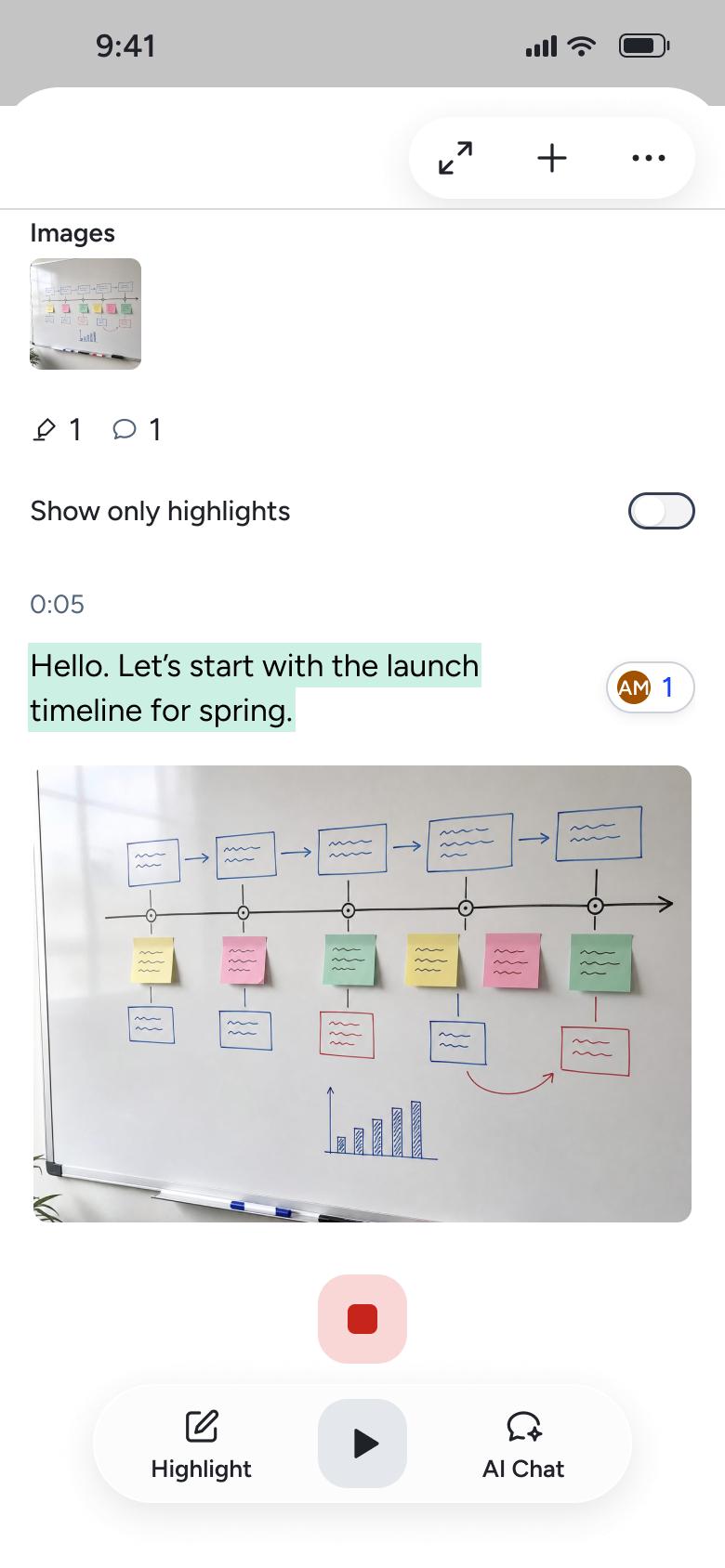
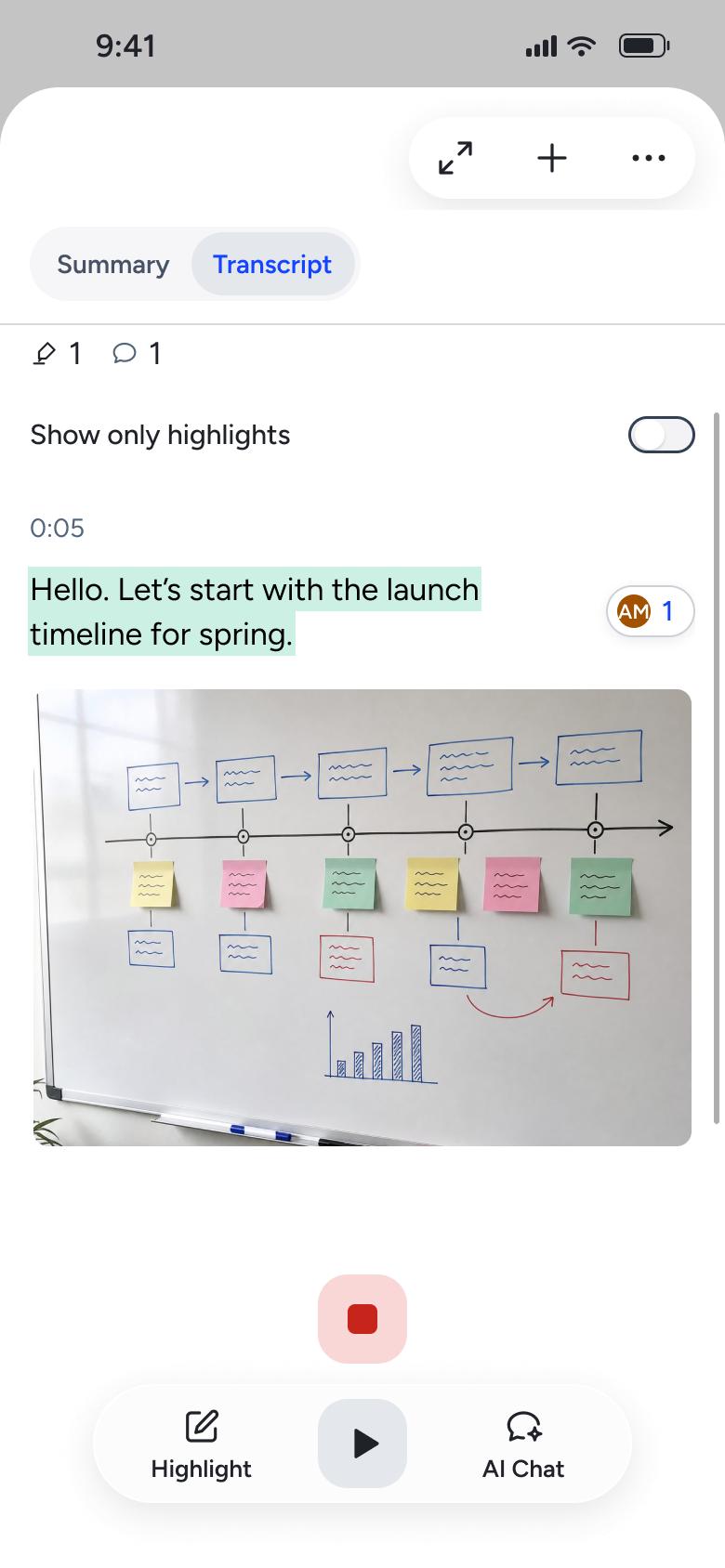
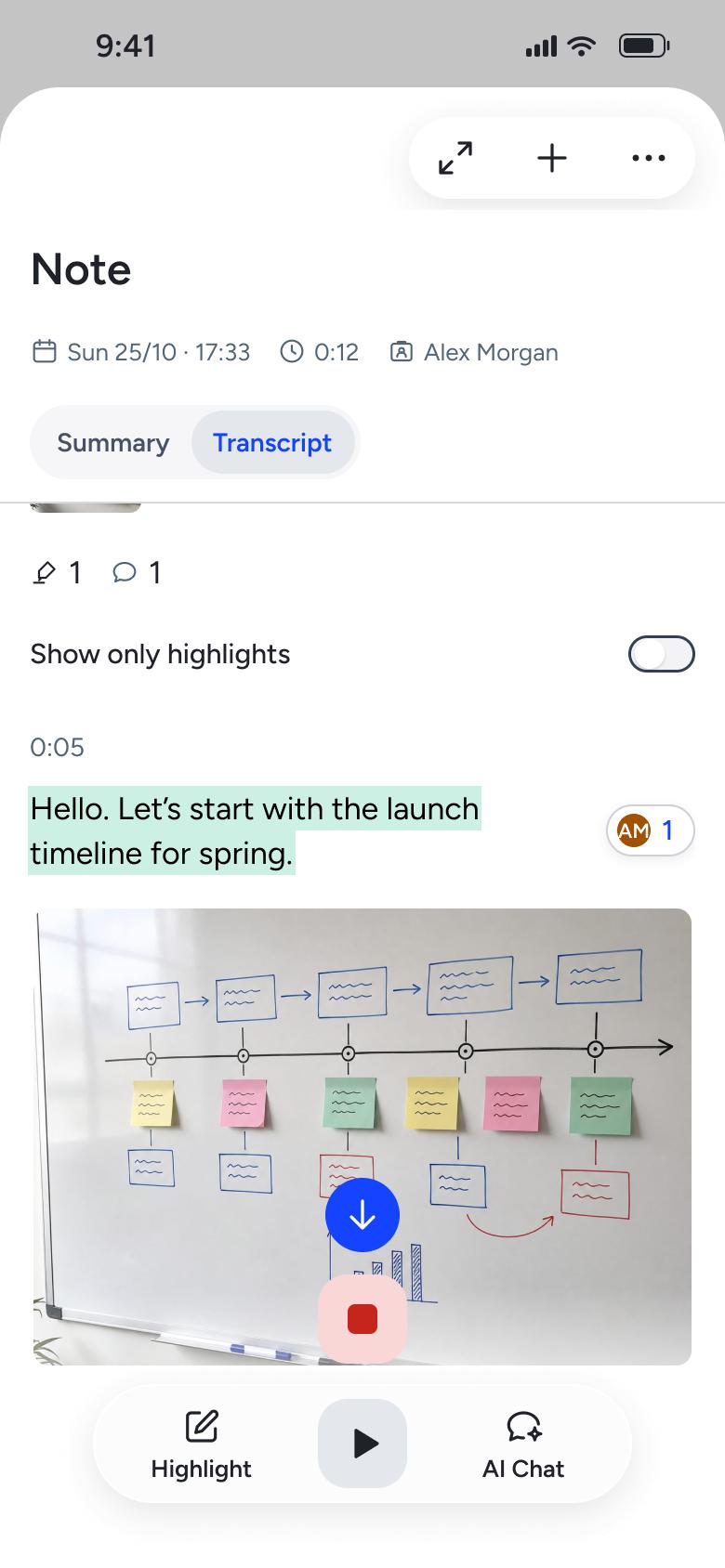
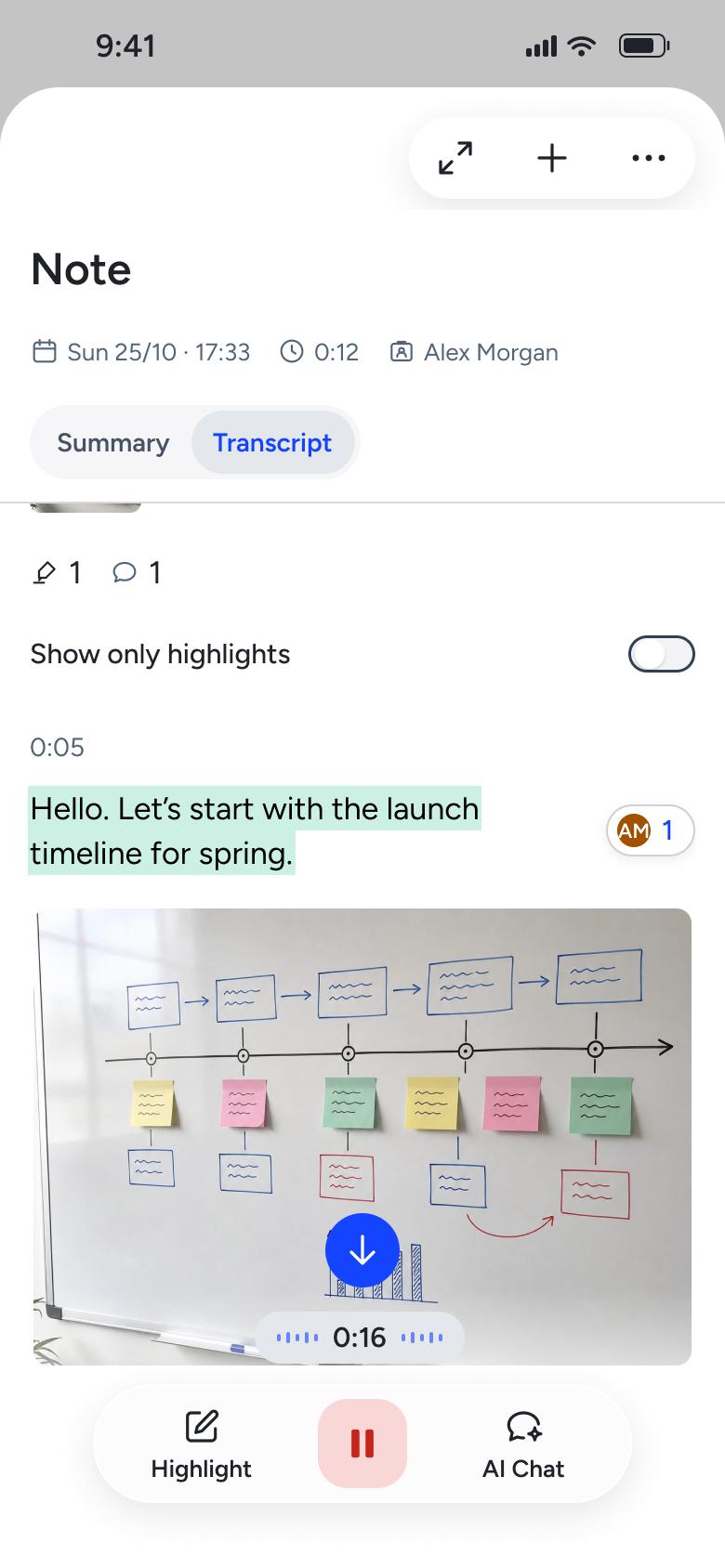
Steps 1–4 of 10, in recording order
Open flowAll of WhatsApp, and a complete flow from every app. No card needed.