
Finish setting up a new account
Onboarding12 screens
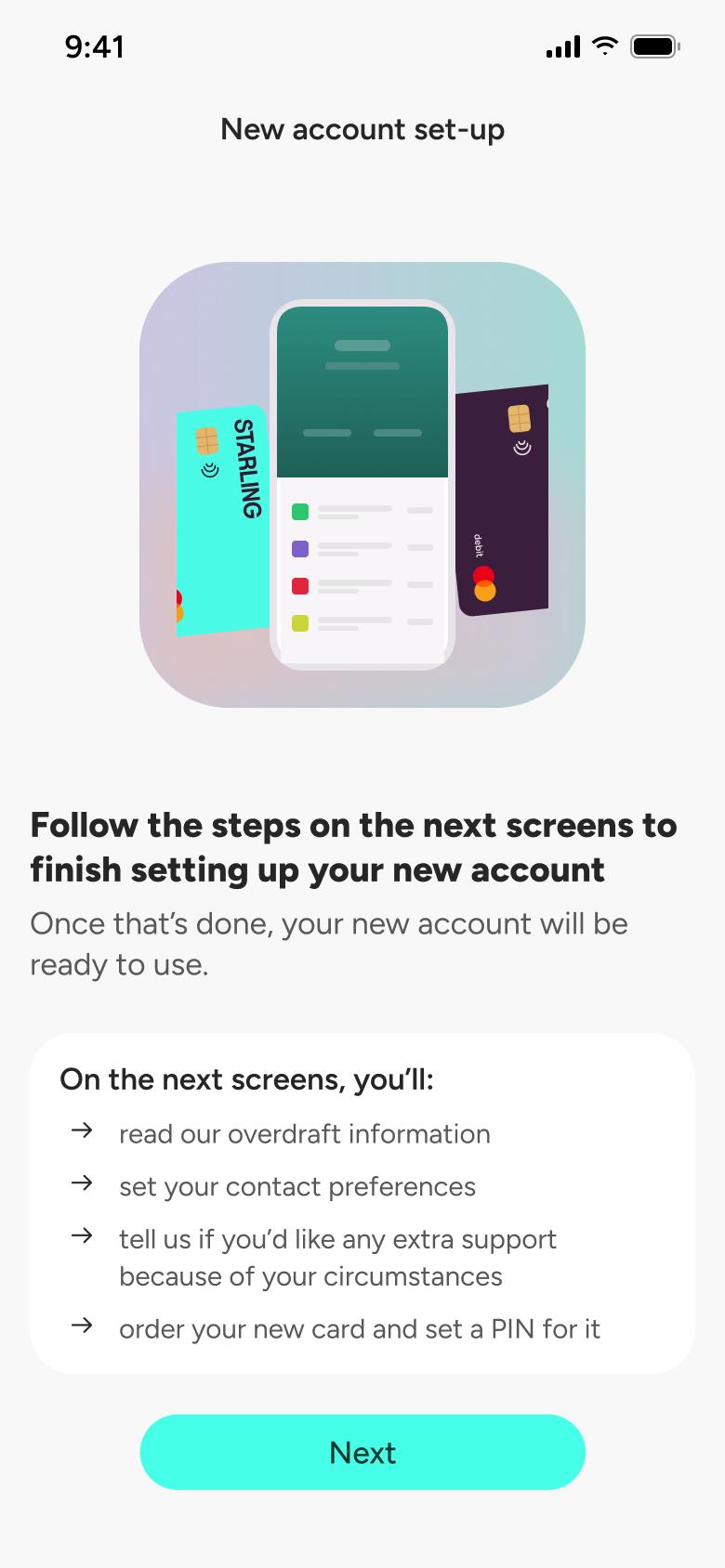
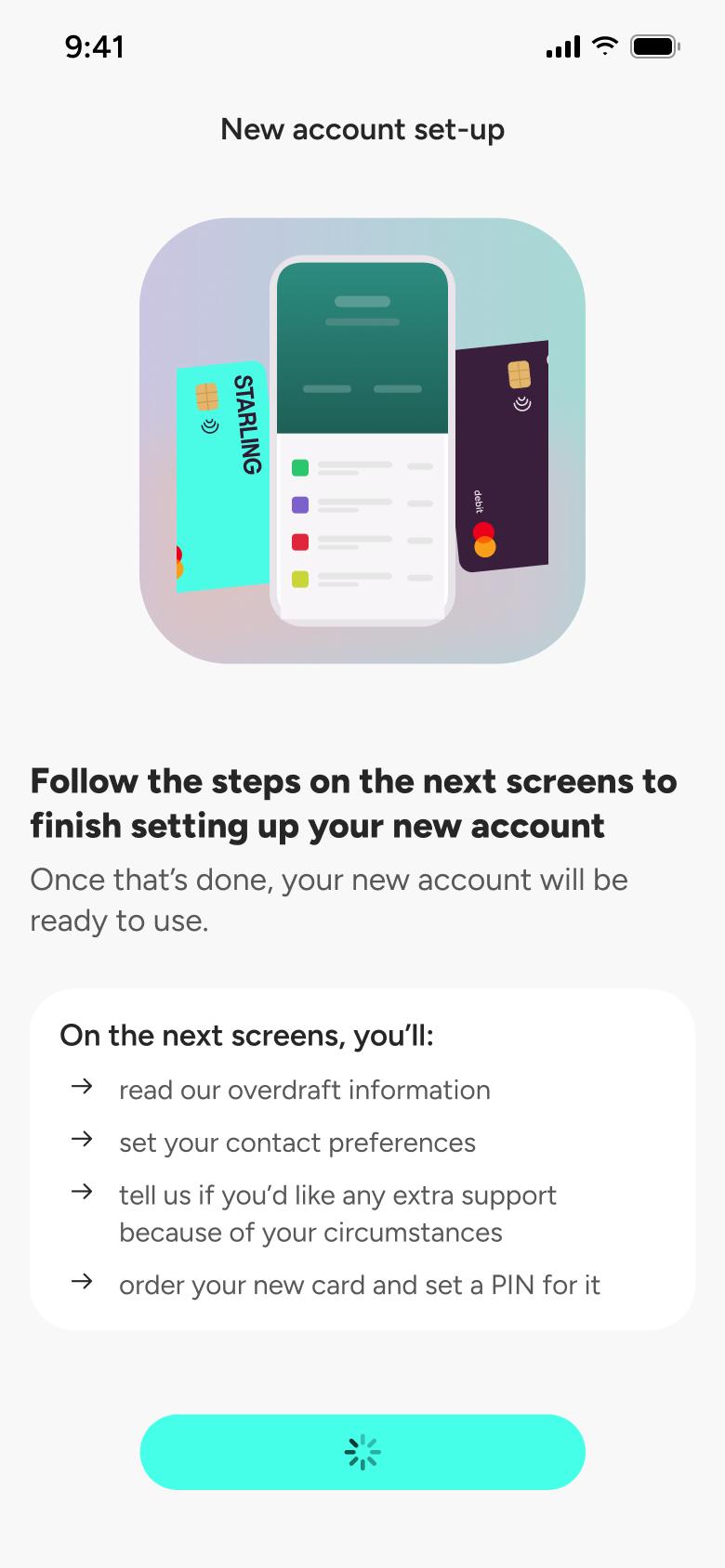
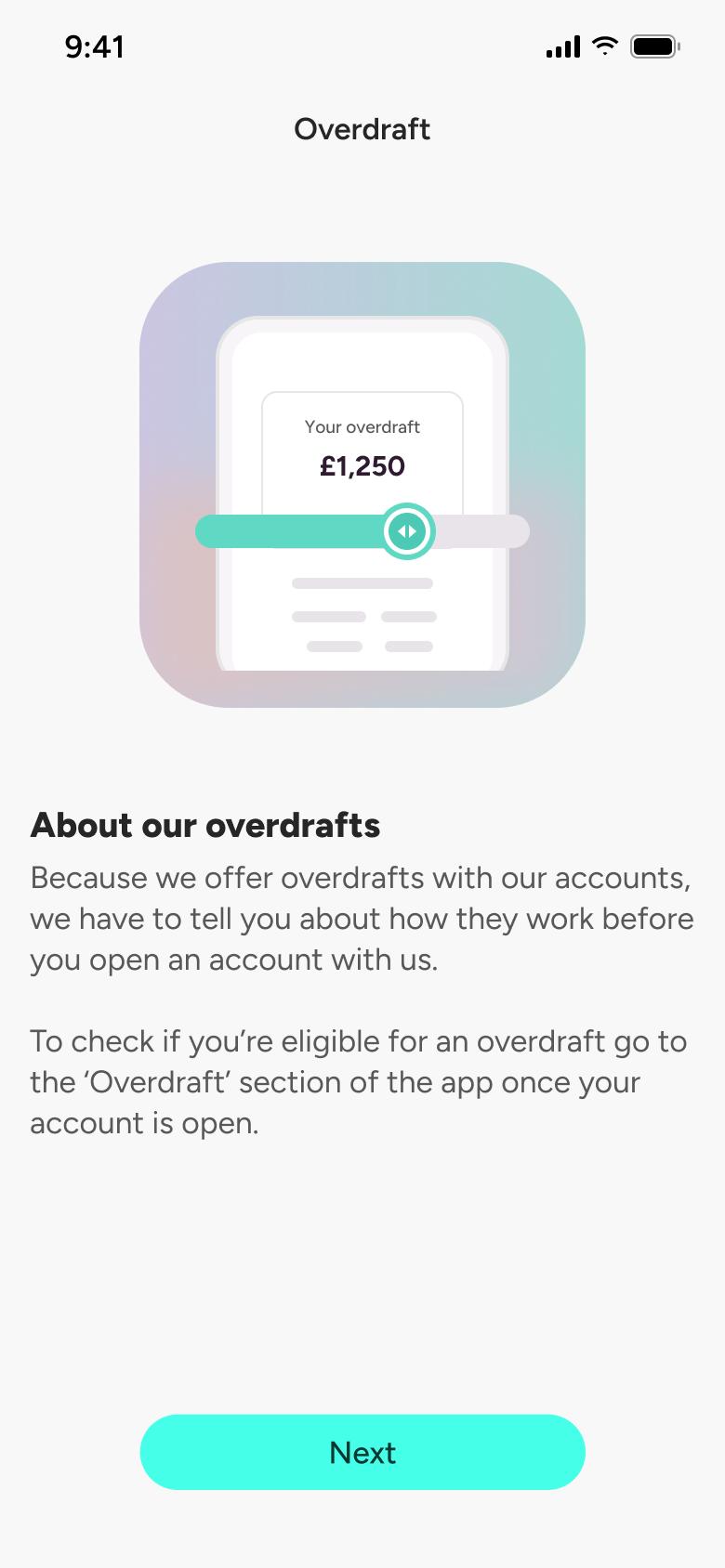
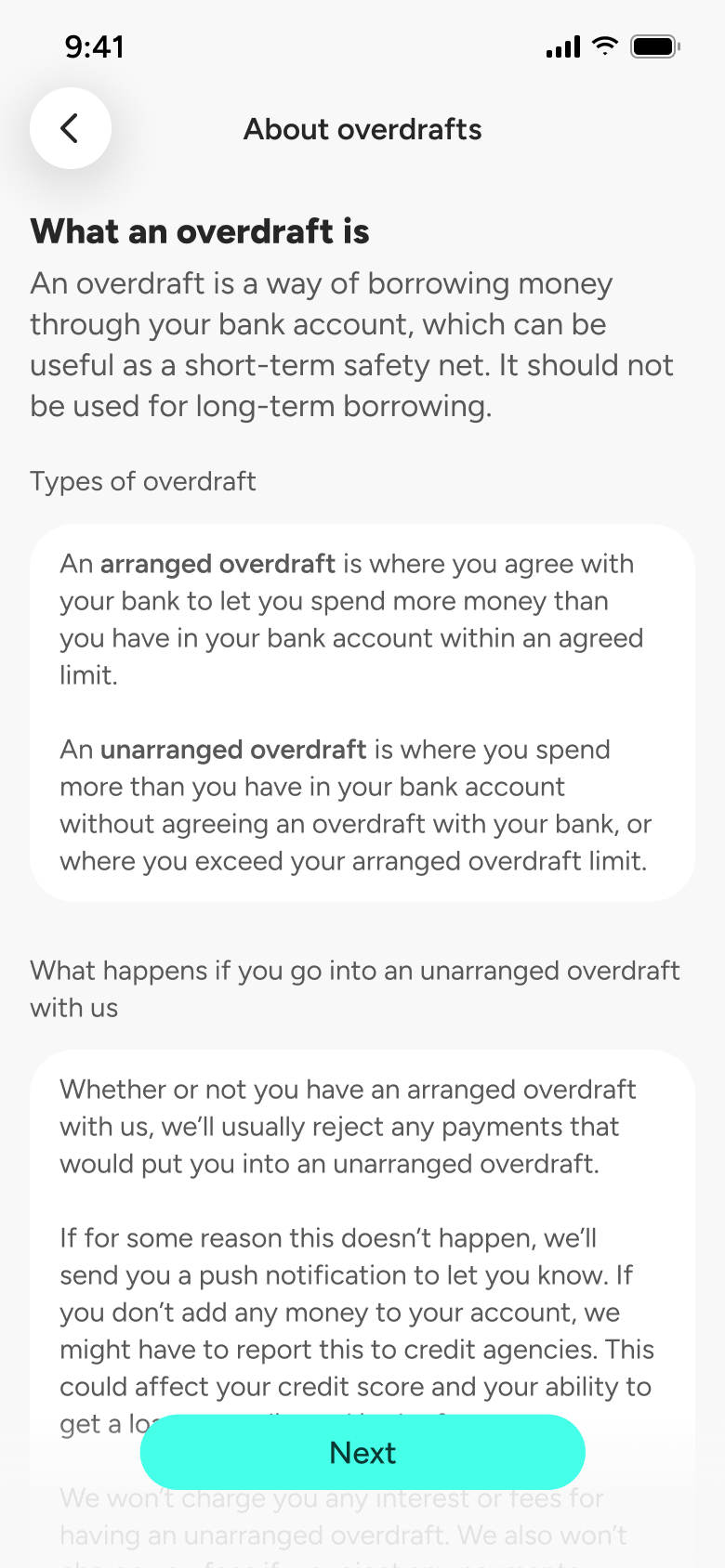
Steps 1–4 of 12, in recording order
Open flowFrom Home, open the assistant, read how the AI search works, pick a suggested question about payment limits, scroll the answer and mark it helpful.
StarlingiOS6 steps
Every app’s free flow imports free, no card needed.
See all help & support flows across apps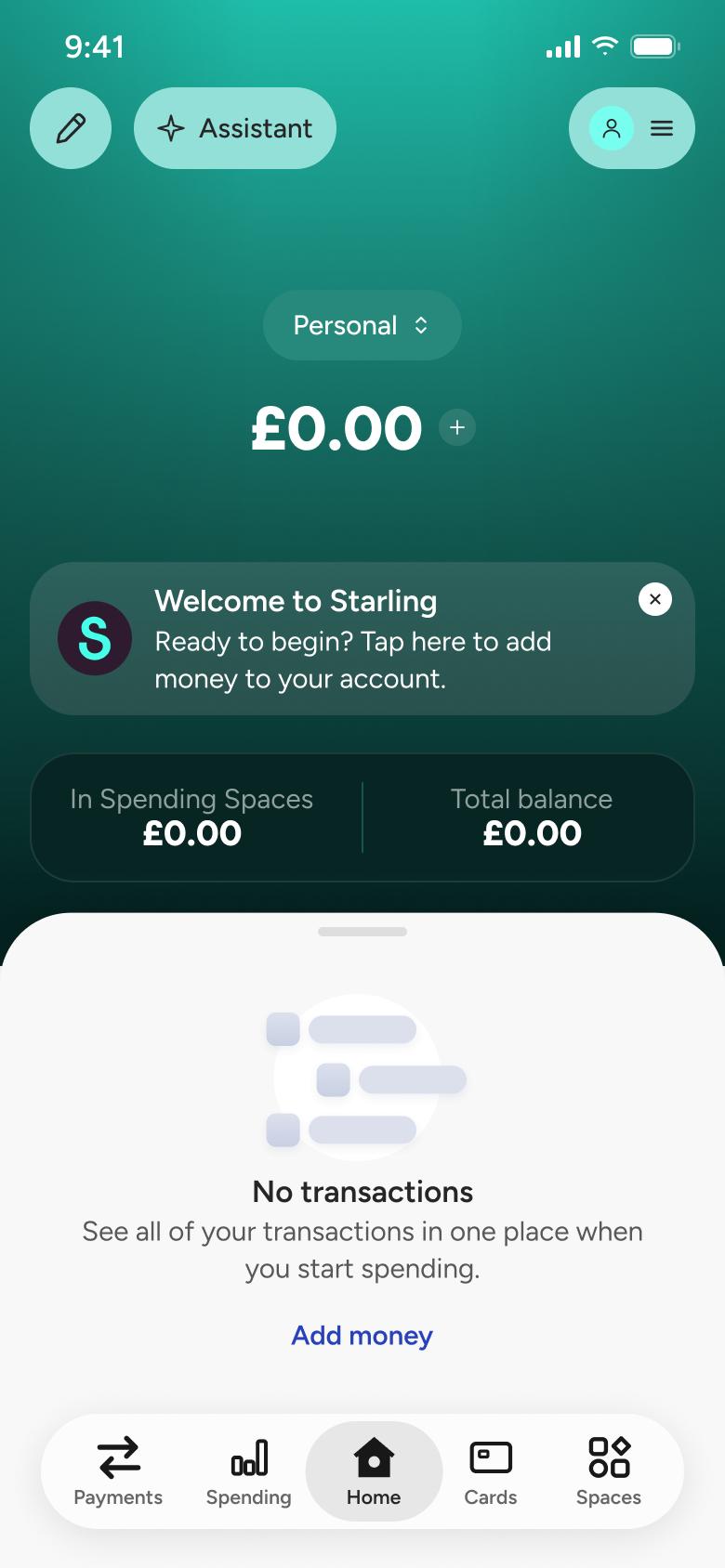
Step 1 of 6
Home 1
How you get here: Switches tab
Open the SuperDuper UI plugin in Figma to paste these 6 screens into your file as editable layers.
All 6 steps
Use ← → to step through
Each screen in the order it was recorded, with how the user got there.
Tap Home tab
Home 1
Switches tab
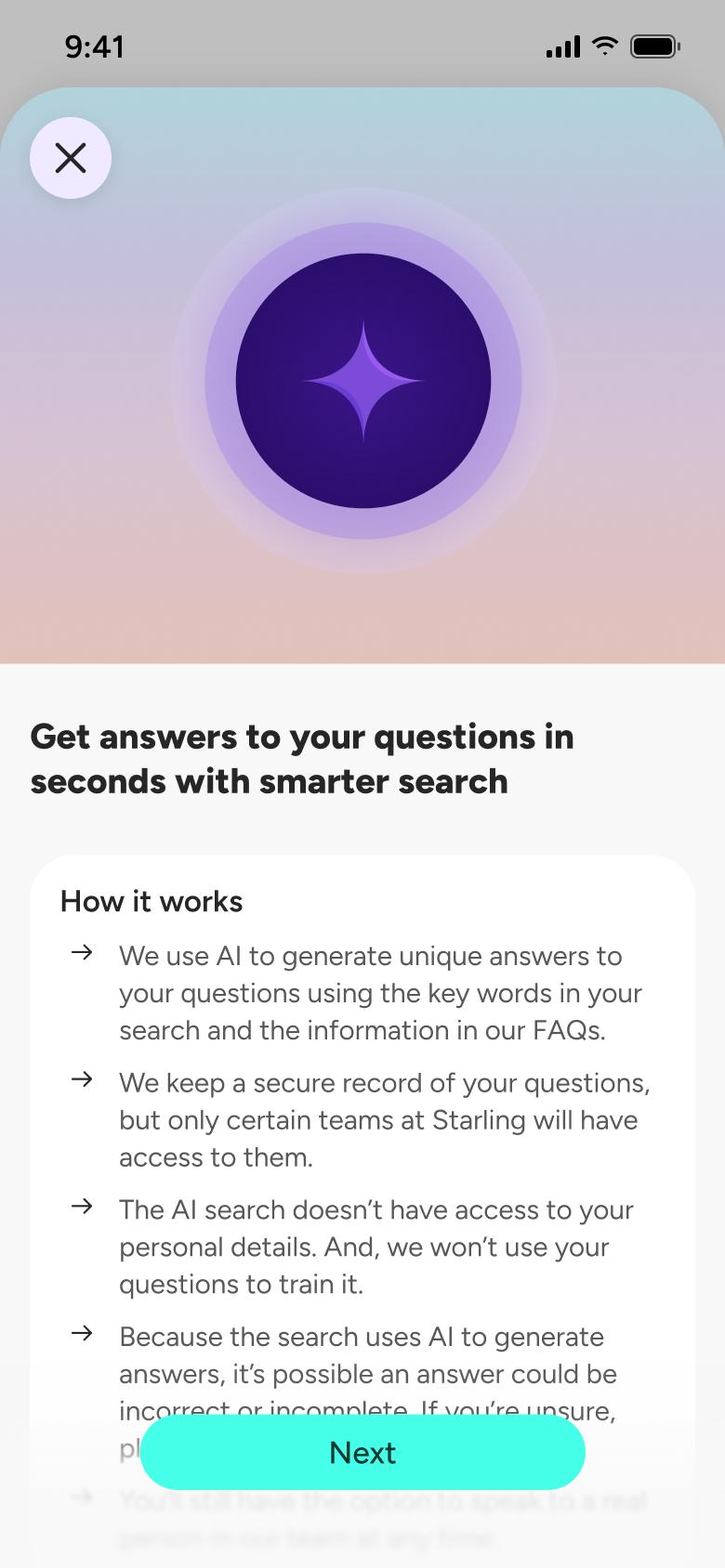
Tap Assistant
Help 1
Opens full screen
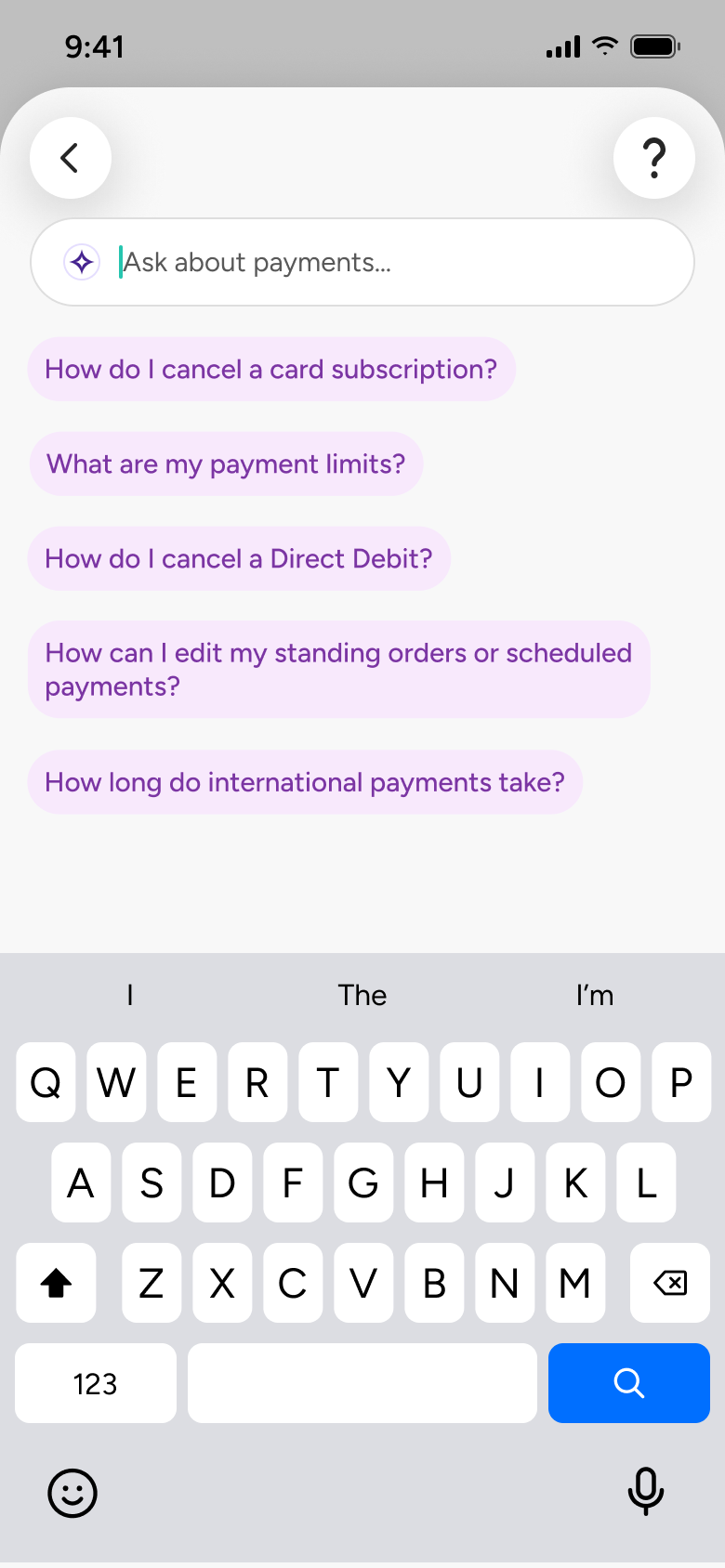
Tap Next
Help 8
Slides in from the right
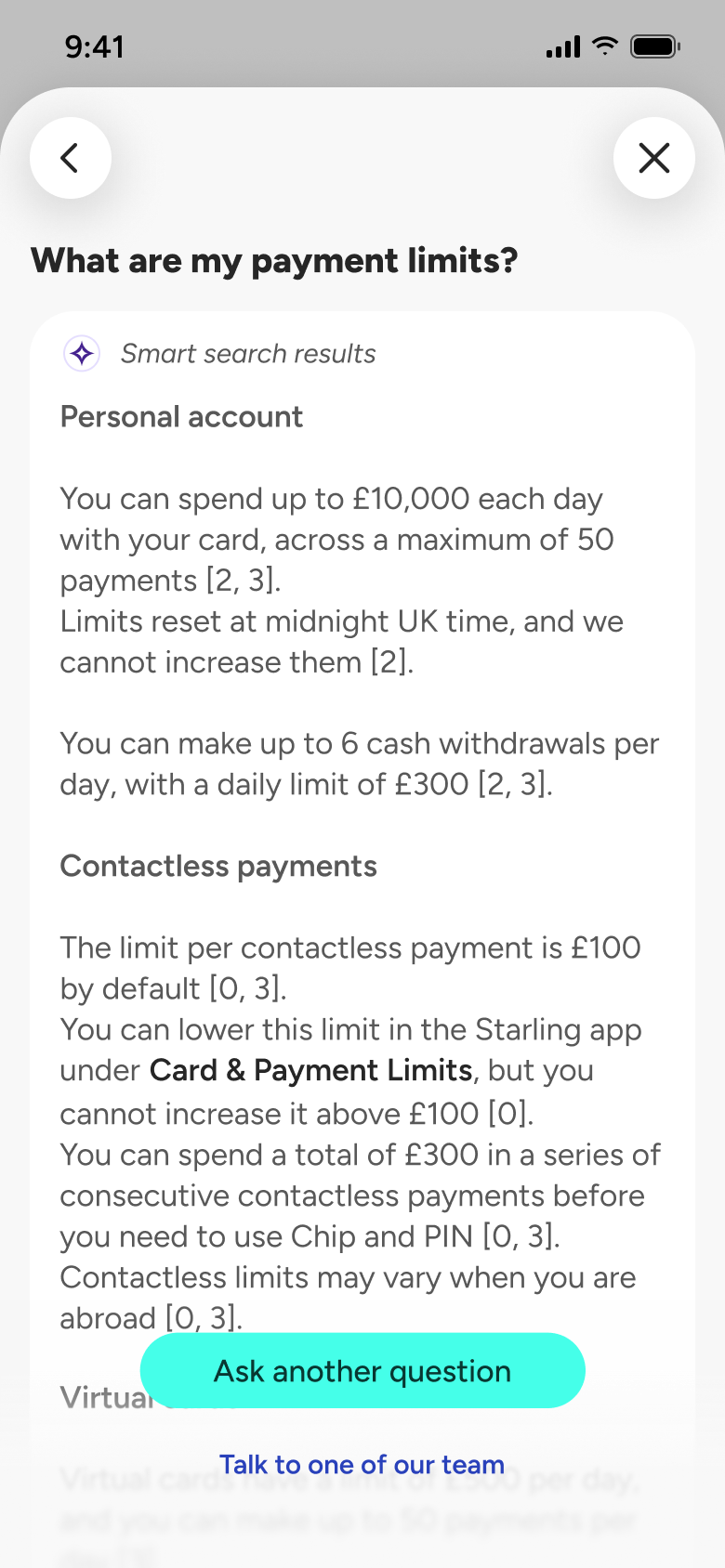
Tap a suggested question
Help 2
Slides in from the right
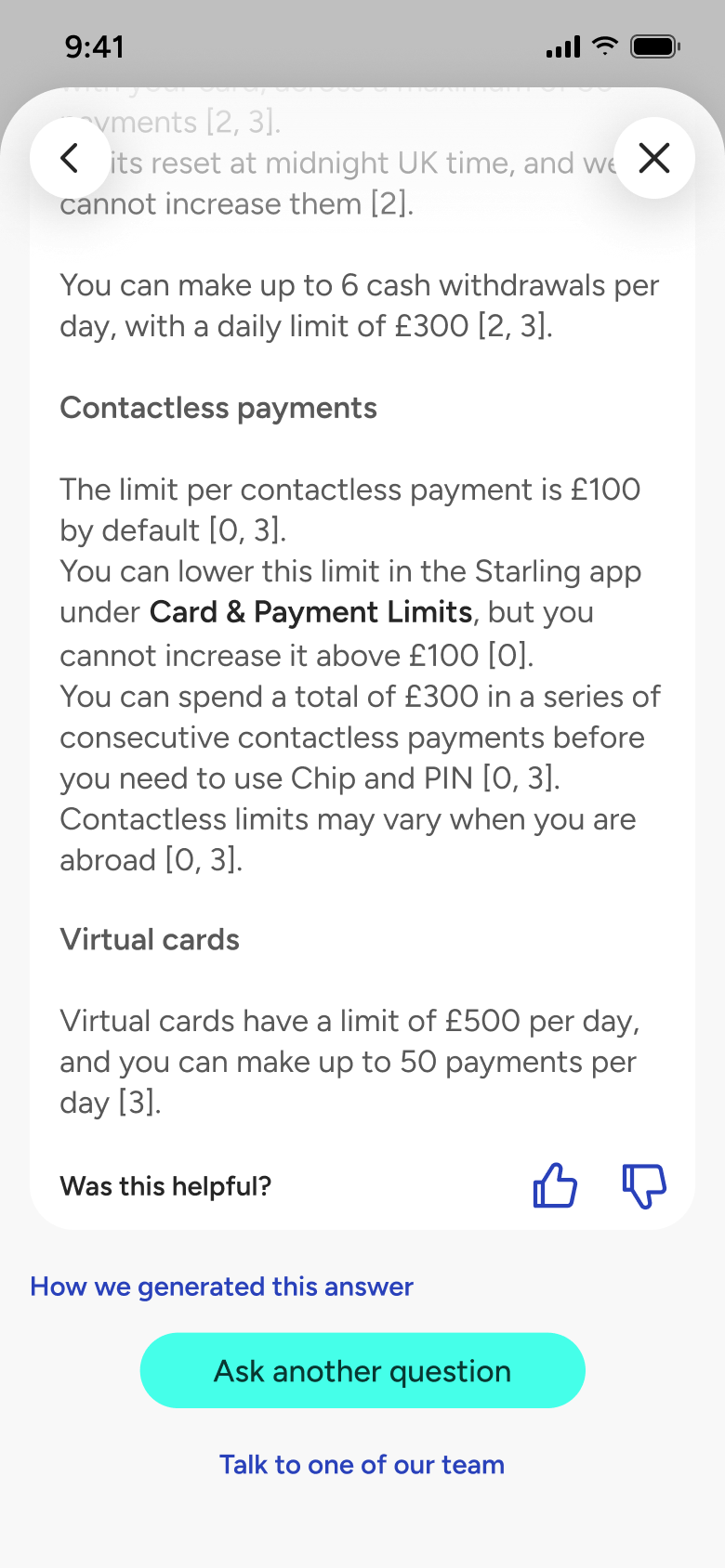
Scroll answer down
Help 3
Changes in place
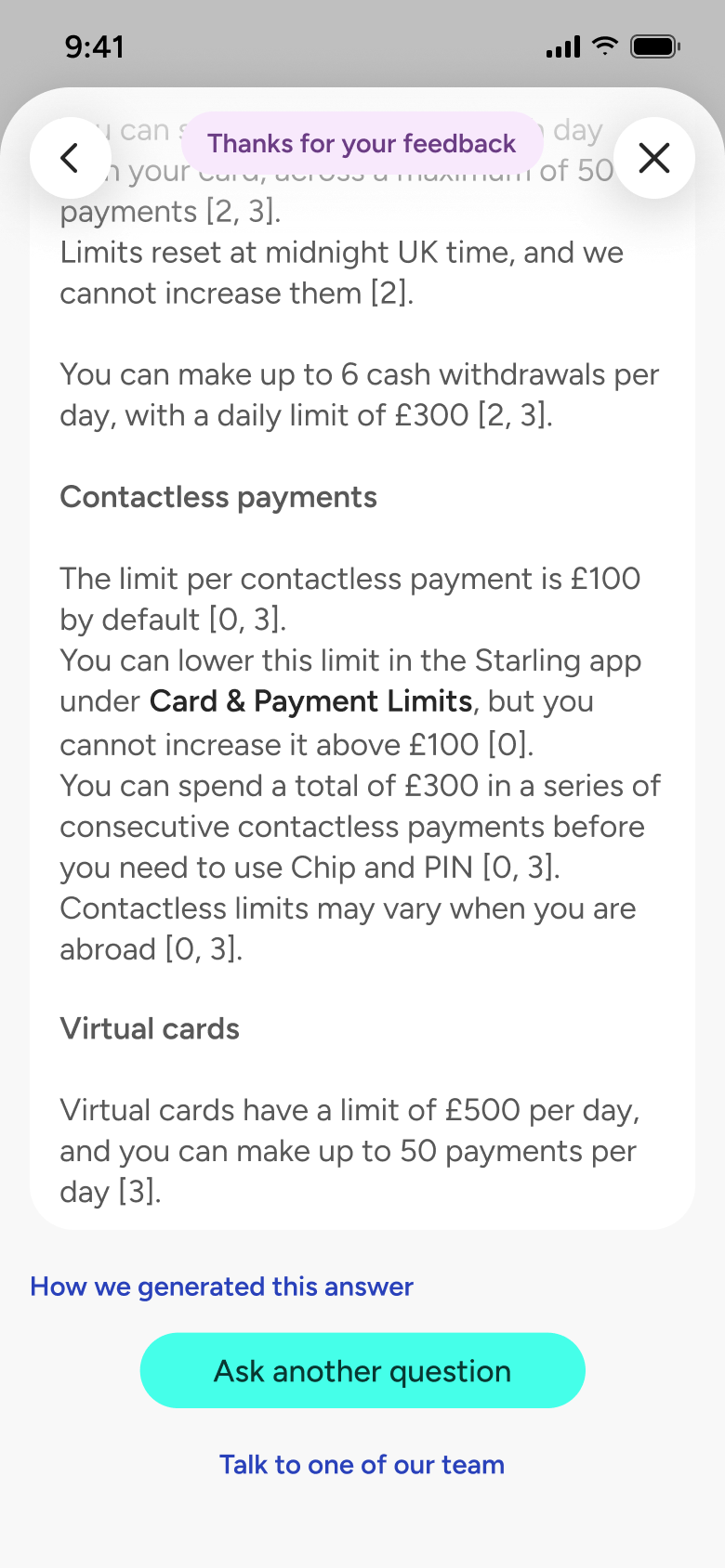
Tap thumbs up
Help 4
Changes in place
Not affiliated with, endorsed or sponsored by Starling. Starling is a trade mark of its owner. Recreated for design reference and education. Rights holders: contact us
Onboarding12 screens
Steps 1–4 of 12, in recording order
Open flowTutorial & guided tour10 screens
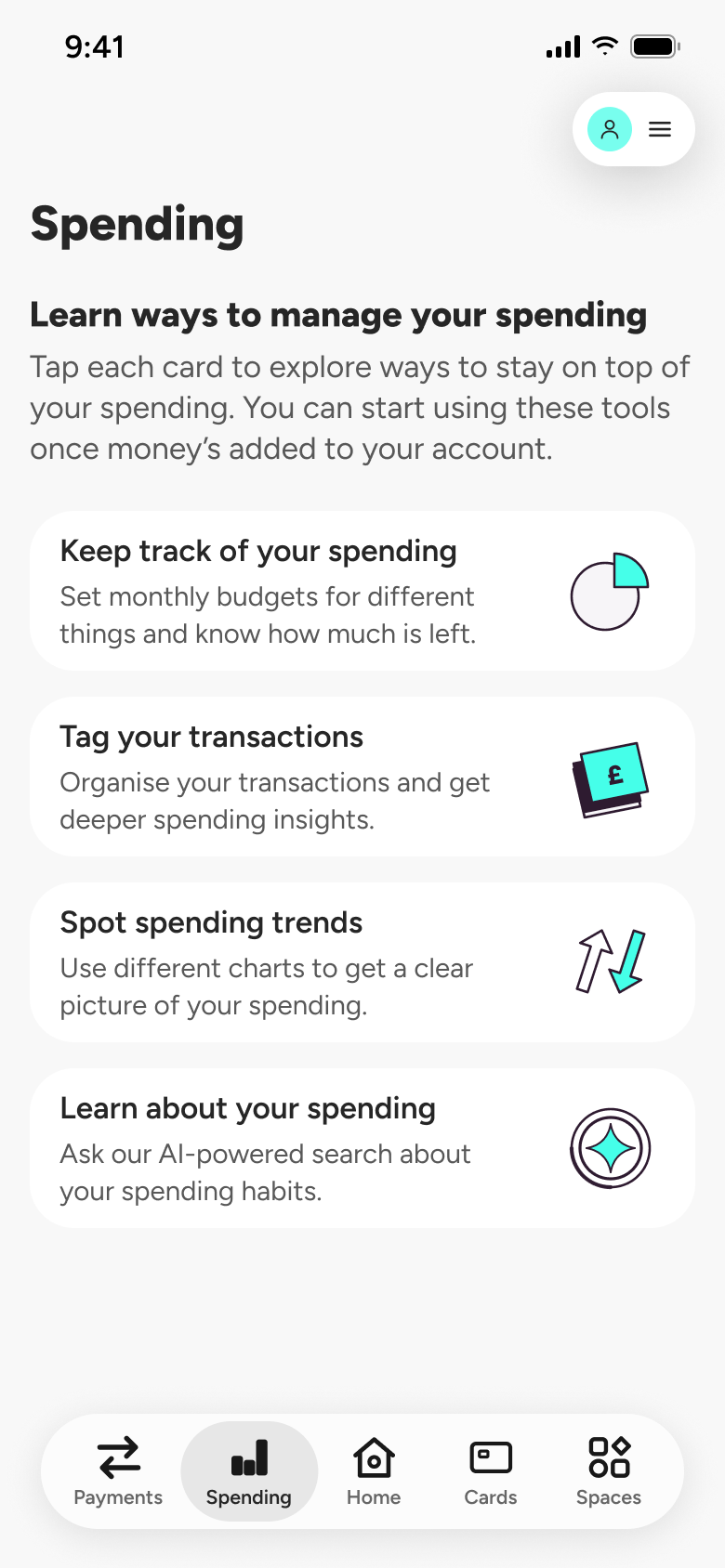
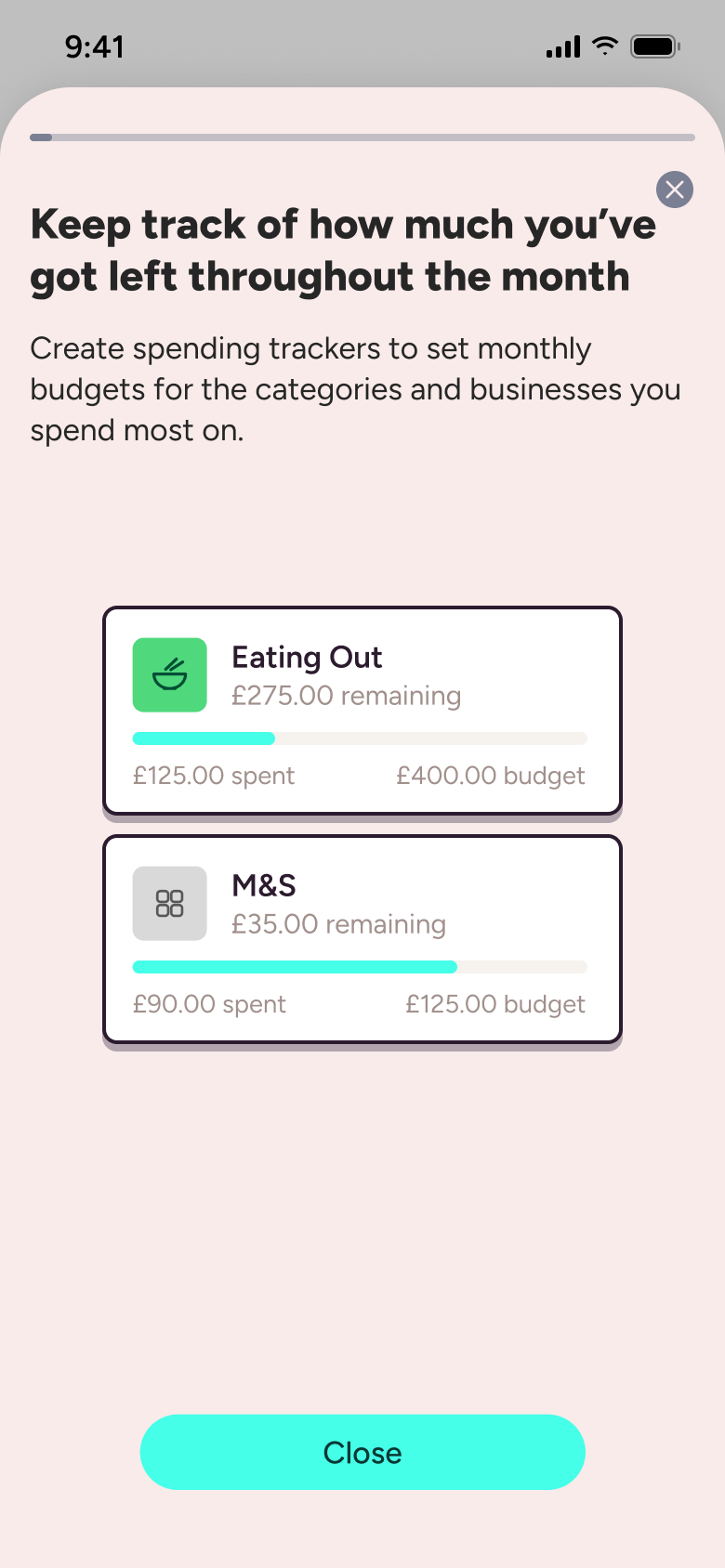
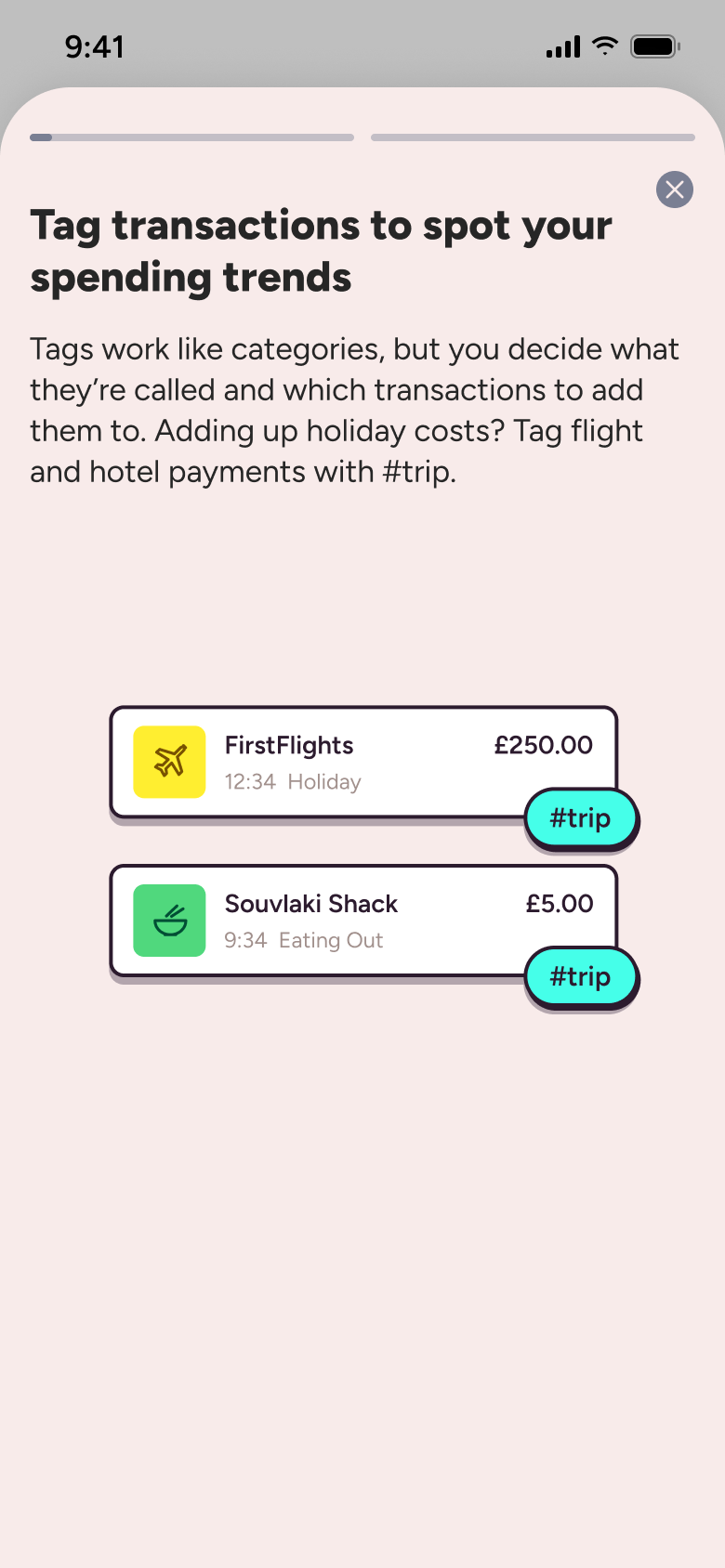
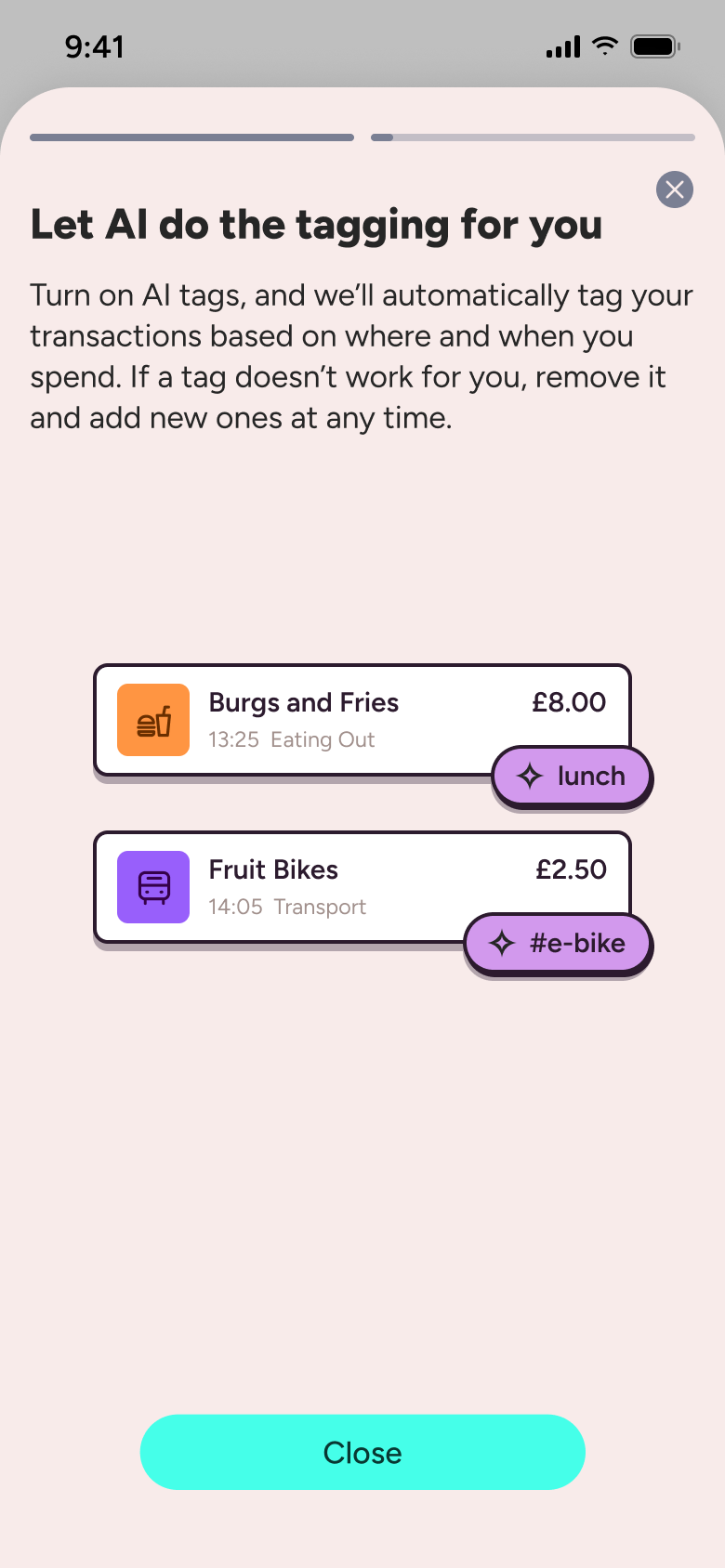
Steps 1–4 of 10, in recording order
Open flowAll of WhatsApp, and a complete flow from every app. No card needed.
Step 1 of 6
Home 1
How you get here: Switches tab
Open the SuperDuper UI plugin in Figma to paste these 6 screens into your file as editable layers.
All 6 steps
Use ← → to step through