
Top up & add money
Add money with a new card on Wise
The user tops up with a new debit card, entering number, expiry and security code, and sees the deposit pending.
Step 1 of 13
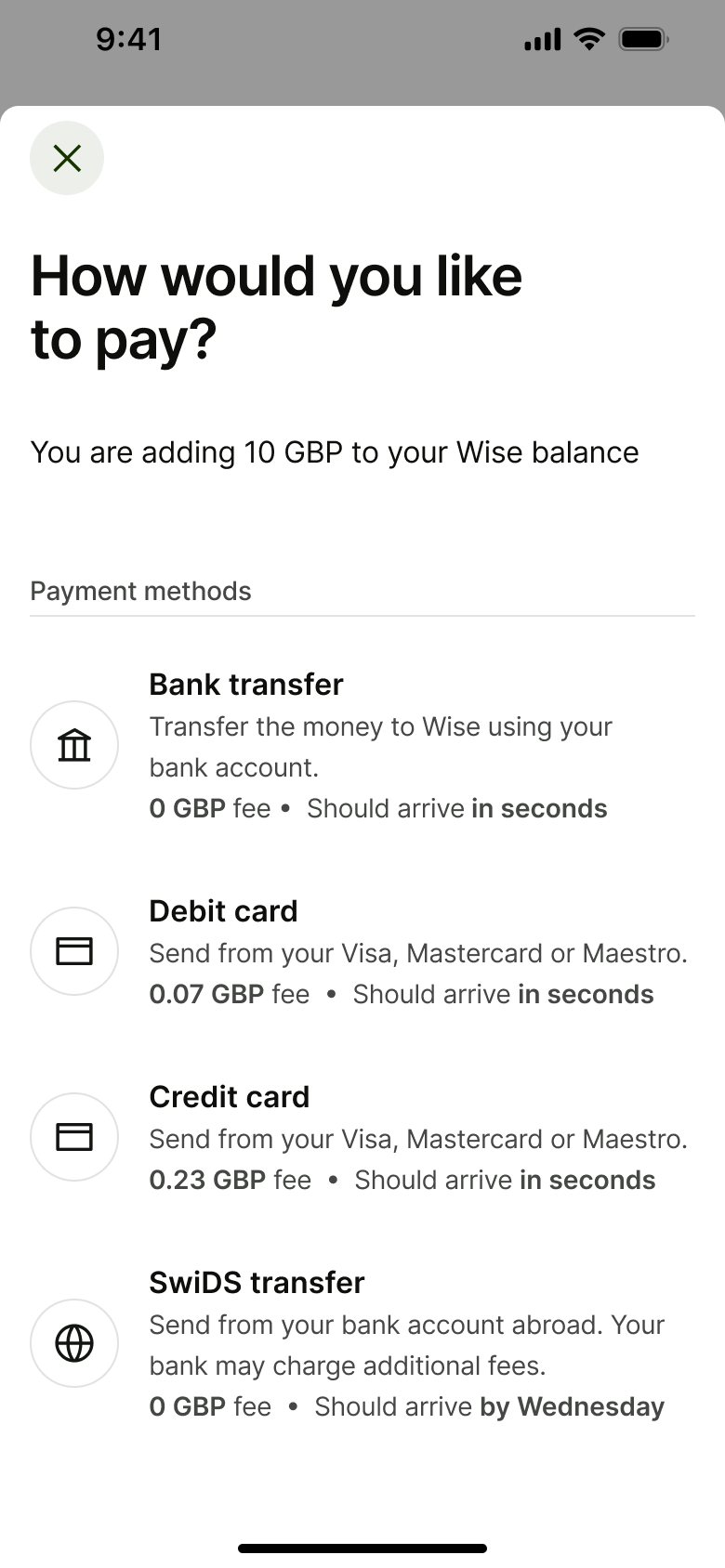
Tap Change · Sheet
The steps
- Step 1. Tap Change, Sheet
- Step 2. Select debit card, Dismiss modal or sheet
- Step 3. Tap Continue, Push
- Step 4. Type number, In-place change
- Step 5. In-place change
- Step 6. Tap expiry, In-place change
- Step 7. In-place change
- Step 8. Tap CVC, In-place change
- Step 9. Tap Pay, Push
- Step 10. In-place change
- Step 11. In-place change
- Step 12. Push
- Step 13. In-place change
More from Wise
- Welcome carousel on Wise
- Sign up on Wise
- Explore features on Wise
- Verify identity on Wise
- Security and notification prompts on Wise
- Complete sign-up details on Wise
- Home on Wise
- Add money by bank transfer on Wise
- Add money with a saved card on Wise
- Confirm tax ID on Wise
- Balance and account details on Wise
- Euro balance options on Wise
- Search transactions on Wise
- Account settings on Wise
- Share payment tag on Wise
- Settings menu on Wise
- Convert money on Wise
- Open a jar on Wise
- Add a recipient on Wise
- Send money to a business on Wise
- Send via link on Wise
- Unlock the app on Wise
- Transaction details on Wise
- Invite friends on Wise
- Rate a transfer on Wise
- Order a debit card on Wise
- Manage a card on Wise
- Payment tools on Wise
- Spending insights on Wise
- Boost your balance on Wise
- Full Wise UI kit
- Top up & add money flows in other apps
Not affiliated with, endorsed or sponsored by Wise. Wise is a trade mark of its owner. Recreated for design reference and education. Rights holders: contact us