
Sign up
12 screens
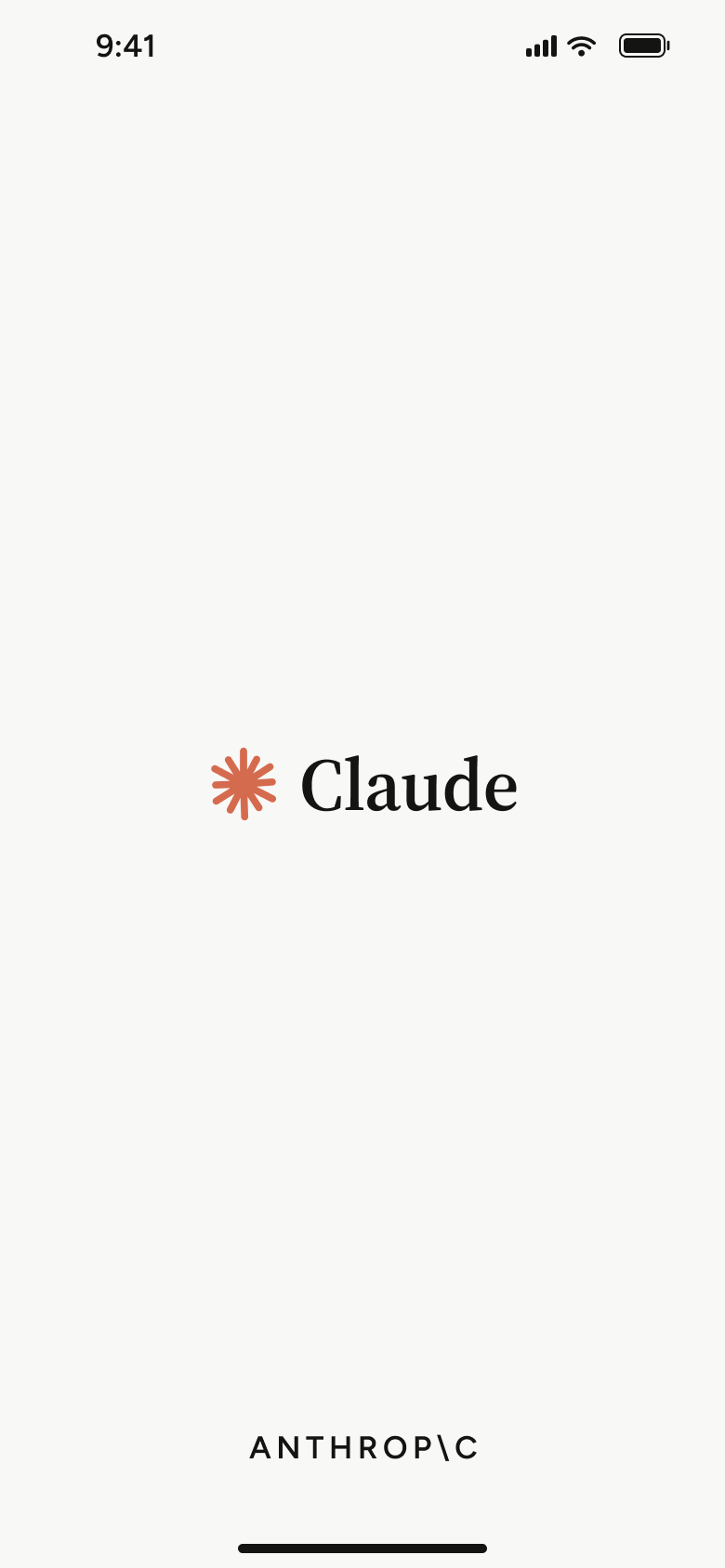
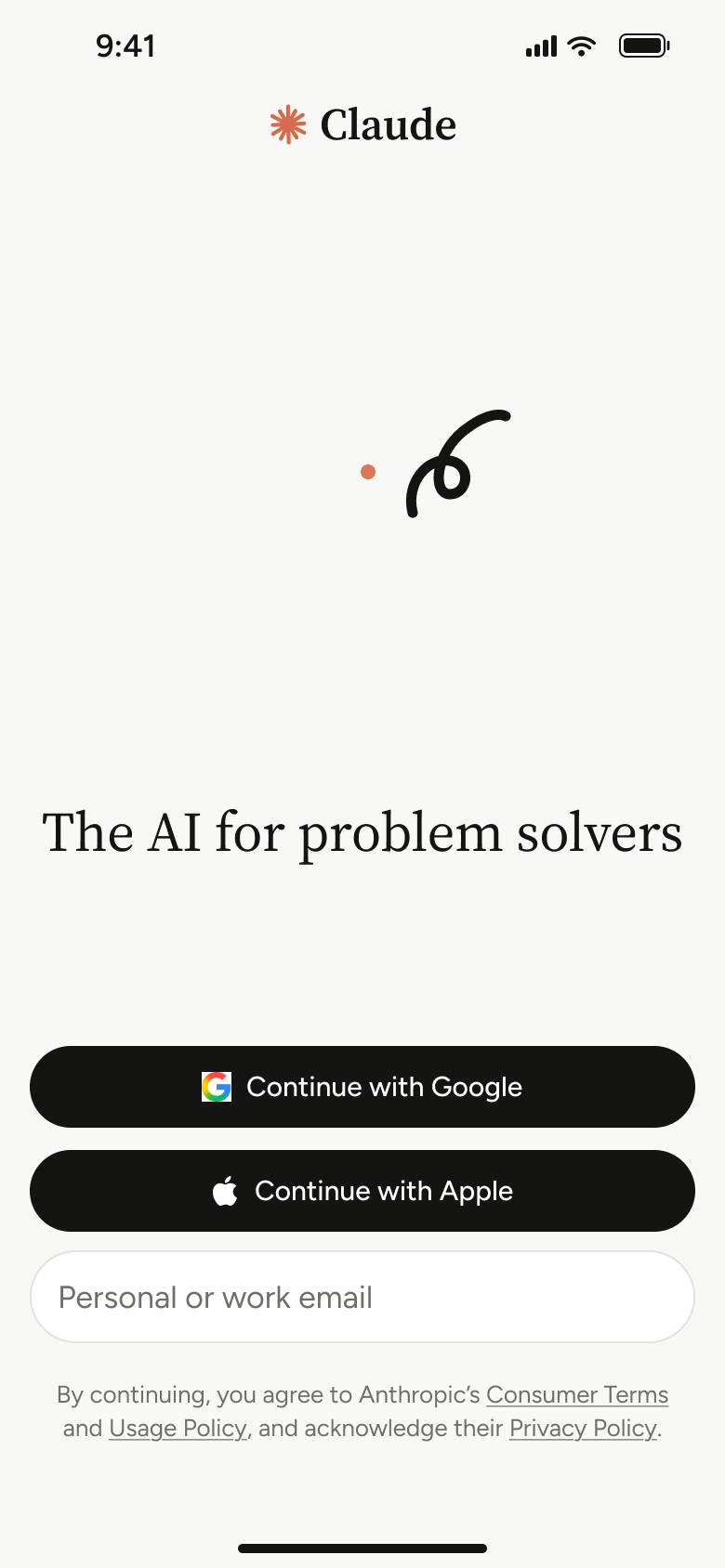
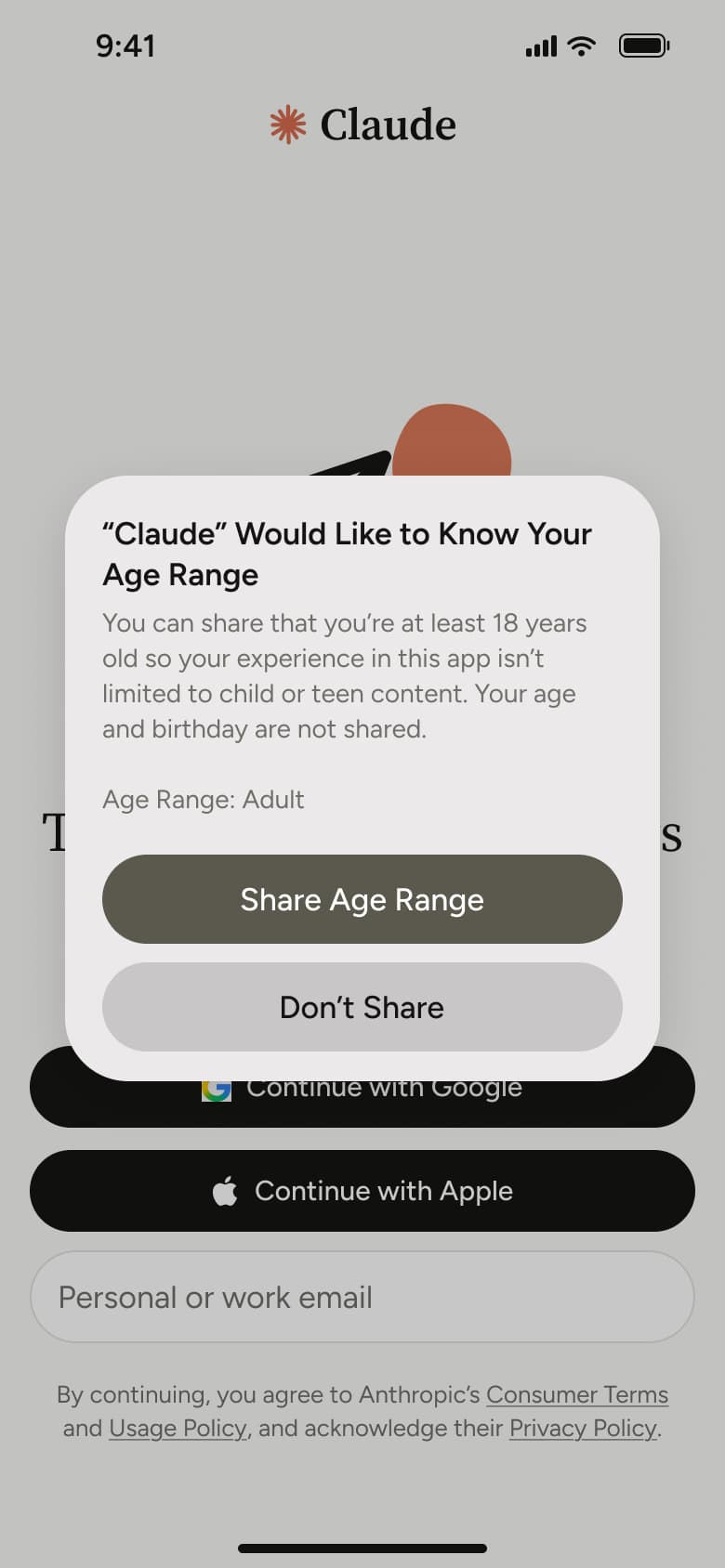
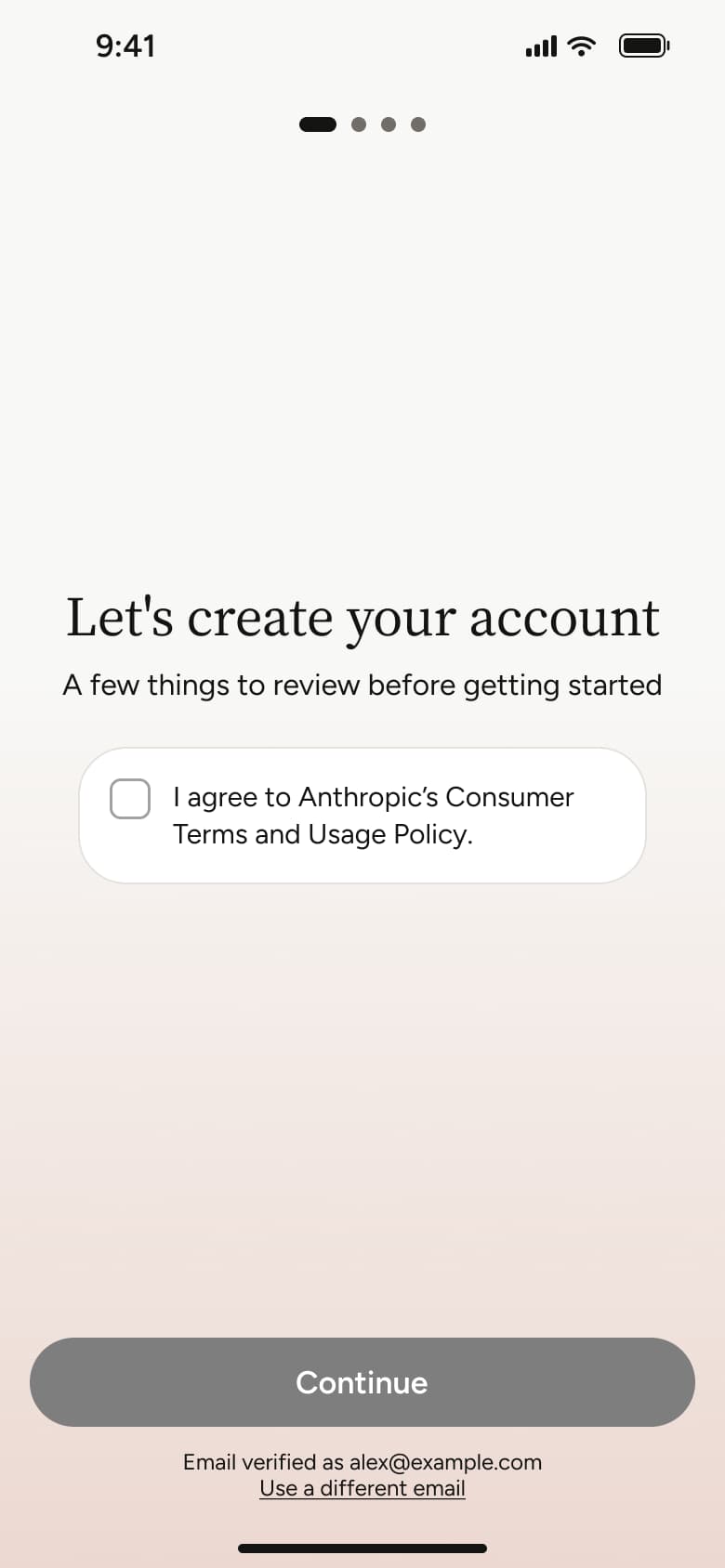
Steps 1–4 of 12, in recording order
Open flowFrom the drawer avatar, open dark settings and visit Profile, Billing, Time & focus, Capabilities and the empty Memory files page, then Connectors and Voice.
ClaudeiOS9 steps
Every app’s free flow imports free, no card needed.
See all settings & preferences flows across apps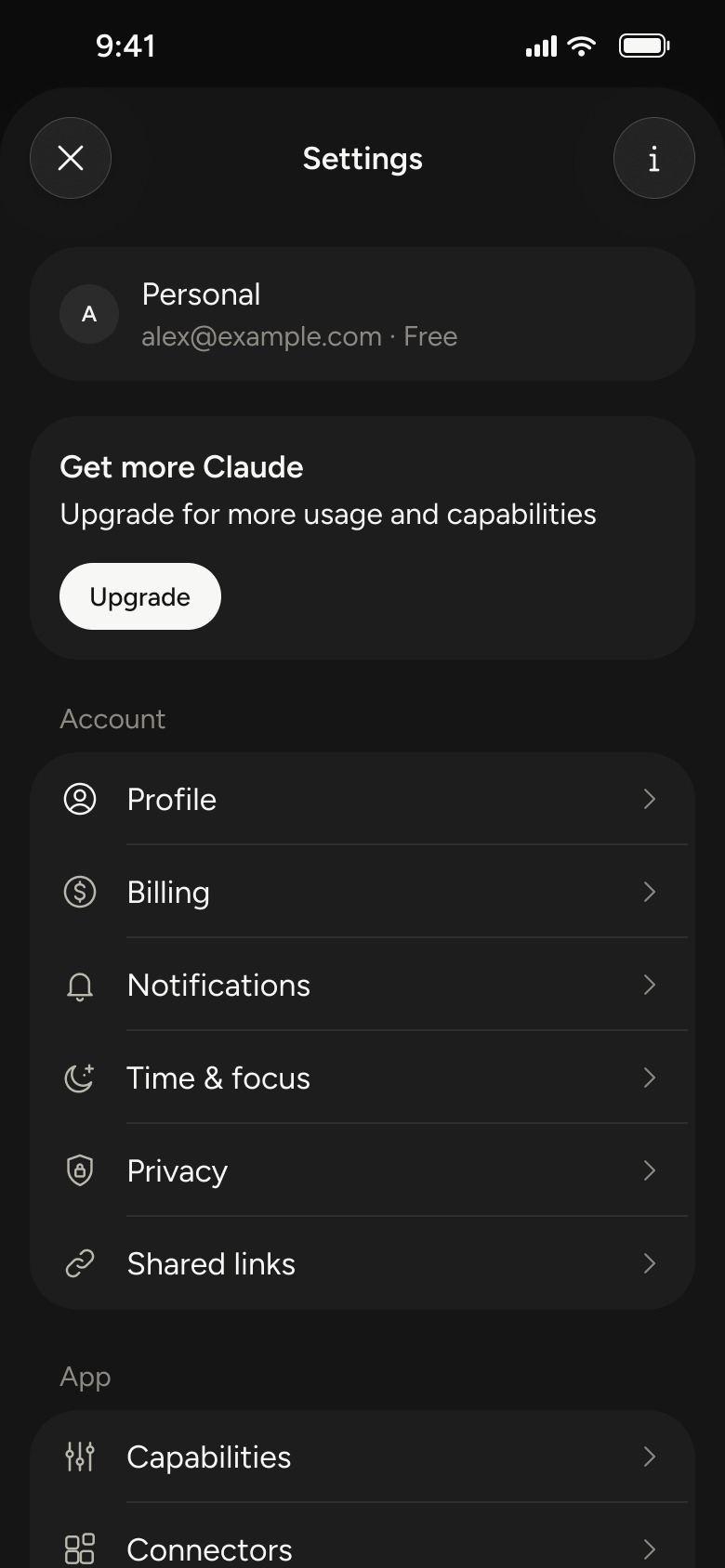
Step 1 of 9
Dark Mode Settings 1
How you get here: Opens full screen
Open the SuperDuper UI plugin in Figma to paste these 9 screens into your file as editable layers.
All 9 steps
Use ← → to step through
Each screen in the order it was recorded, with how the user got there.
Tap avatar in drawer
Dark Mode Settings 1
Opens full screen
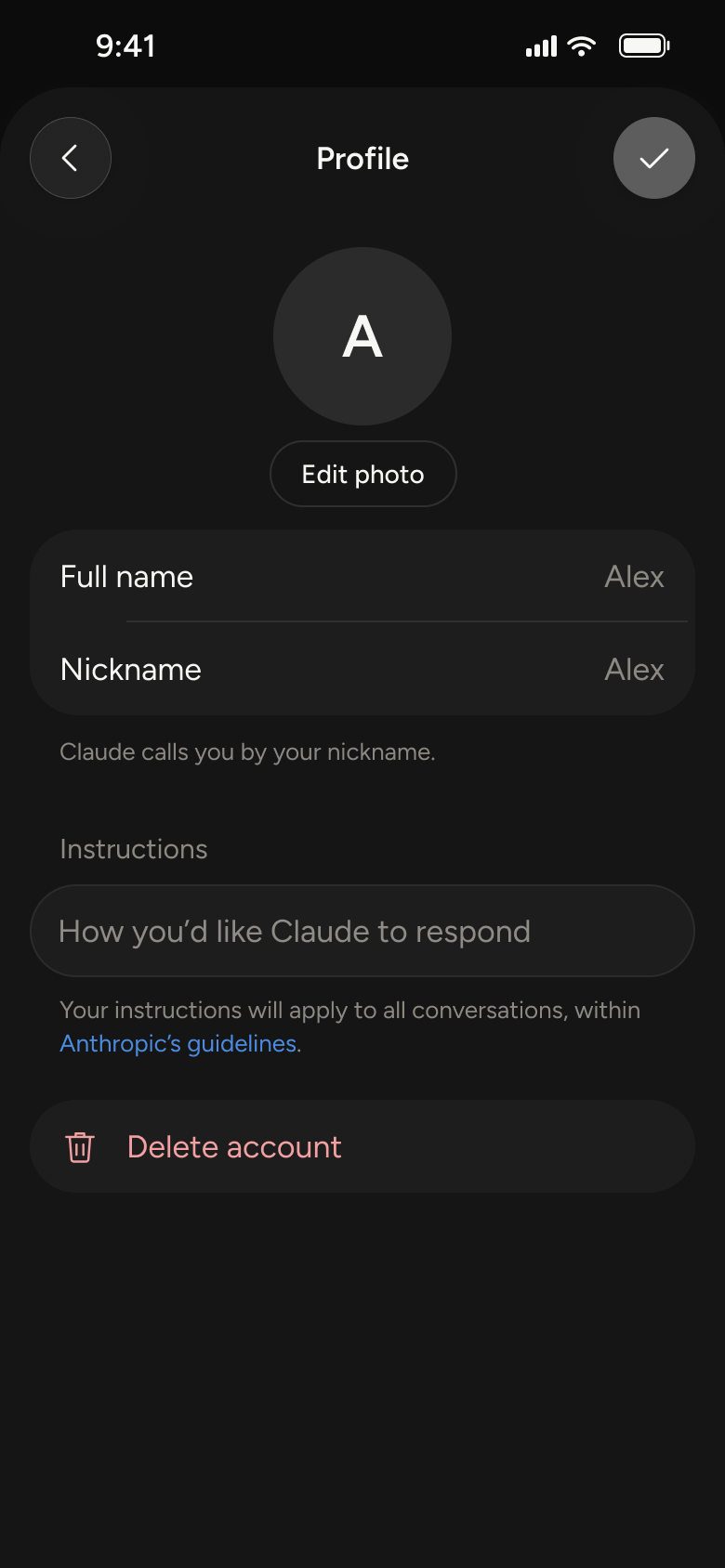
Tap Profile
Dark Mode Settings 4
Slides in from the right
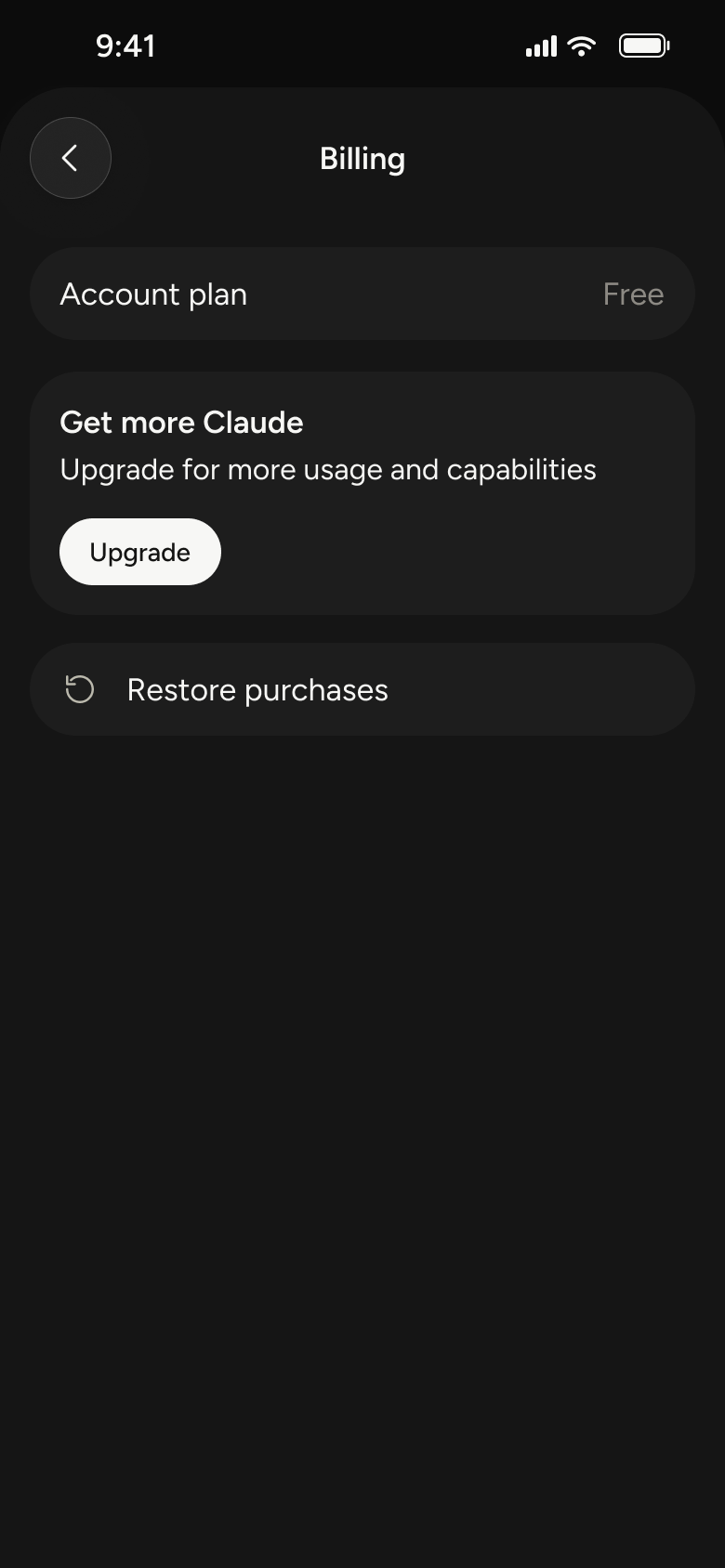
Back, tap Billing
Dark Mode Settings 2
Slides in from the right
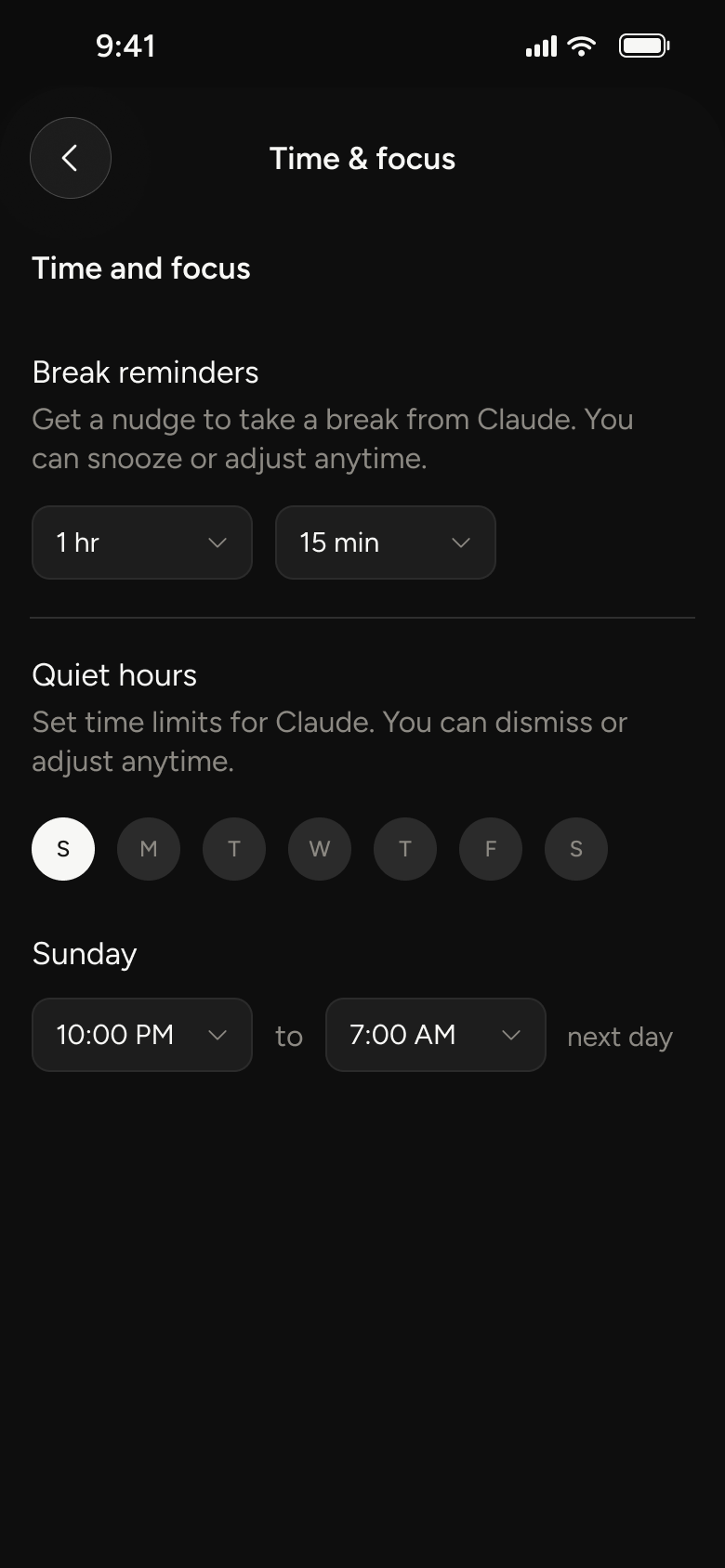
Back, tap Time & focus
Dark Mode Settings 3
Slides in from the right
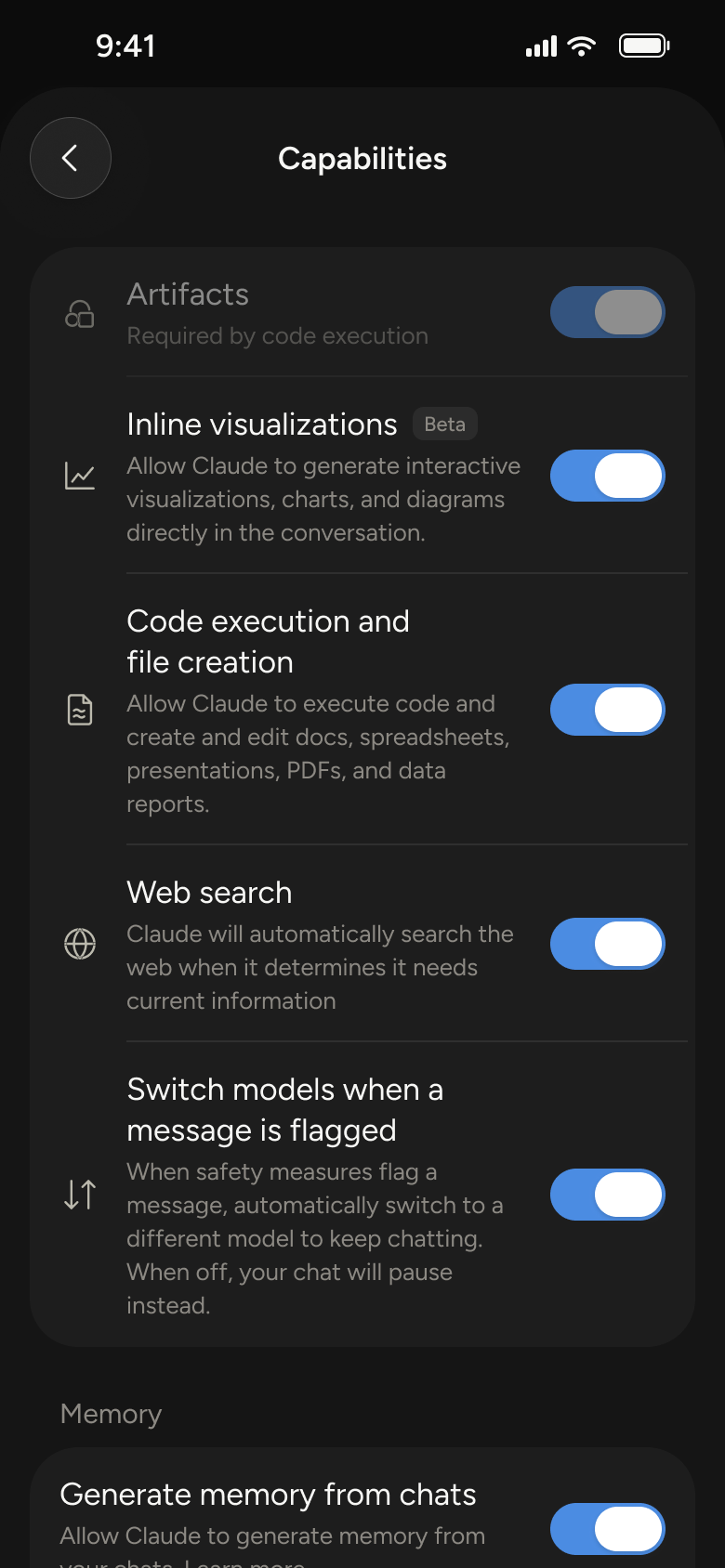
Back, tap Capabilities
Dark Mode Settings 5
Slides in from the right
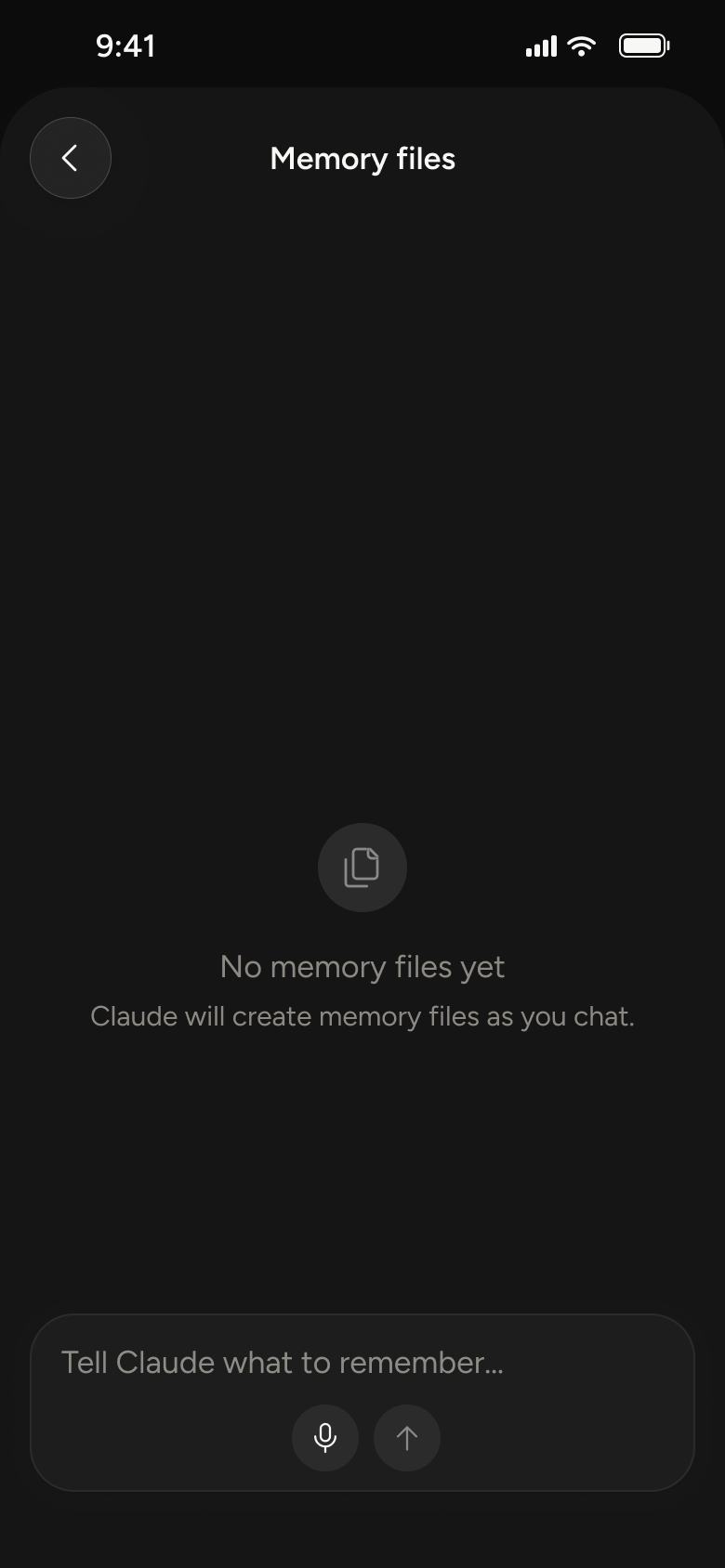
Scroll, tap Memory files
Dark Mode Settings 7
Slides in from the right
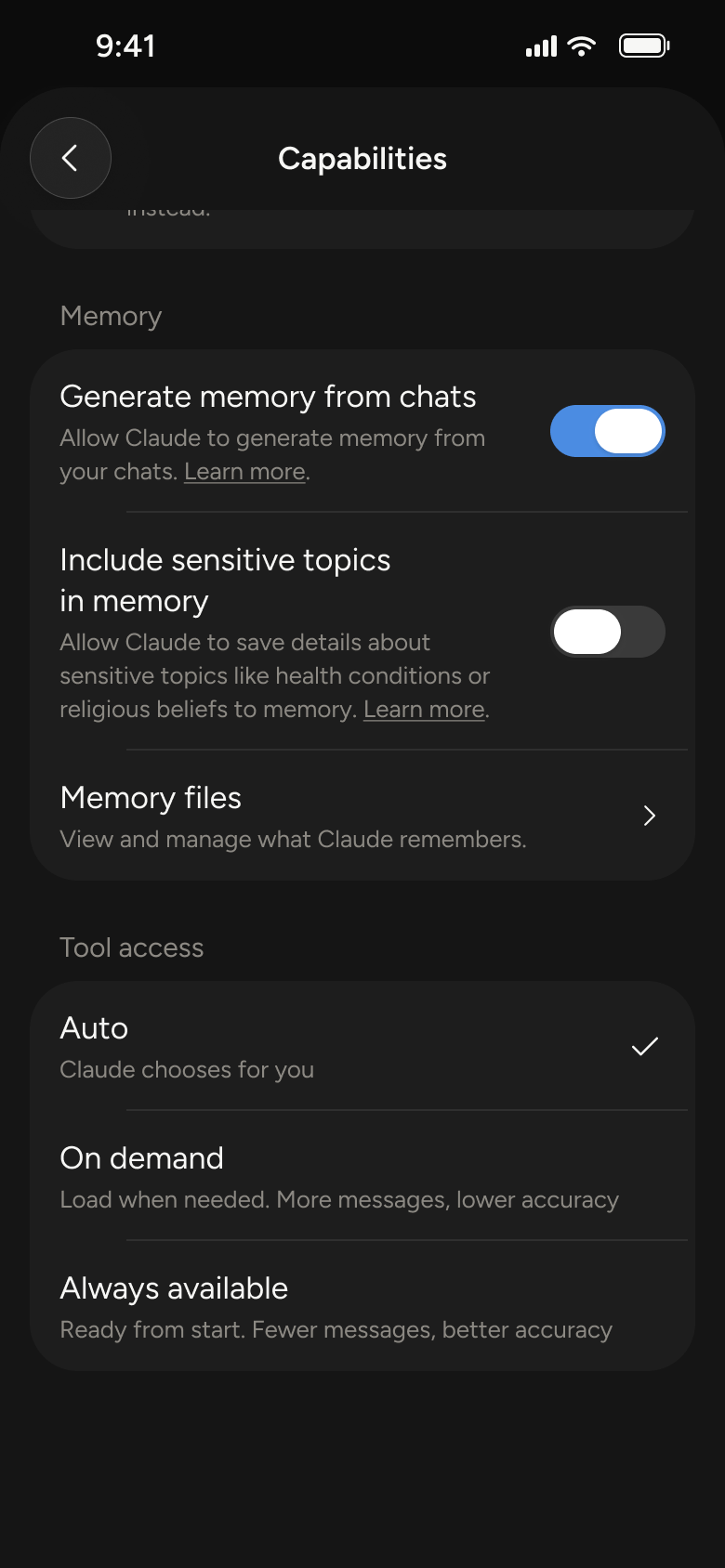
Back from Memory files
Dark Mode Settings 6
Goes back
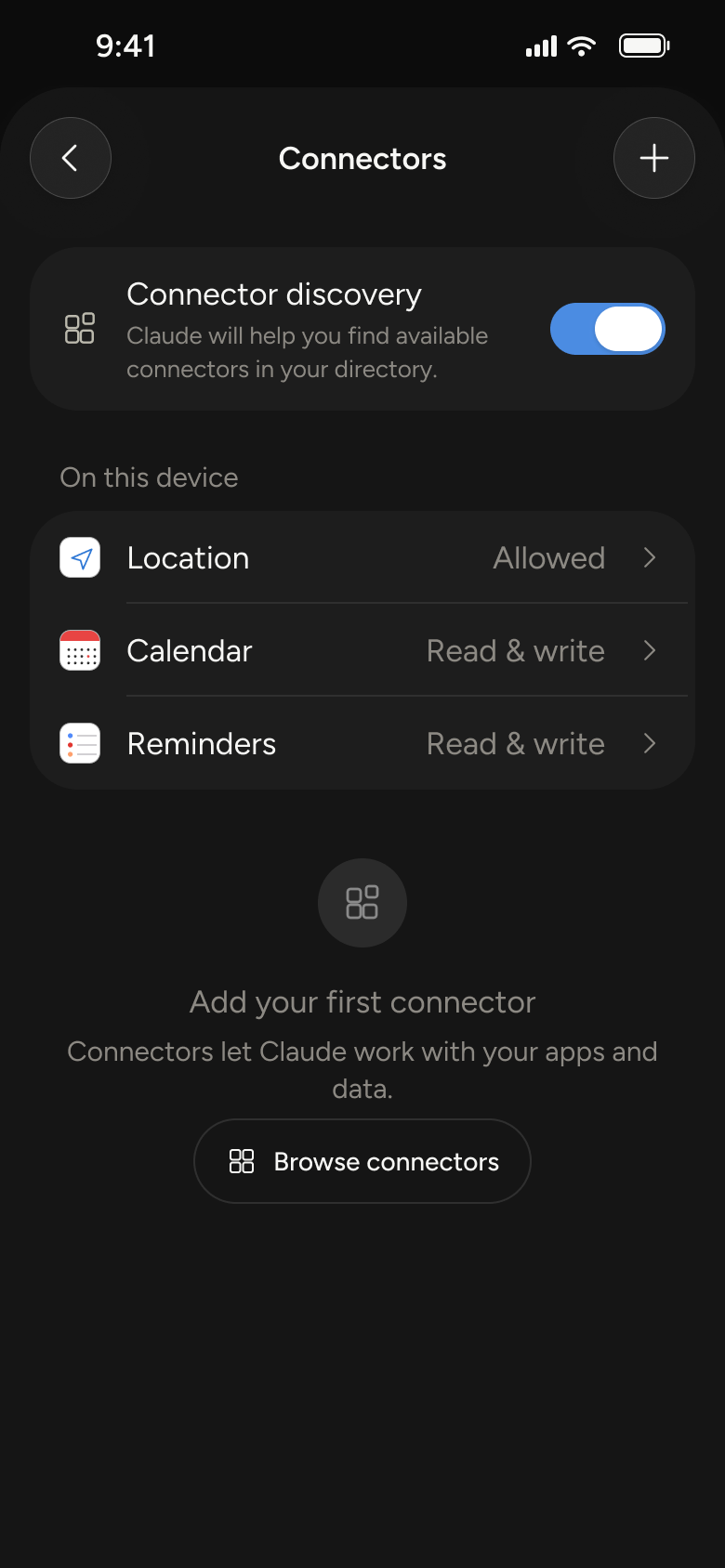
Back, tap Connectors
Dark Mode Settings 8
Slides in from the right
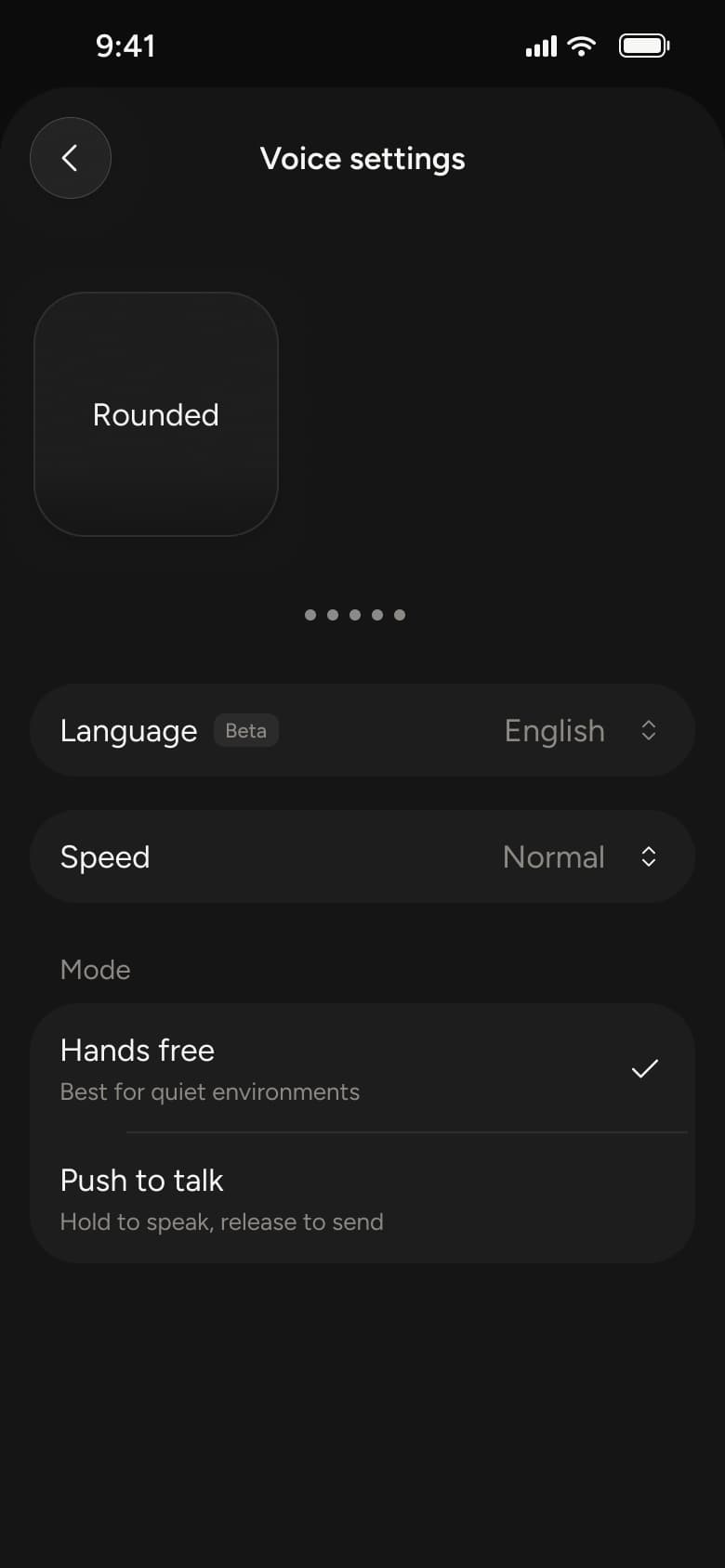
Back, tap Voice
Dark Mode Settings 9
Slides in from the right
Not affiliated with, endorsed or sponsored by Claude. Claude is a trade mark of its owner. Recreated for design reference and education. Rights holders: contact us
12 screens
Steps 1–4 of 12, in recording order
Open flow10 screens
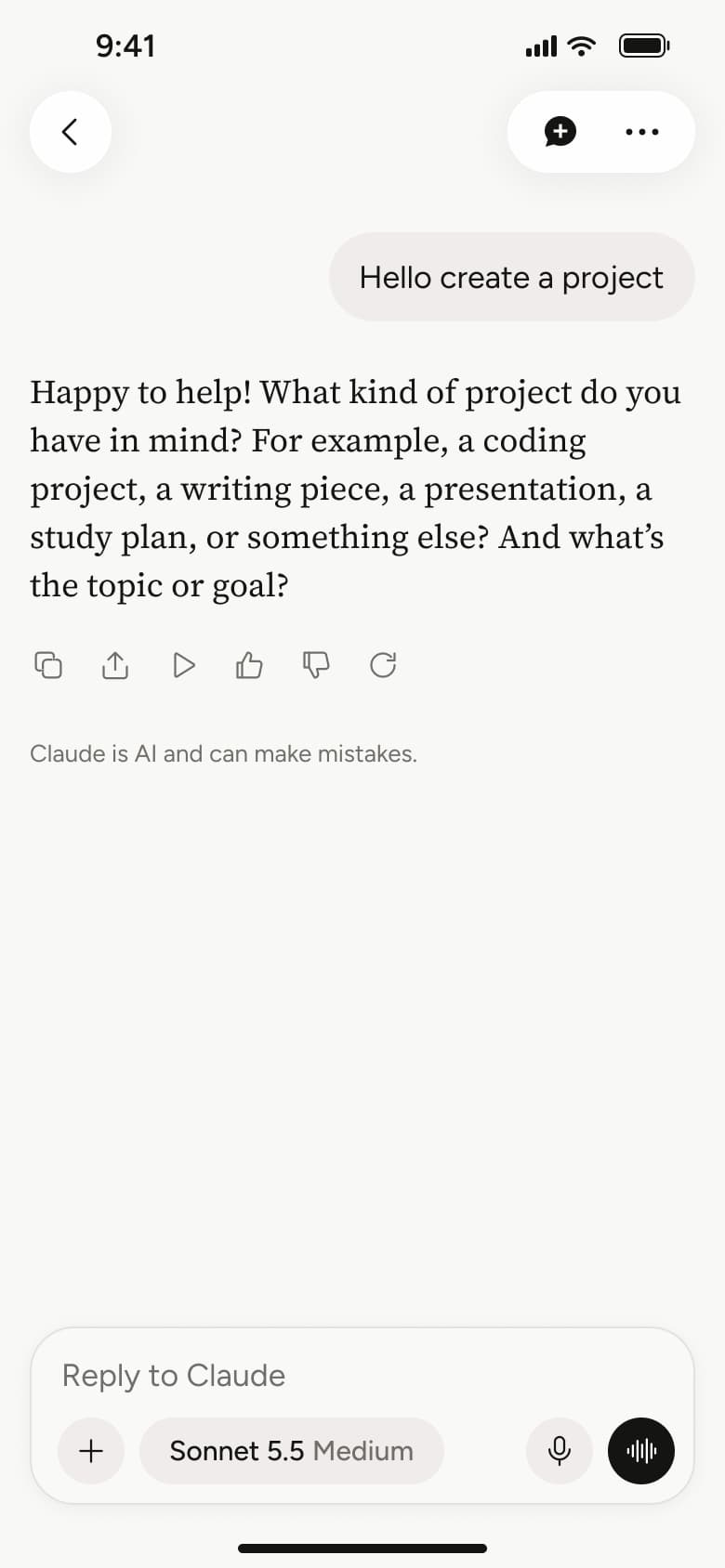
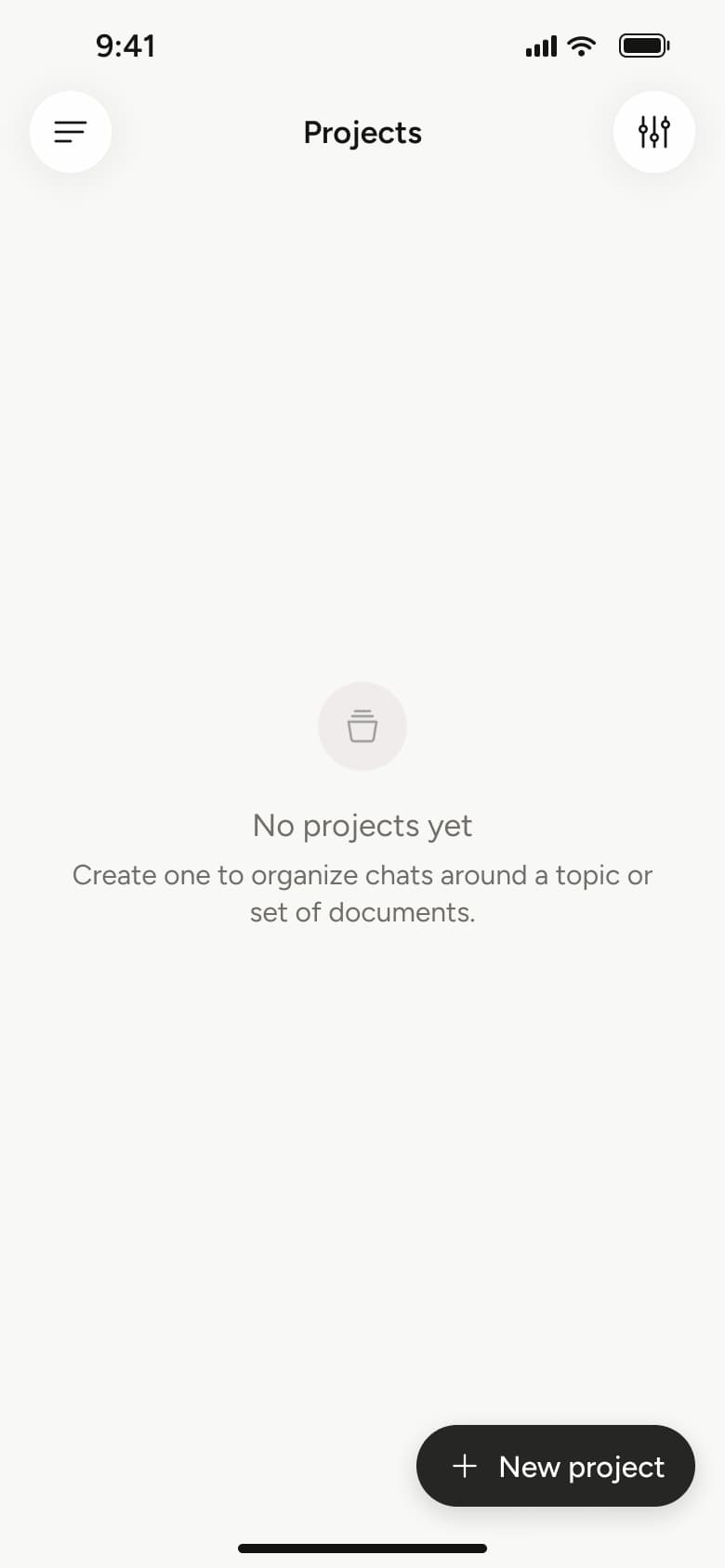
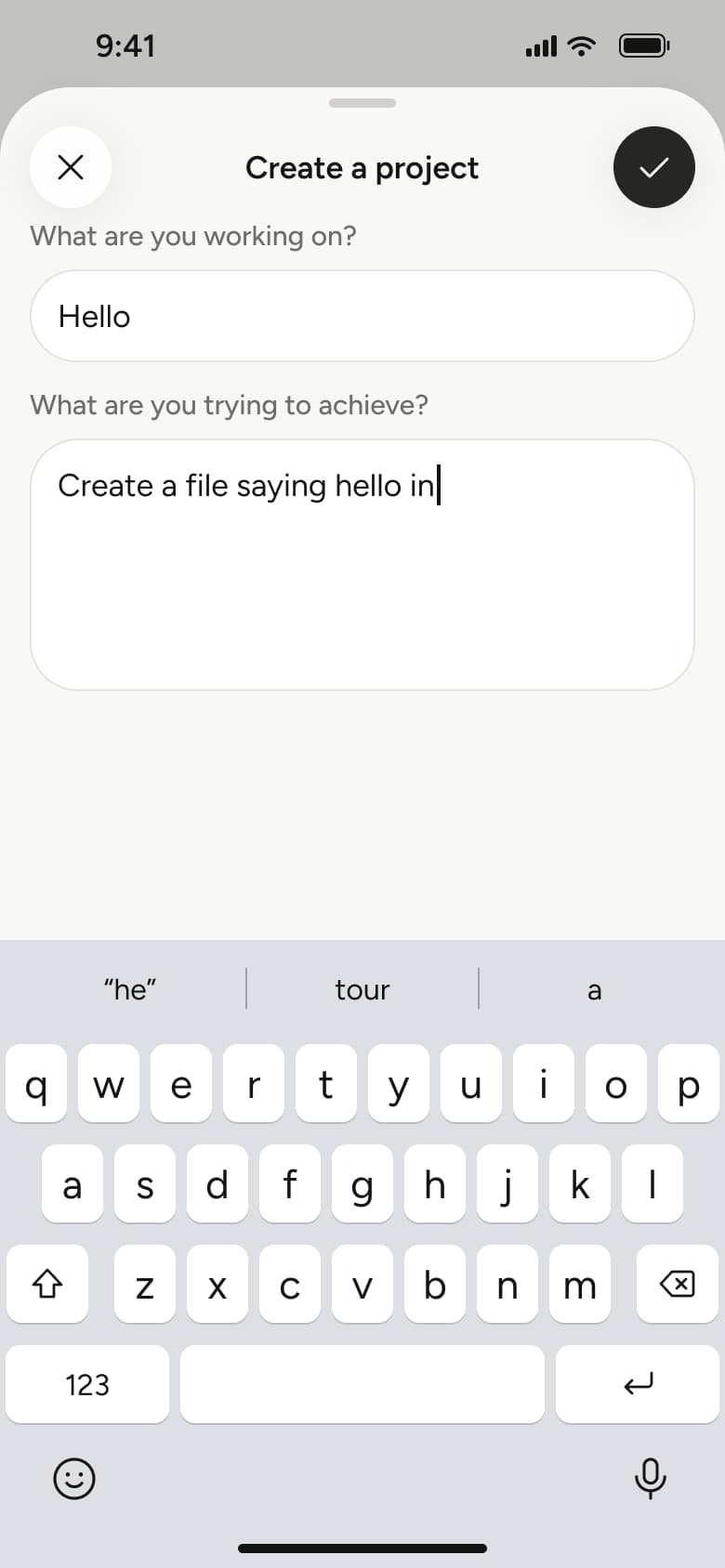
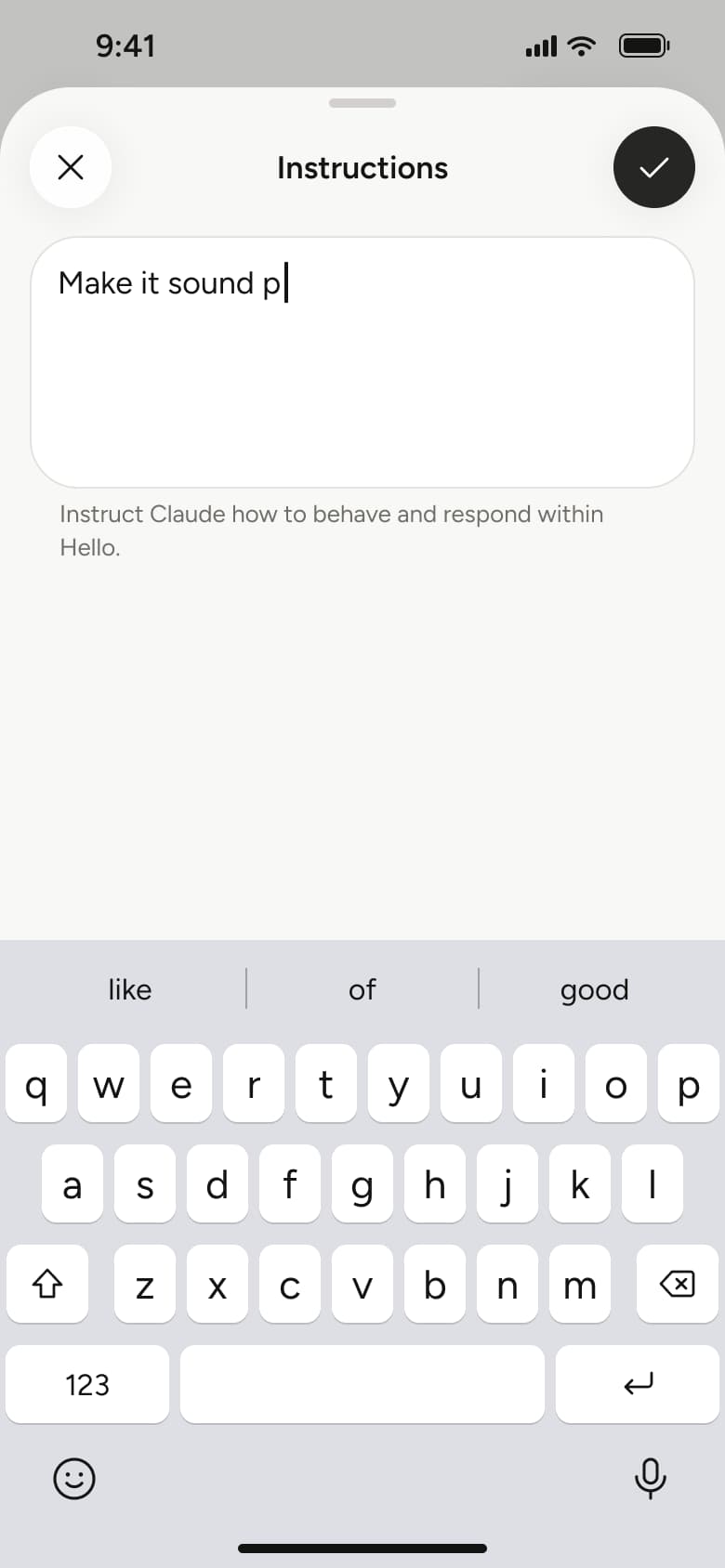
Steps 1–4 of 10, in recording order
Open flowAll of WhatsApp, and a complete flow from every app. No card needed.