
Onboarding
First launch inbox on Gmail
The user allows notifications, launches and lands on the inbox with feature and account tips, help and the account menu.
Step 1 of 10
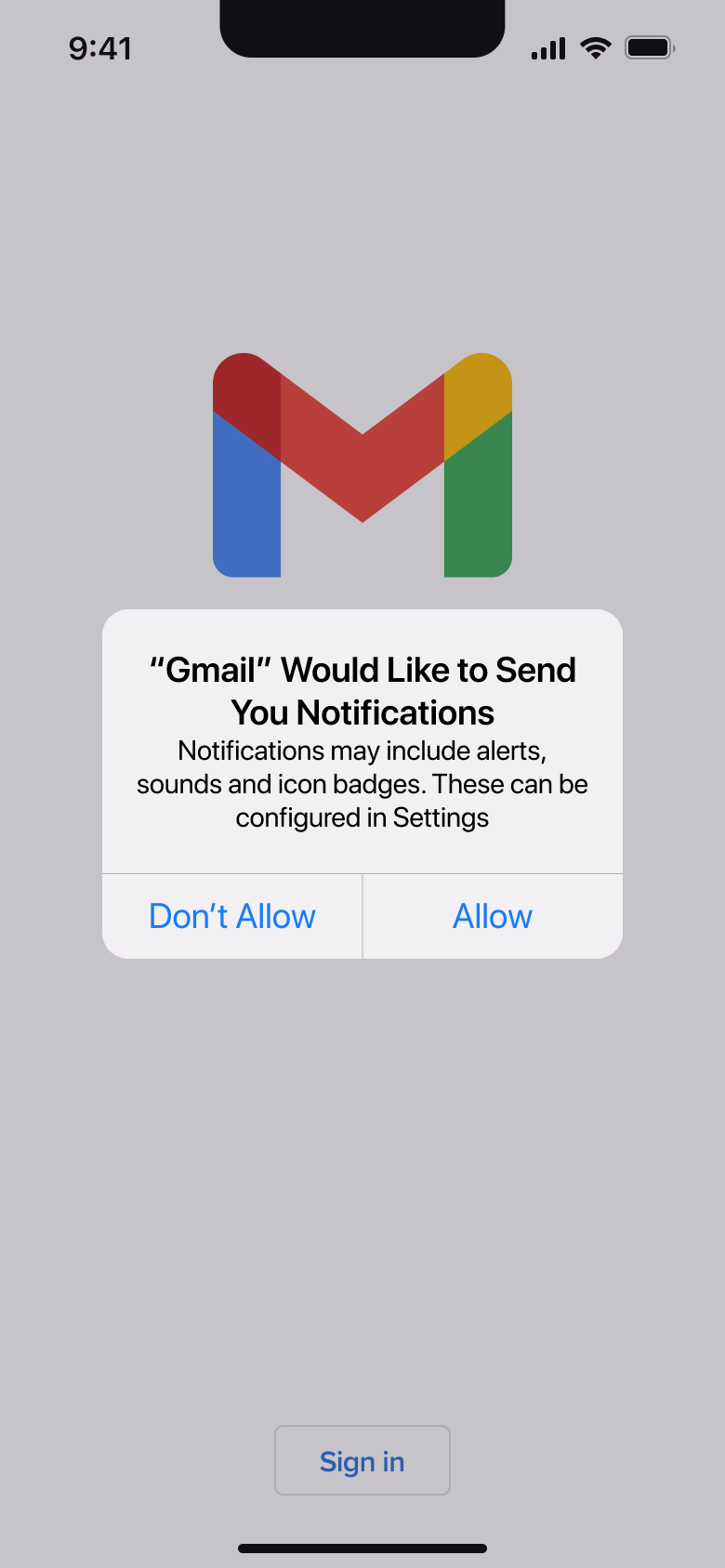
Alert / dialog over screen
The steps
- Step 1. Alert / dialog over screen
- Step 2. Tap Allow, Dismiss modal or sheet
- Step 3. Tap Sign in, Push
- Step 4. Push
- Step 5. In-place change
- Step 6. Tap OK, Dismiss modal or sheet
- Step 7. Tap help, Push
- Step 8. Tap avatar, Alert / dialog over screen
- Step 9. Tap Manage account, Push
- Step 10. In-place change
More from Gmail
- Create an account on Gmail
- Verify and finish account on Gmail
- Sign in on Gmail
- Manage accounts on Gmail
- Read and reply to an email on Gmail
- Browse folders on Gmail
- Filter emails on Gmail
- Create and apply a label on Gmail
- Settings on Gmail
- Compose an email on Gmail
- Add another account on Gmail
- Reply in a thread on Gmail
- Chat and spaces on Gmail
- Start a meeting on Gmail
- Rejoin a meeting on Gmail
- Set a status on Gmail
- Folders with mail on Gmail
- Full Gmail UI kit
- Onboarding flows in other apps
Not affiliated with, endorsed or sponsored by Gmail. Gmail is a trade mark of its owner. Recreated for design reference and education. Rights holders: contact us