
Track & log
11 screens
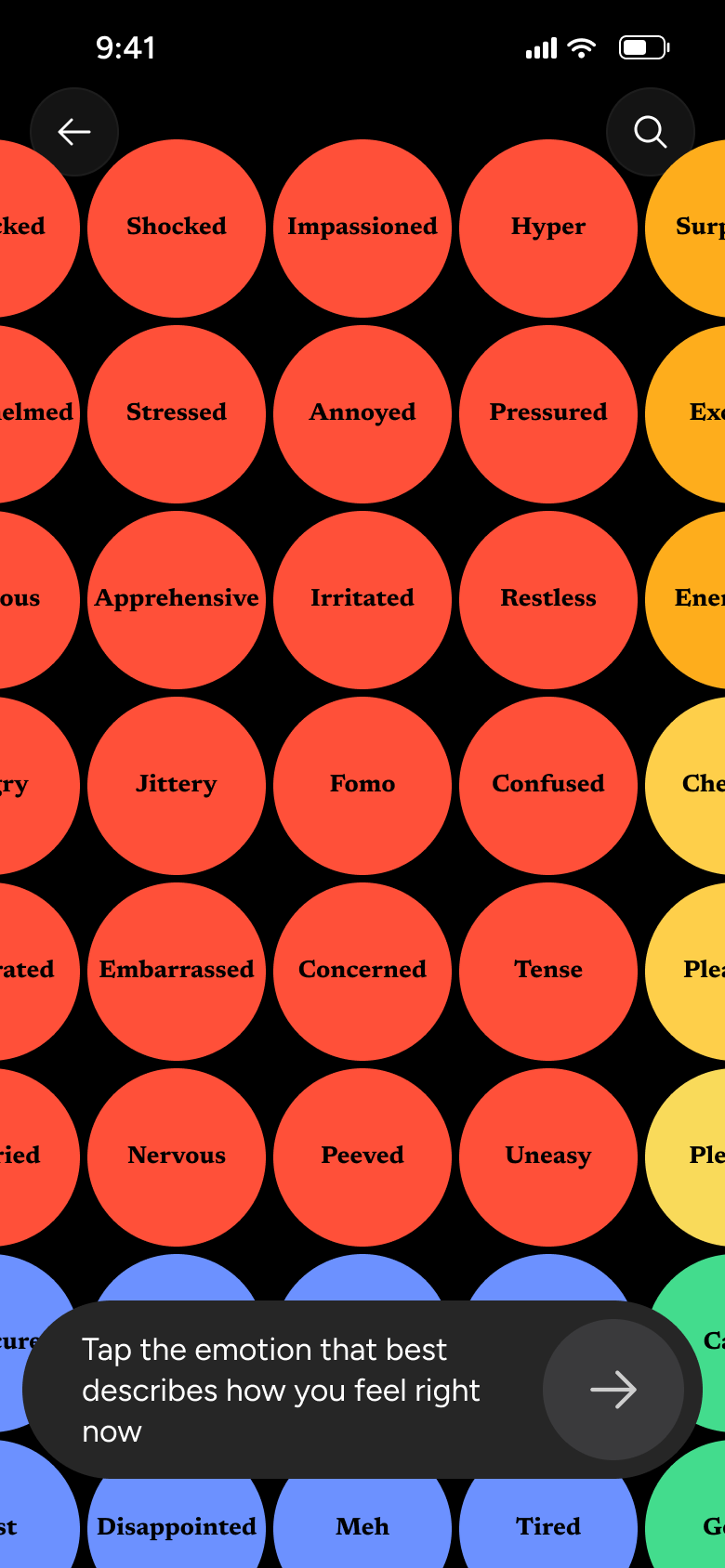
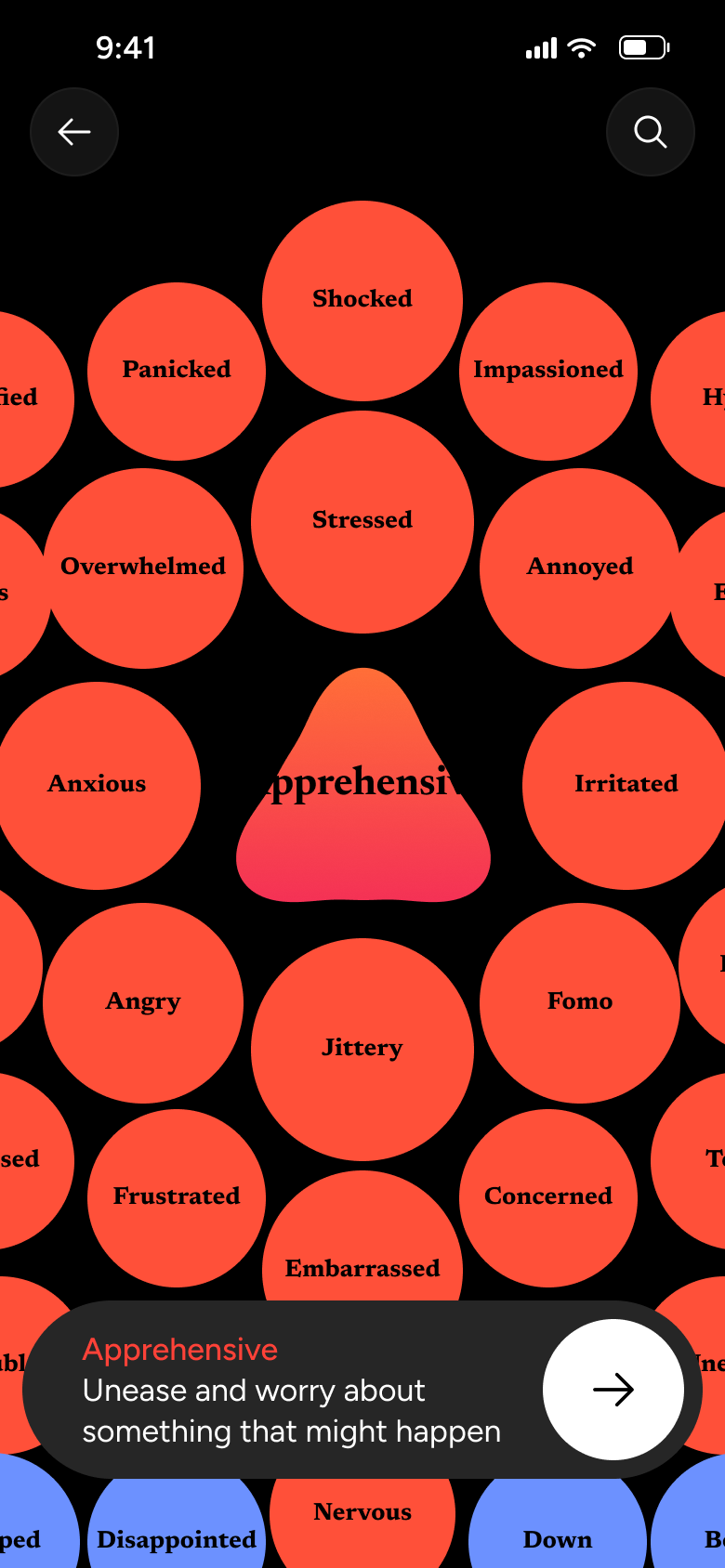
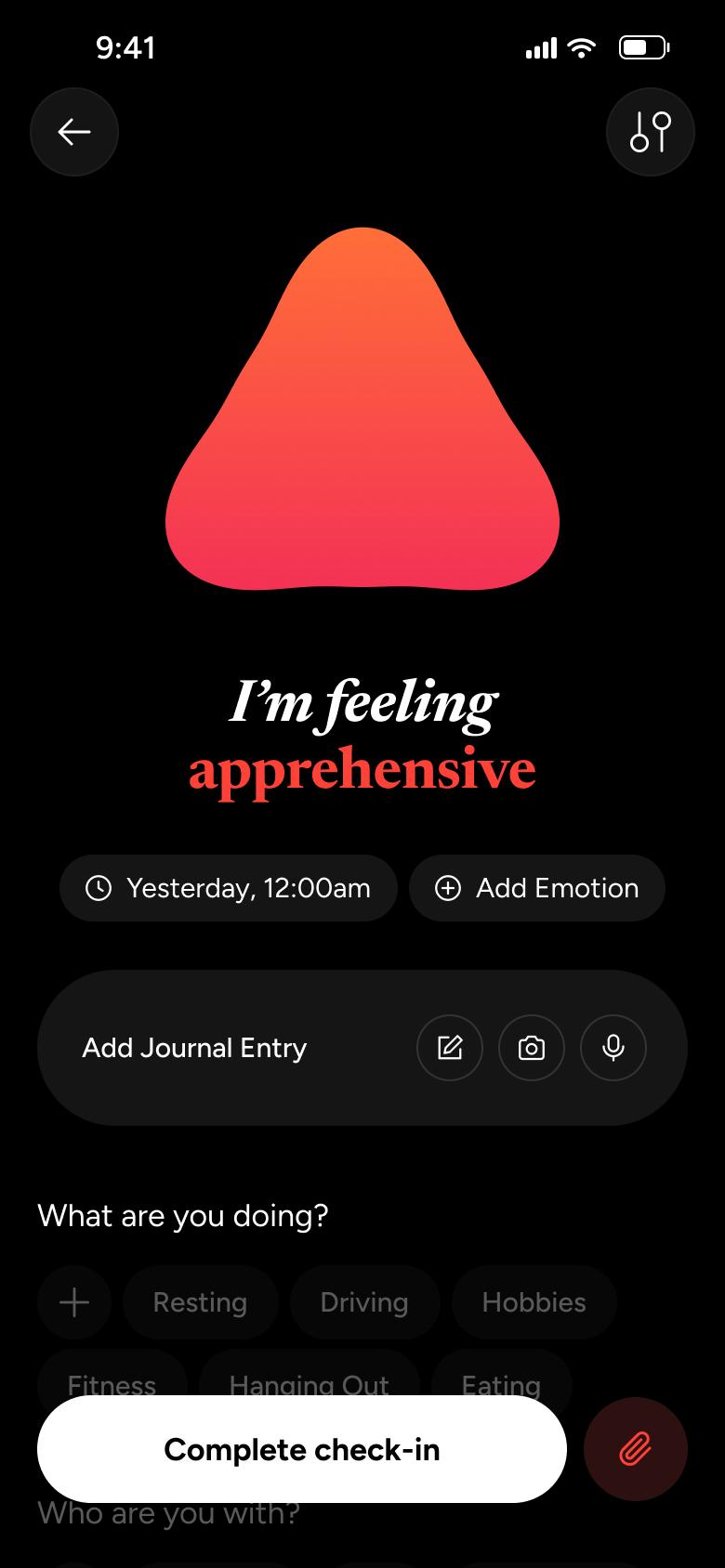
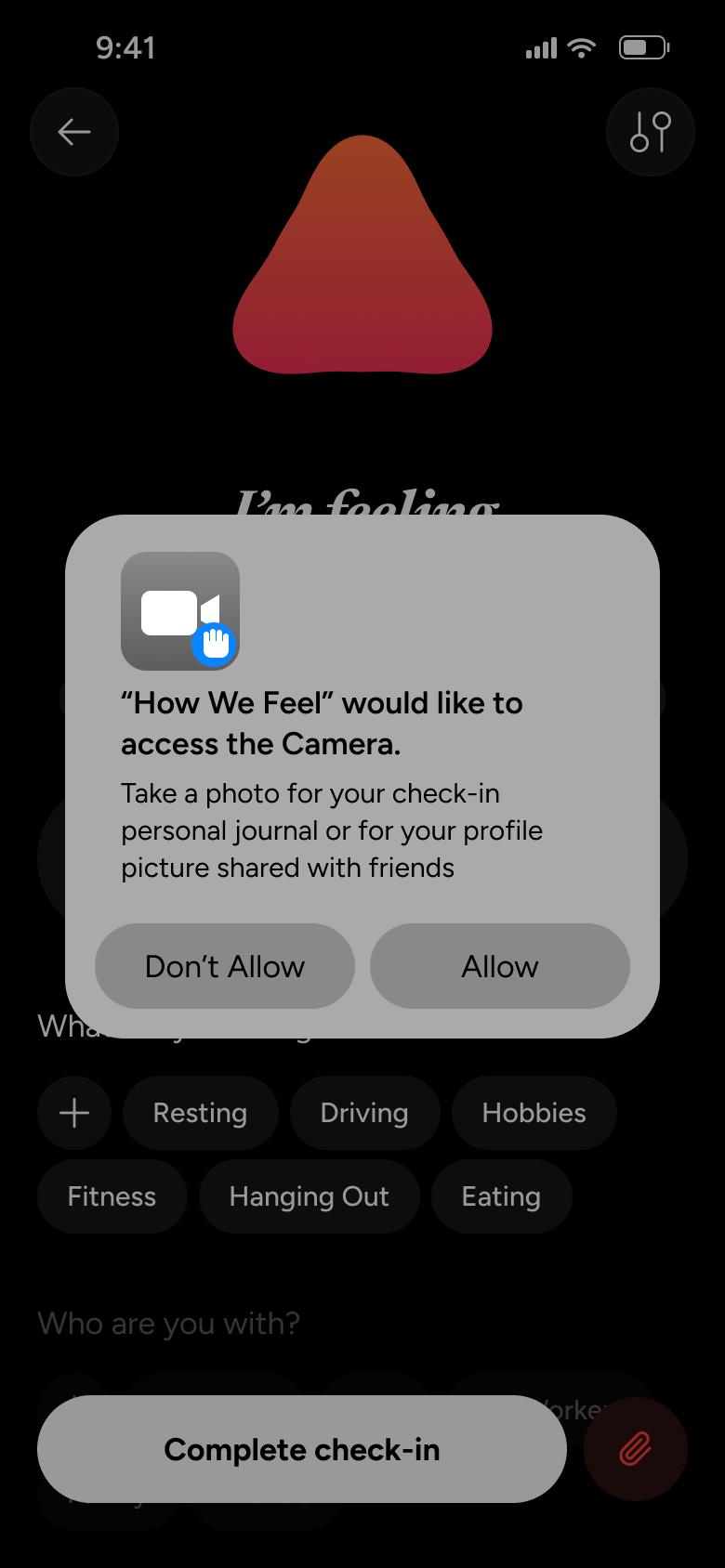
Steps 1–4 of 11, in recording order
Open flowFrom the settings list, open notifications, security and data, accessibility, check-in preferences, friends and sharing, AI settings and tool settings in turn.
How We FeeliOS7 steps
Every app’s free flow imports free, no card needed.
See all settings & preferences flows across apps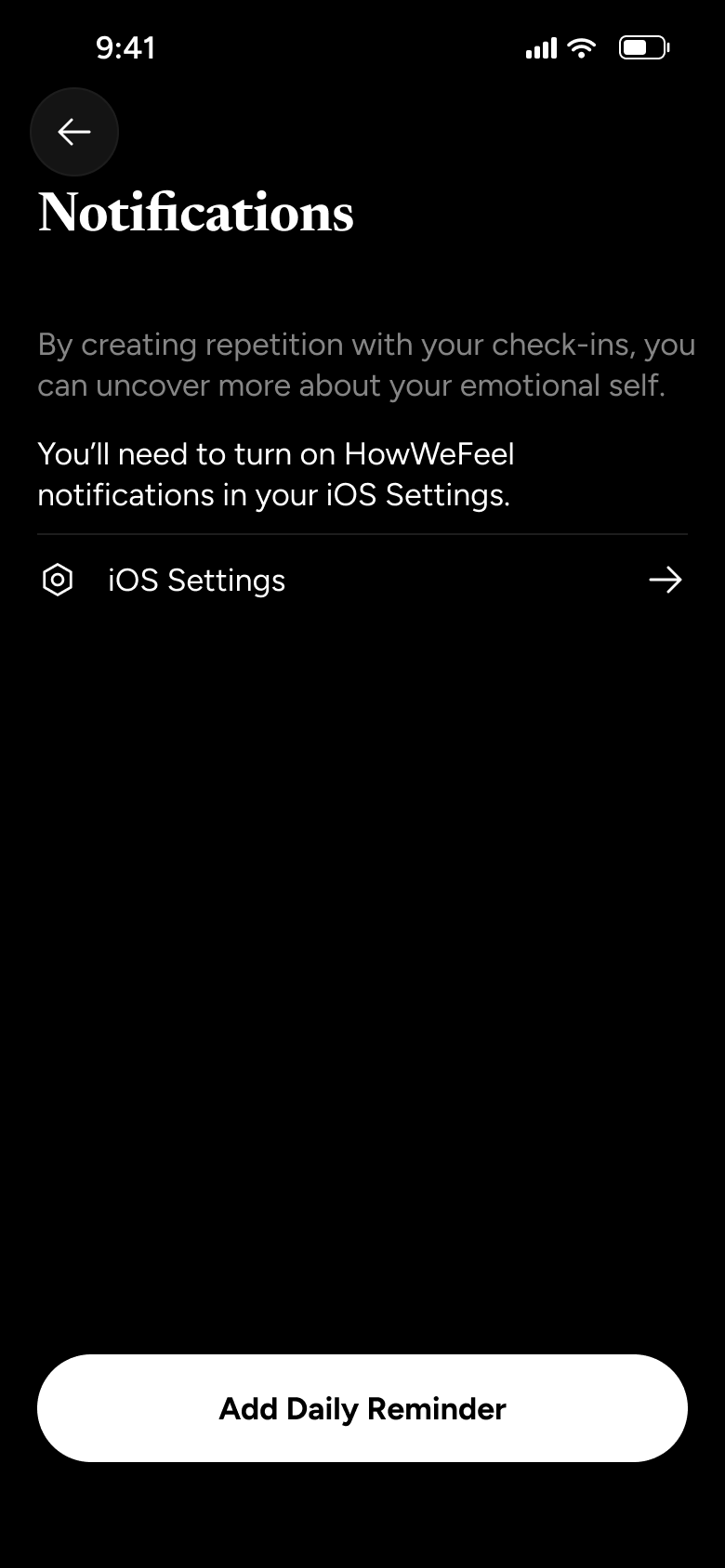
Step 1 of 7
Settings 4
How you get here: Slides in from the right
Open the SuperDuper UI plugin in Figma to paste these 7 screens into your file as editable layers.
All 7 steps
Use ← → to step through
Each screen in the order it was recorded, with how the user got there.
Tap Notifications
Settings 4
Slides in from the right
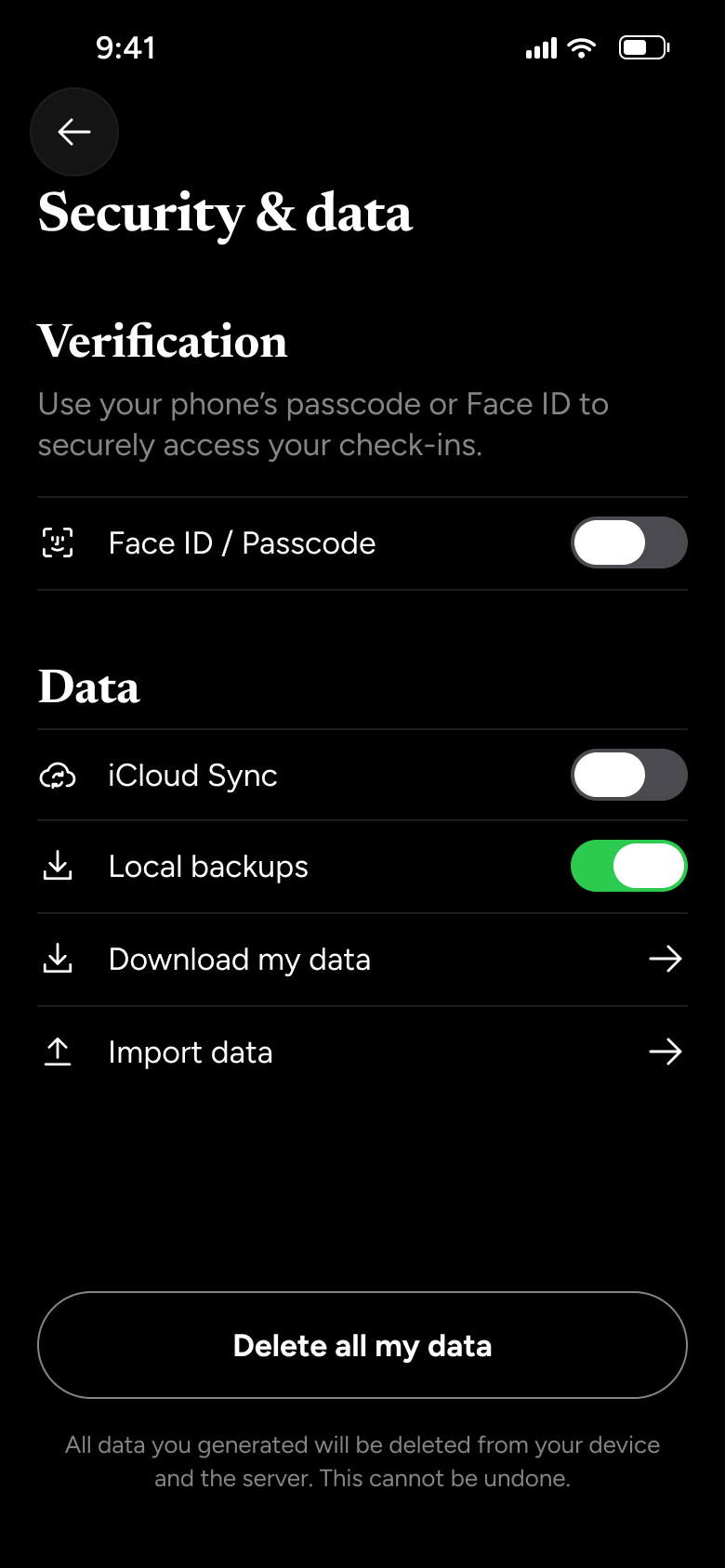
Back, tap Security & data
Settings 6
Slides in from the right
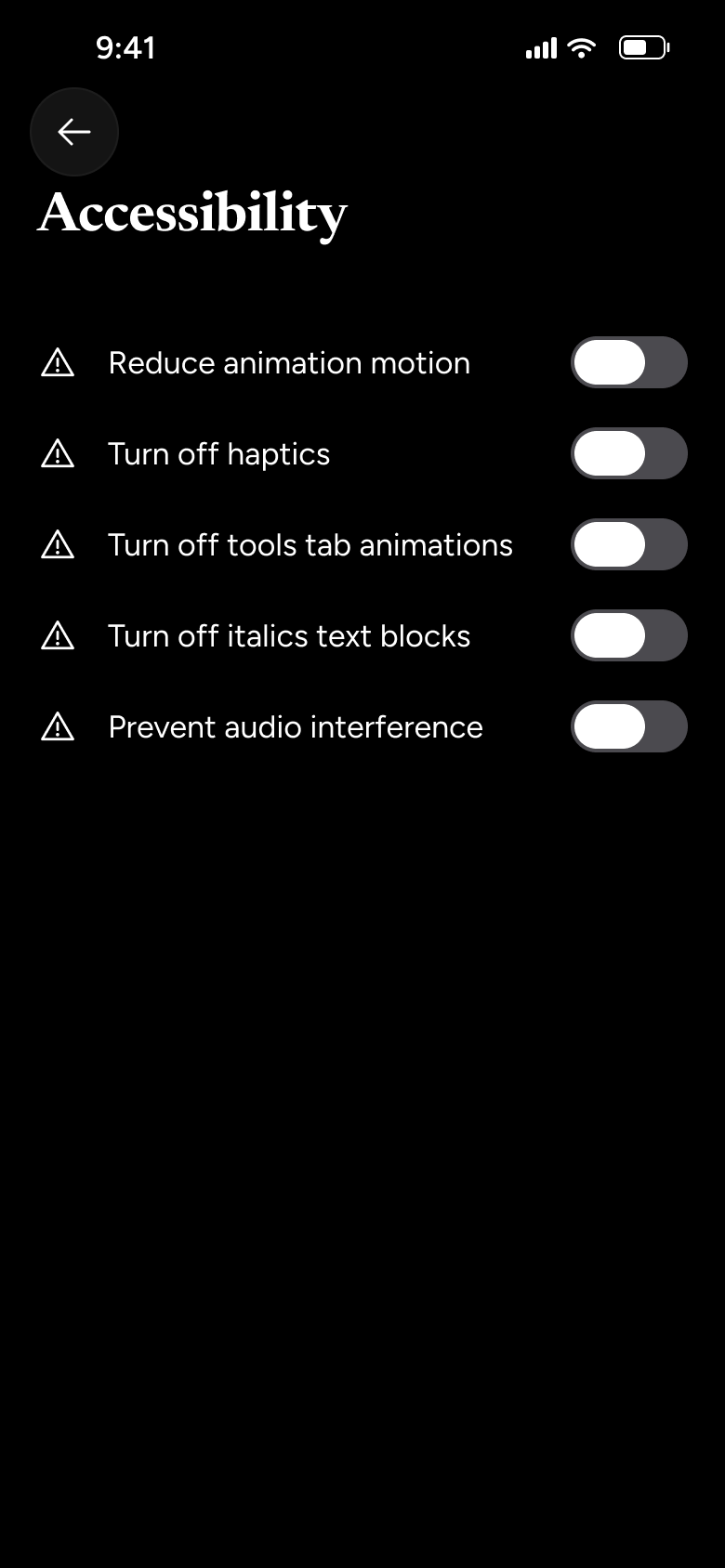
Back, tap Accessibility
Settings 8
Slides in from the right
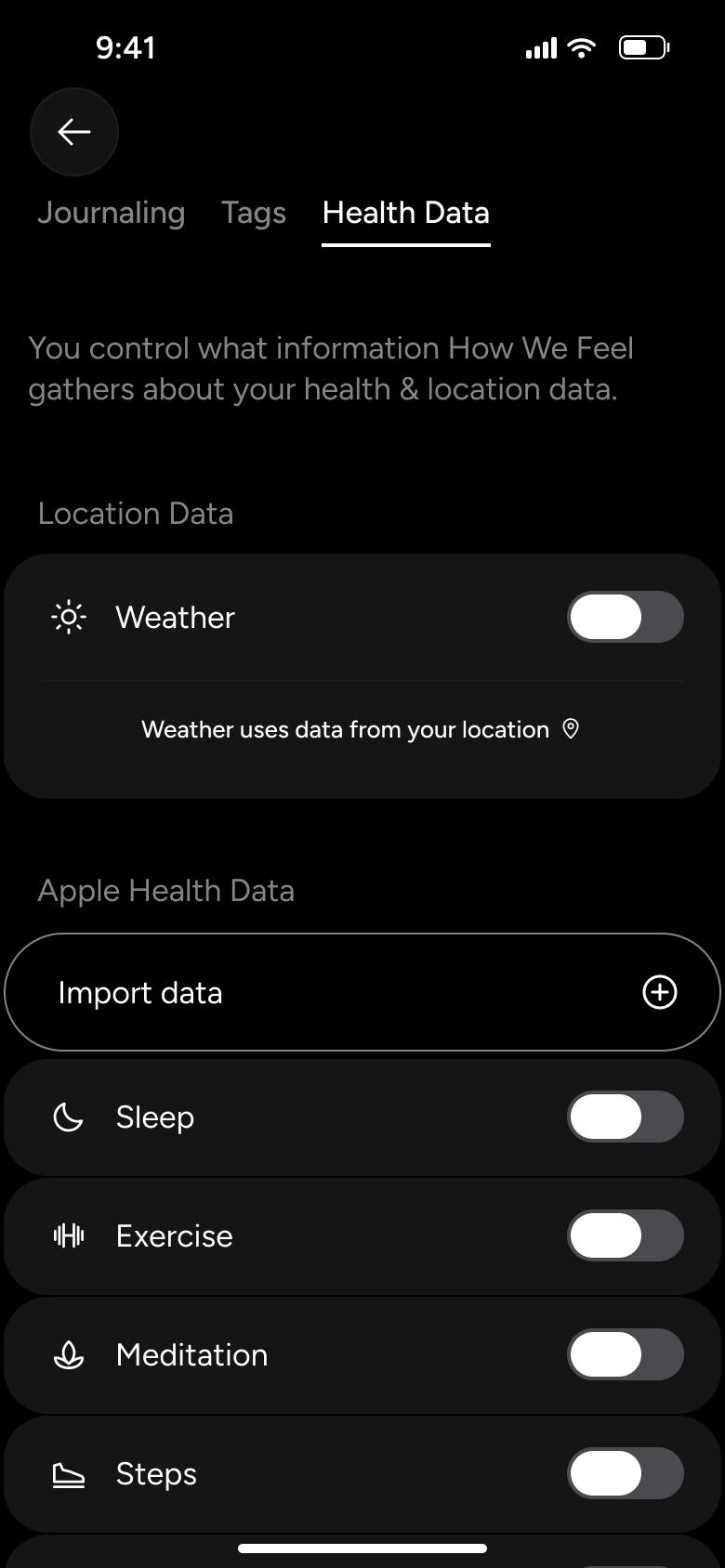
Back, tap Check-in preferences
Settings 9
Slides in from the right
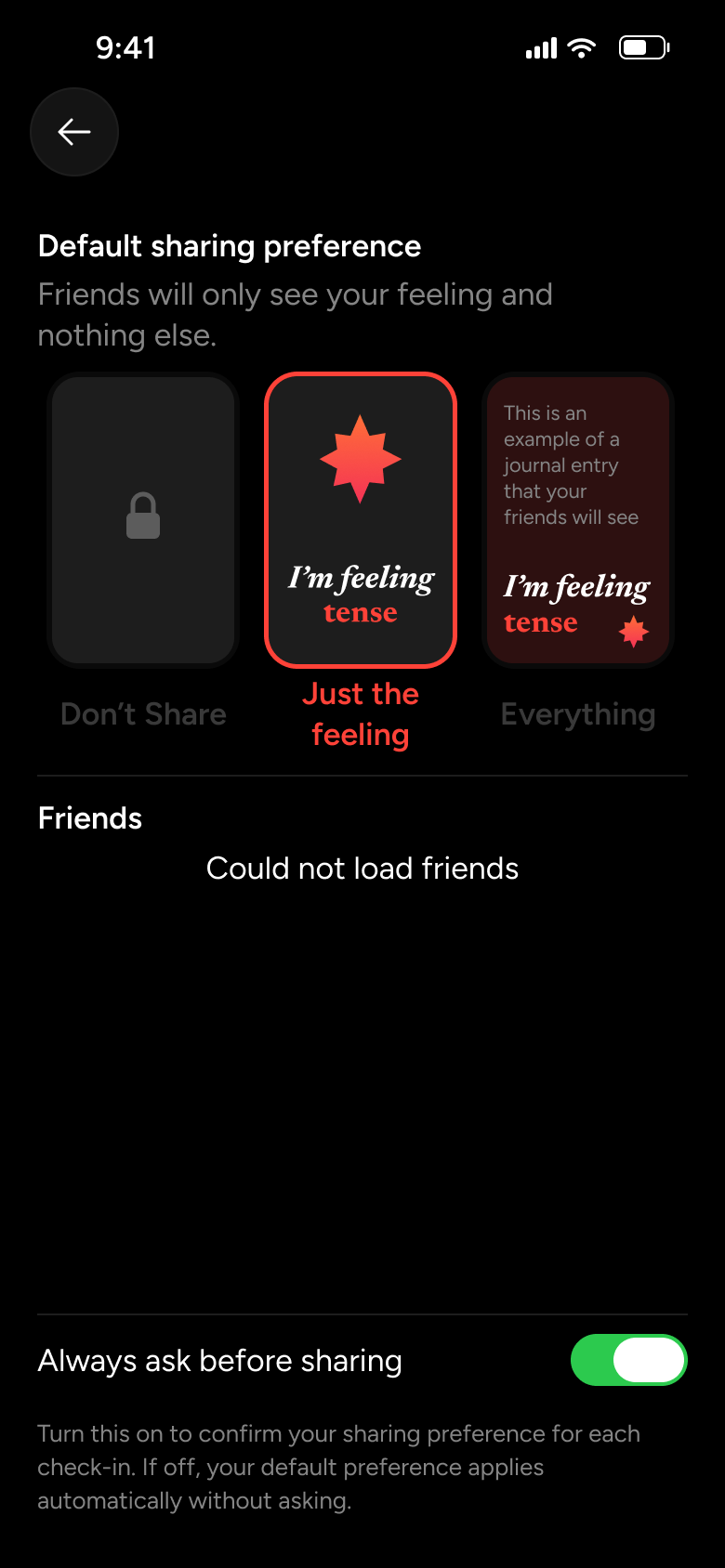
Back, tap Friends & Sharing
Settings 18
Slides in from the right
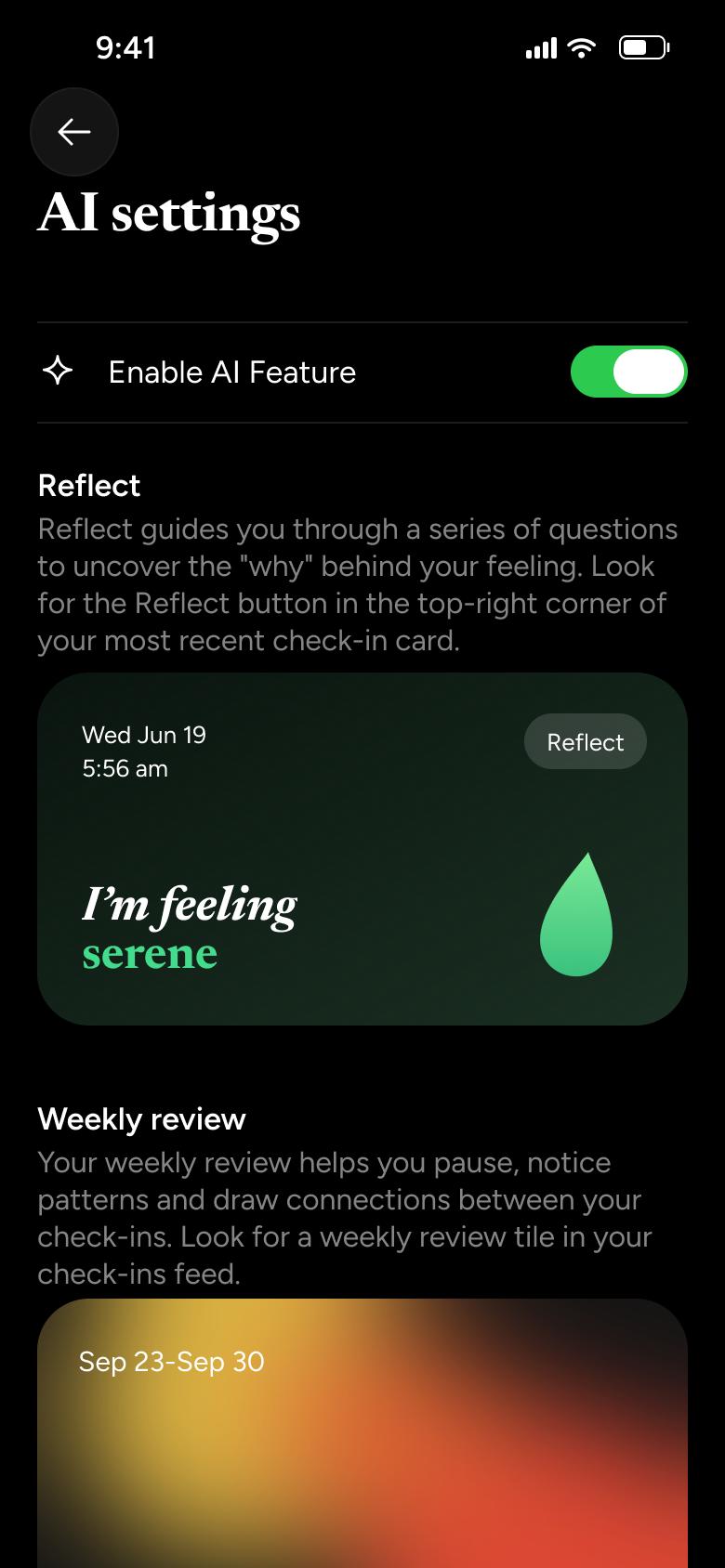
Back, tap AI settings
Settings 19
Slides in from the right
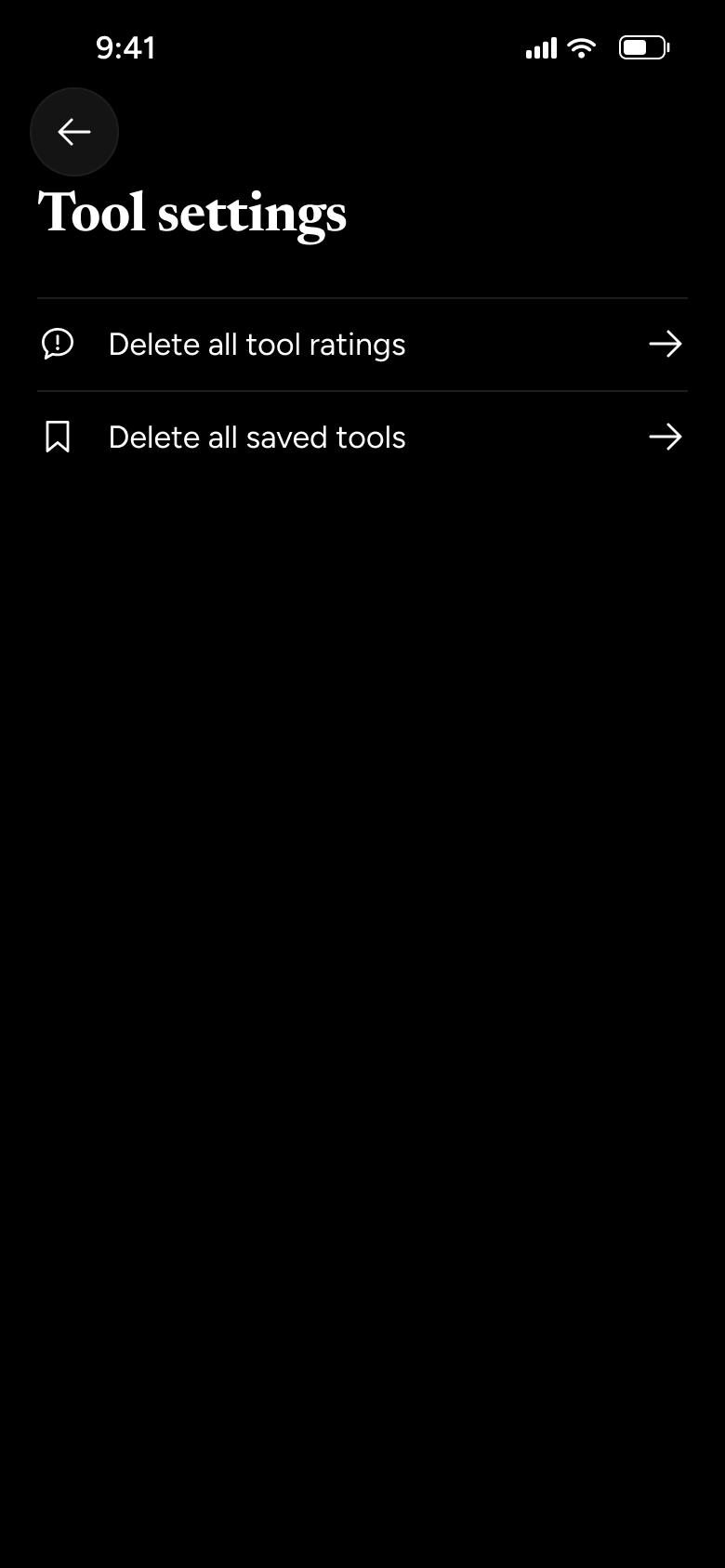
Back, tap Tool settings
Settings 21
Slides in from the right
Not affiliated with, endorsed or sponsored by How We Feel. How We Feel is a trade mark of its owner. Recreated for design reference and education. Rights holders: contact us
11 screens
Steps 1–4 of 11, in recording order
Open flow11 screens
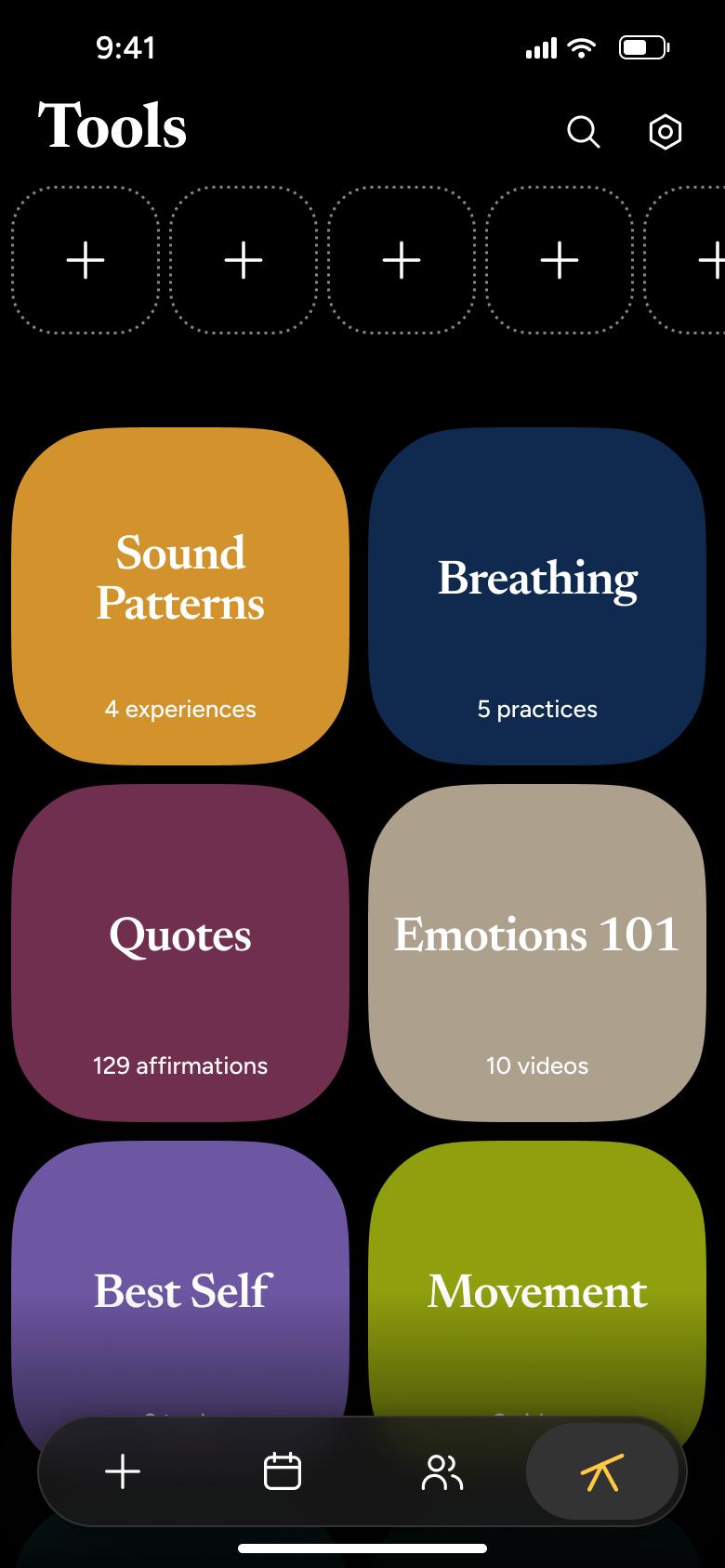
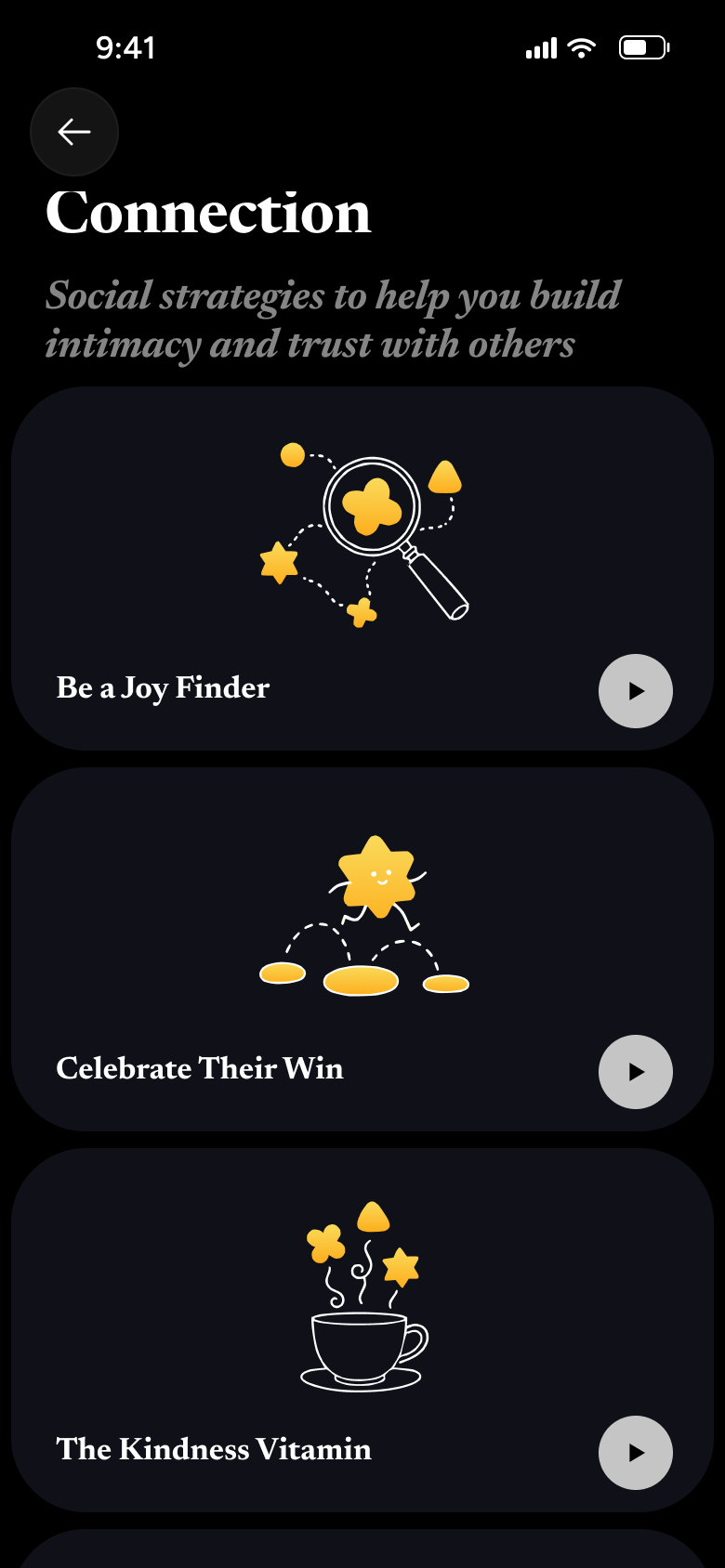

Steps 1–4 of 11, in recording order
Open flowAll of WhatsApp, and a complete flow from every app. No card needed.