
Switch to dark mode
Appearance & dark mode13 screens
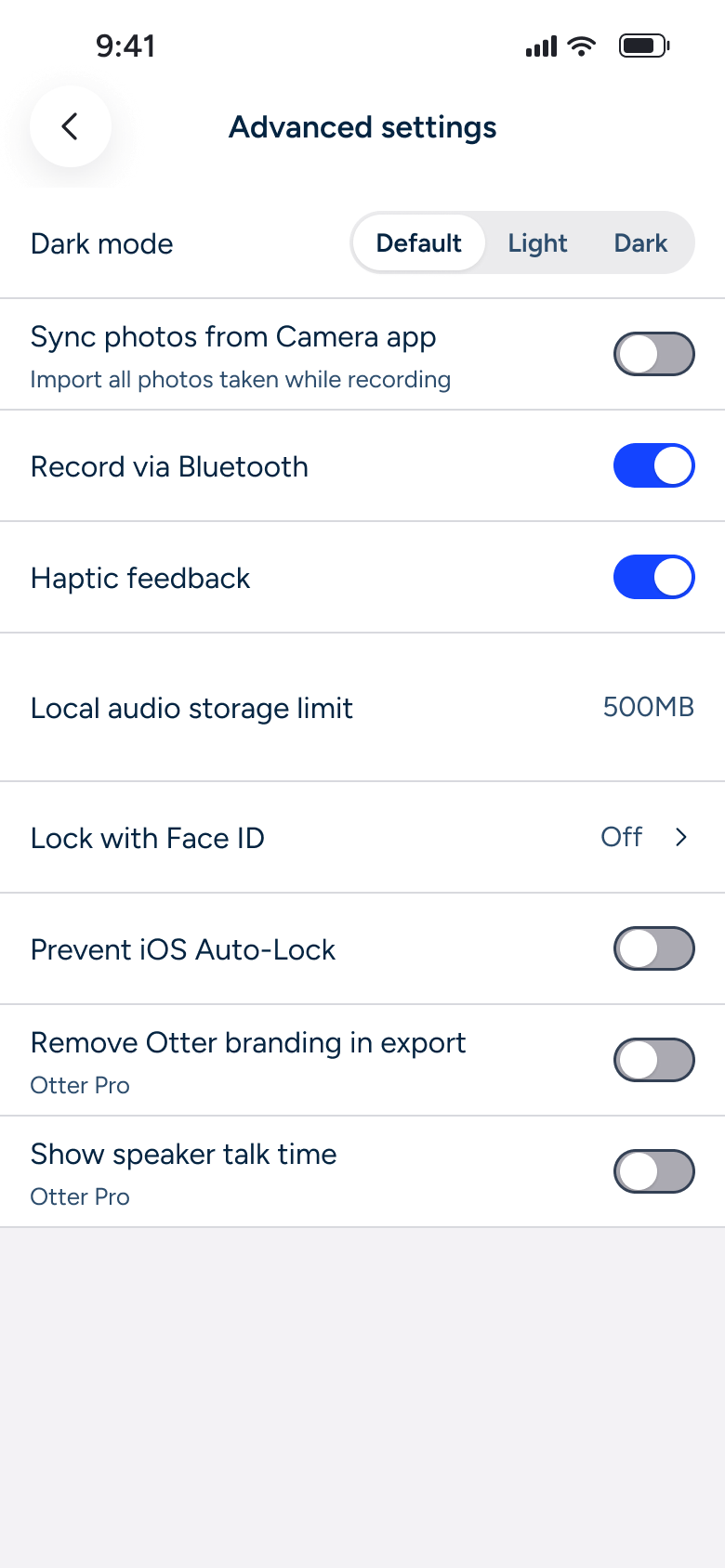
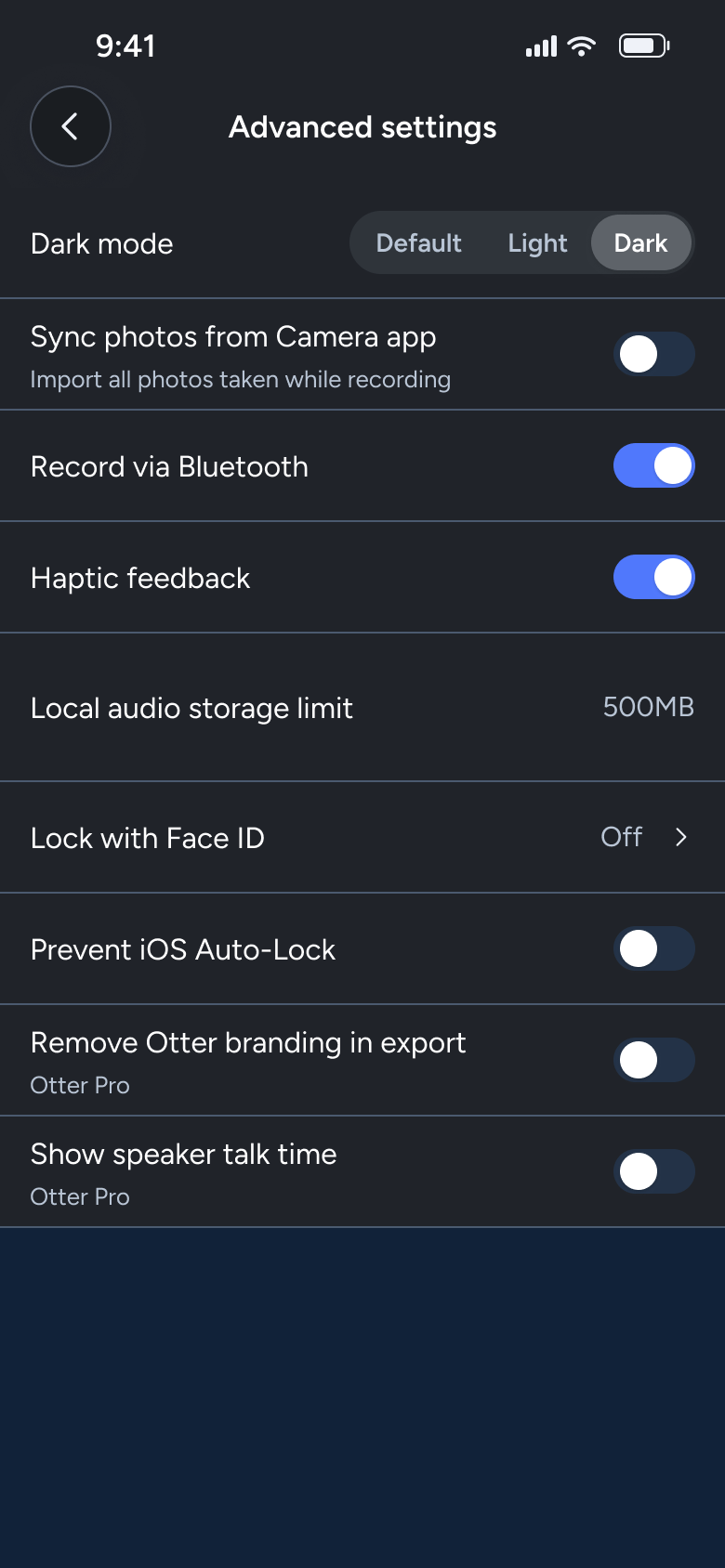
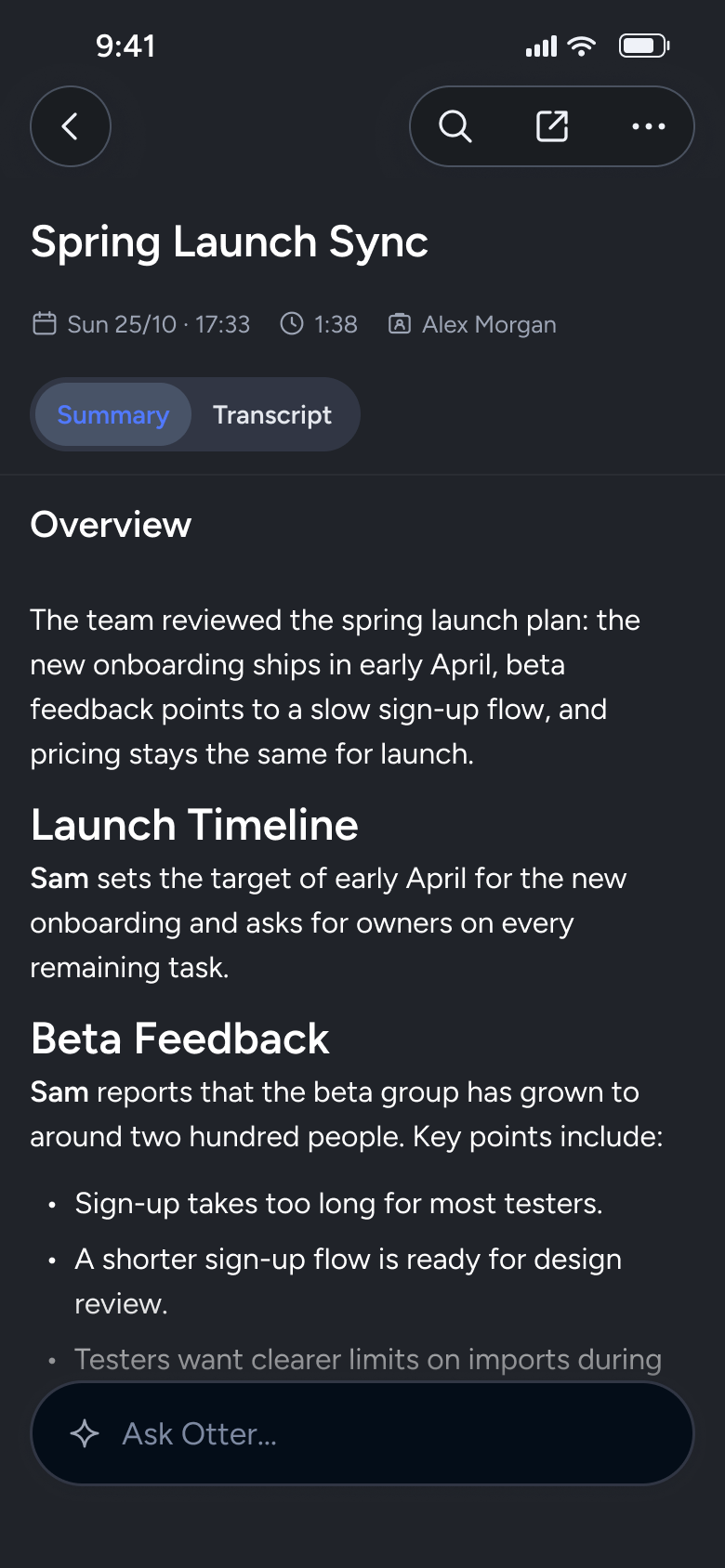
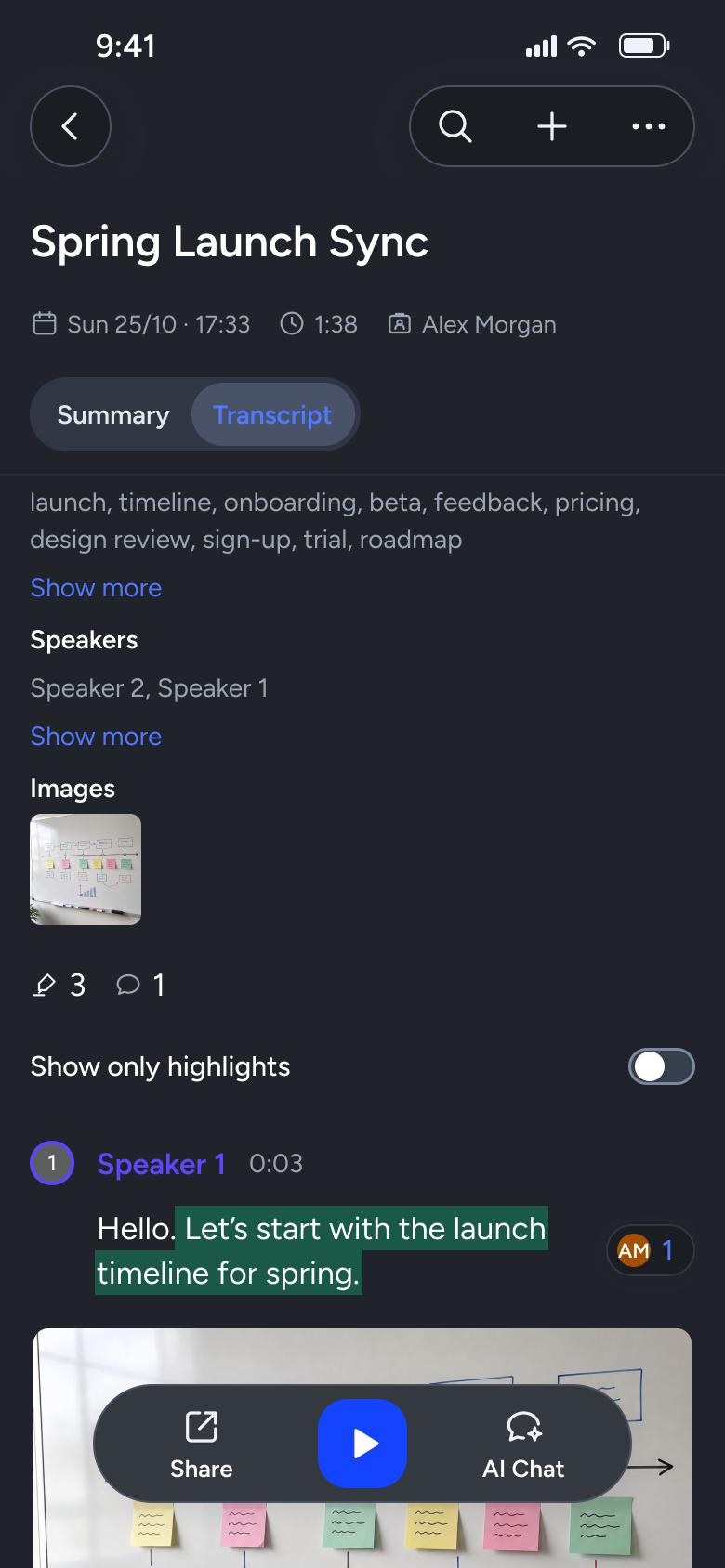
Steps 1–4 of 13, in recording order
Open flowOpen a conversation recording live, watch the summary build, add an action item and see the generated overview and outline.
OtteriOS7 steps
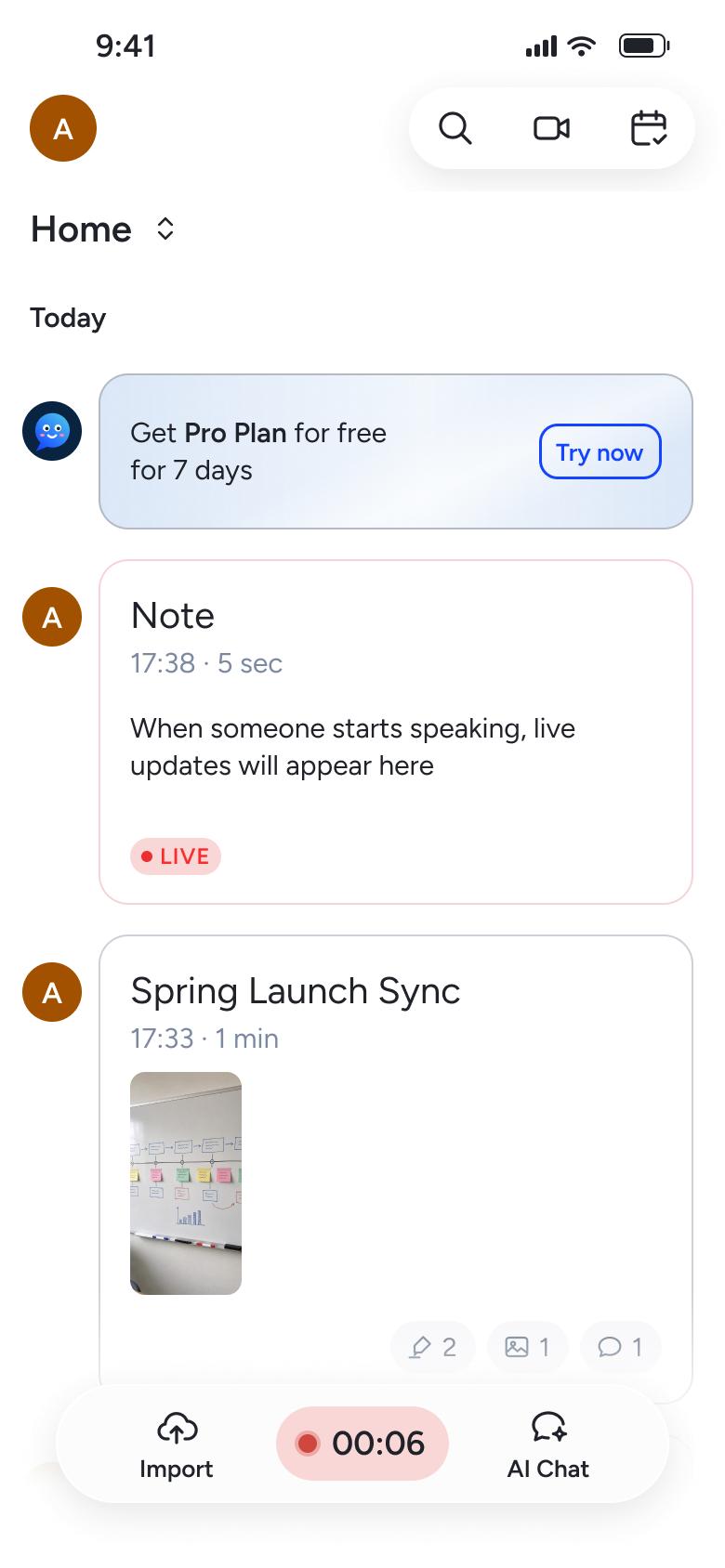
Step 1 of 7
Home 6
How you get here: Changes in place
Open the SuperDuper UI plugin in Figma to paste these 7 screens into your file as editable layers.
All 7 steps
Use ← → to step through
Each screen in the order it was recorded, with how the user got there.
Tap mic to record
Home 6
Changes in place
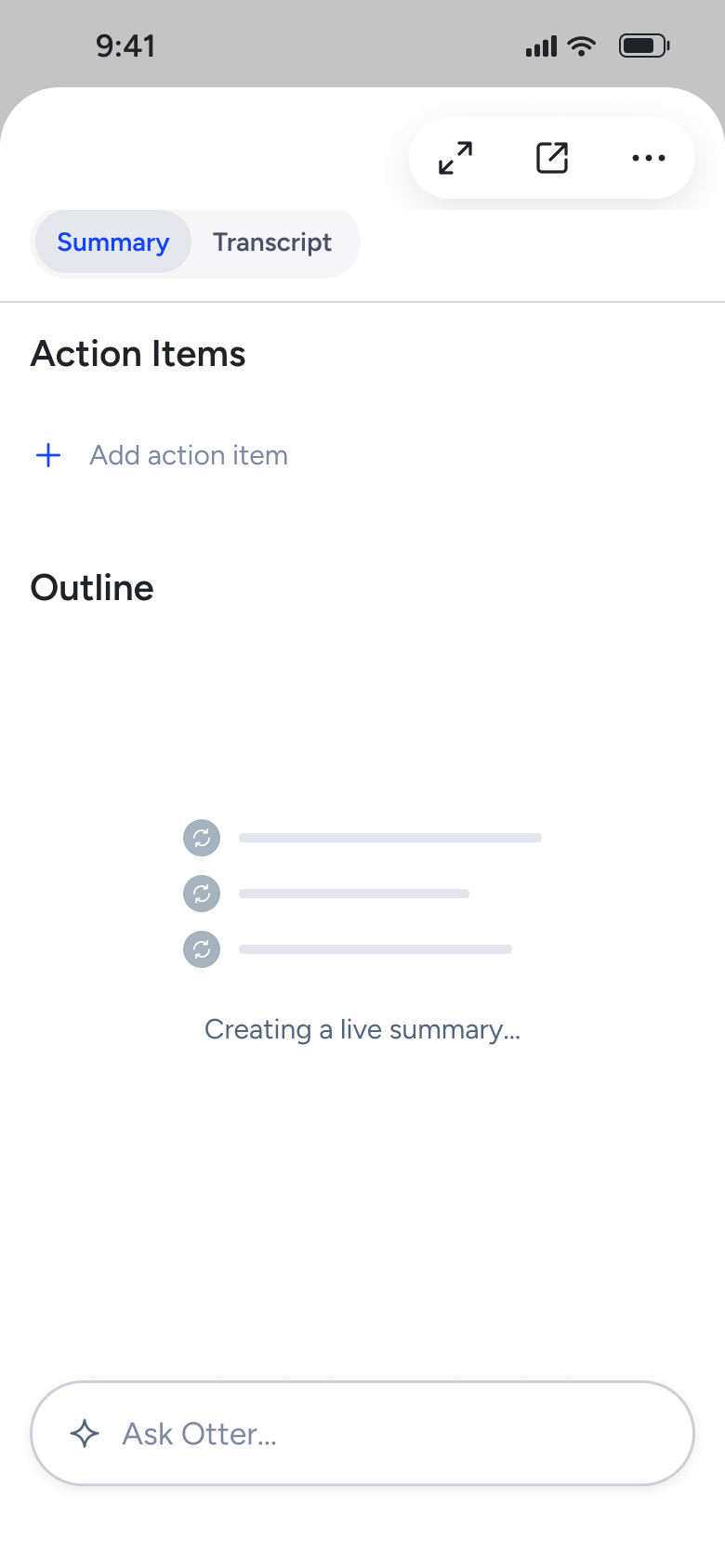
Tap Summary
Conversation 4
Switches tab
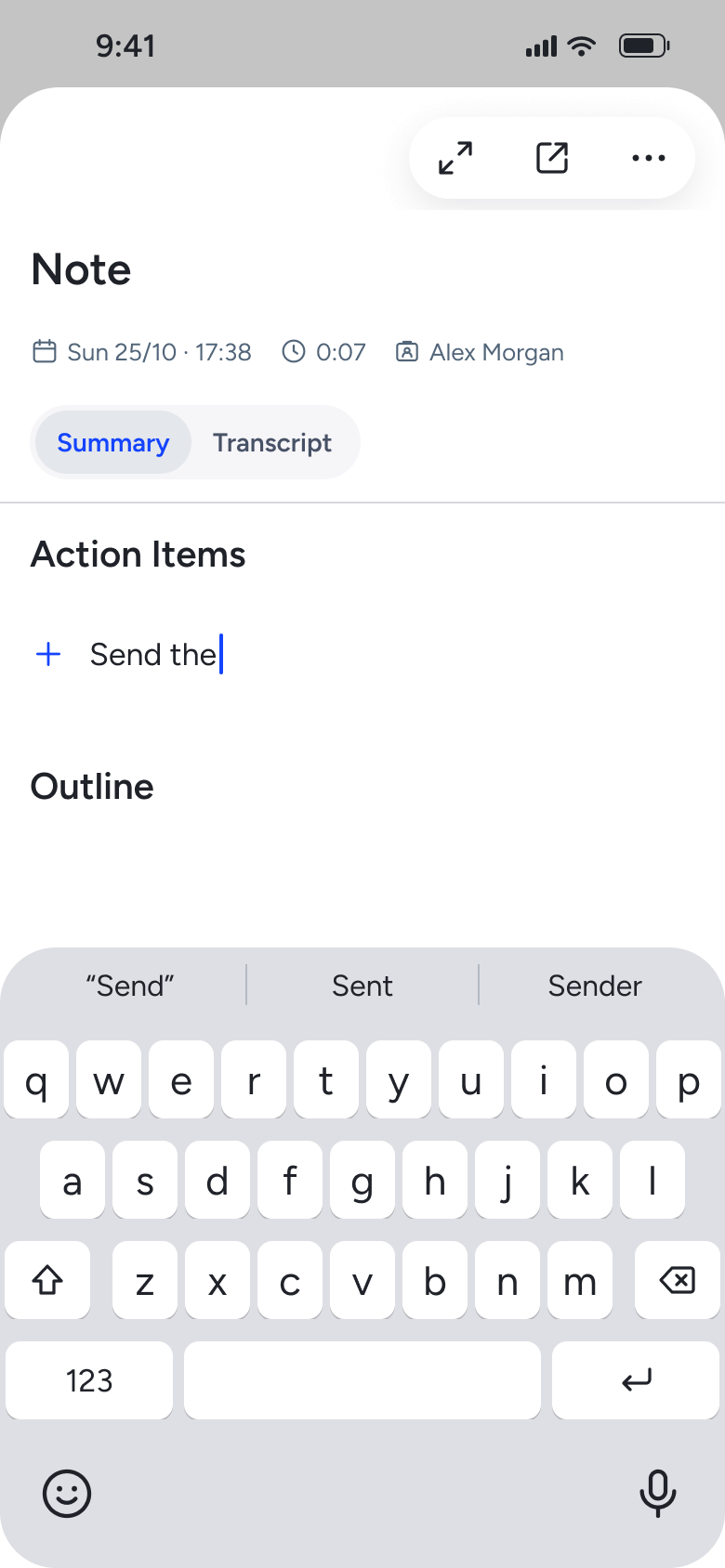
Tap Add action item
Conversation 5
Changes in place
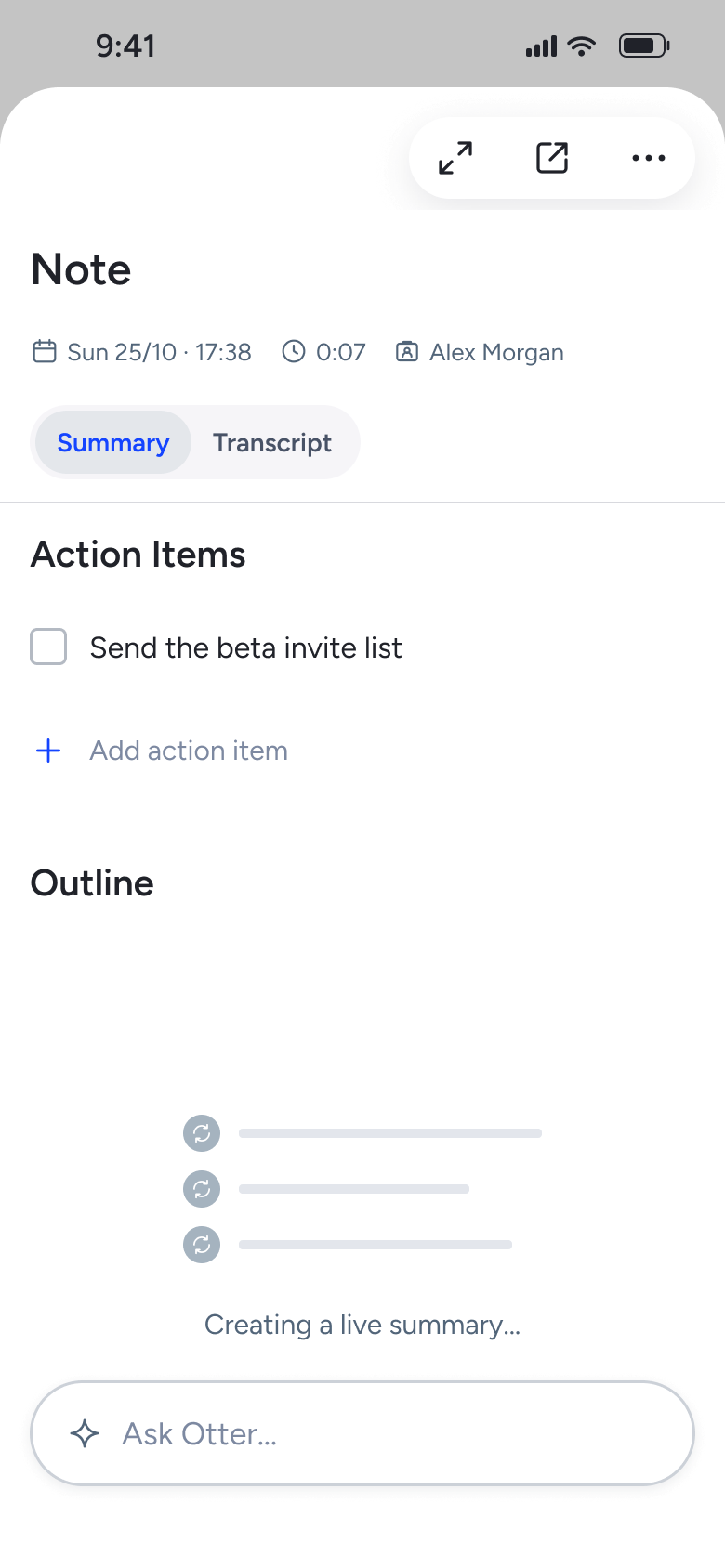
Tap return
Conversation 6
Changes in place
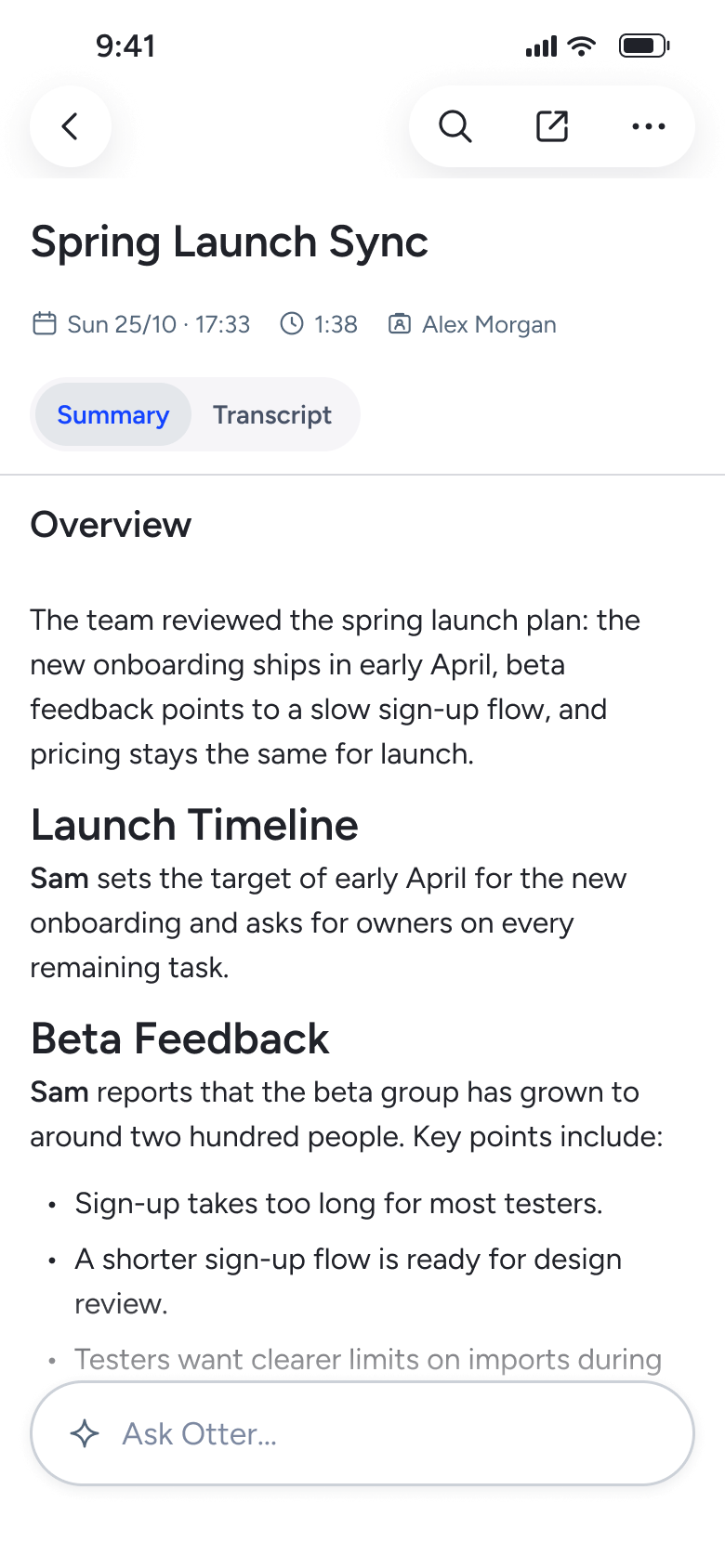
Open titled conversation
Conversation 7
Slides in from the right
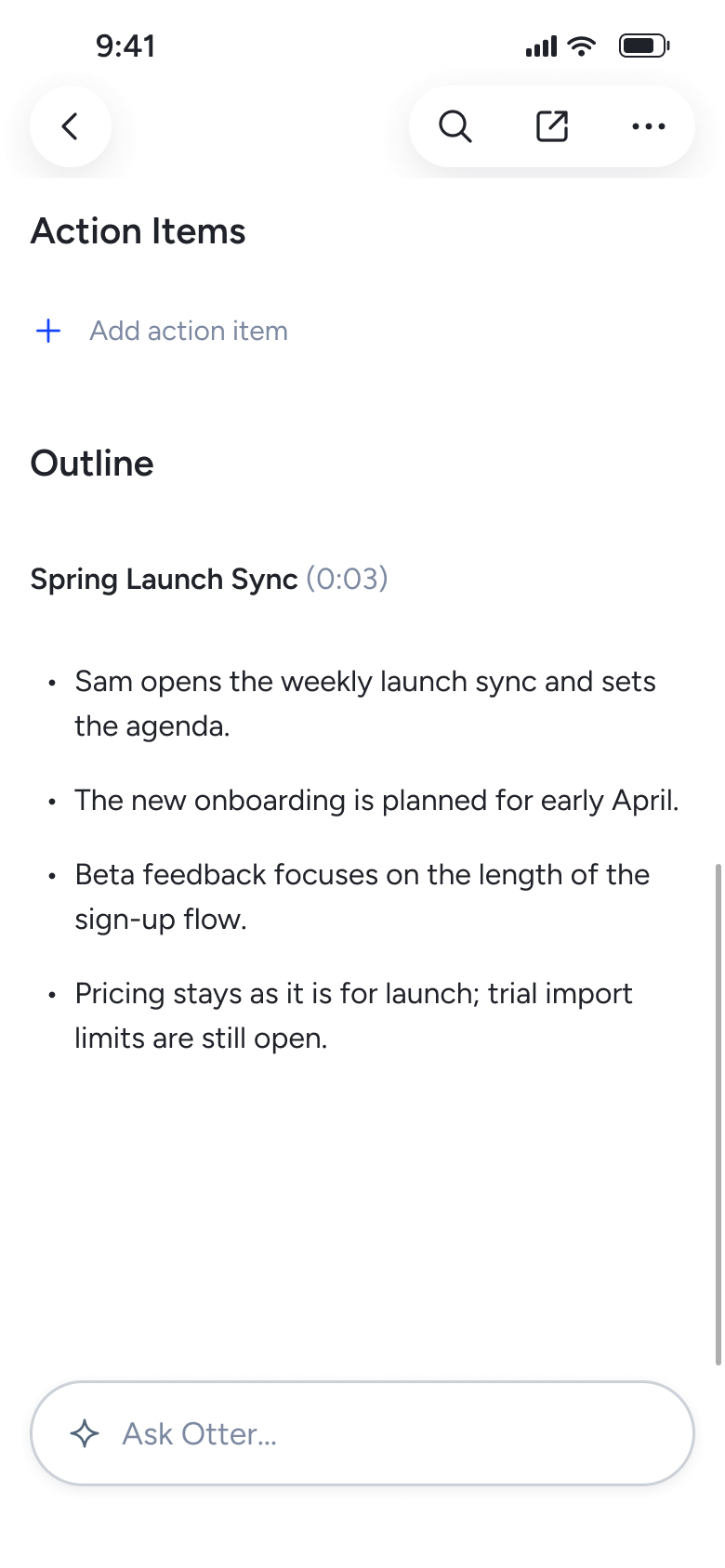
Scroll down
Conversation 8
Changes in place
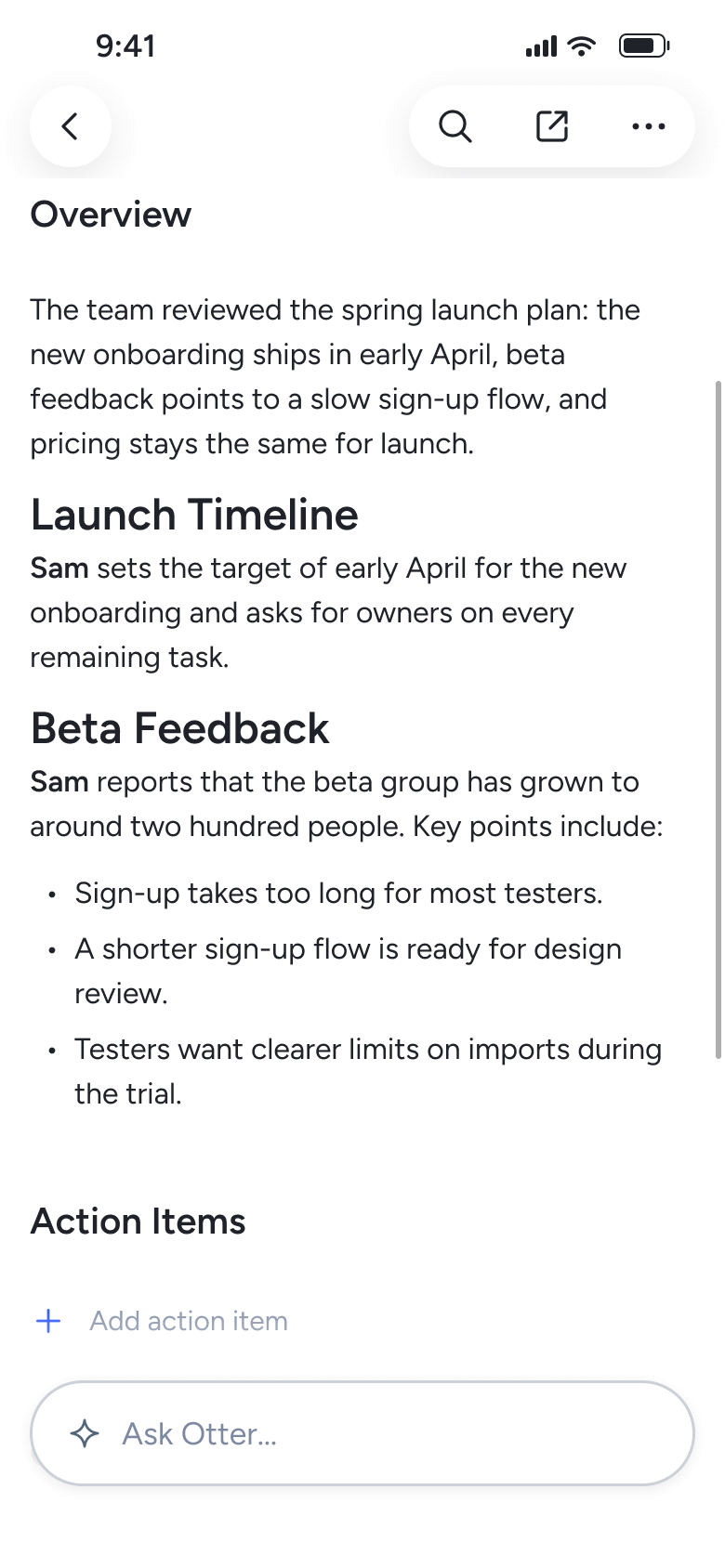
Open the conversation
Conversation 9
Slides in from the right
Not affiliated with, endorsed or sponsored by Otter. Otter is a trade mark of its owner. Recreated for design reference and education. Rights holders: contact us
Appearance & dark mode13 screens
Steps 1–4 of 13, in recording order
Open flow12 screens
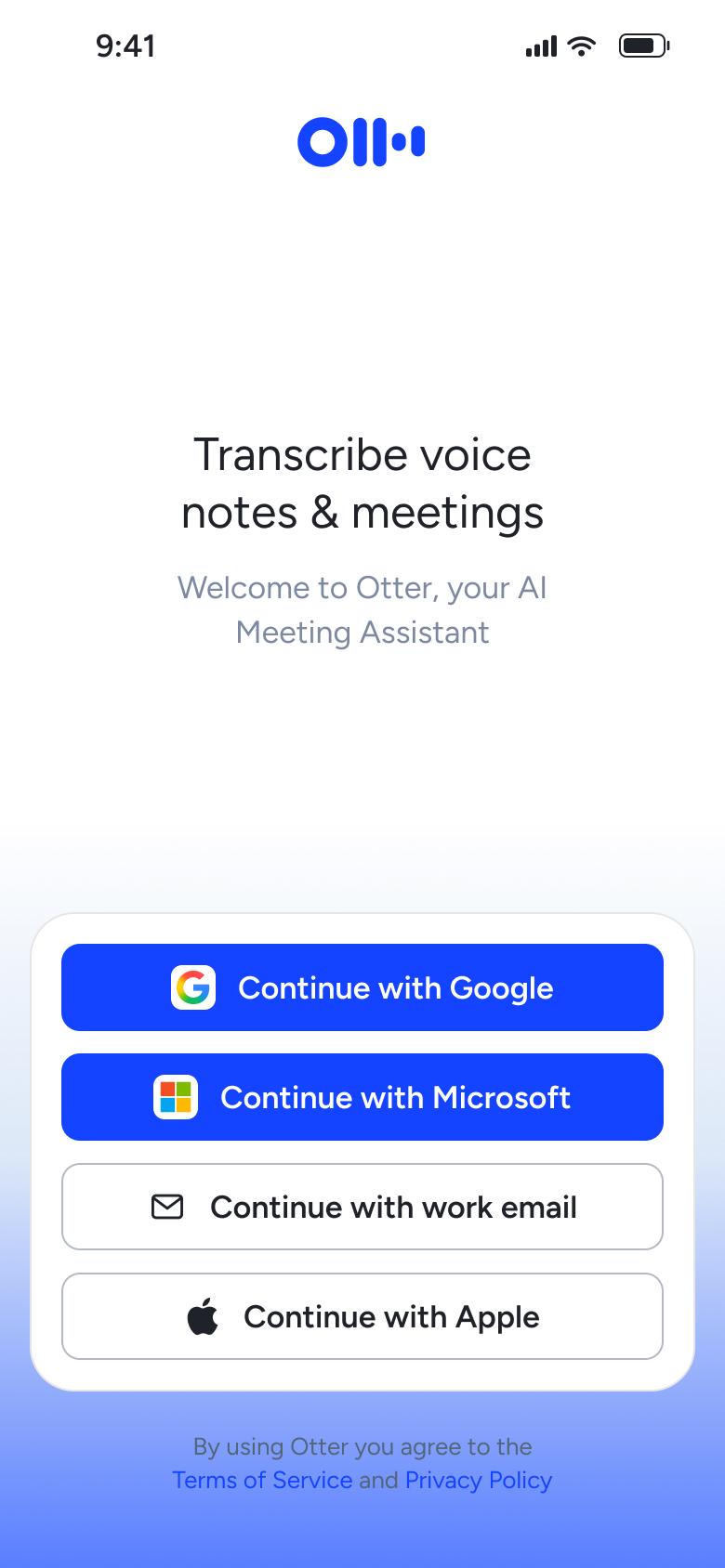
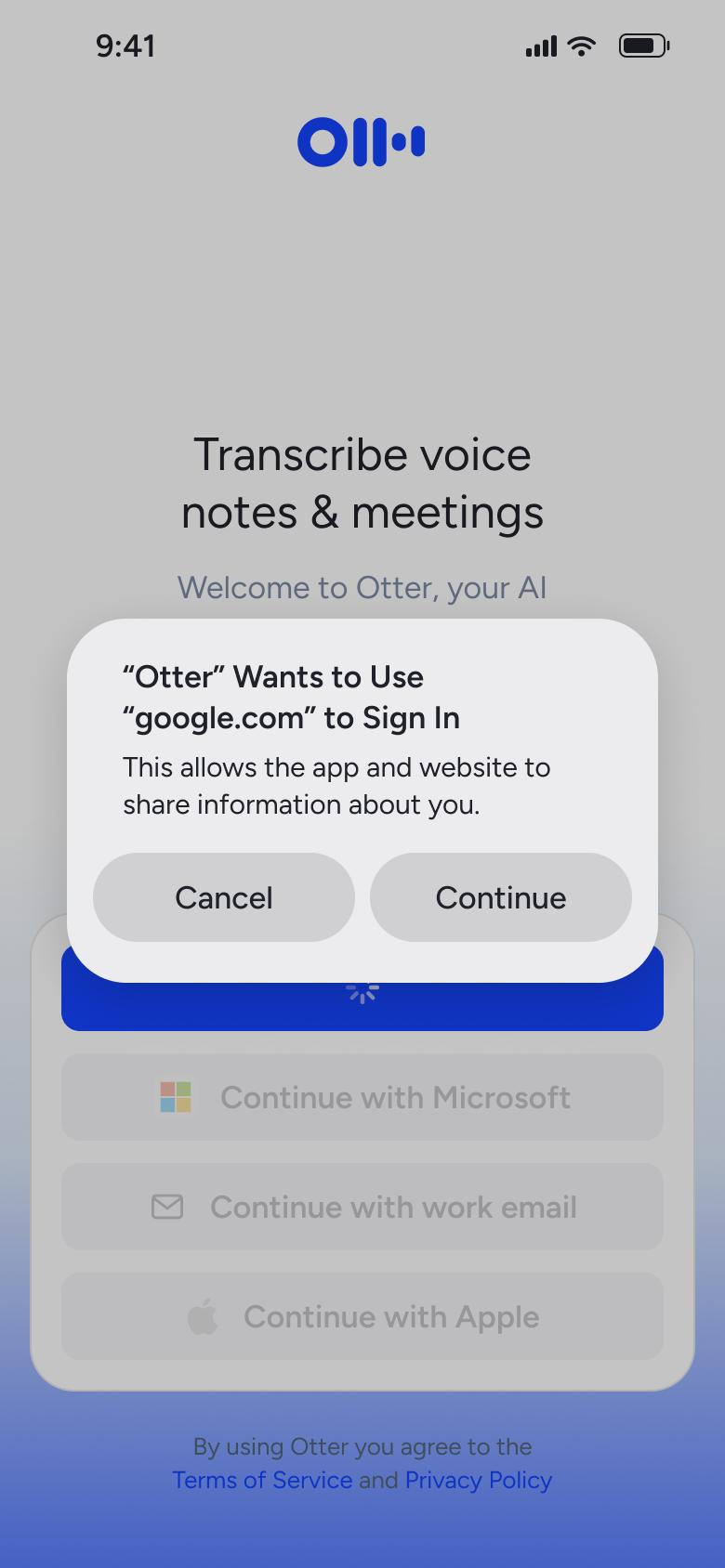
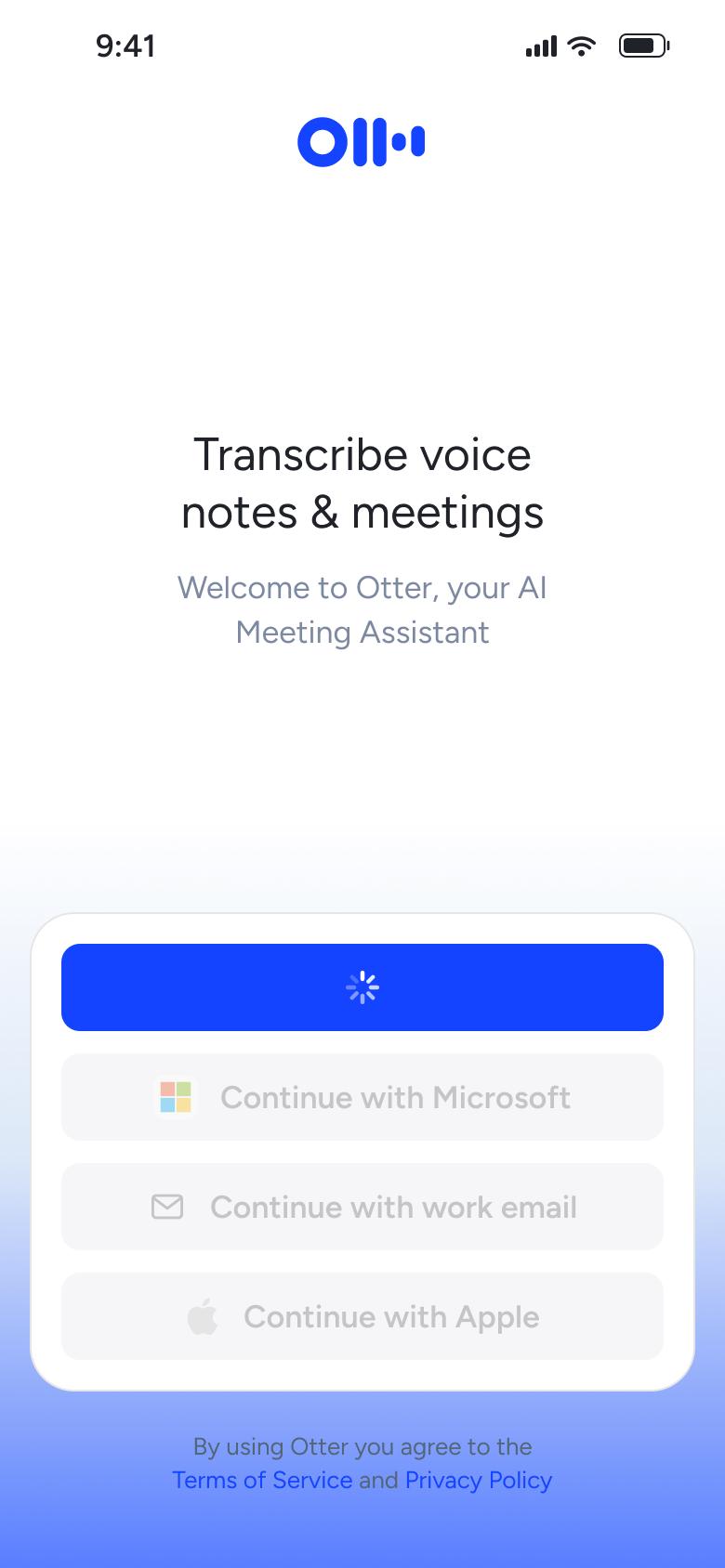
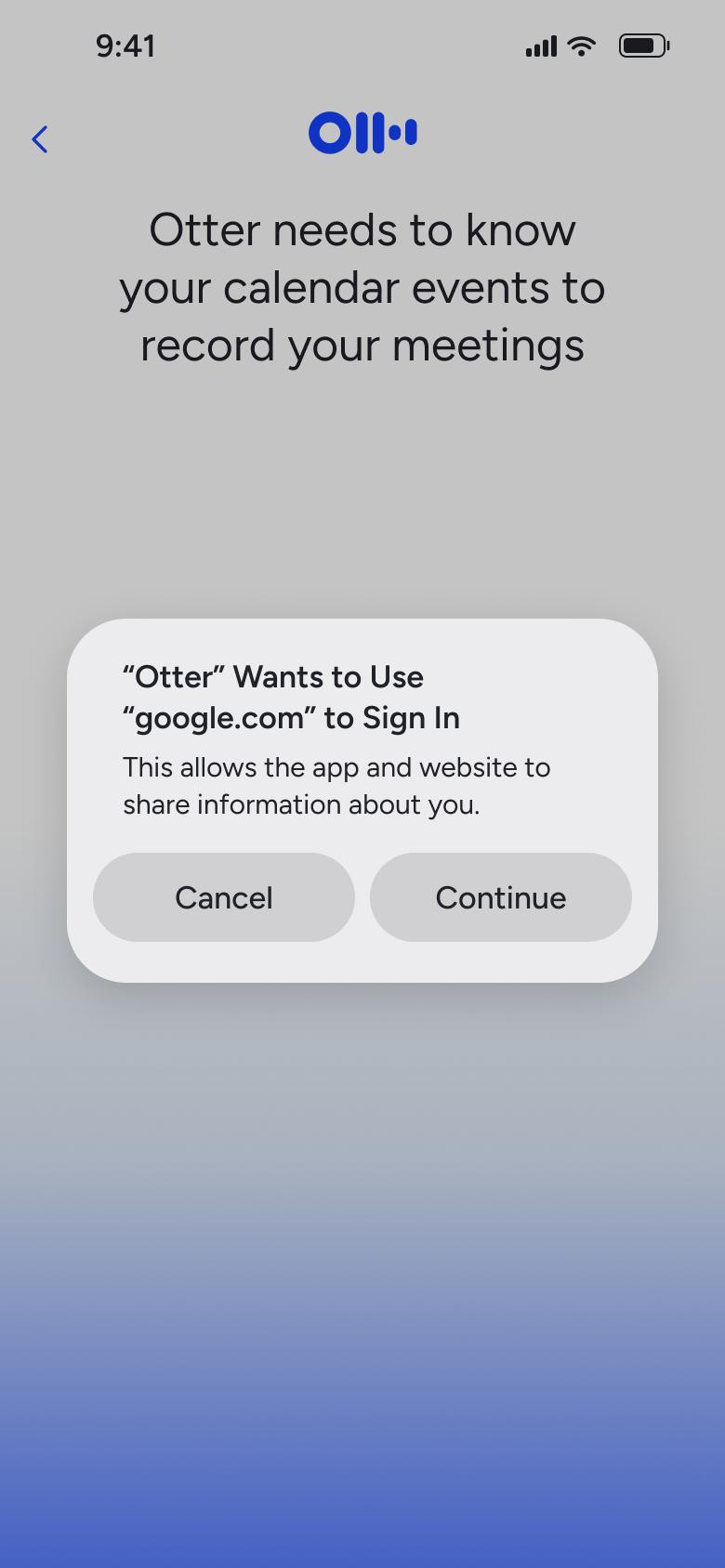
Steps 1–4 of 12, in recording order
Open flowAll of WhatsApp, and a complete flow from every app. No card needed.