
Itemise a receipt on Splitwise (Dark)
Create11 screens
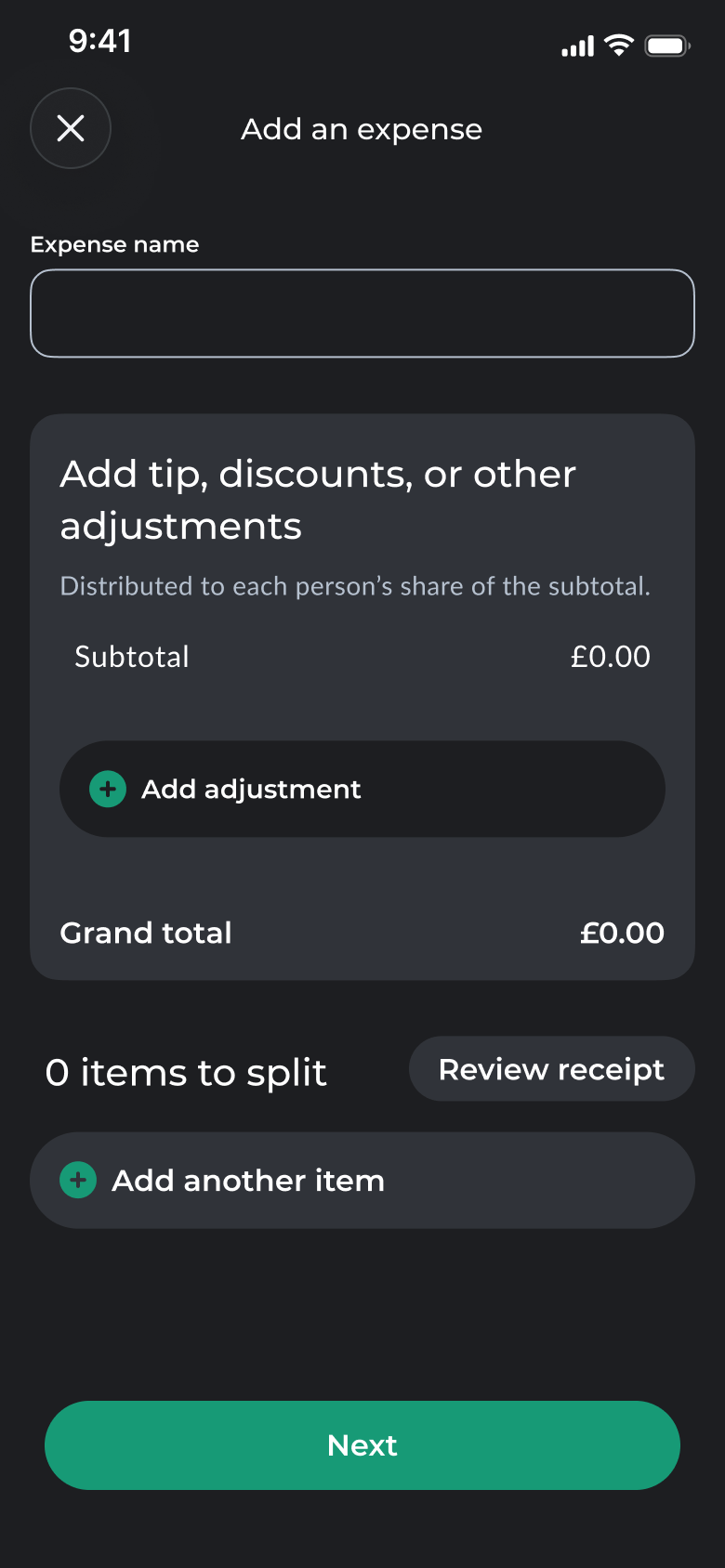
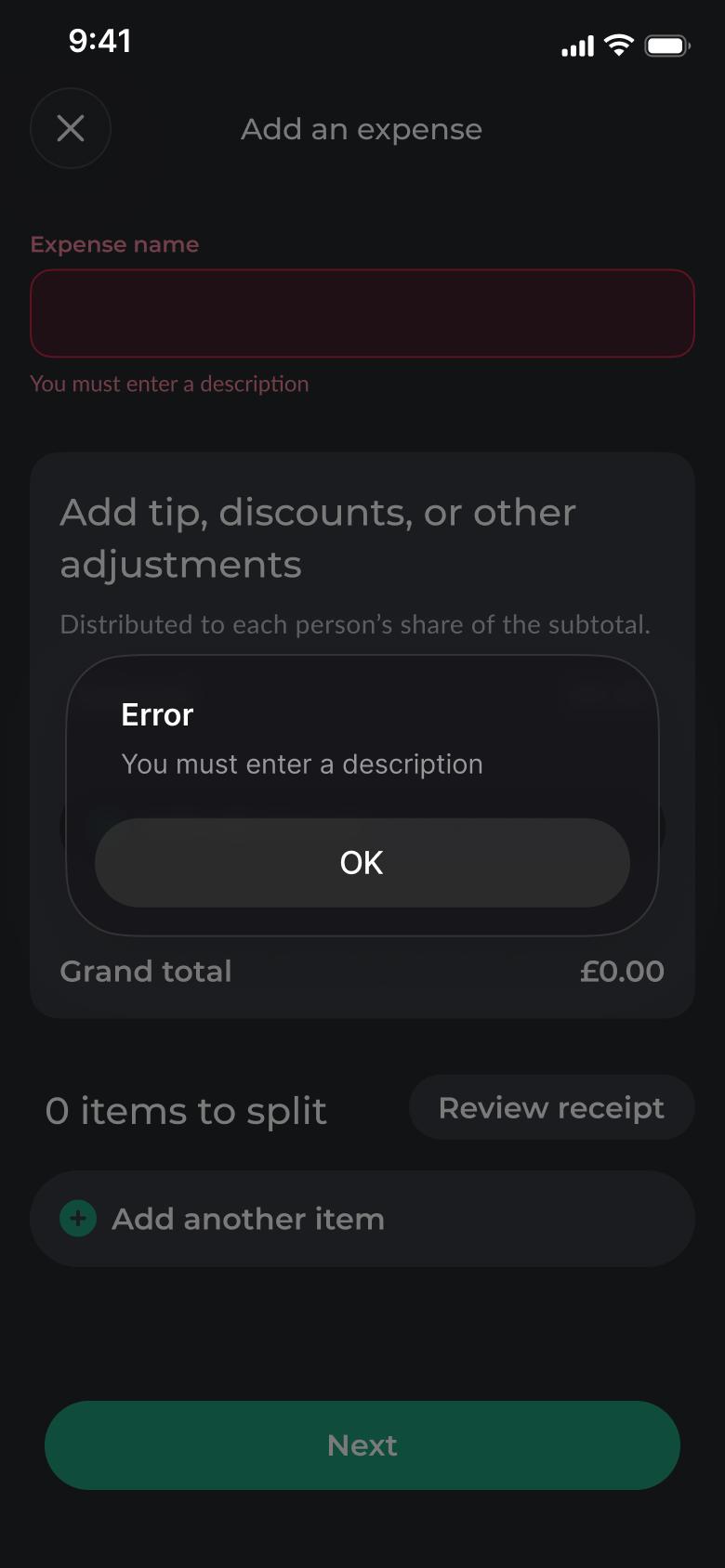
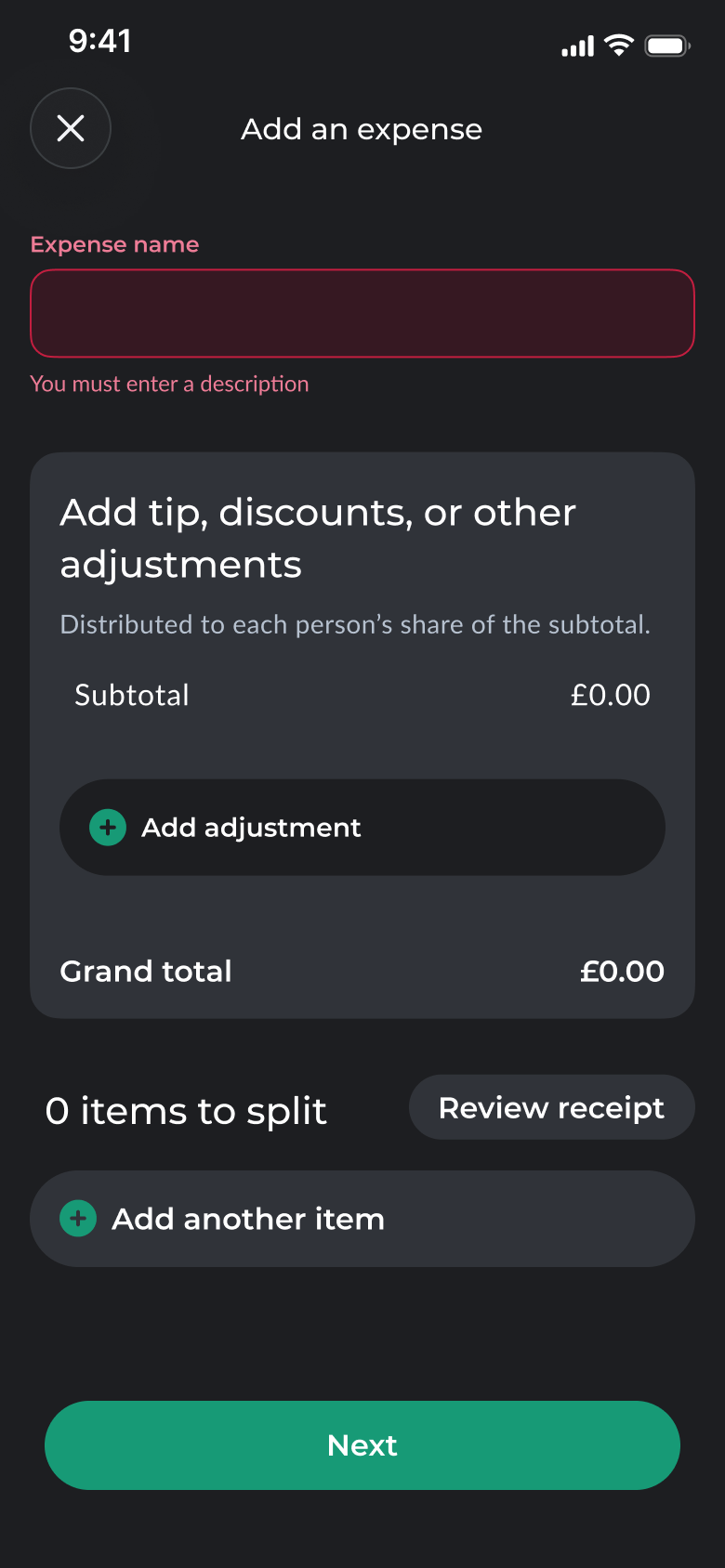
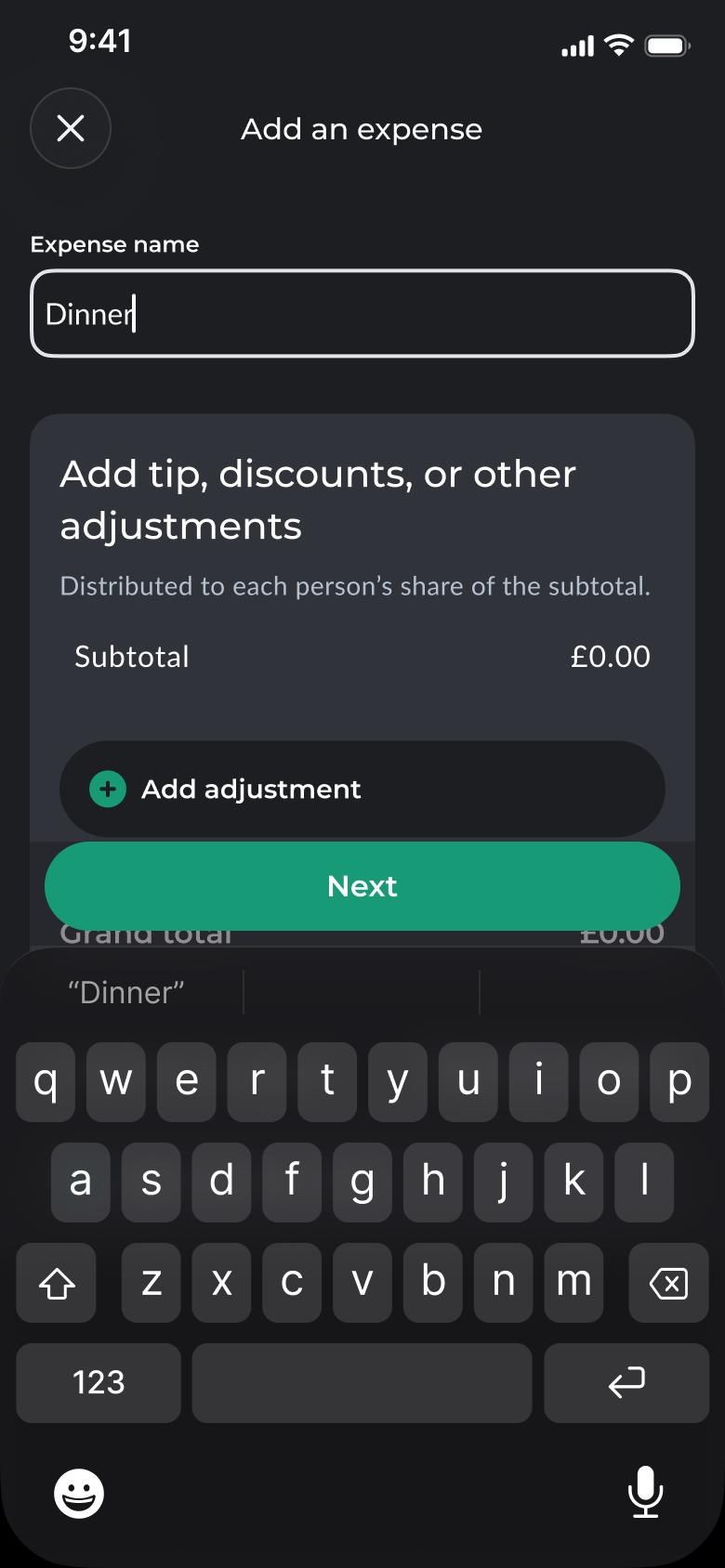
Steps 1–4 of 11, in recording order
Open flowTap Add expense, pick the group, type a description and amount, save, then open the new expense from the group page.
SplitwiseiOS7 steps
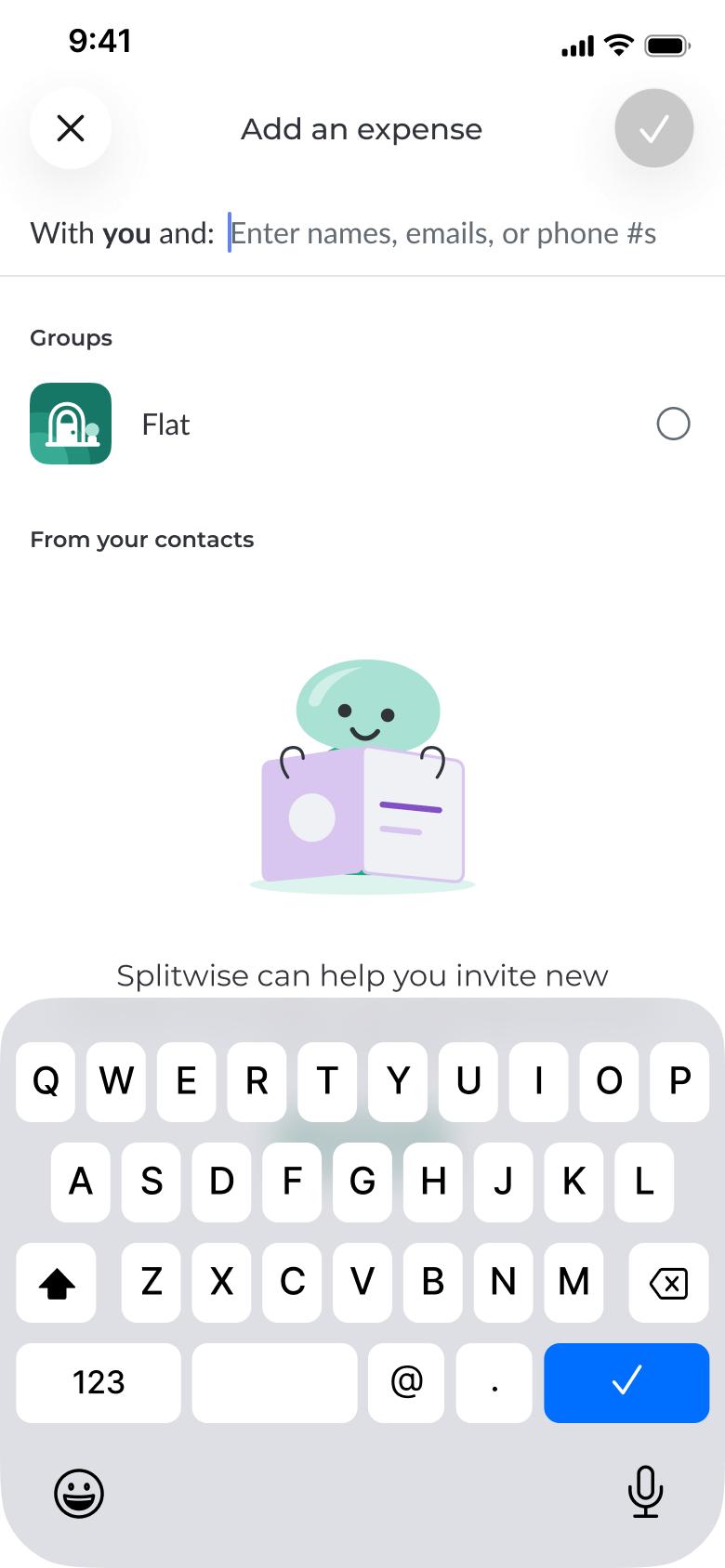
Step 1 of 7
Add Expense 1
How you get here: Opens full screen
Open the SuperDuper UI plugin in Figma to paste these 7 screens into your file as editable layers.
All 7 steps
Use ← → to step through
Each screen in the order it was recorded, with how the user got there.
Tap Add expense
Add Expense 1
Opens full screen
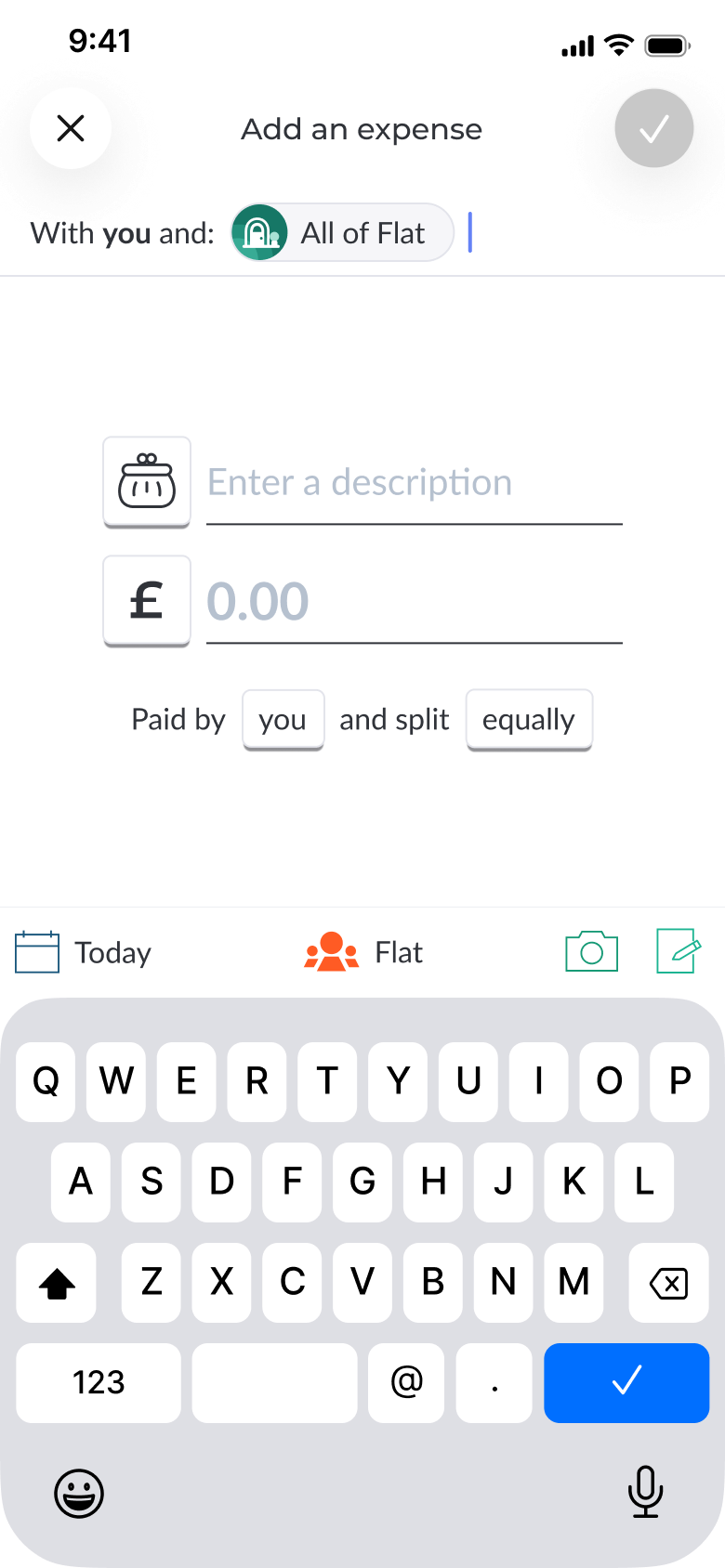
Select the group
Add Expense 2
Changes in place
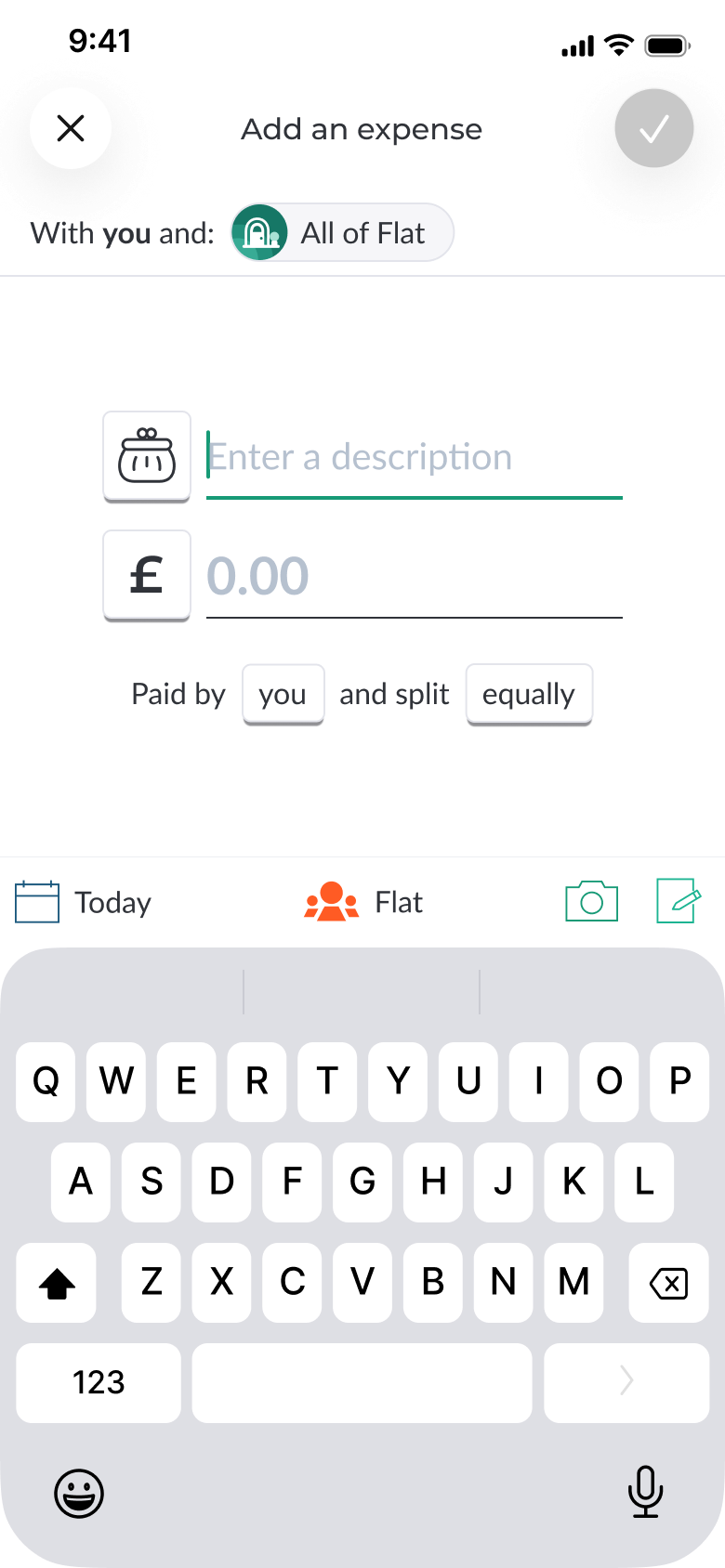
Tap the description field
Add Expense 3
Changes in place
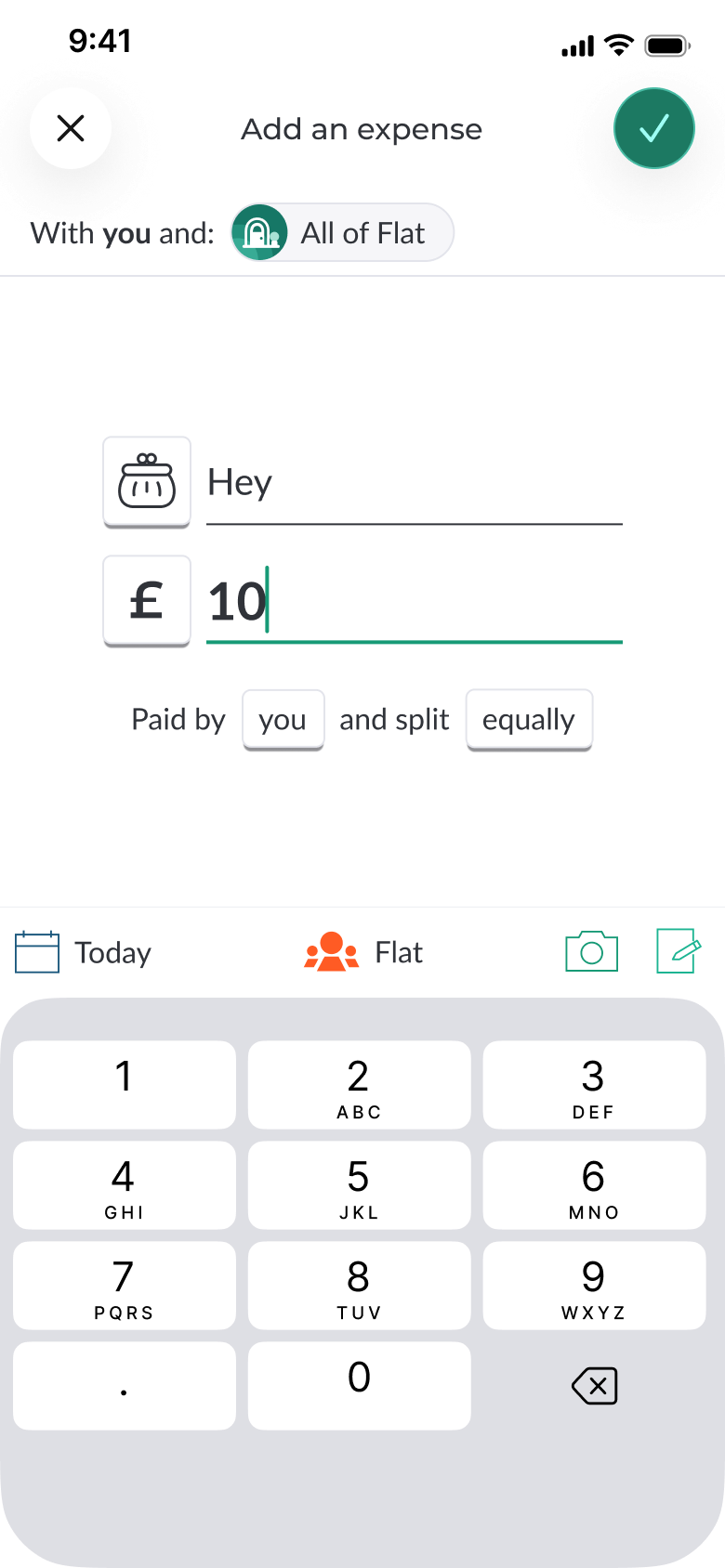
Type the amount
Add Expense 4
Changes in place
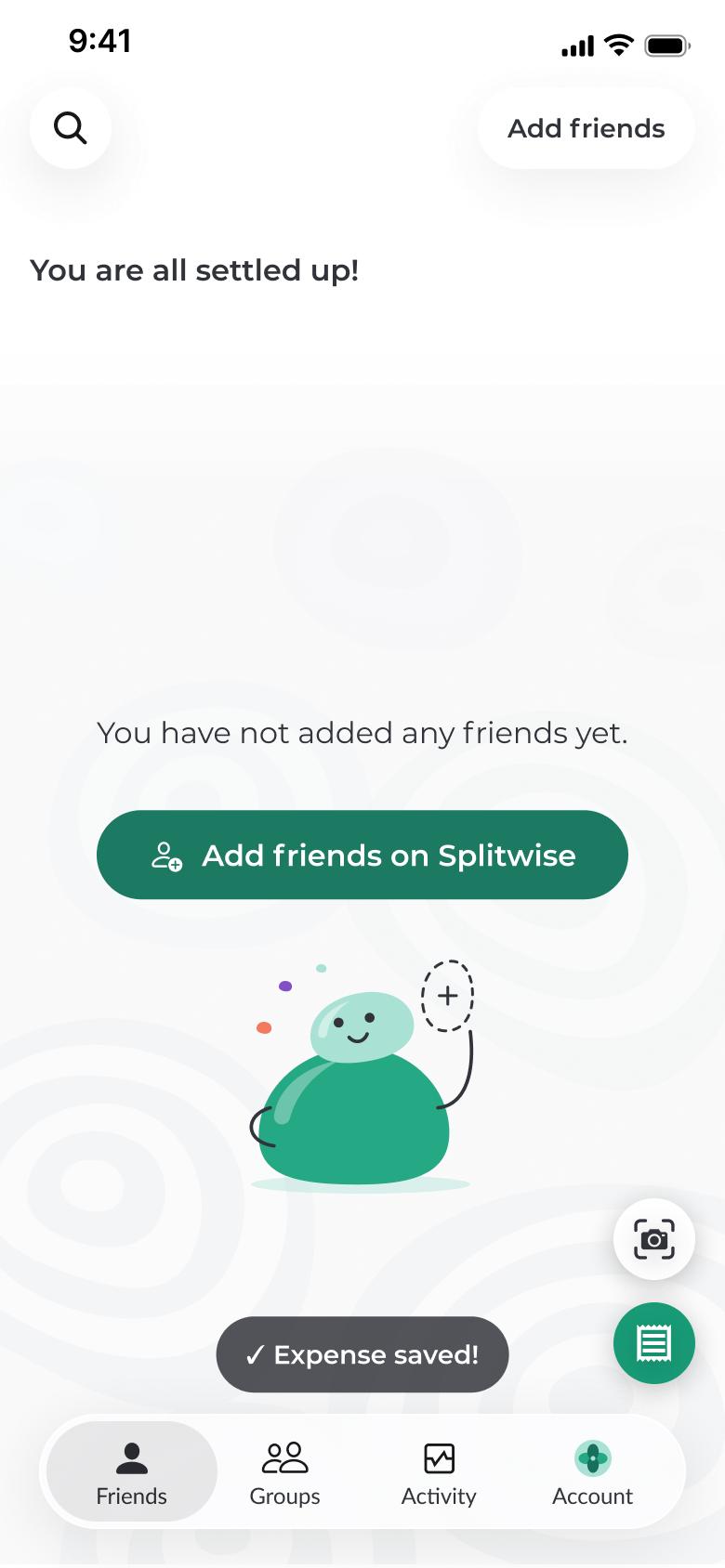
Tap tick to save
Friends 4
Closes
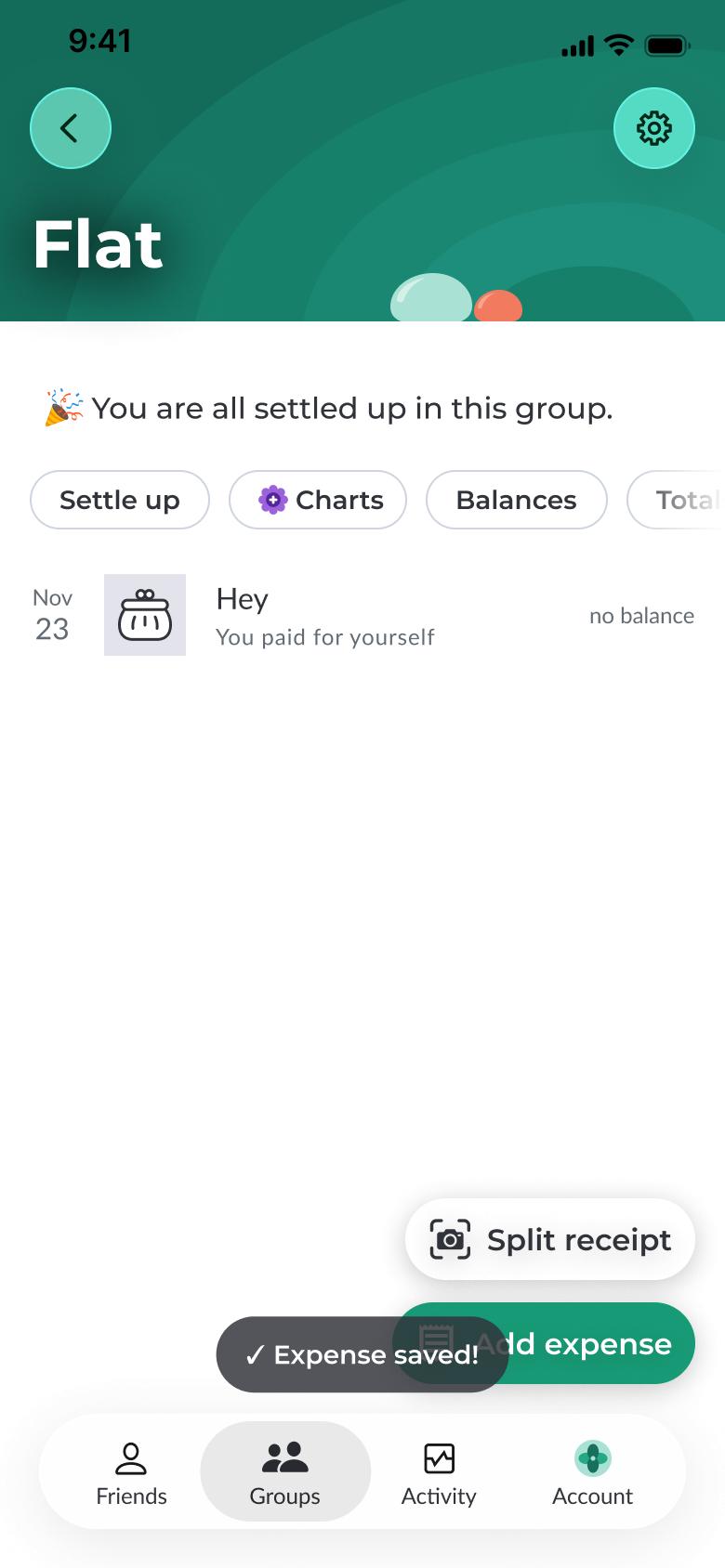
App opens the group
Groups 3
Slides in from the right
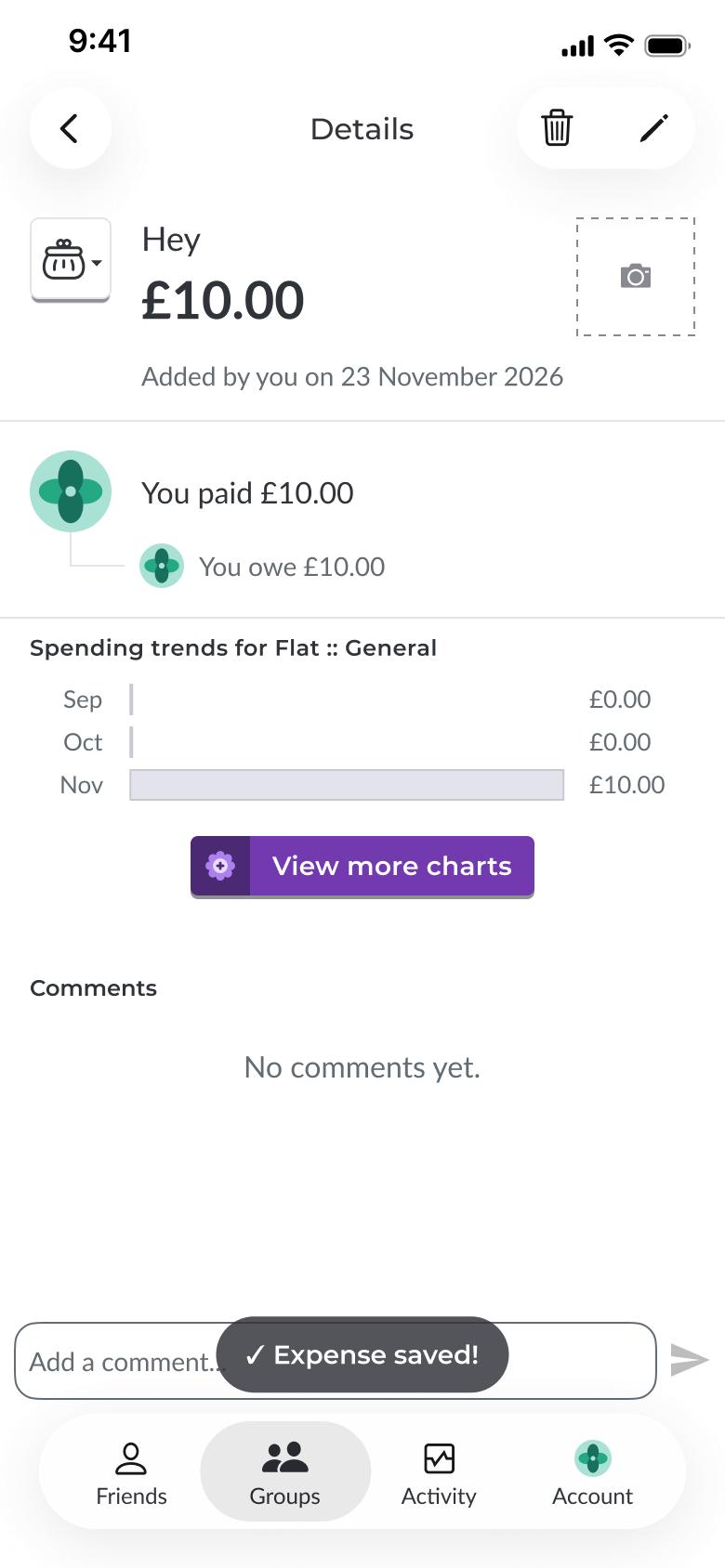
Tap the expense row
Expense Details 1
Slides in from the right
Not affiliated with, endorsed or sponsored by Splitwise. Splitwise is a trade mark of its owner. Recreated for design reference and education. Rights holders: contact us
Create11 screens
Steps 1–4 of 11, in recording order
Open flowRequest money8 screens
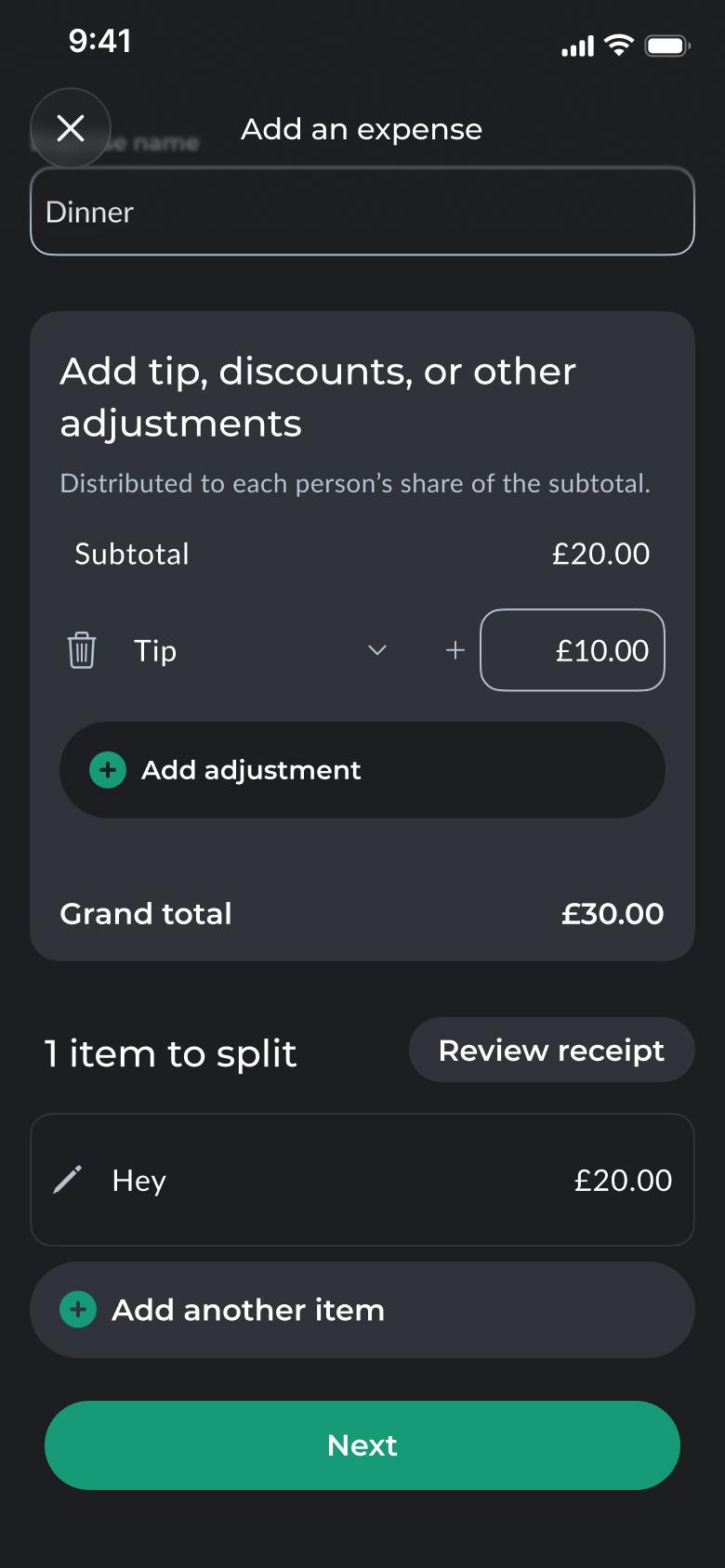
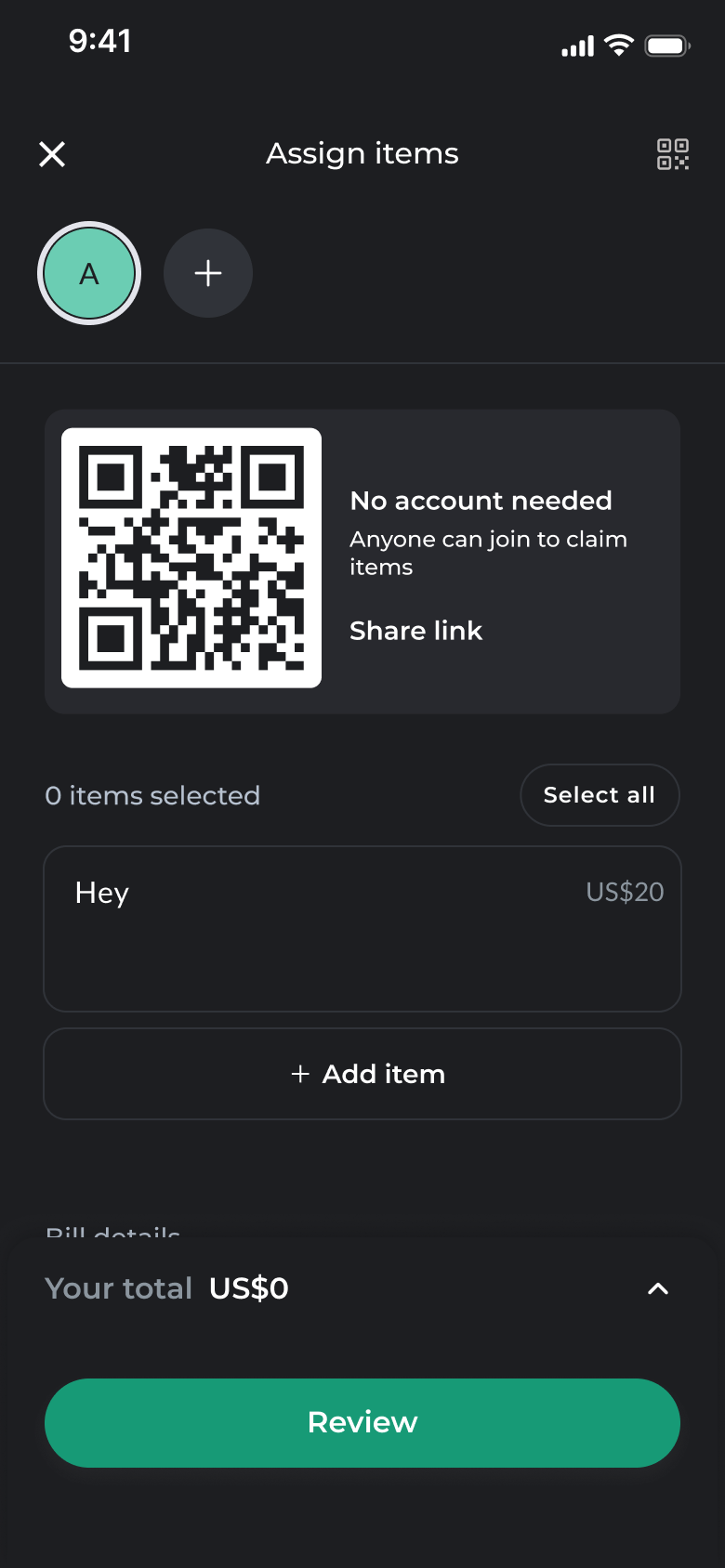
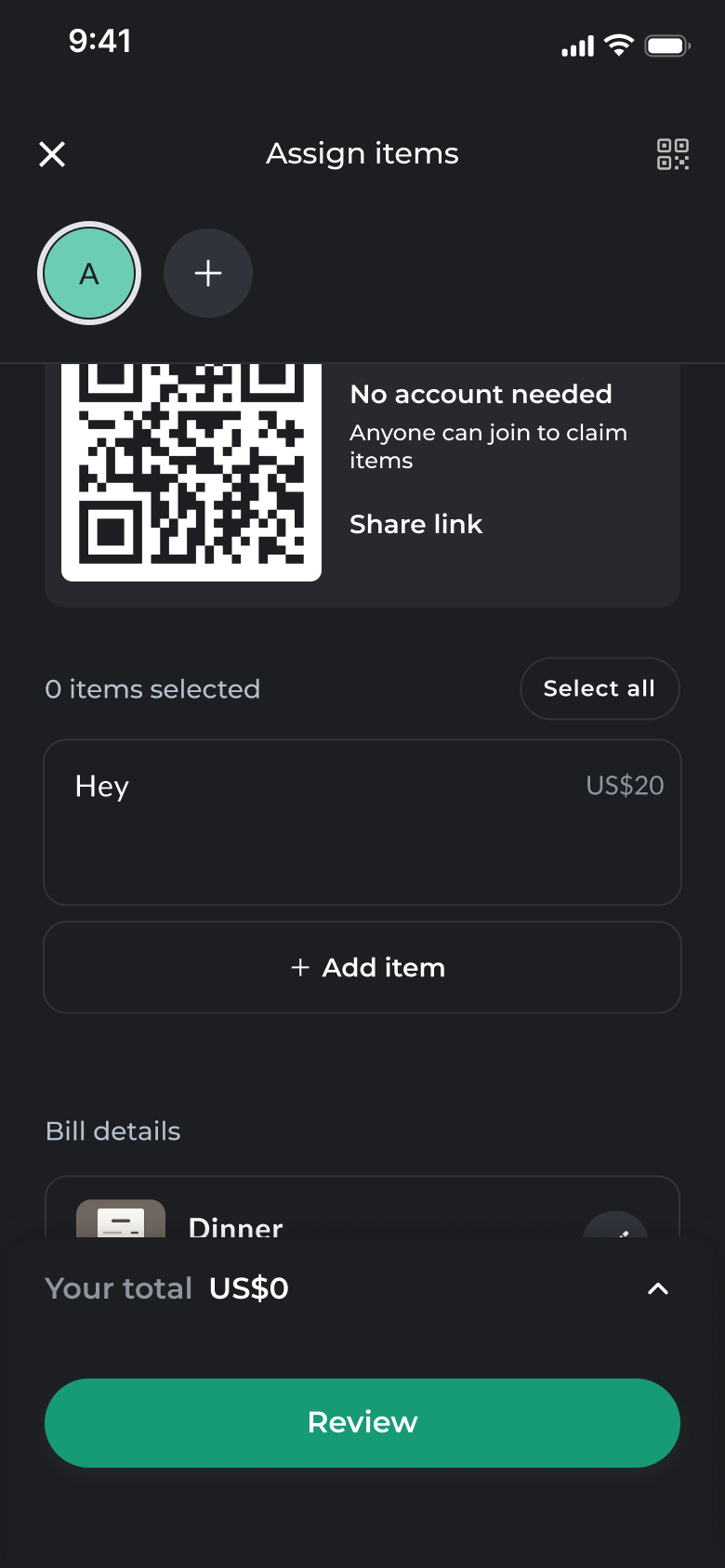
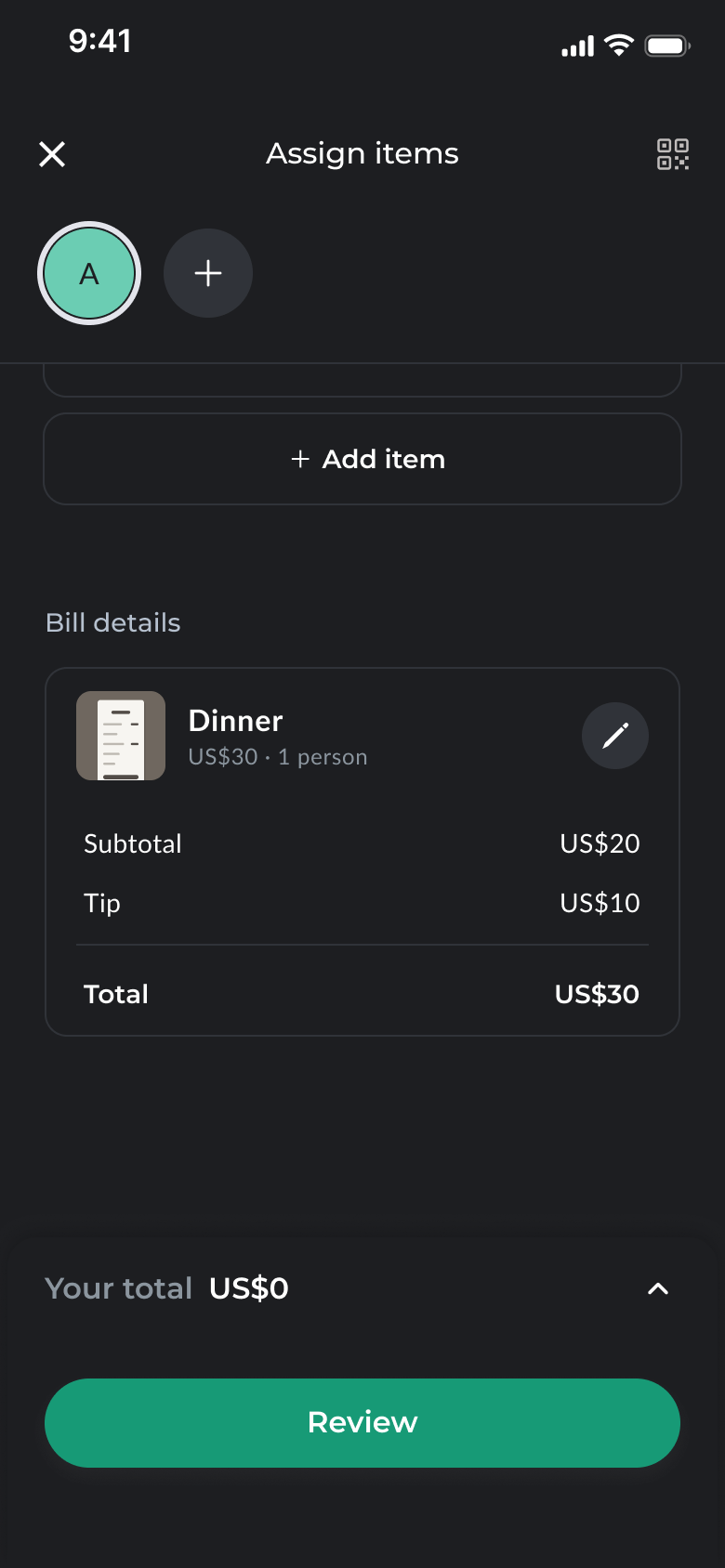
Steps 1–4 of 8, in recording order
Open flowAll of WhatsApp, and a complete flow from every app. No card needed.
Step 1 of 7
Add Expense 1
How you get here: Opens full screen
Open the SuperDuper UI plugin in Figma to paste these 7 screens into your file as editable layers.
All 7 steps
Use ← → to step through