
Split a bill on Splitwise (Dark)
Request money8 screens
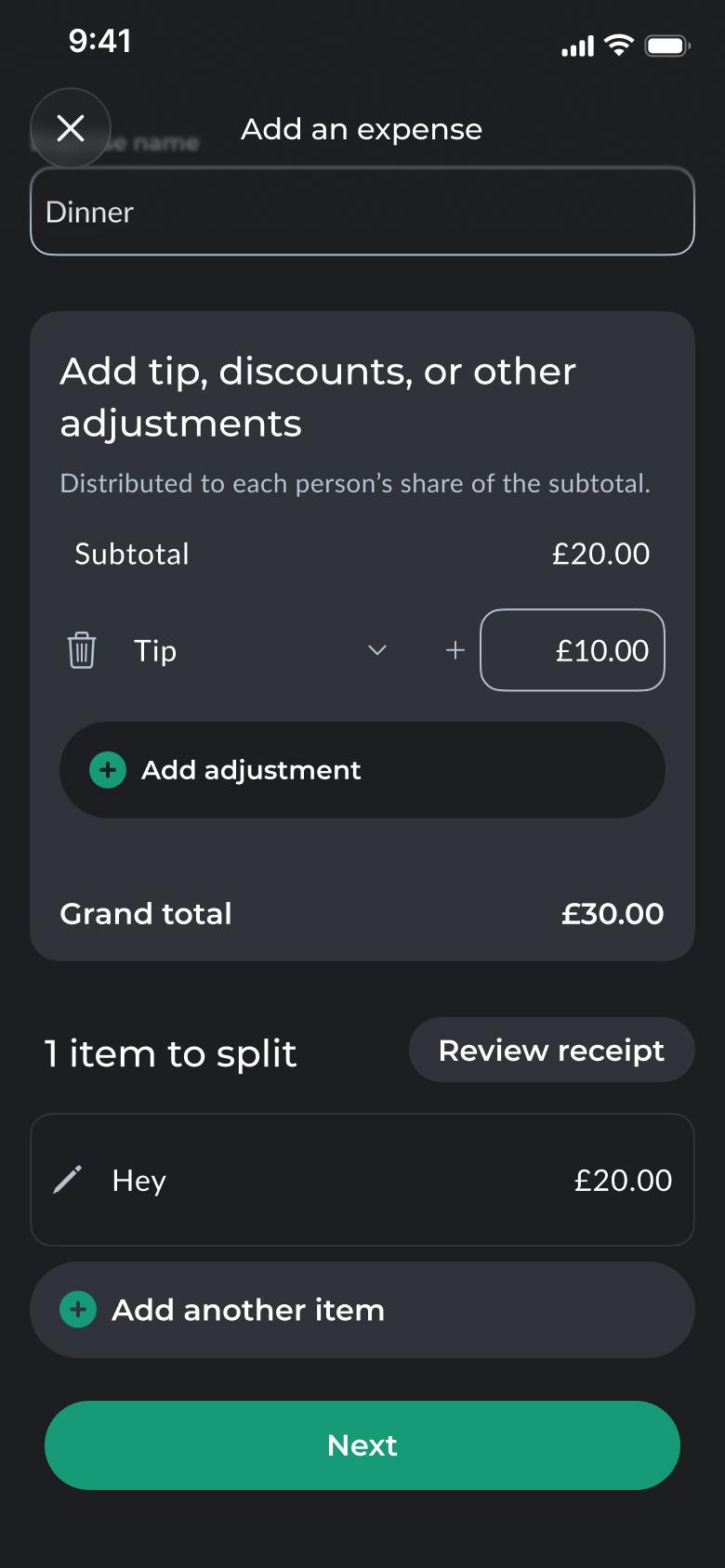
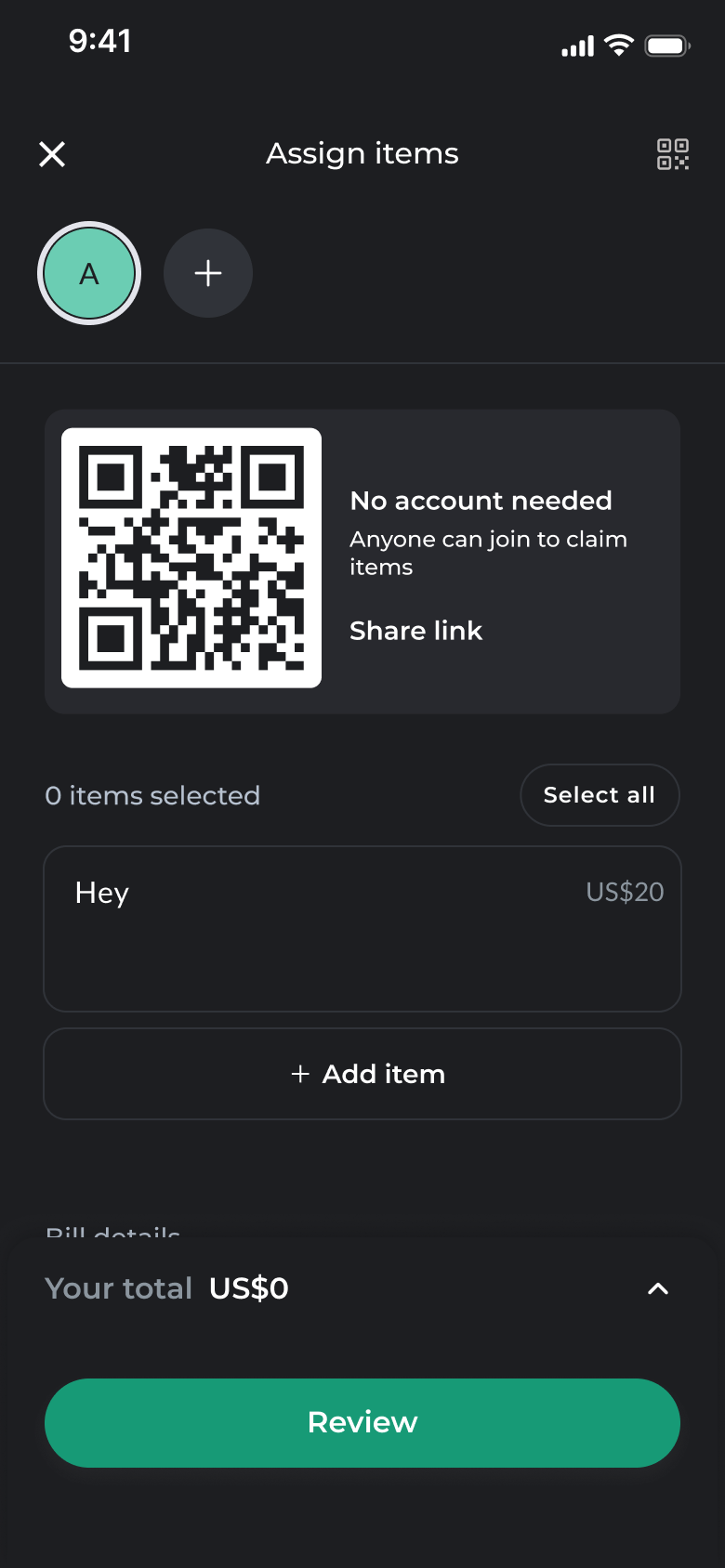
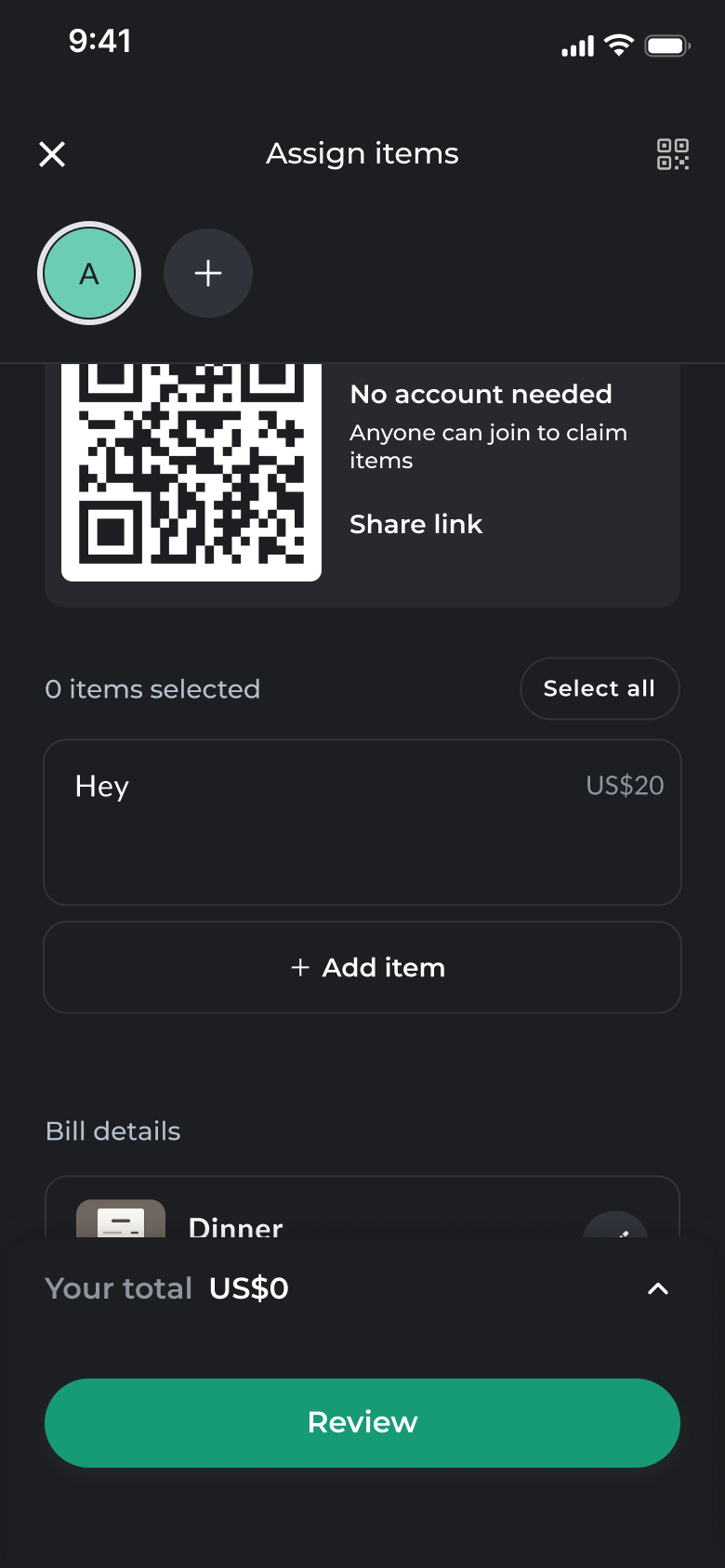
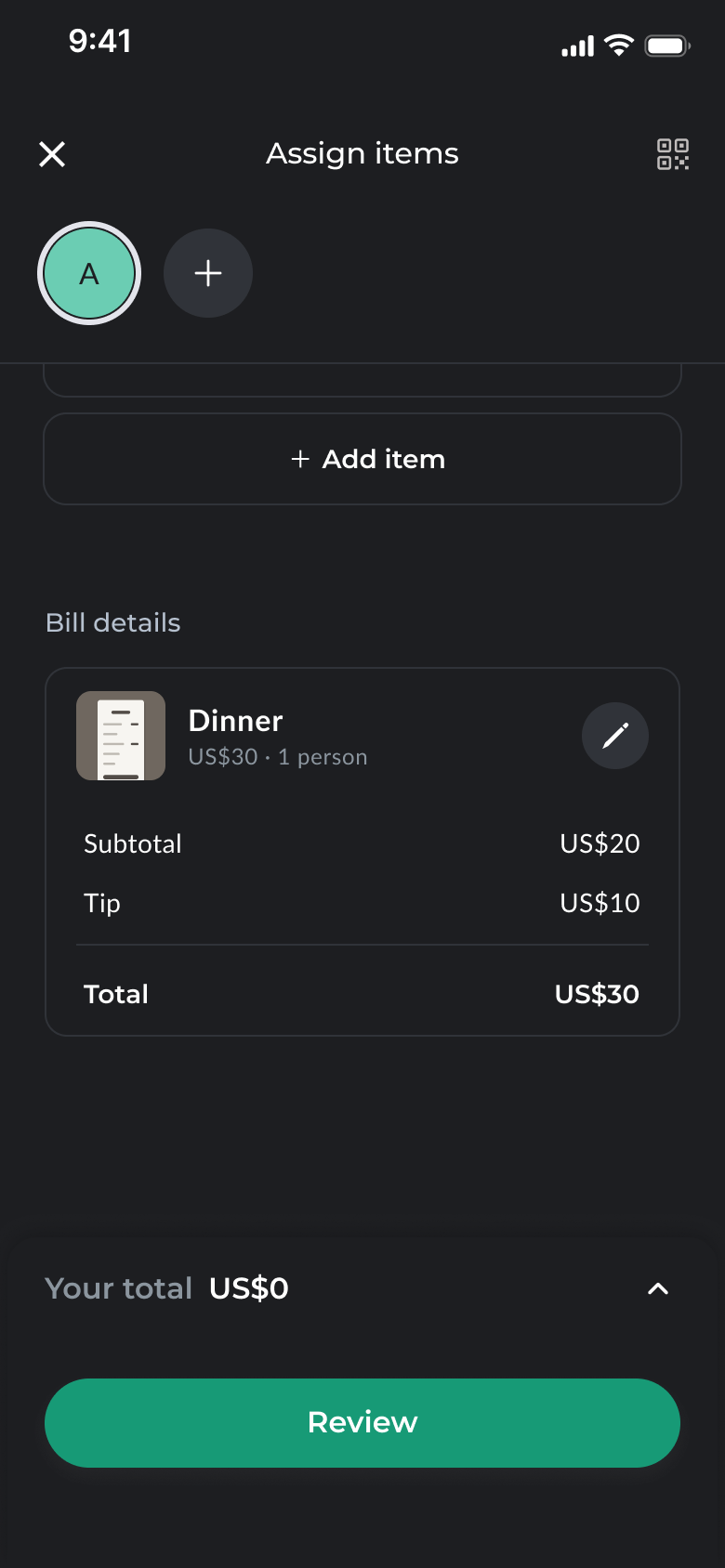
Steps 1–4 of 8, in recording order
Open flowIn dark mode, clear the missing description error, type a name, add a tip, then add and save the first item.
SplitwiseiOS11 steps
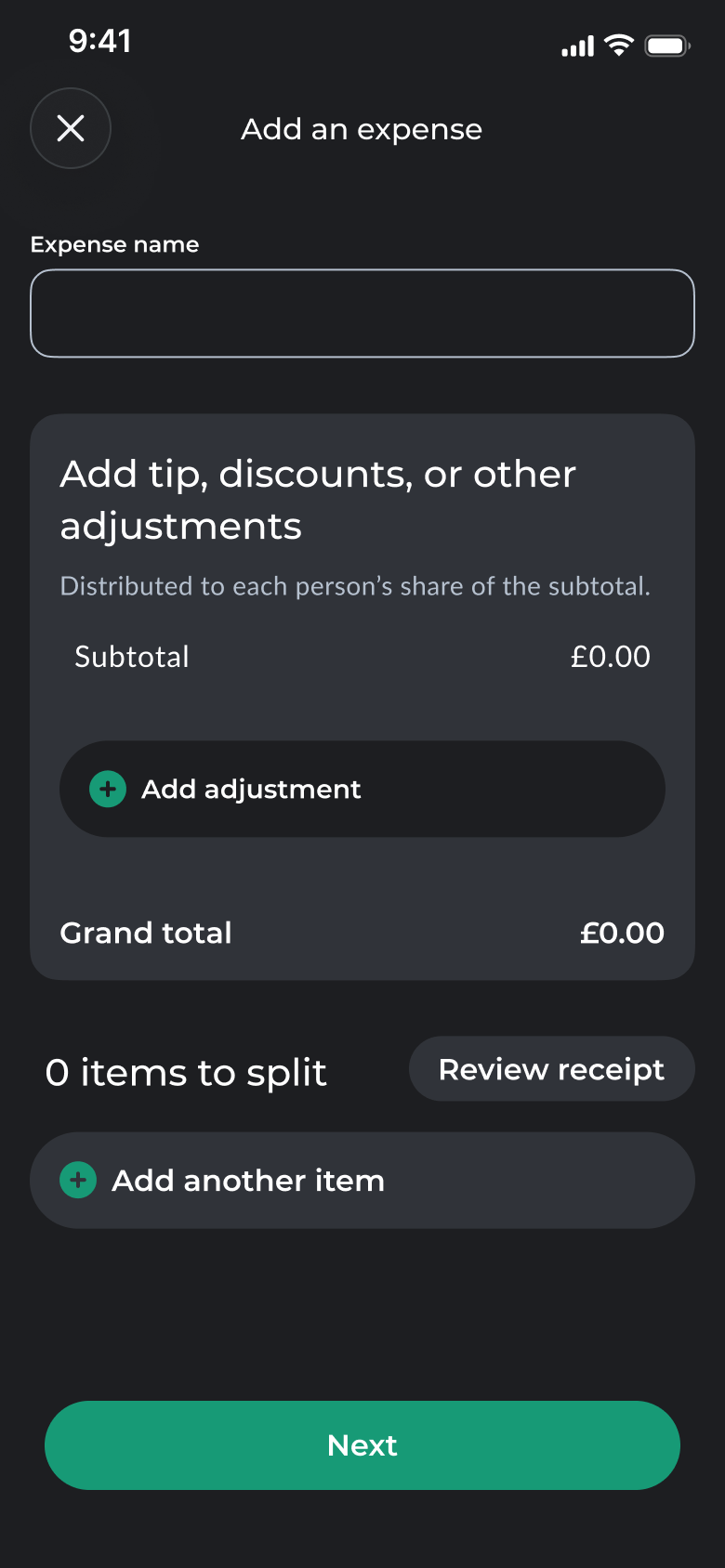
Step 1 of 11
Itemised Expense 7
How you get here: Closes
Open the SuperDuper UI plugin in Figma to paste these 11 screens into your file as editable layers.
All 11 steps
Use ← → to step through
Each screen in the order it was recorded, with how the user got there.
Tap OK
Itemised Expense 7
Closes
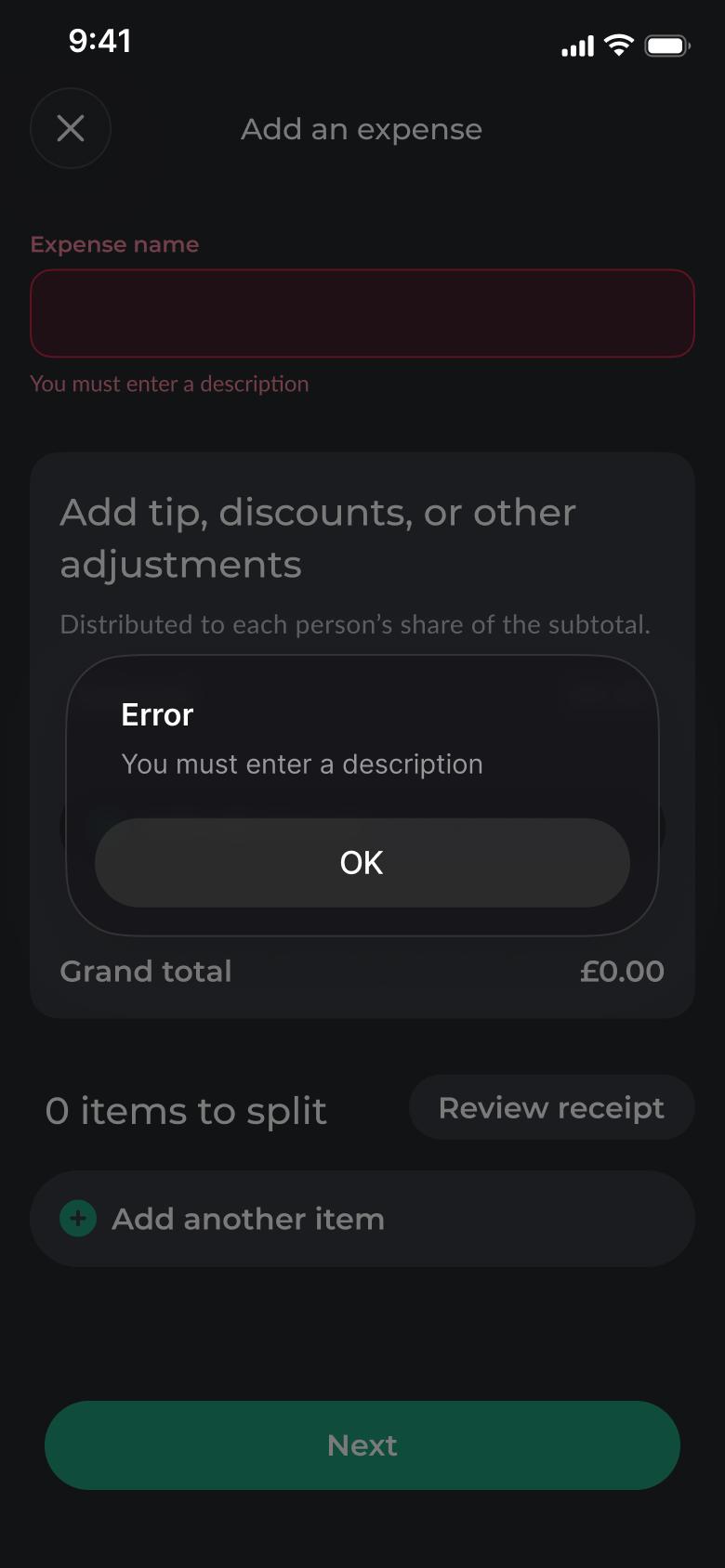
Tap Next
Itemised Expense 8
Shows an alert
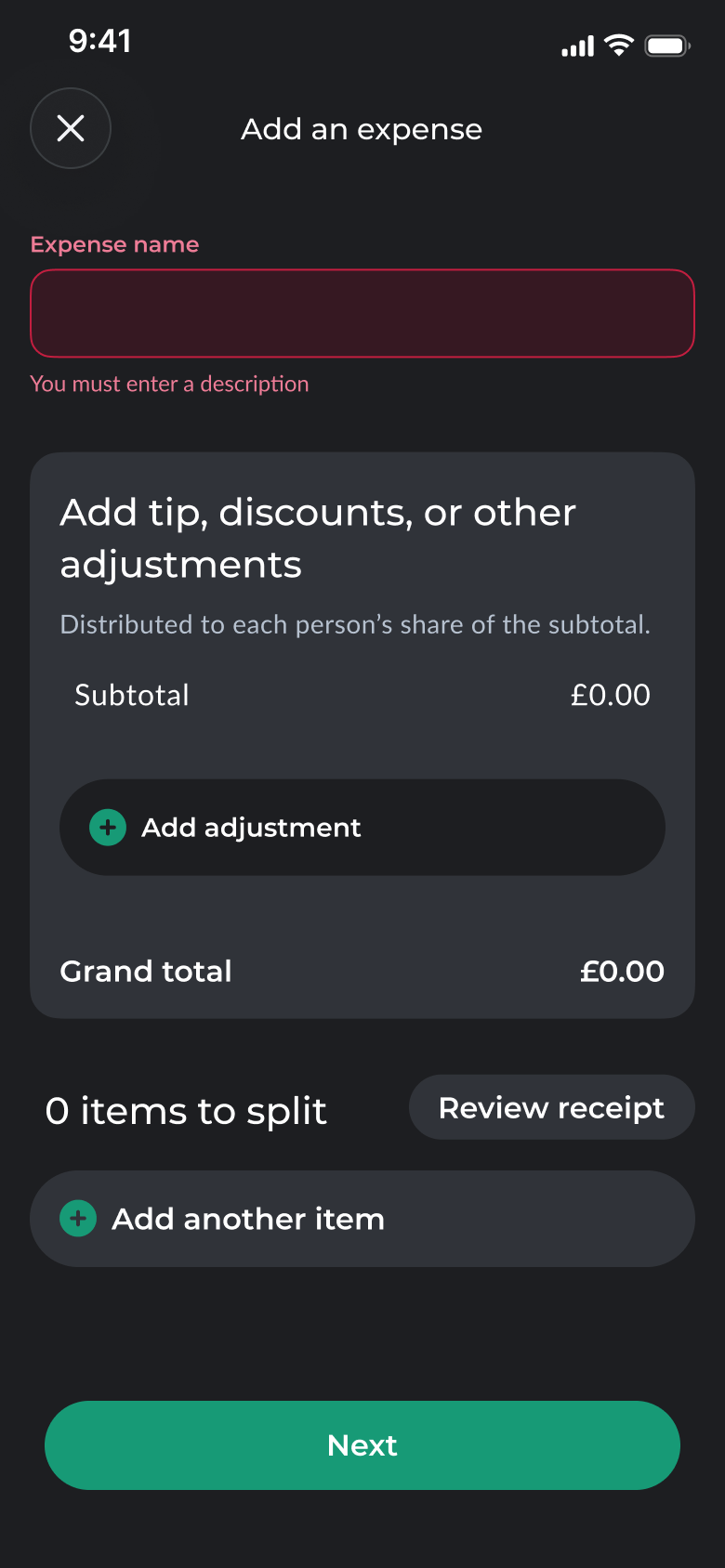
Tap OK
Itemised Expense 9
Closes
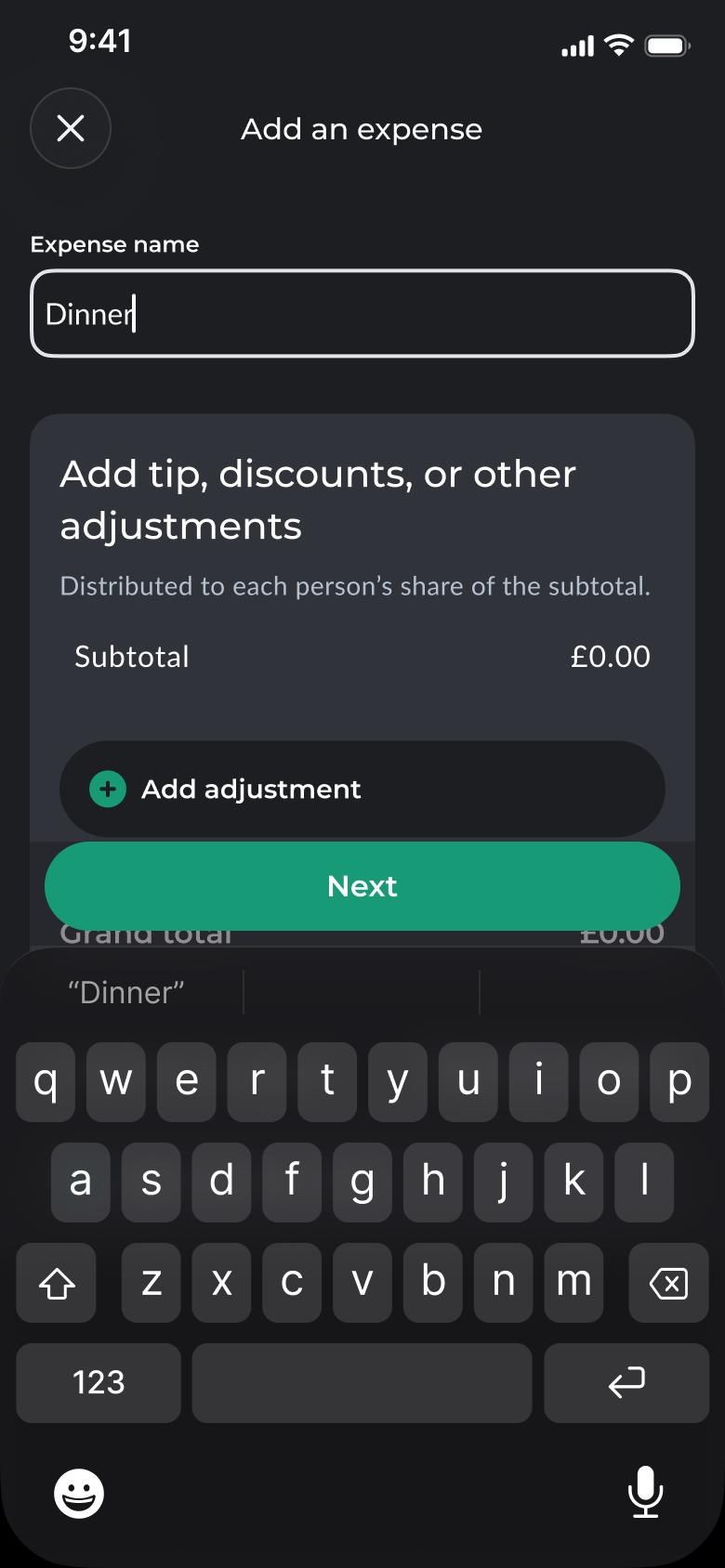
Type expense name
Itemised Expense 10
Changes in place
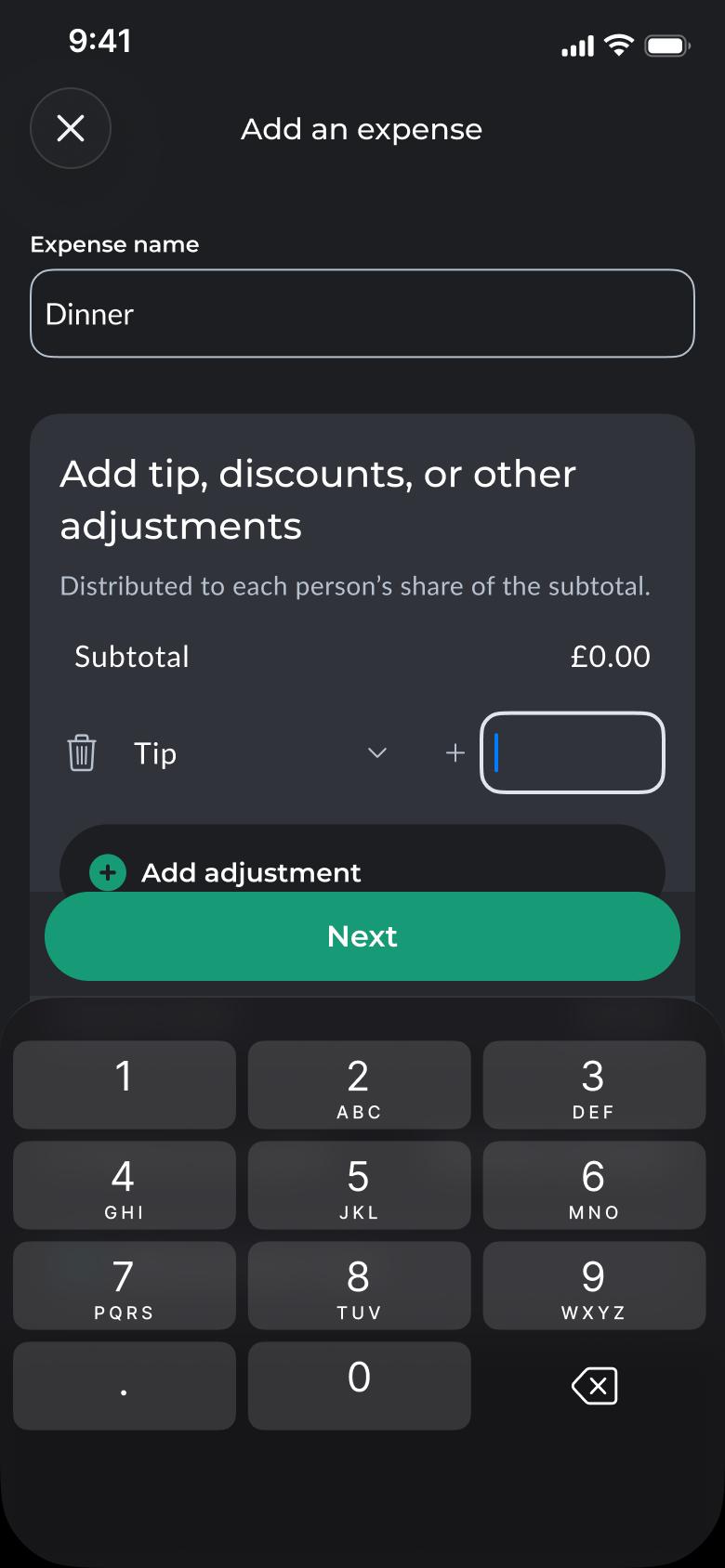
Tap Add adjustment
Itemised Expense 11
Changes in place
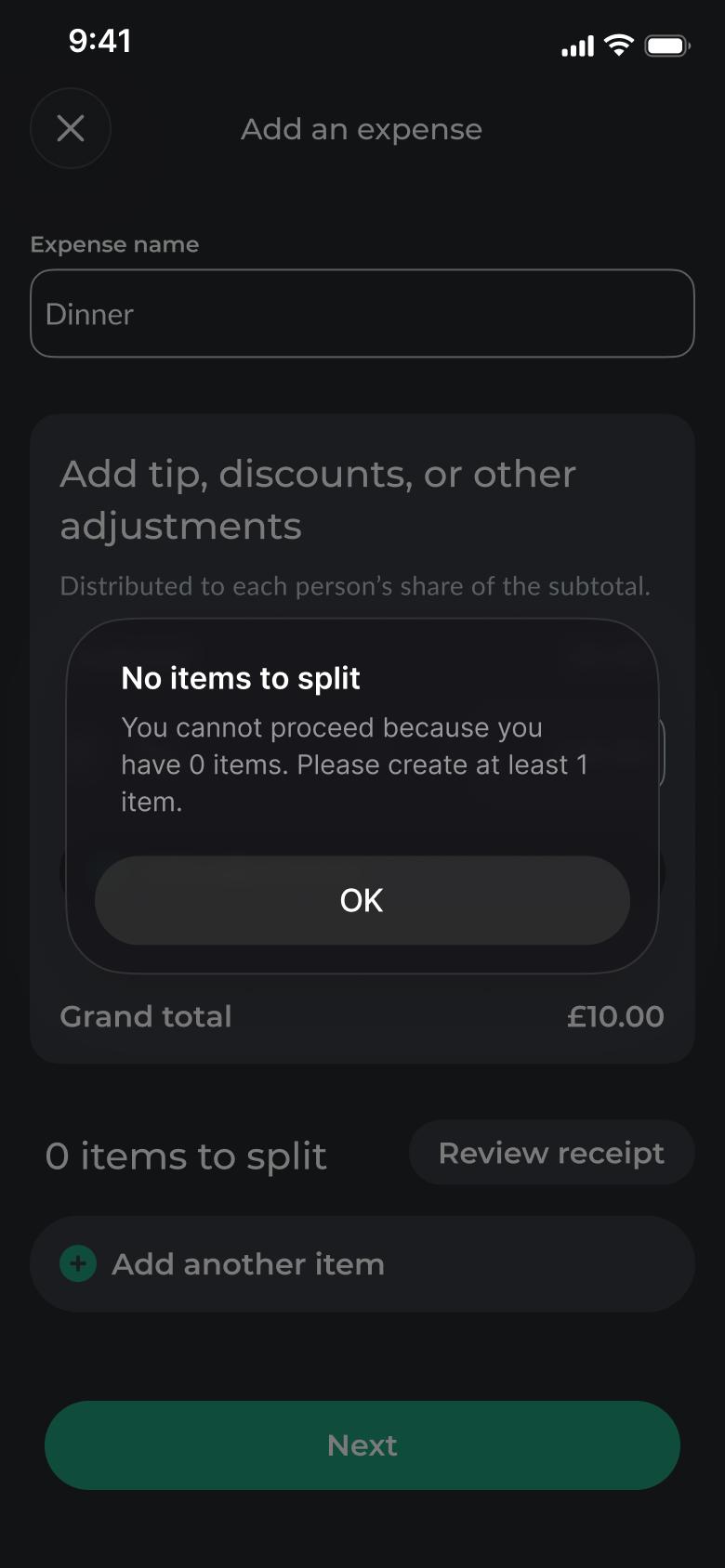
Tap Next with no items
Itemised Expense 12
Shows an alert
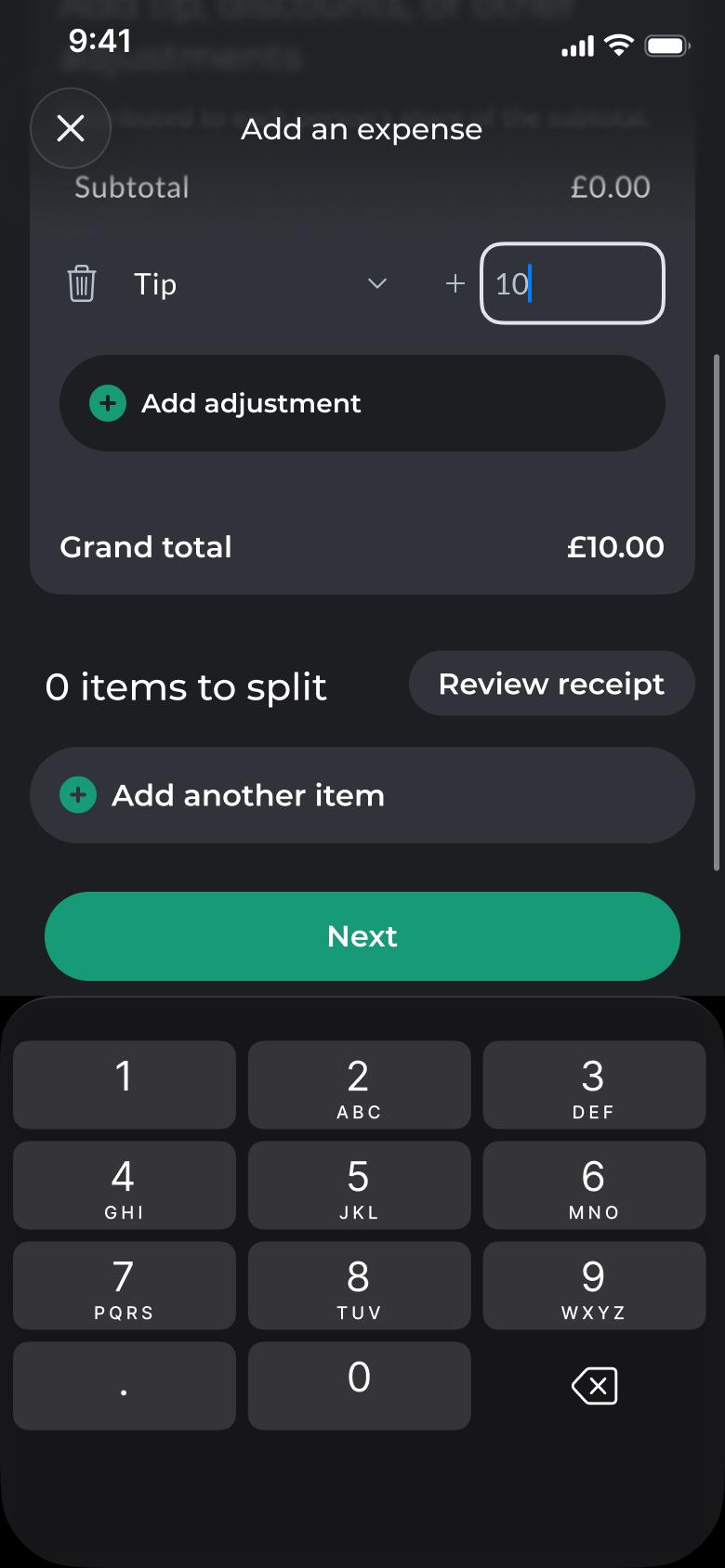
Close alert, tap tip amount
Itemised Expense 13
Changes in place
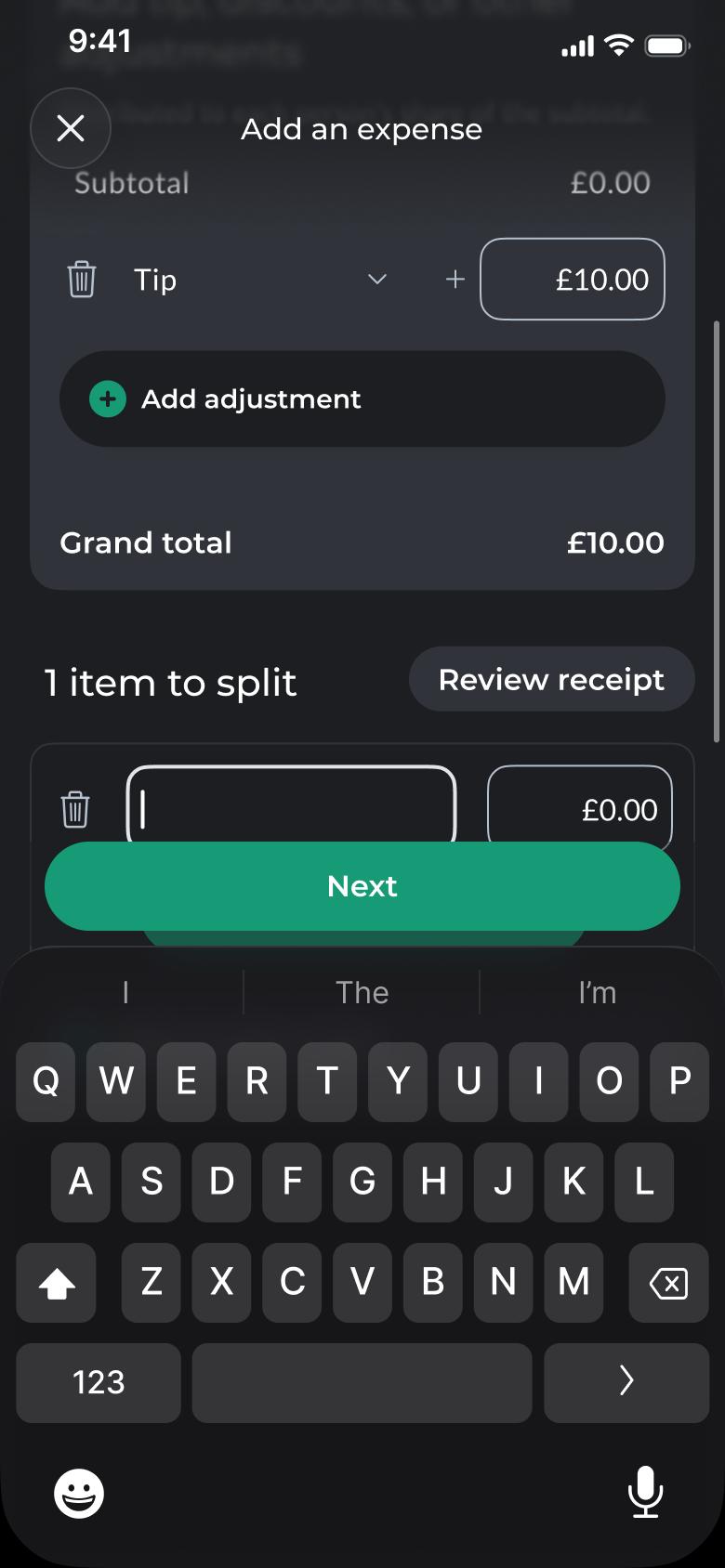
Tap Add another item
Itemised Expense 14
Changes in place
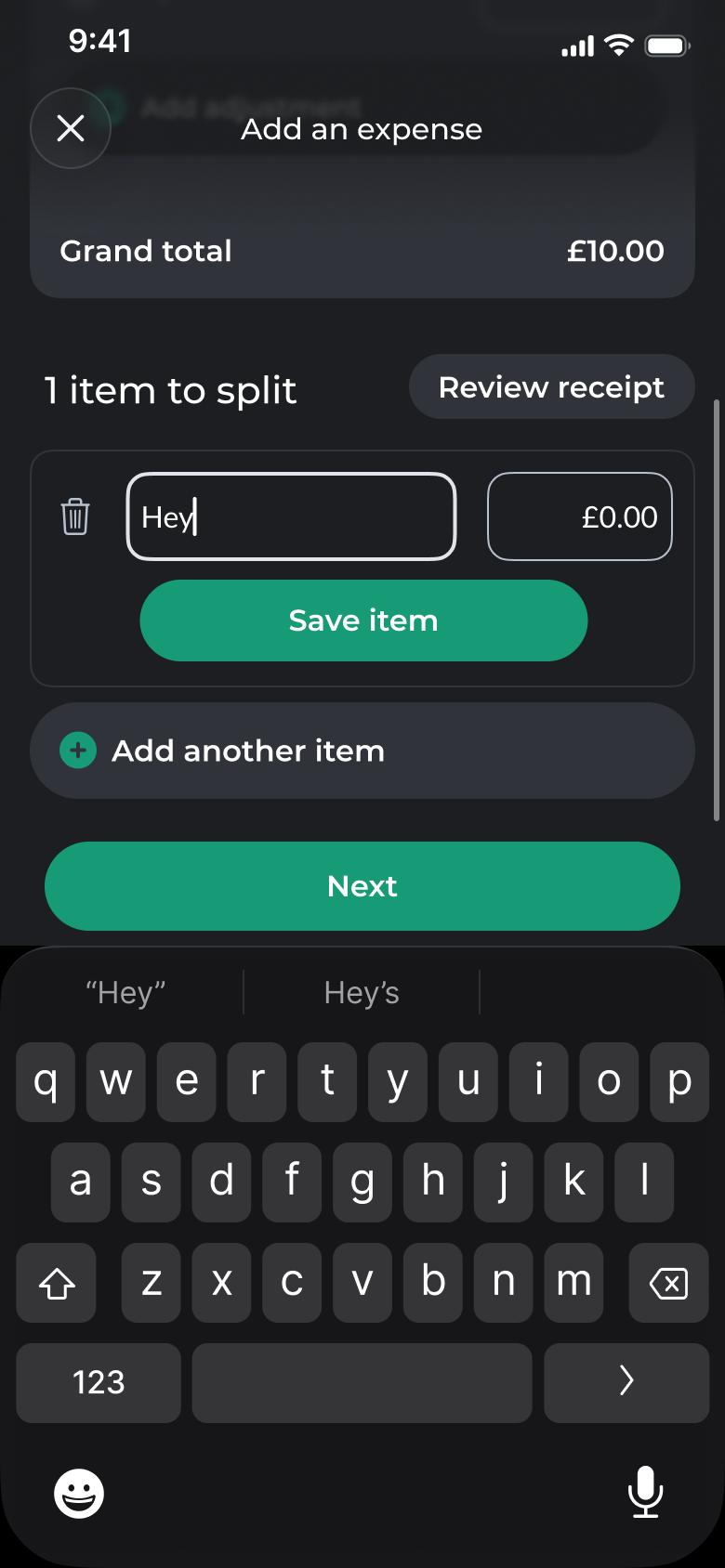
Type item name
Itemised Expense 15
Changes in place
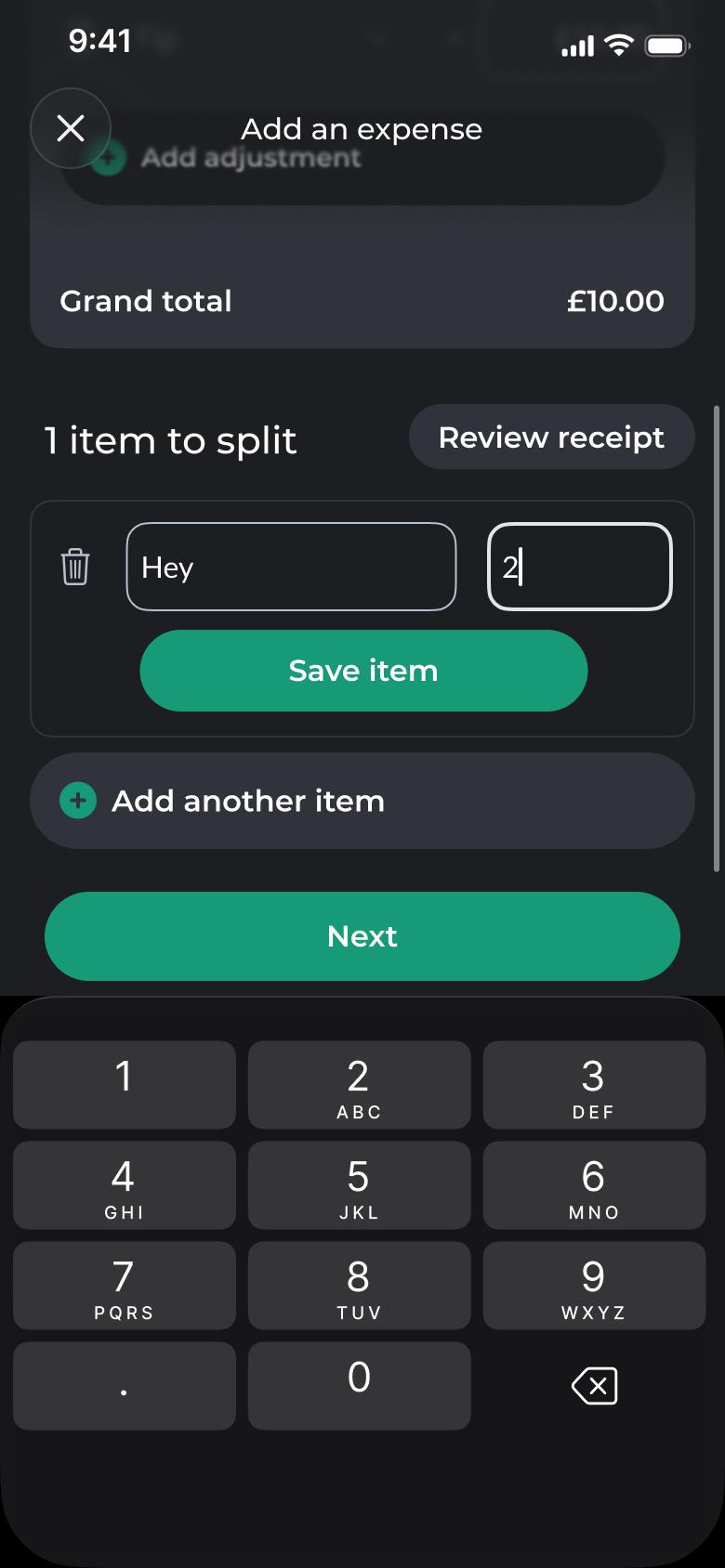
Tap item price field
Itemised Expense 16
Changes in place
Tap Save item
Itemised Expense 17
Changes in place
Not affiliated with, endorsed or sponsored by Splitwise. Splitwise is a trade mark of its owner. Recreated for design reference and education. Rights holders: contact us
Request money8 screens
Steps 1–4 of 8, in recording order
Open flowCreate7 screens
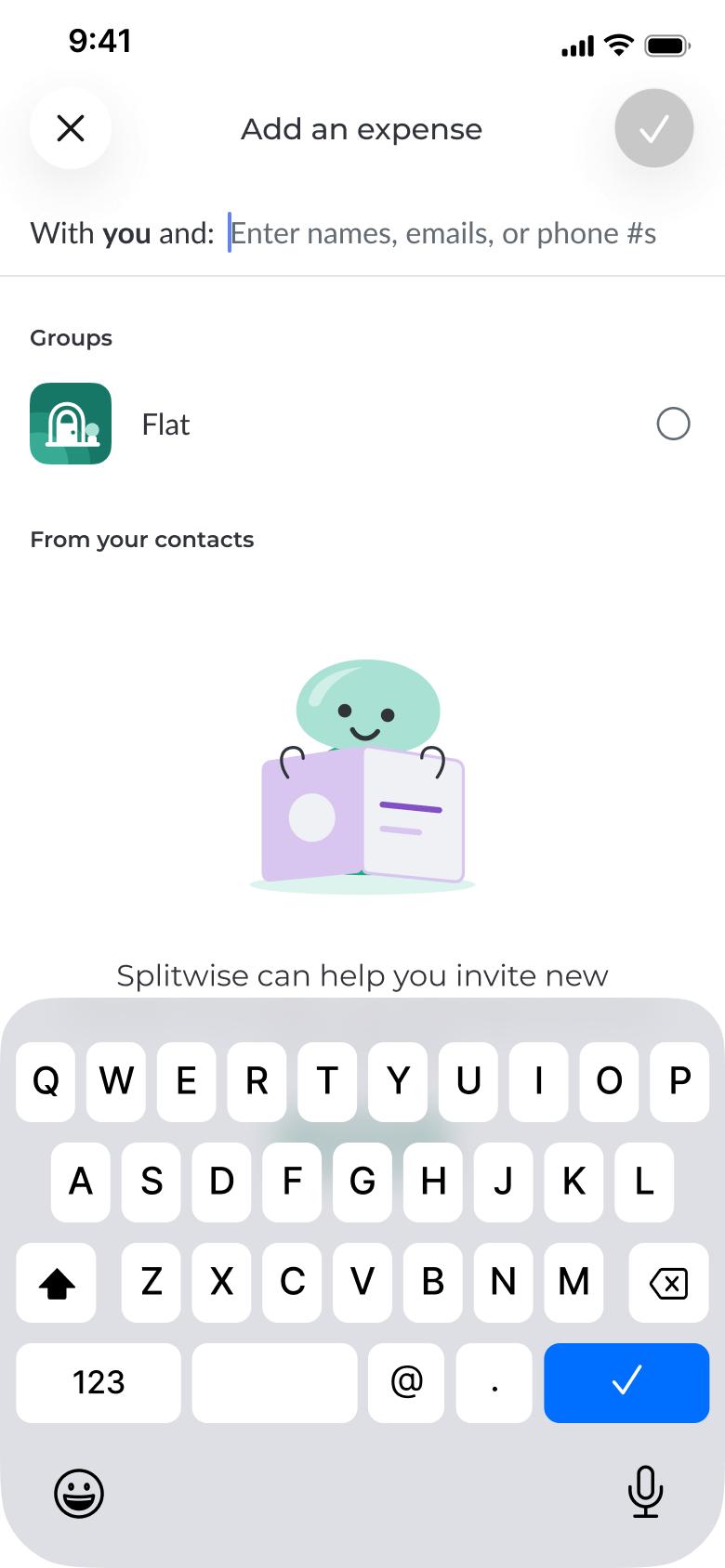
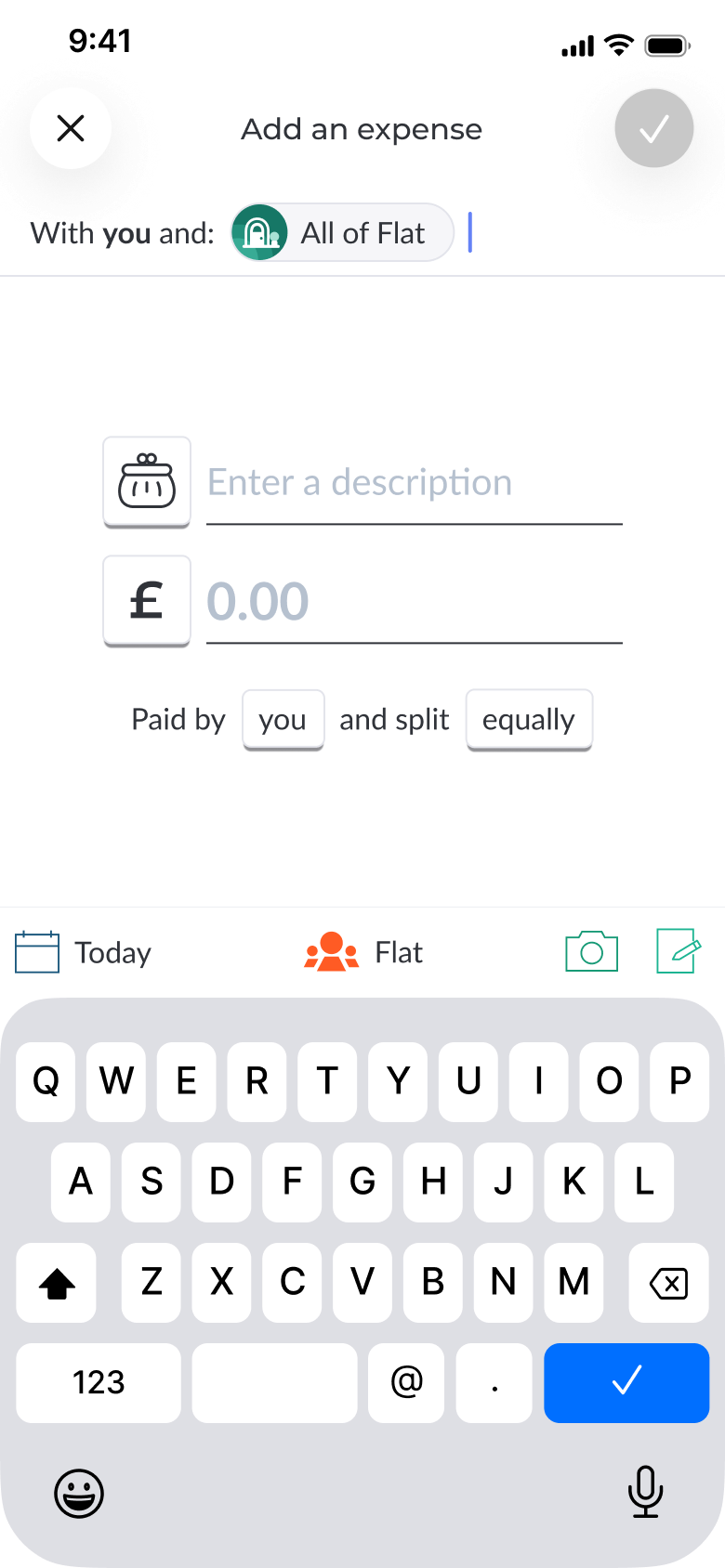
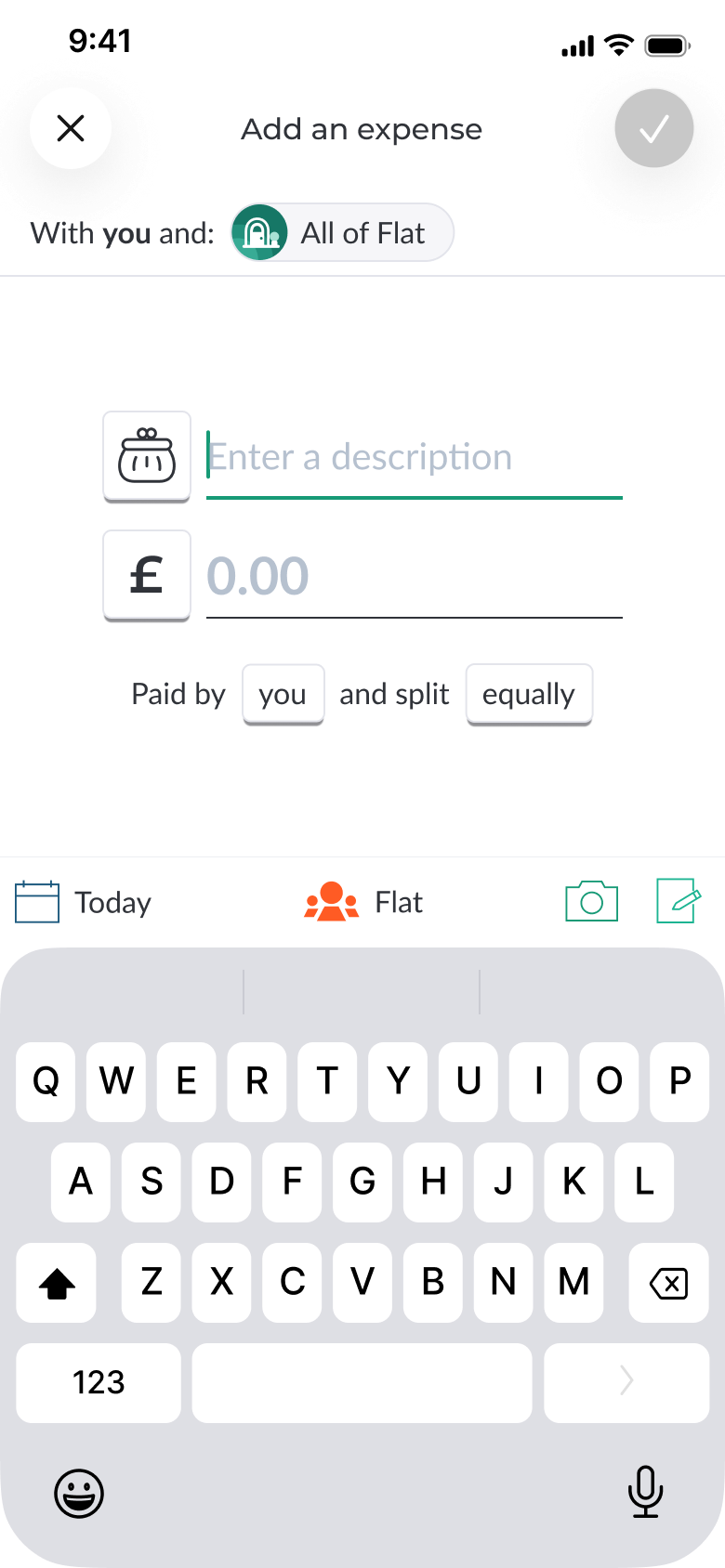
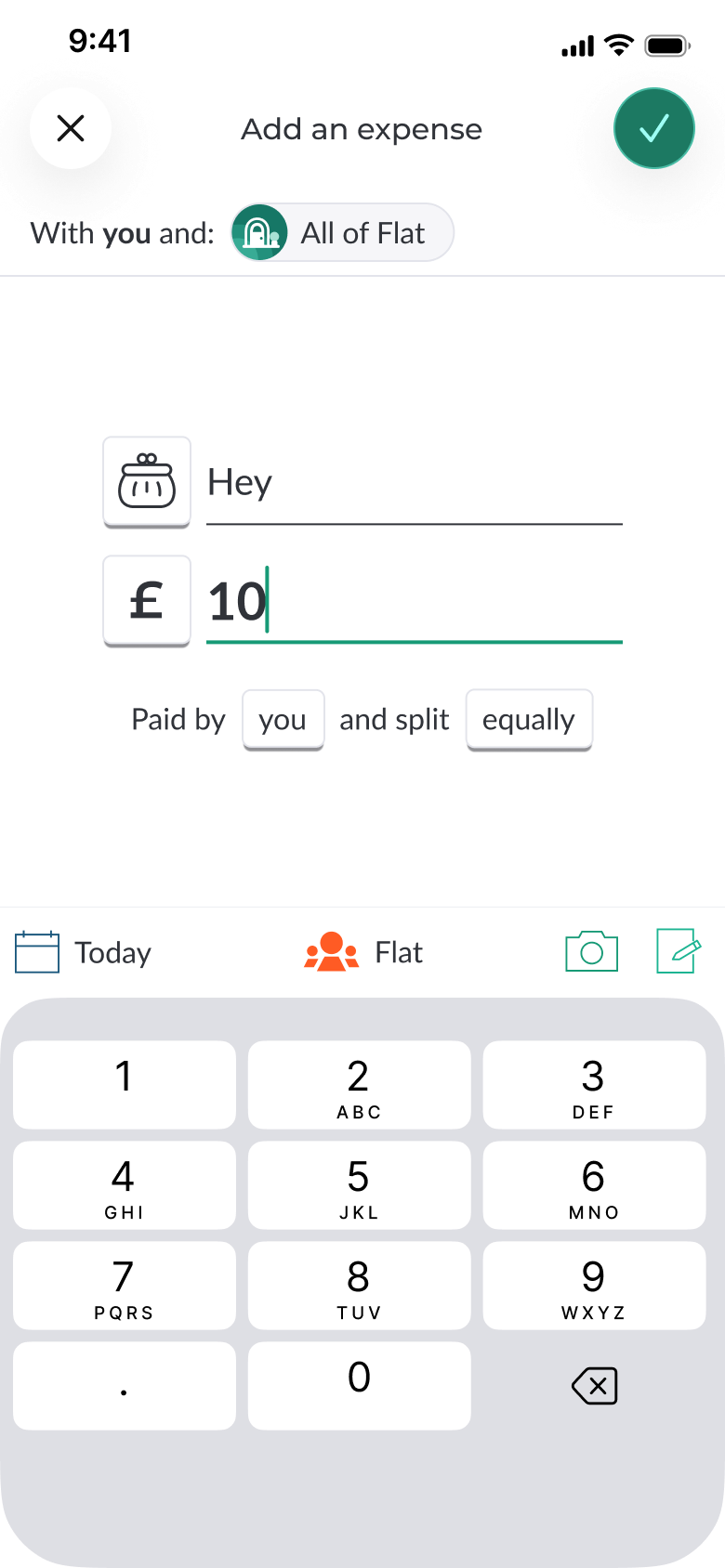
Steps 1–4 of 7, in recording order
Open flowAll of WhatsApp, and a complete flow from every app. No card needed.
Step 1 of 11
Itemised Expense 7
How you get here: Closes
Open the SuperDuper UI plugin in Figma to paste these 11 screens into your file as editable layers.
All 11 steps
Use ← → to step through