
Turn a photo into a song
Create11 screens
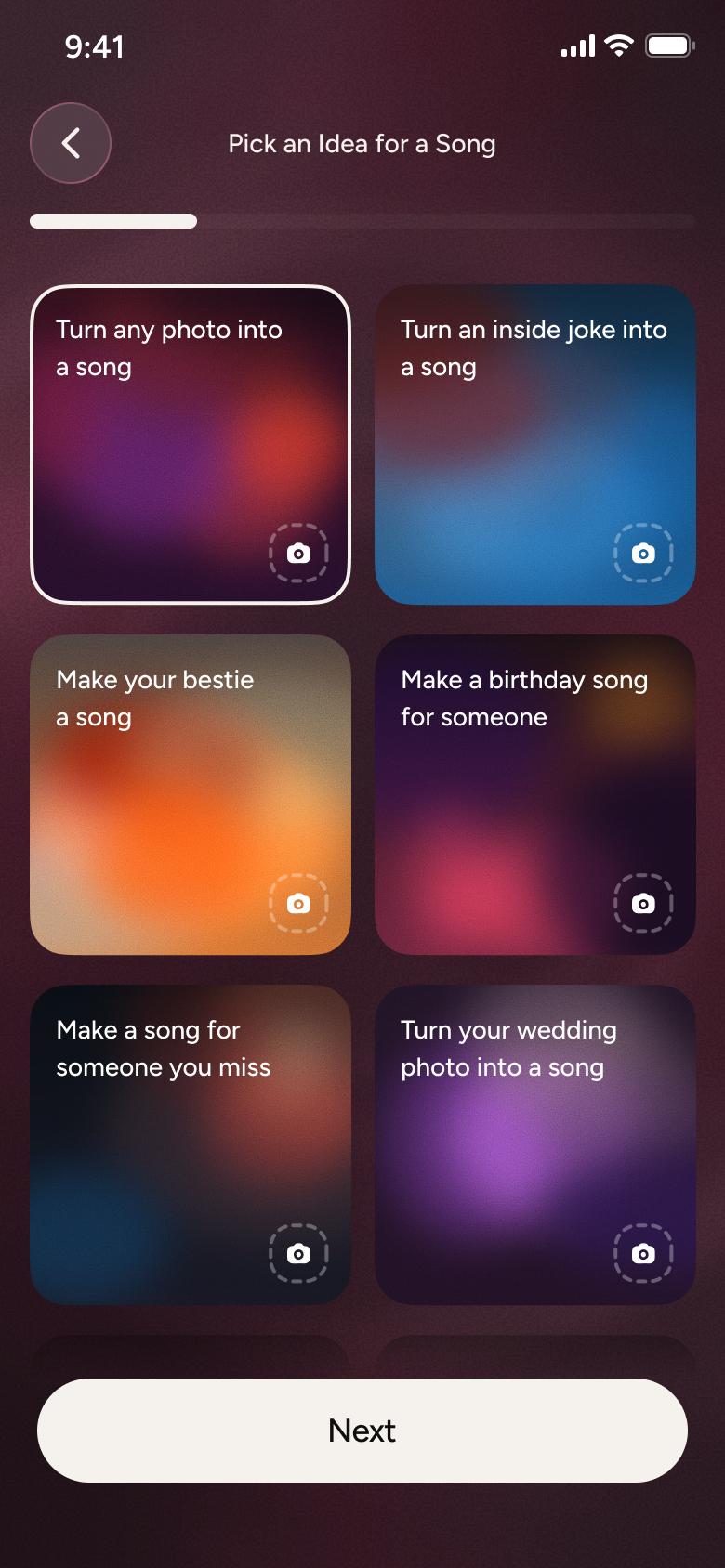
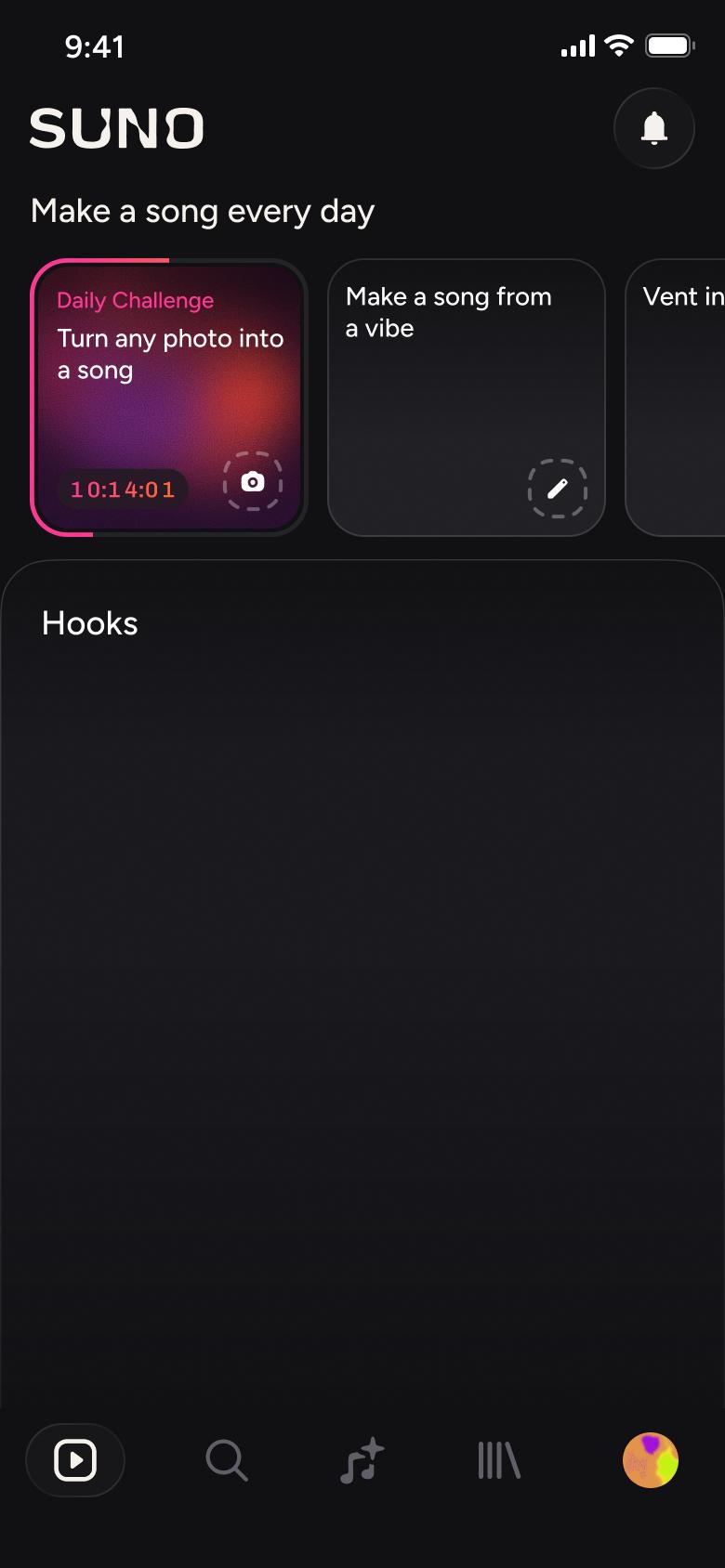
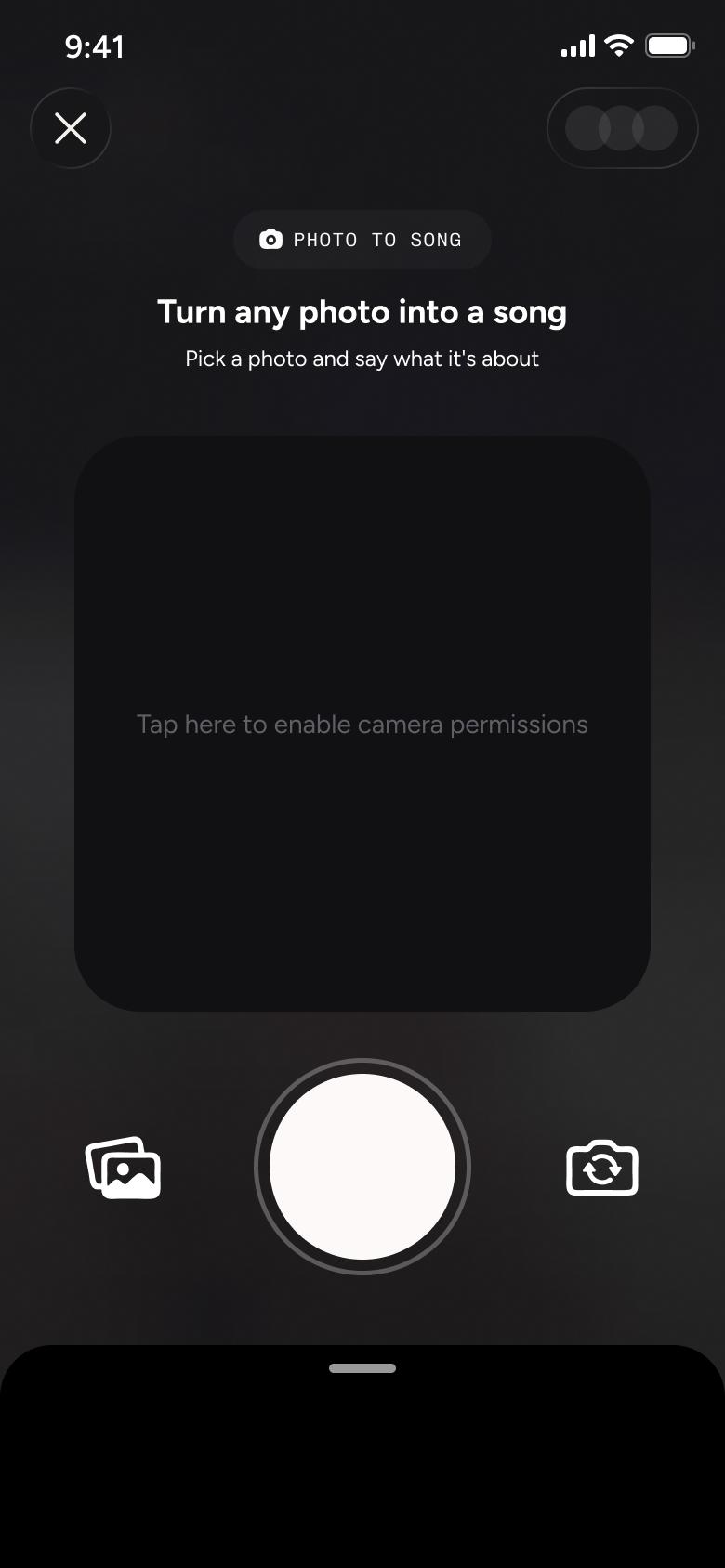
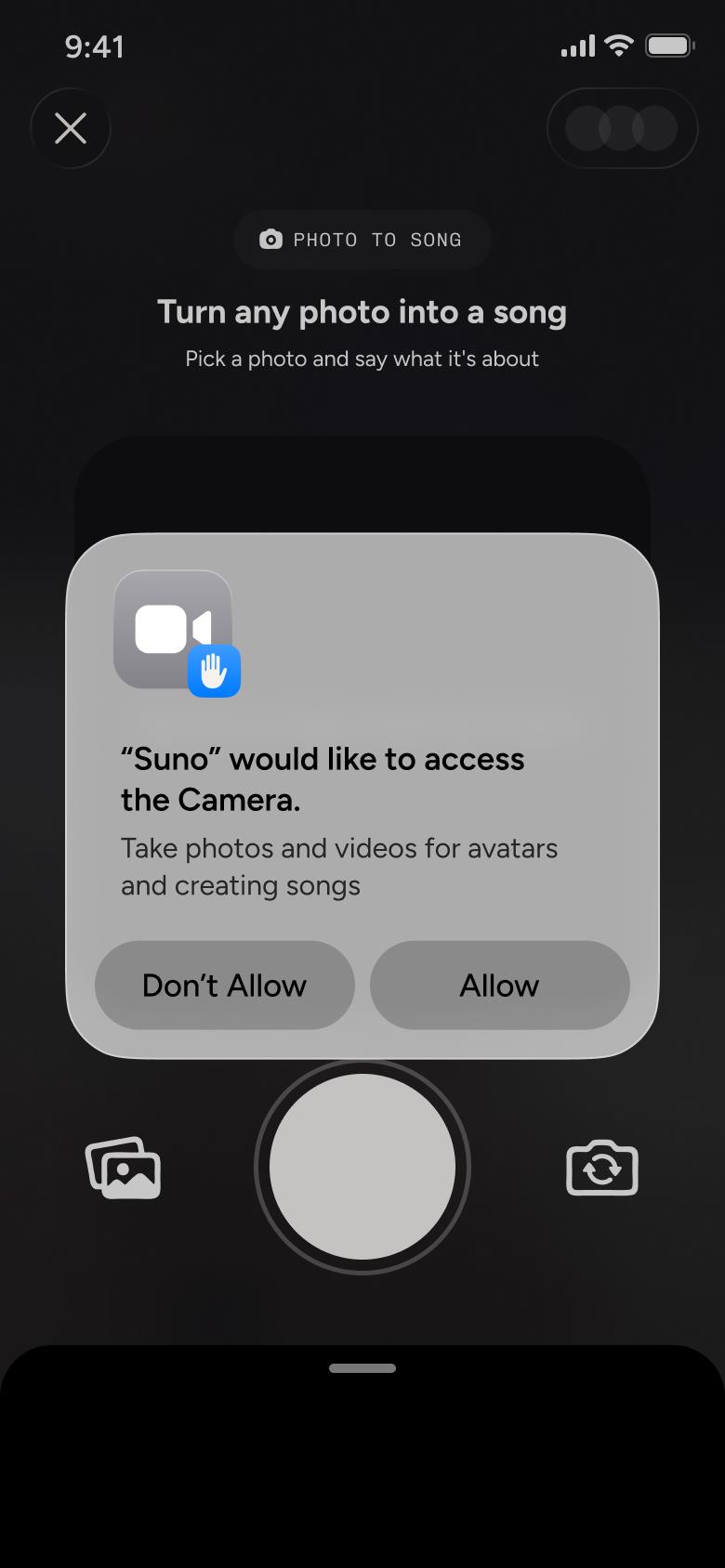
Steps 1–4 of 11, in recording order
Open flowStart the profile setup card, add a picture, pass the background image step, write a bio and see the completed toast.
SunoiOS12 steps
Every app’s free flow imports free, no card needed.
See all edit profile flows across apps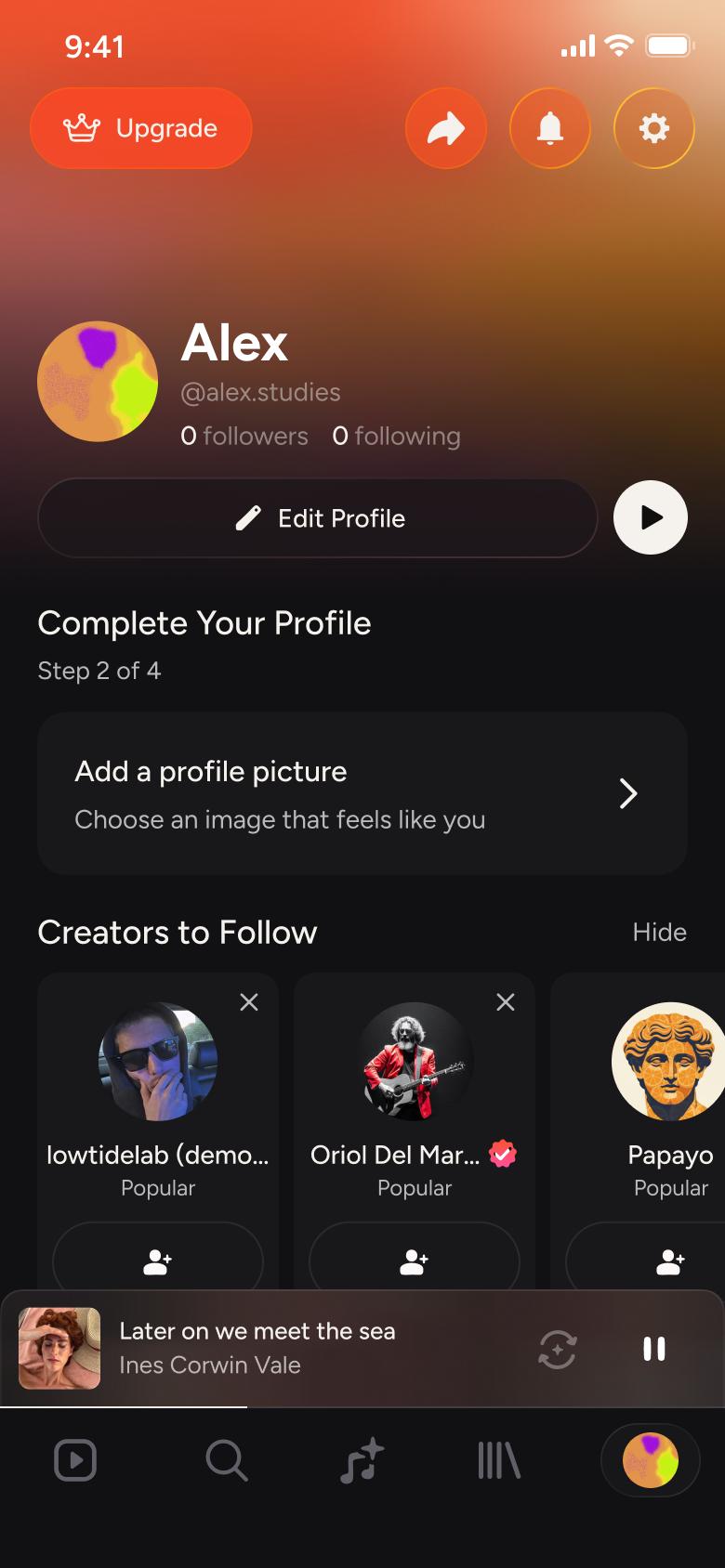
Step 1 of 12
Profile 1
How you get here: Closes
Open the SuperDuper UI plugin in Figma to paste these 12 screens into your file as editable layers.
All 12 steps
Use ← → to step through
Each screen in the order it was recorded, with how the user got there.
Close upgrade screen
Profile 1
Closes
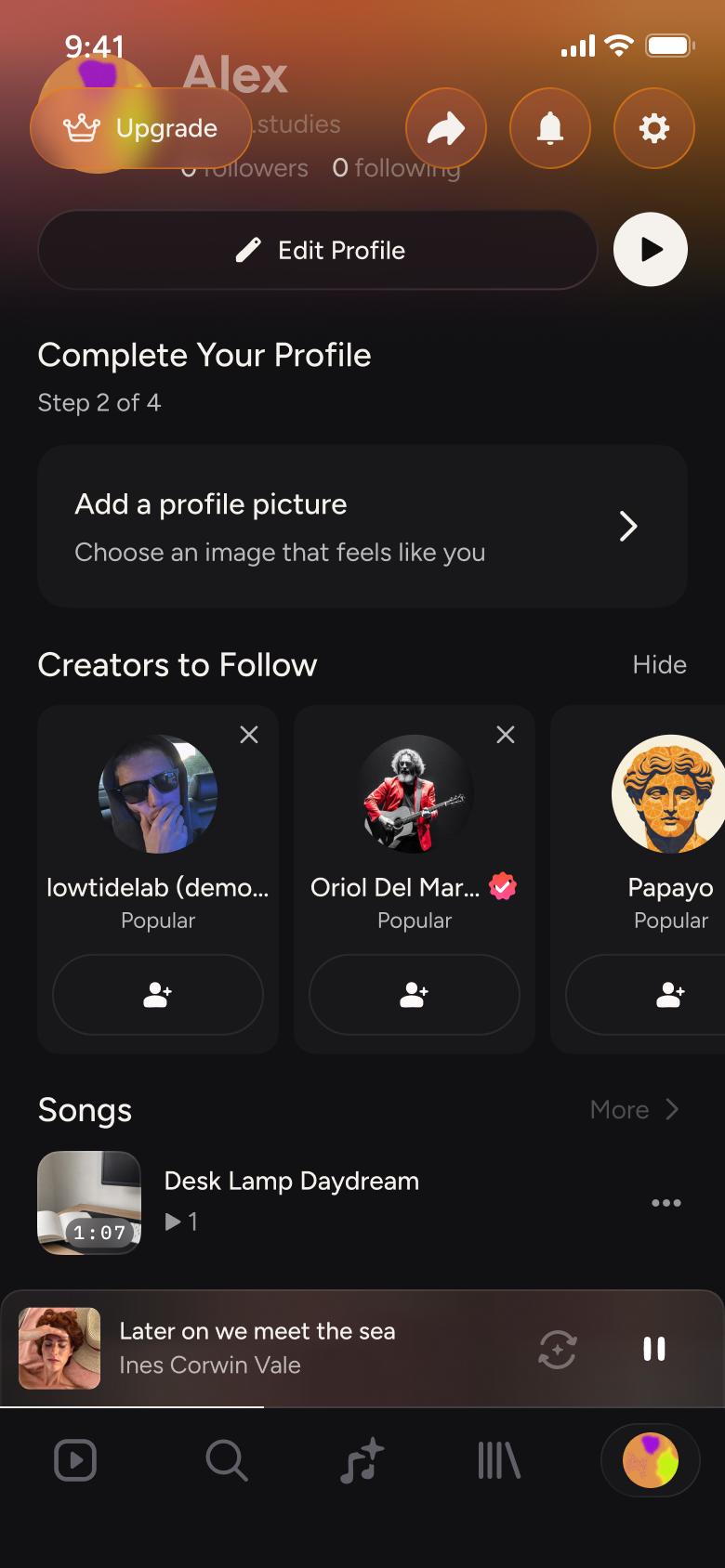
Scroll down
Profile 2
Changes in place
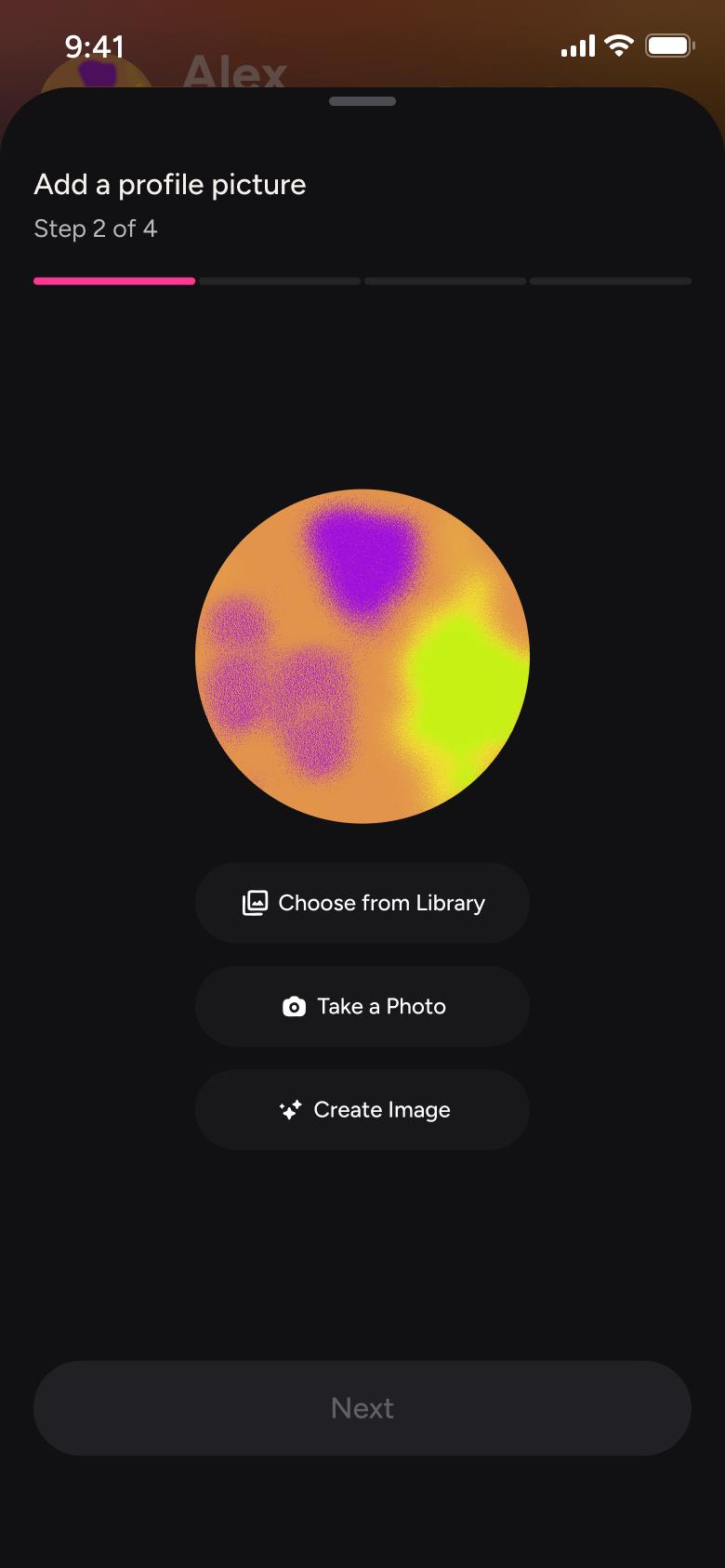
Tap Add a profile picture
Profile 3
Slides up from the bottom
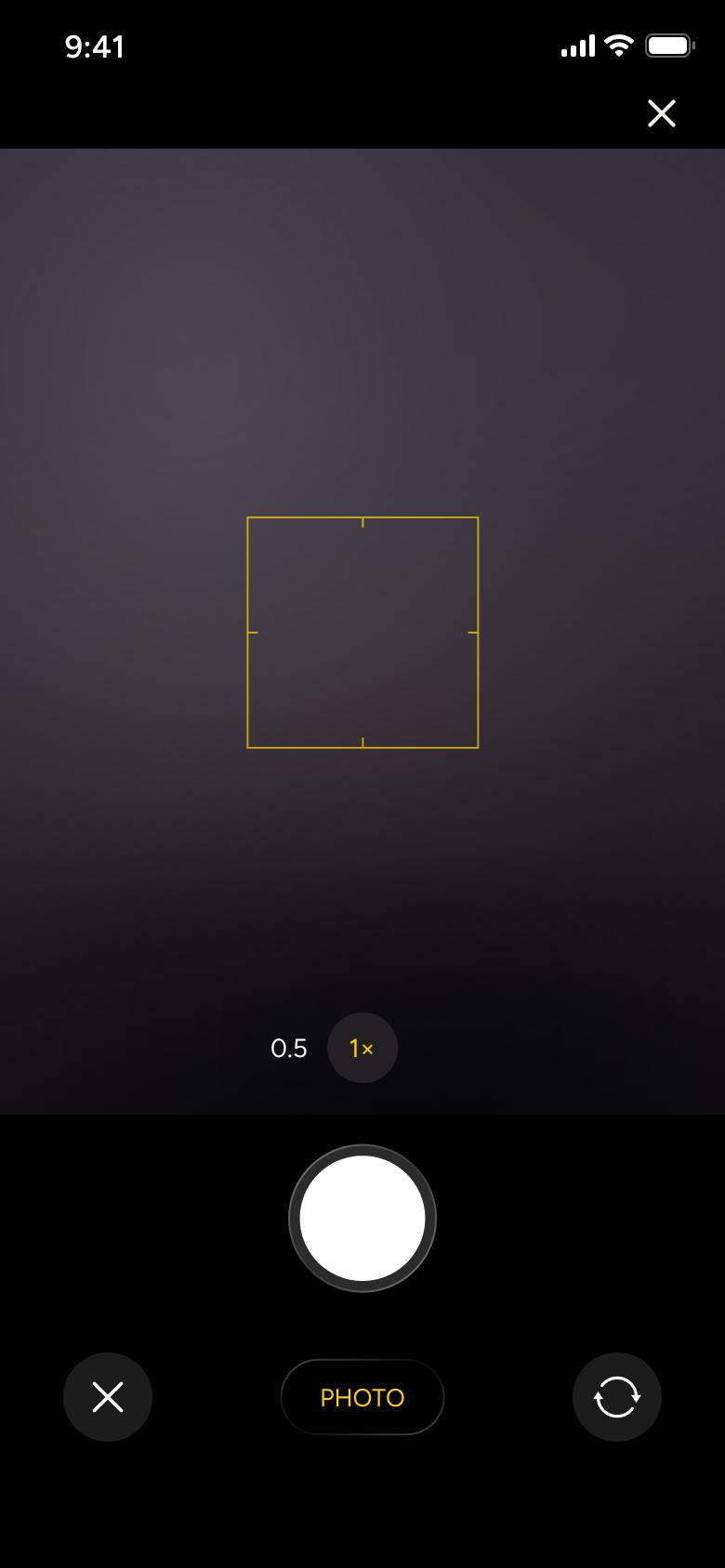
Tap Take a Photo
Profile 4
Opens full screen
Tap shutter
Profile 5
Changes in place
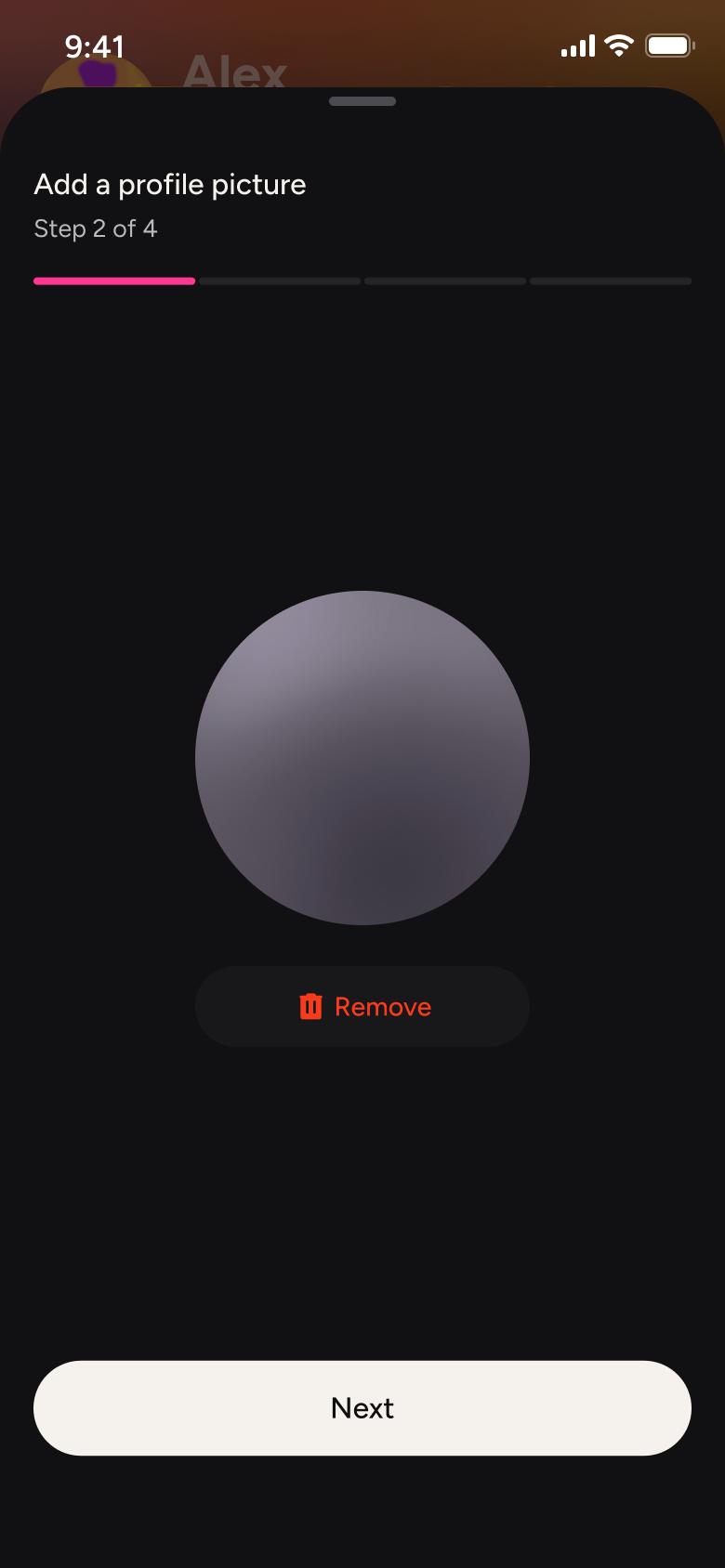
Tap Use Photo
Profile 6
Closes
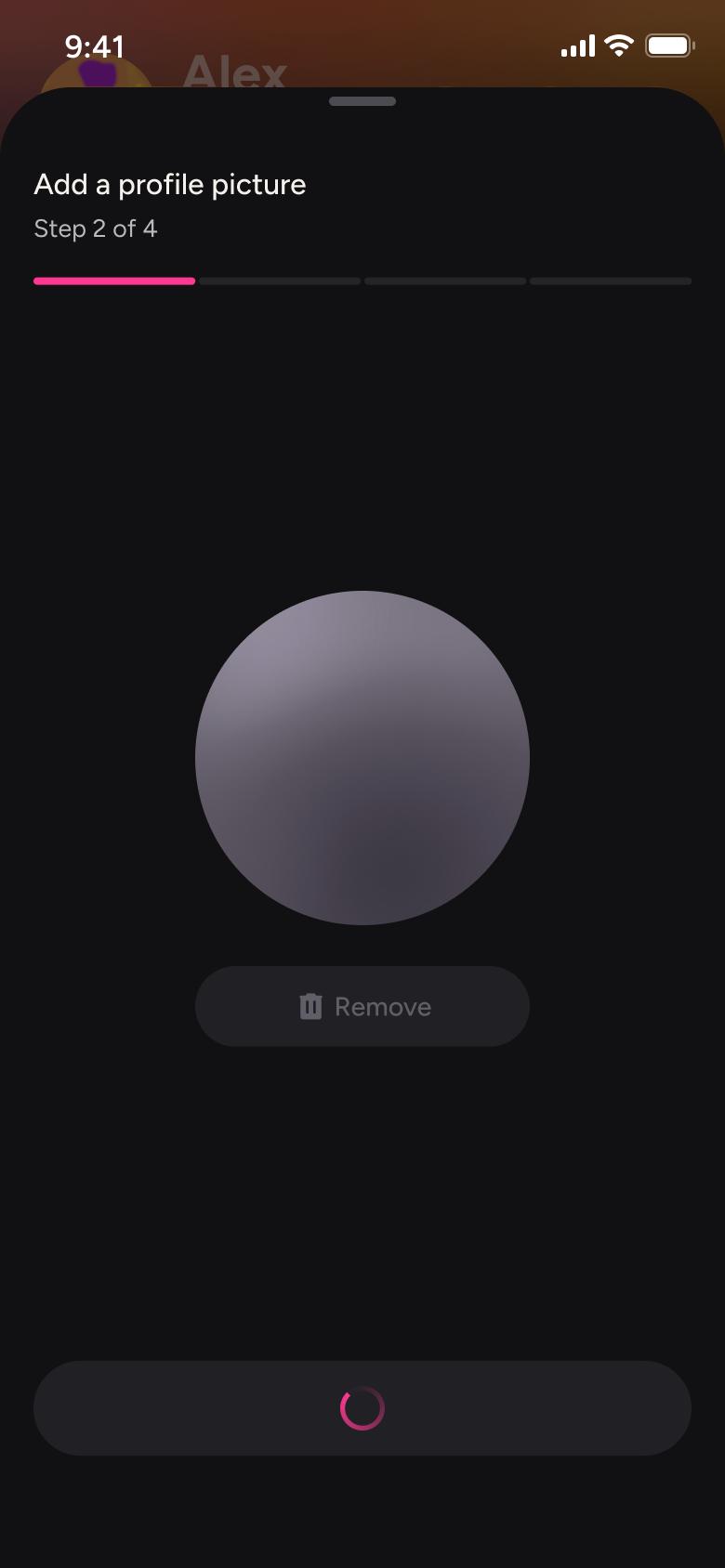
Tap Next
Profile 7
Changes in place
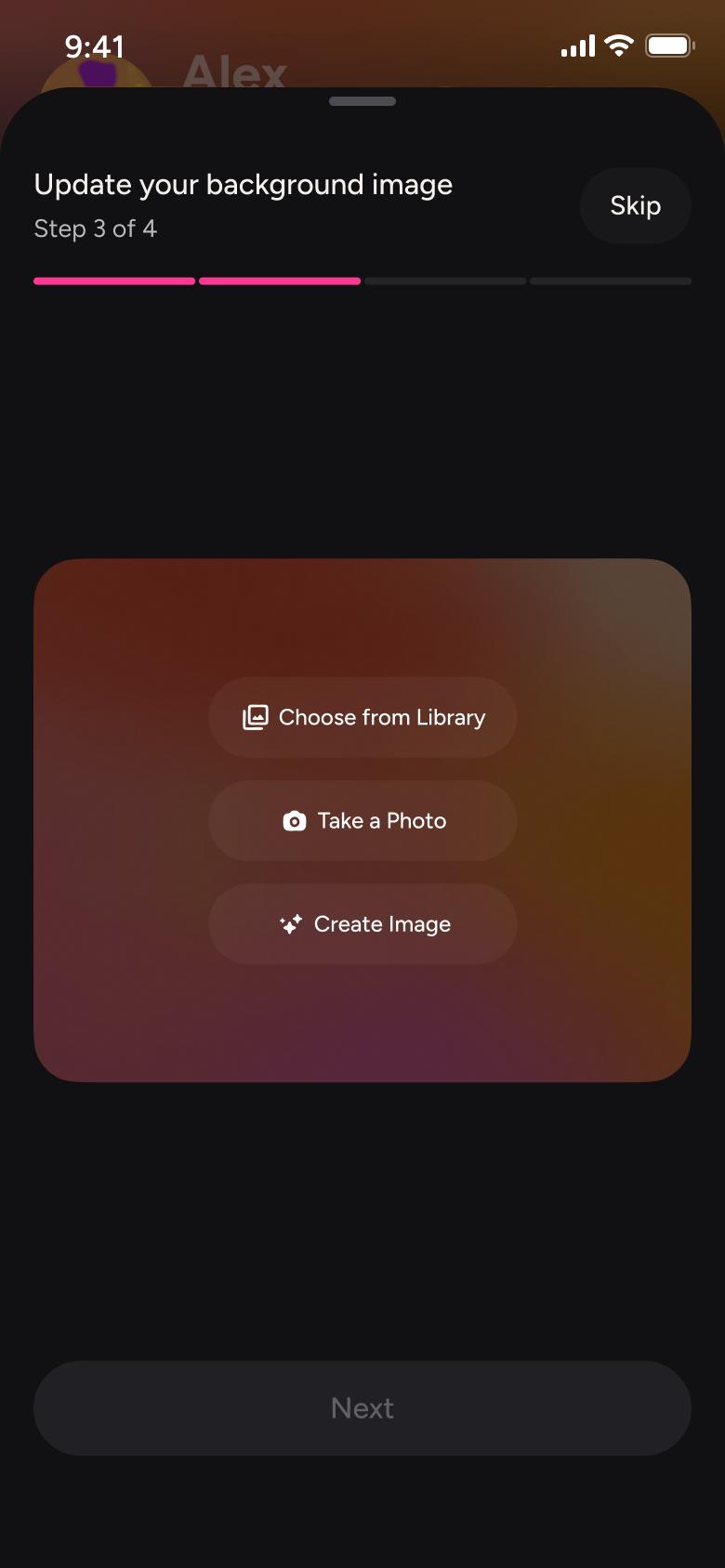
Picture saved
Profile 8
Changes in place
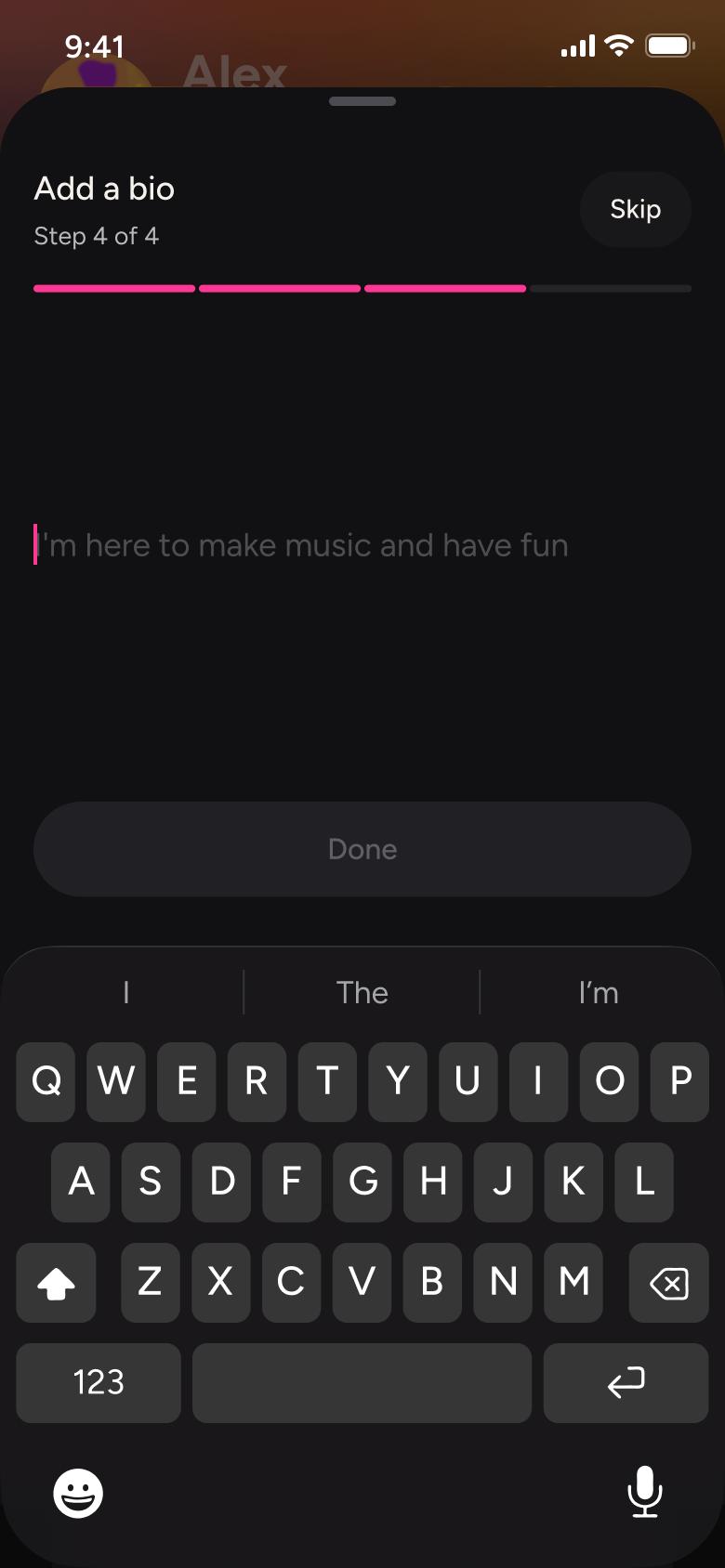
Tap Next or Skip
Profile 9
Changes in place
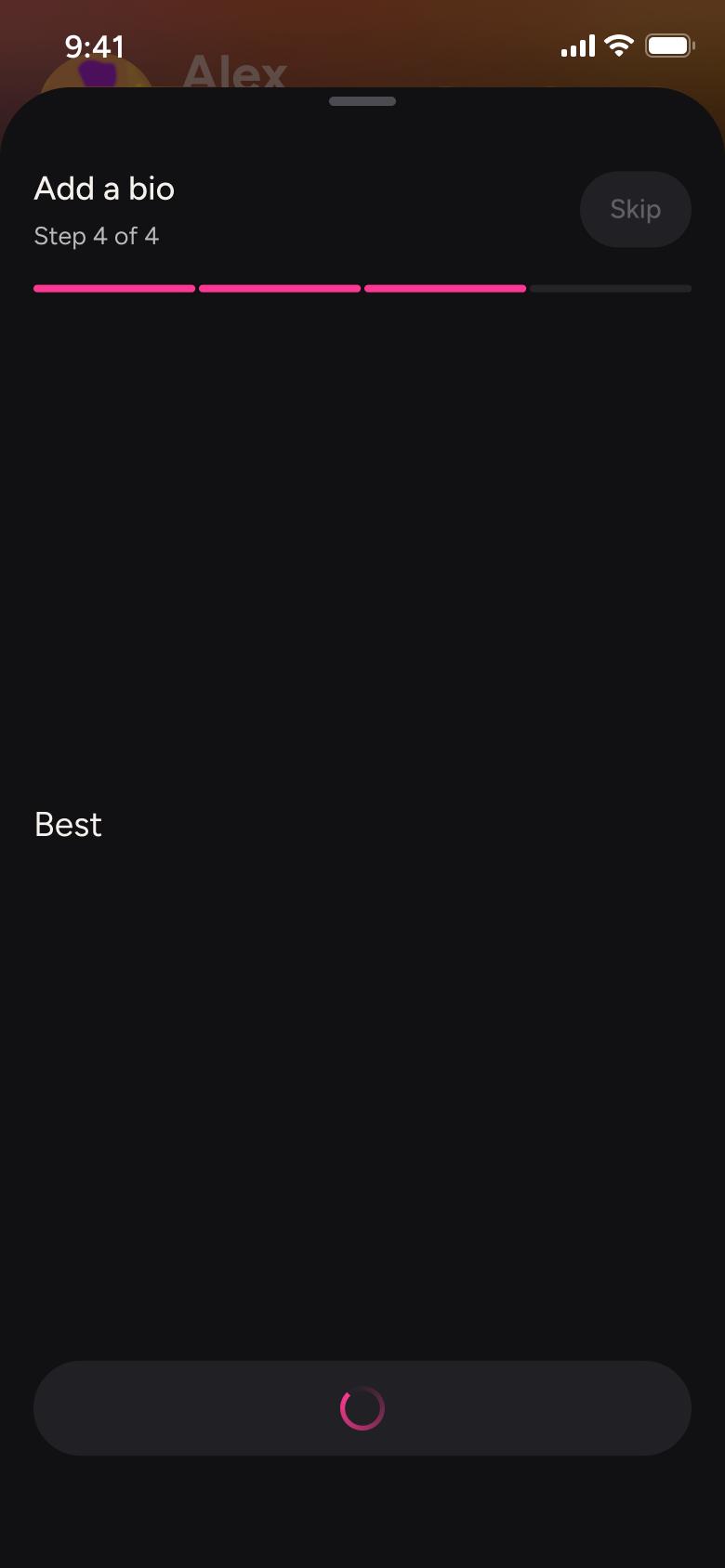
Tap Done
Profile 10
Changes in place
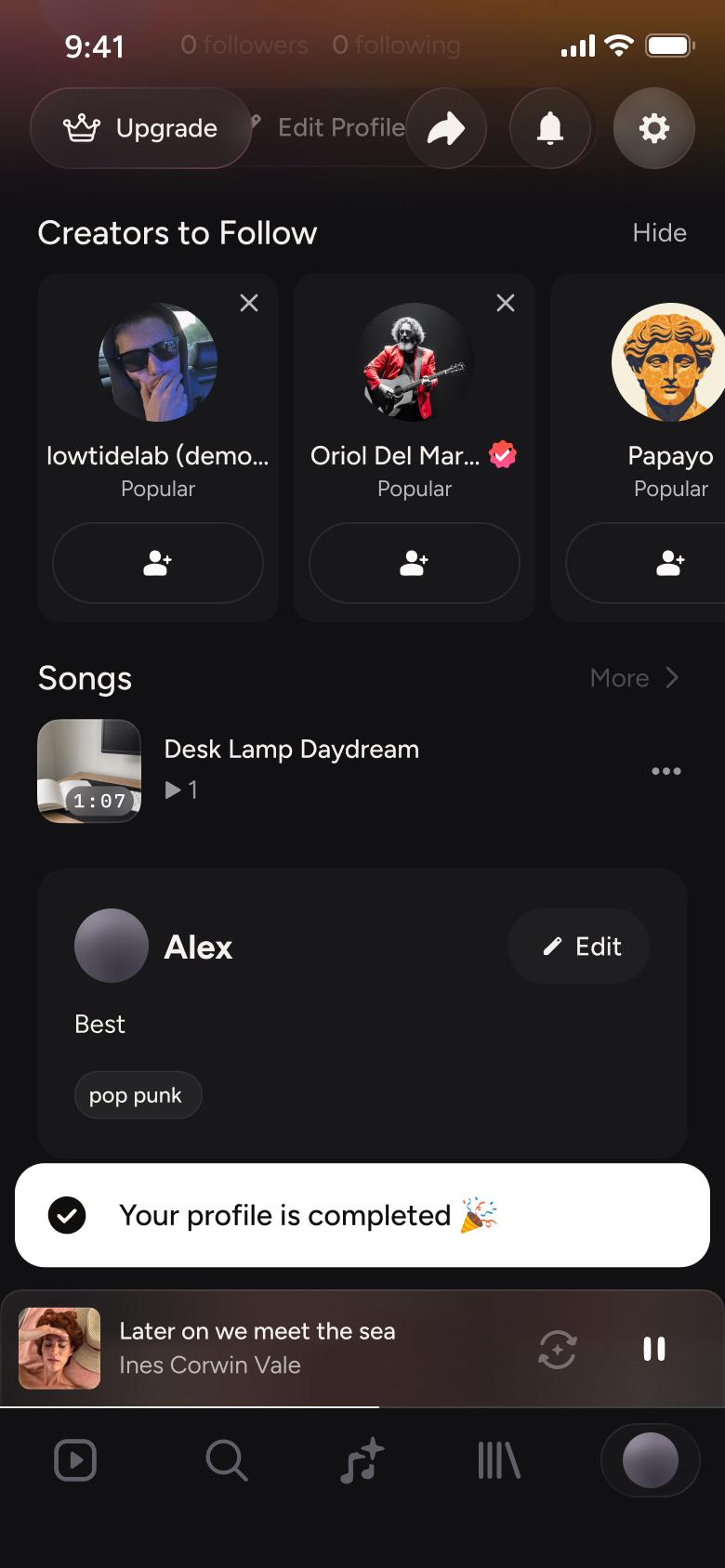
Bio saved
Profile 12
Closes
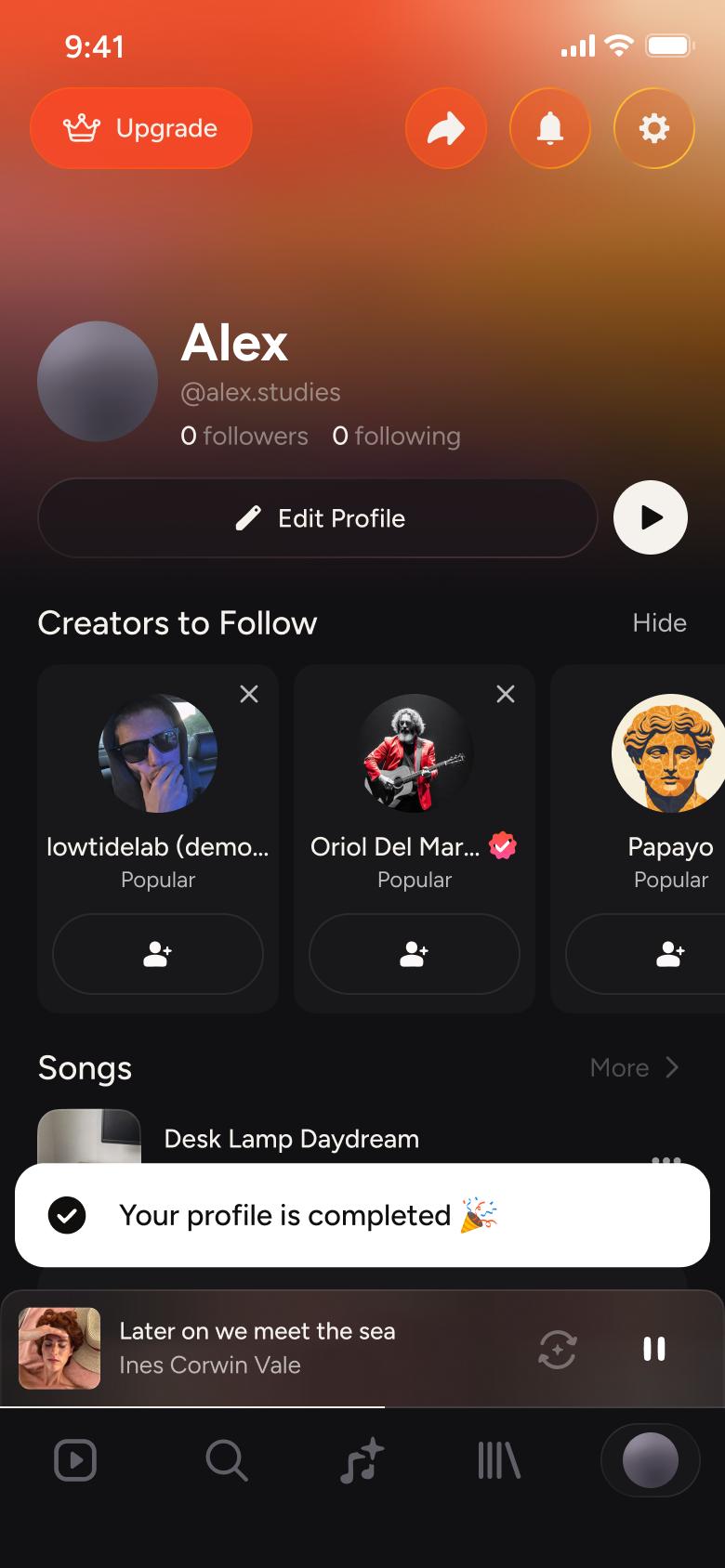
Scroll to top
Profile 11
Changes in place
Not affiliated with, endorsed or sponsored by Suno. Suno is a trade mark of its owner. Recreated for design reference and education. Rights holders: contact us
Create11 screens
Steps 1–4 of 11, in recording order
Open flow7 screens
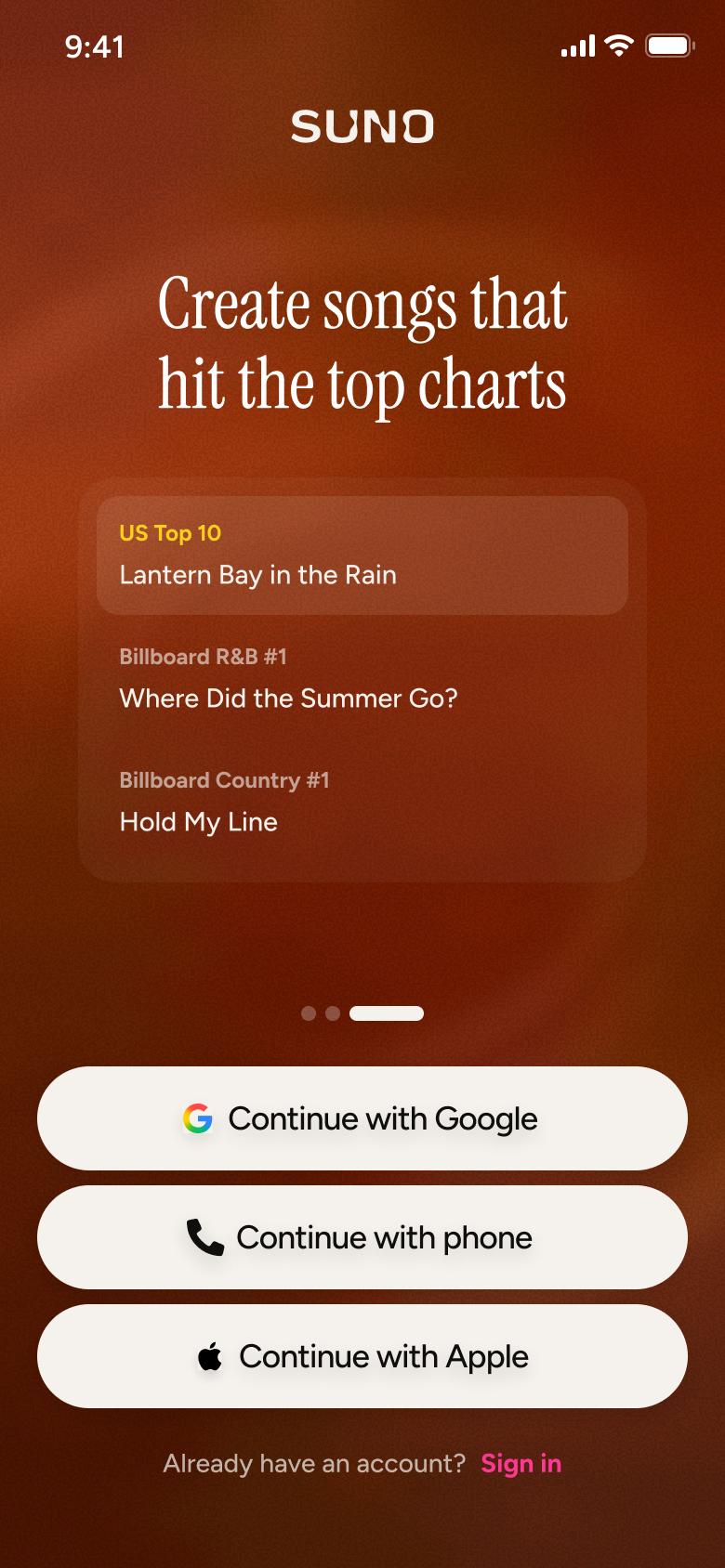
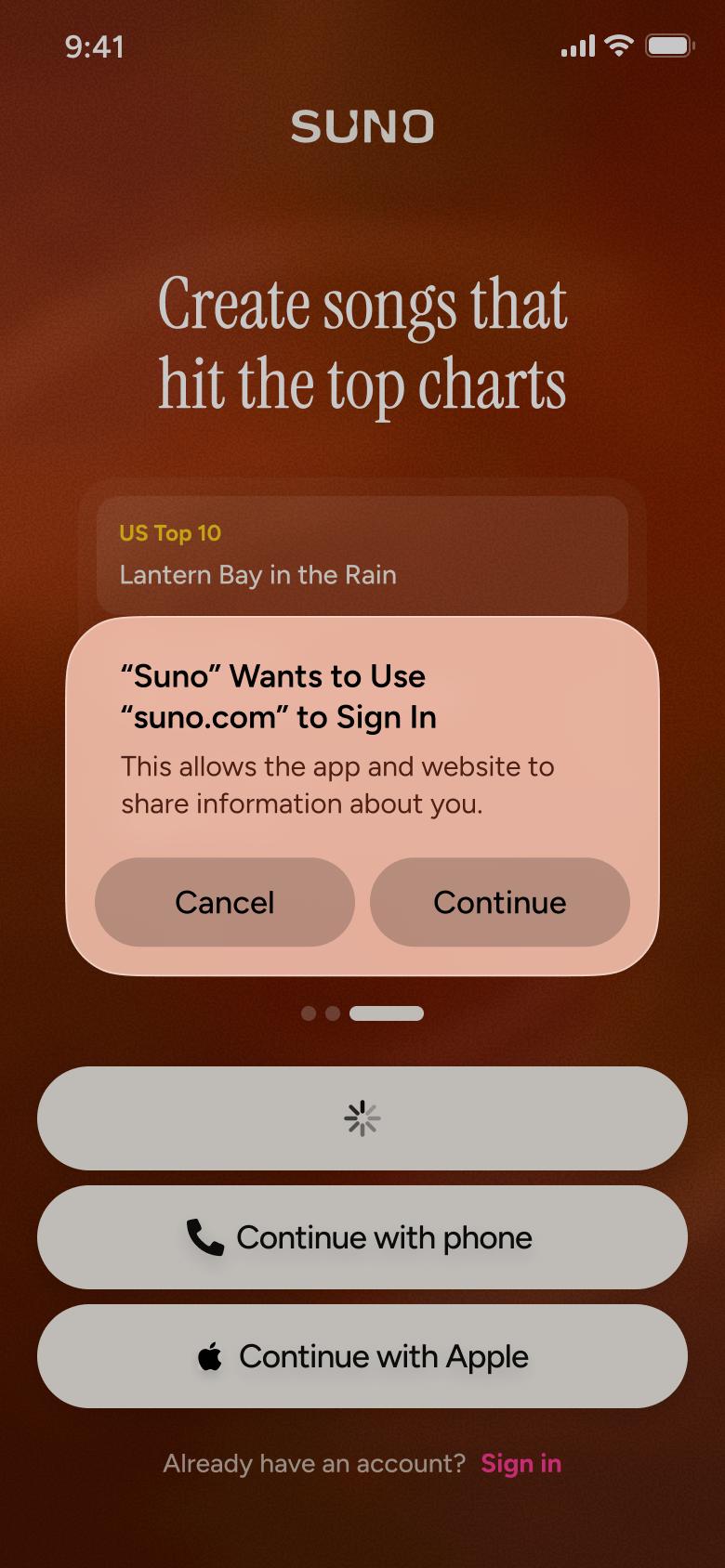
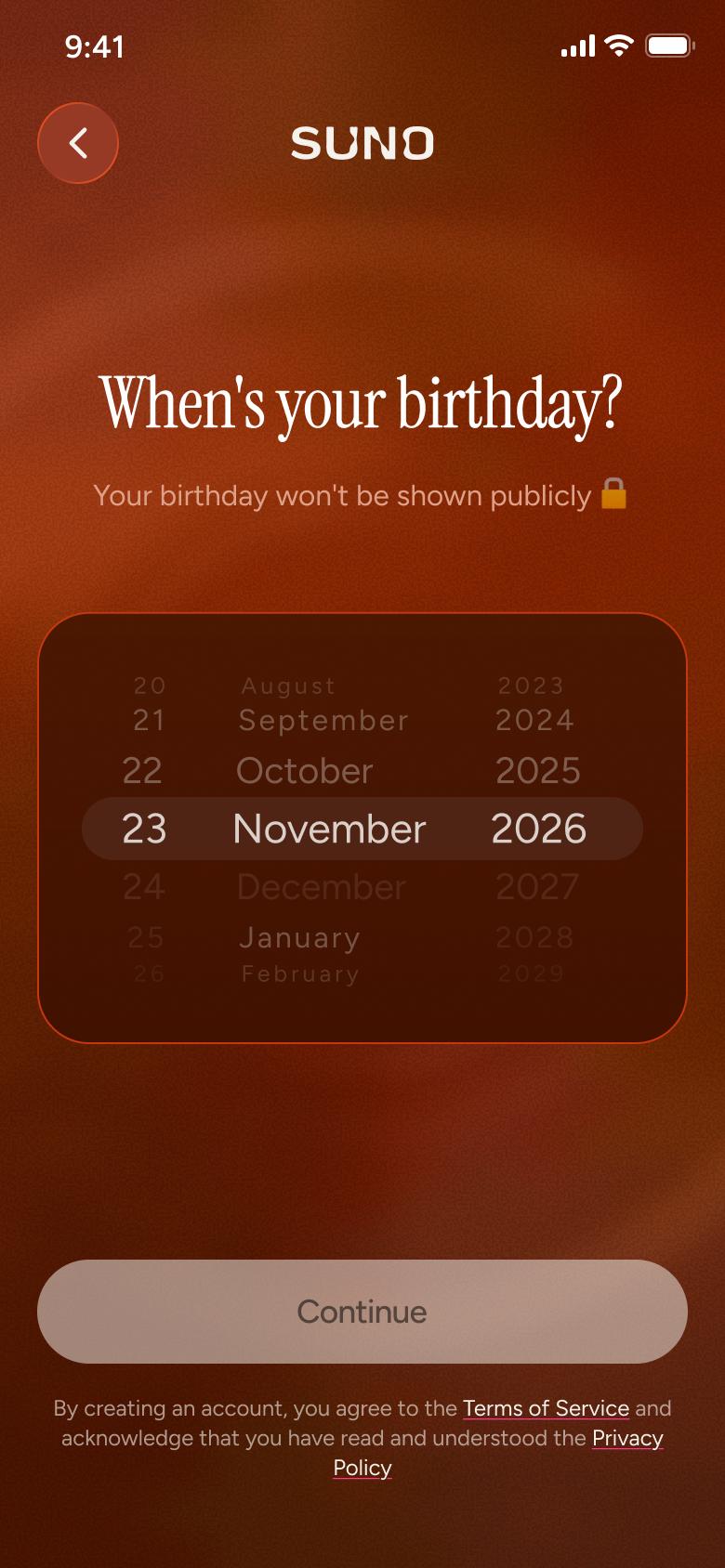
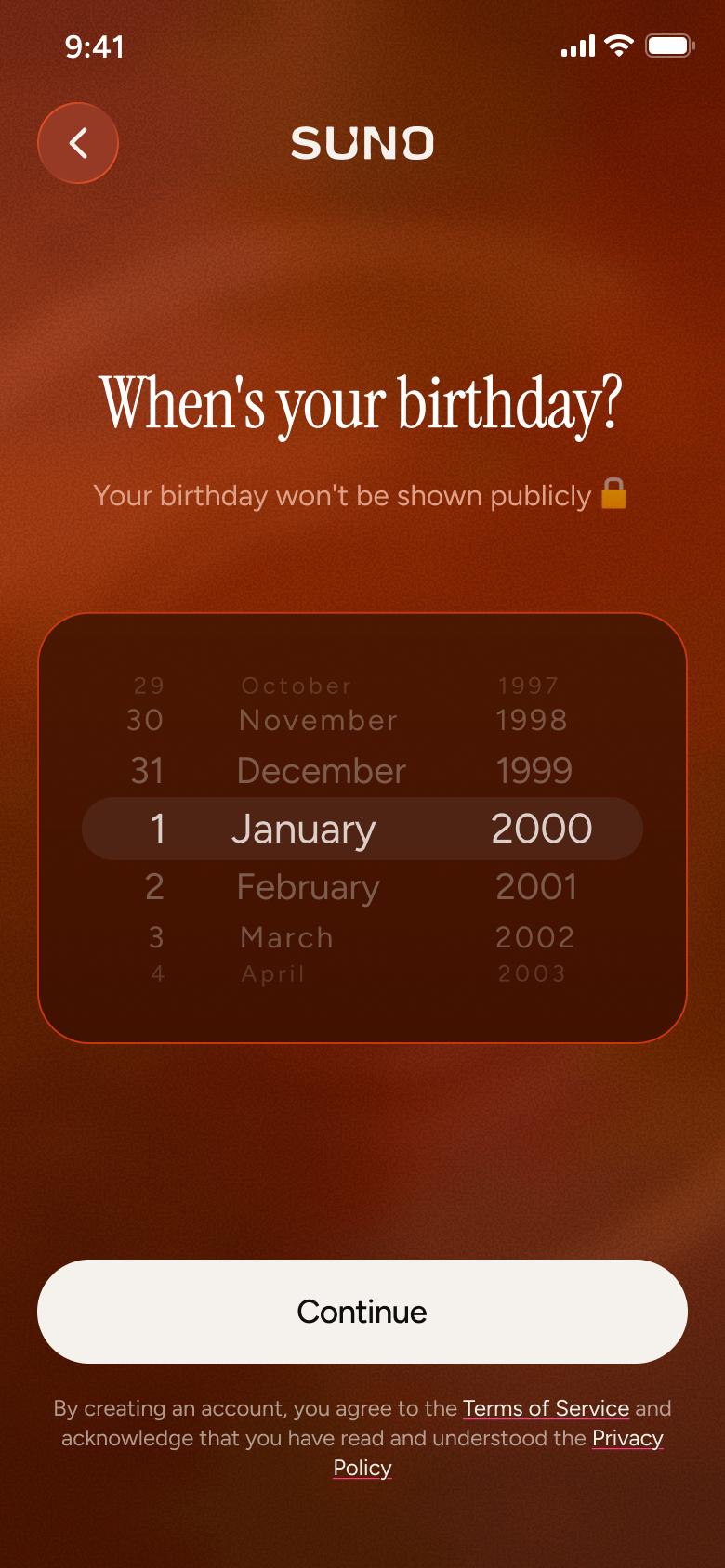
Steps 1–4 of 7, in recording order
Open flowAll of WhatsApp, and a complete flow from every app. No card needed.
Step 1 of 12
Profile 1
How you get here: Closes
Open the SuperDuper UI plugin in Figma to paste these 12 screens into your file as editable layers.
All 12 steps
Use ← → to step through