
Browse & discover
Browse home and categories on Uber Eats
The user browses home, order details, the browse tab, grocery, restaurants and speciality categories.
Step 1 of 14
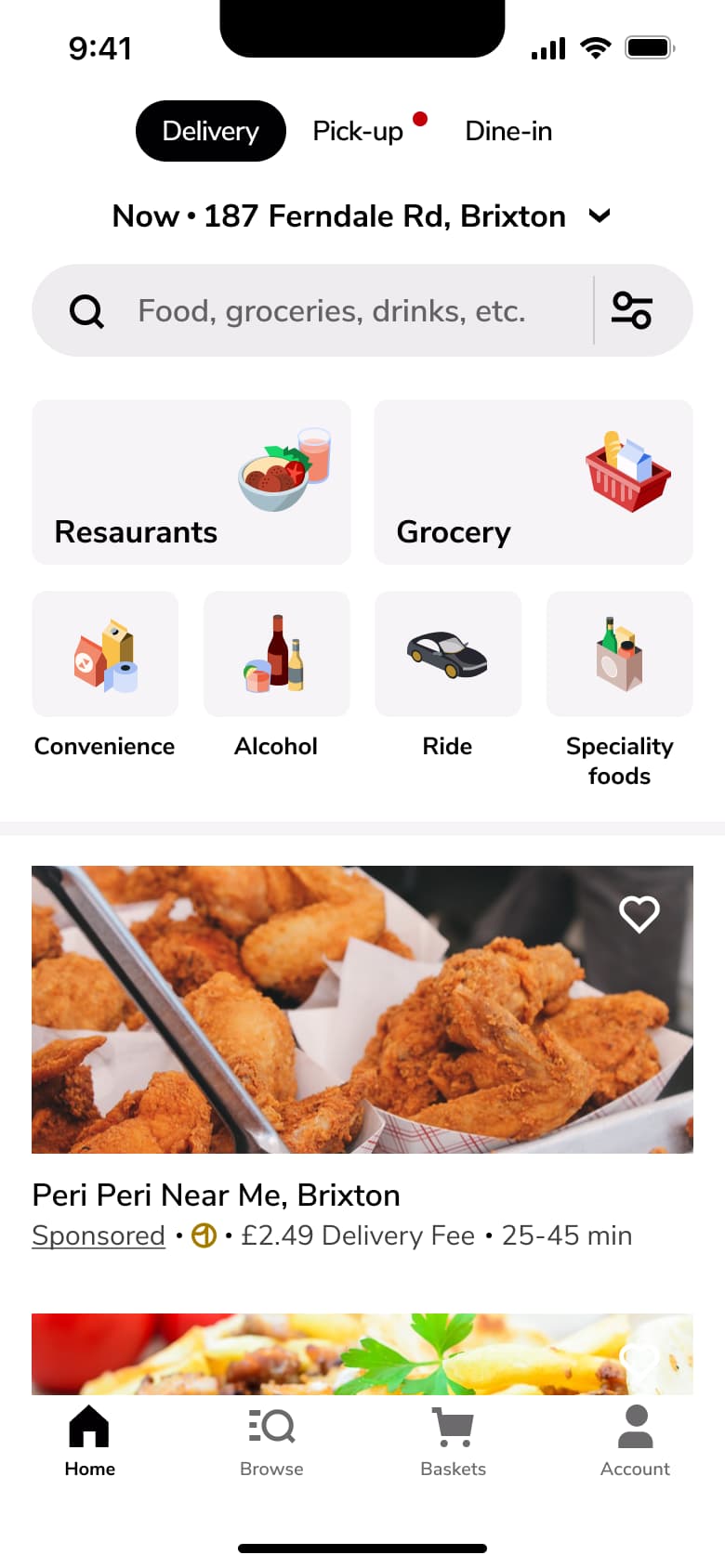
Push
The steps
- Step 1. Push
- Step 2. Tap address, Modal
- Step 3. Tap Browse, Tab switch
- Step 4. Tap Grocery, Push
- Step 5. Tap Restaurants, Push
- Step 6. In-place change
- Step 7. Scroll tiles, In-place change
- Step 8. Scroll, In-place change
- Step 9. Scroll, In-place change
- Step 10. Scroll, In-place change
- Step 11. Scroll, In-place change
- Step 12. Tap Popular near you, Push
- Step 13. Tap Speciality foods, Push
- Step 14. Tap Fast food, Push
More from UberEats
- Sign up on Uber Eats
- Add a payment card on Uber Eats
- Set delivery address on Uber Eats
- Search on Uber Eats
- Sort and filter on Uber Eats
- View a restaurant on Uber Eats
- Start a group order on Uber Eats
- Customise and add a drink to basket on Uber Eats
- Customise a meal on Uber Eats
- Checkout and place an order on Uber Eats
- Track a delivery on Uber Eats
- Message the courier on Uber Eats
- Tip and rate the courier on Uber Eats
- Past orders and receipts on Uber Eats
- Get help with an order on Uber Eats
- Account and wallet on Uber Eats
- Favourites on Uber Eats
- Invite friends on Uber Eats
- Membership trial on Uber Eats
- Baskets and orders empty states on Uber Eats
- Restaurant rewards on Uber Eats
- Full UberEats UI kit
- Browse & discover flows in other apps
Not affiliated with, endorsed or sponsored by UberEats. UberEats is a trade mark of its owner. Recreated for design reference and education. Rights holders: contact us