
Calling
Video and voice calls on WhatsApp
The user places a video call and a voice call, adds participants, turns on speaker and asks to switch to video.
Step 1 of 13
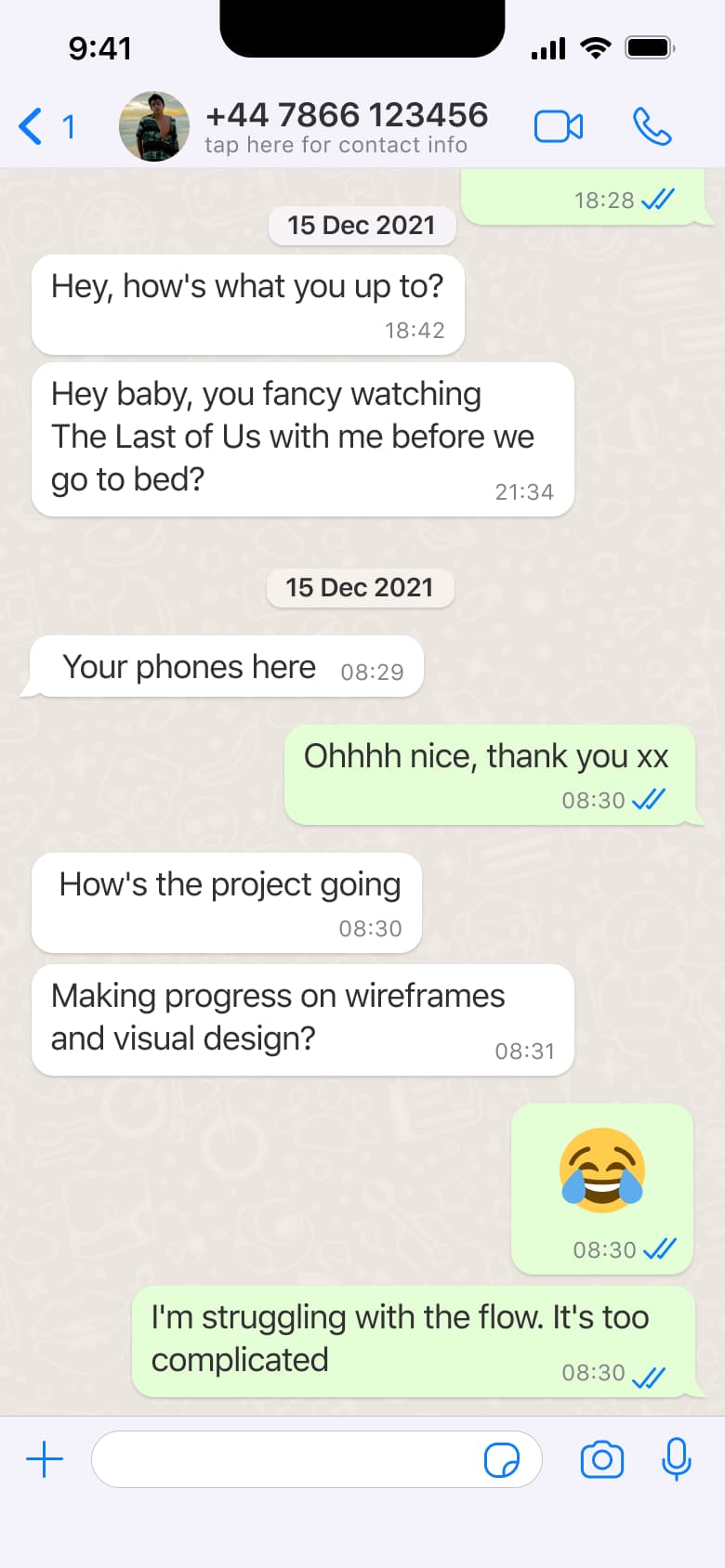
Push
The steps
- Step 1. Push
- Step 2. Tap video, Modal
- Step 3. In-place change
- Step 4. Swipe up, In-place change
- Step 5. Tap voice, Modal
- Step 6. In-place change
- Step 7. Swipe up, In-place change
- Step 8. In-place change
- Step 9. Swipe up, In-place change
- Step 10. Tap speaker, In-place change
- Step 11. In-place change
- Step 12. Tap video, Alert / dialog over screen
- Step 13. Tap Switch, Dismiss modal or sheet
More from WhatsApp
- Sign up on WhatsApp
- Status walkthrough on WhatsApp
- Post a status on WhatsApp
- Calls and call links on WhatsApp
- Create a community on WhatsApp
- Start a chat on WhatsApp
- Send messages and media on WhatsApp
- Share attachments on WhatsApp
- Create a poll on WhatsApp
- Settings on WhatsApp
- Account and privacy on WhatsApp
- Delete account on WhatsApp
- Full WhatsApp UI kit
- Calling flows in other apps
Not affiliated with, endorsed or sponsored by WhatsApp. WhatsApp is a trade mark of its owner. Recreated for design reference and education. Rights holders: contact us